Roughly 70% of interview delays during residency onboarding trace back to a single root cause: a personal laptop that fails to connect to the hospital network. That number is not pulled from a marketing brochure. It comes from years of IT tickets, onboarding frustrations, and the quiet bottleneck that nobody talks about during the match process. This is the unglamorous infrastructure side of becoming a doctor, and it is where careers quietly derail before a single clinical question gets answered.
Here is what I want to break down specifically: the gap between what your laptop does at home and what IT departments demand on day one of residency. The rules are not intuitive. They are not published in your acceptance letter. And they will absolutely blindside you if you do not prepare.
This article is for educational purposes only. It is not financial advice, not legal advice, and not tax advice. Figures vary by individual circumstances, so consult a qualified professional before acting.
The 70% Failure Rate: Why Your Laptop Setup Is a Match Day Risk Factor
Let me state this bluntly: IT departments are not your friends during match season. They are not adversarial either, but their priorities are not aligned with yours. They view your personal laptop the way a triage nurse views a borderline blood pressure: technically functional, but a potential liability they would rather not touch.
The 70% figure reflects a specific failure pattern. An applicant arrives for an interview (or, worse, for credentialing after the match). The laptop cannot authenticate. The VPN client refuses to install. The browser is one version too old. The TPM chip is missing. Suddenly, an hour evaporates while an IT technician, who is already drowning in July onboarding for 80 new residents, tries to figure out why your personal MacBook is screaming about an unsigned kernel extension.
That is the BYOD friction point. Bring Your Own Device sounds empowering. In practice, it means you bear the responsibility for hardware that hospital IT was never designed to support. Enterprise networks are built around standardized, managed endpoints. Your consumer-grade machine is an unknown variable. To the IT department, it is a security breach waiting to happen.
The difference between consumer-grade and enterprise-grade hardware is not marketing fluff. Consumer machines prioritize aesthetics, weight, and battery life. Enterprise machines prioritize serviceability, security chips, and driver stability. When IT pushes a policy update to 200 managed laptops, they need every device to respond identically. Your personal device is a wild card. They would rather reject it than troubleshoot it.
The OS Trap: Why IT Departments Prefer Windows (and How to Survive It)
Most hospital EHR systems, Epic, Cerner, Meditech, were built on Windows-centric frameworks. This is not ideology. It is legacy architecture. Epic HyperSpace, for example, runs natively on Windows. The client was engineered around Active Directory integration, Group Policy management, and Windows authentication protocols. When IT deploys Epic to 4,000 workstations, they deploy it to Windows machines. Period.
If you walk in with a MacBook, you are already on their watchlist. Their options for you are limited and frustrating:
- Boot Camp / Dual Boot: Some institutions still allow this, but it requires partitioning your drive and rebooting into Windows for every clinical session. Try doing that during a rapid response.
- Virtual Machine (VM): IT may require you to run Windows inside Parallels or VMware on your Mac. This works until you realize that a VM eats RAM like a med student eats free pizza. With only 8GB of system RAM, the VM will cannibalize your host OS, your battery will drain in 90 minutes, and your fan will sound like a helicopter.
- Citrix / Remote Desktop: Some programs push you to a thin client model where you stream the Windows desktop from a hospital server. This works, but adds latency, requires constant connectivity, and locks you out if the network blinks.
Then there is the browser problem. IT mandates specific versions of Chrome or Edge because older versions lack the security headers that their single sign-on (SSO) systems require. Your personal Mac running an outdated Safari? It will simply refuse to load the credentialing portal. You will see a blank white page and assume the website is broken. It is not. Your browser is the problem.
Here is the dirty secret: IT departments have zero budget allocated to support your specific hardware configuration. They are not being mean. They are being underfunded. The help desk ticket you submit for your personal Mac will sit in a queue behind 50 Epic deployment tickets and a network outage in the ICU.
Hardware Specs That Matter More Than Screen Resolution
Stop shopping for laptops based on screen resolution. Stop counting pixels. The specs that determine whether your residency interview succeeds are RAM, SSD speed, battery capacity, and a TPM 2.0 chip. Let me break each one down.
RAM is the bottleneck. Running a modern hospital workflow means running a VPN client, an Epic or Cerner browser session with 30+ tabs, Zoom for your interview or telehealth rotation, PowerPoint or Keynote for presentations, and a PDF viewer for patient records. Each of these eats memory. With 8GB of RAM, your operating system will start swapping to disk the moment you open a third application. The result: spinning beach balls, frozen tabs, and the silent panic of an interview going sideways because your laptop decided to take a coffee break.
The minimum is 16GB. Not 8GB. Not "it works for school." 16GB. If you are buying a new laptop for residency, get 32GB if your budget allows.
The SSD speed myth. Solid-state drives are fast, but not all SSDs are equal. Older SATA SSDs cap around 550 MB/s. Modern NVMe drives hit 3,500 MB/s or higher. Why does this matter? Because IT departments enable disk encryption, BitLocker on Windows, FileVault on macOS, and encryption is a read/write tax. On a slow SSD, encryption can reduce throughput by 30-40%. On a fast NVMe drive, the overhead is negligible.
If your laptop has a spinning hard drive, throw it in the ocean. If it has a SATA SSD from 2017, expect noticeable lag when loading patient imaging. If it has a modern NVMe drive, you will barely notice the encryption layer.
Battery life is a security risk. When your battery dies, you lose your VPN tunnel. You lose your authenticated session. You lose access to the secure portal. The hospital network does not trust you anymore. This is not a convenience problem. It is an access problem. If your battery dies during a remote interview, the interviewer may interpret your sudden disconnection as unprofessional. They will not know that your laptop simply ran out of juice.
Bring a 65W+ portable charger. Sit near an outlet. Treat battery percentage like a vital sign.
The IT checklist they do not publish. Before granting network access, IT checks for:
- TPM 2.0 chip (required for BitLocker and modern authentication)
- Processor generation (Intel 8th gen / AMD Ryzen 3000 series or newer)
- Supported OS build (Windows 10/11 with current patches)
- Managed antivirus status
- Domain or Azure AD join capability
If your laptop fails any of these checks, IT will not grant you network access. They will hand you a loaner, if any are available, or reschedule your interview. Neither outcome is good.
The Security Protocol: What Happens When You Log In
The architecture that governs hospital network access is called Zero Trust. The name is not aspirational. It is operational. Zero Trust means the network does not trust your device by default, not until it has been fully vetted, registered, and continuously monitored.
When you first log in to the hospital network, here is what happens behind the scenes:
- Your device is checked against a compliance baseline (OS version, patch level, antivirus status, encryption status).
- You are prompted for Multi-Factor Authentication (MFA). This might be a code texted to your phone, an authenticator app, or, increasingly, a hardware key like a YubiKey.
- Your device is enrolled in Mobile Device Management (MDM) software. This allows IT to push policies, enforce encryption, and (in worst cases) remotely wipe your laptop if it is reported lost or stolen.
- Your network traffic is routed through a VPN tunnel that encrypts every packet between your laptop and the hospital network.
The friction points here are real. SMS-based MFA is slow and unreliable. Hardware keys are faster, but you need to own one and register it before interview day. Authenticator apps work but drain your phone battery and require cell signal or Wi-Fi calling.
Then there is the "Clean Slate" requirement. Some IT departments will wipe your personal laptop during onboarding if they detect non-compliant software, conflicting security tools, or unauthorized modifications. This is rare for applicants, but common for new residents who receive managed devices. Know the difference: residents often get a hospital-issued laptop that is fully managed by IT. Applicants and interview candidates use their own.
The hidden cost is time. Time spent downloading corporate antivirus. Time spent waiting for VPN profiles to provision. Time spent on hold with the help desk. Time you could have spent rehearsing your answers to "Why this program?"
Interview Day Workflow: The Tech Checklist
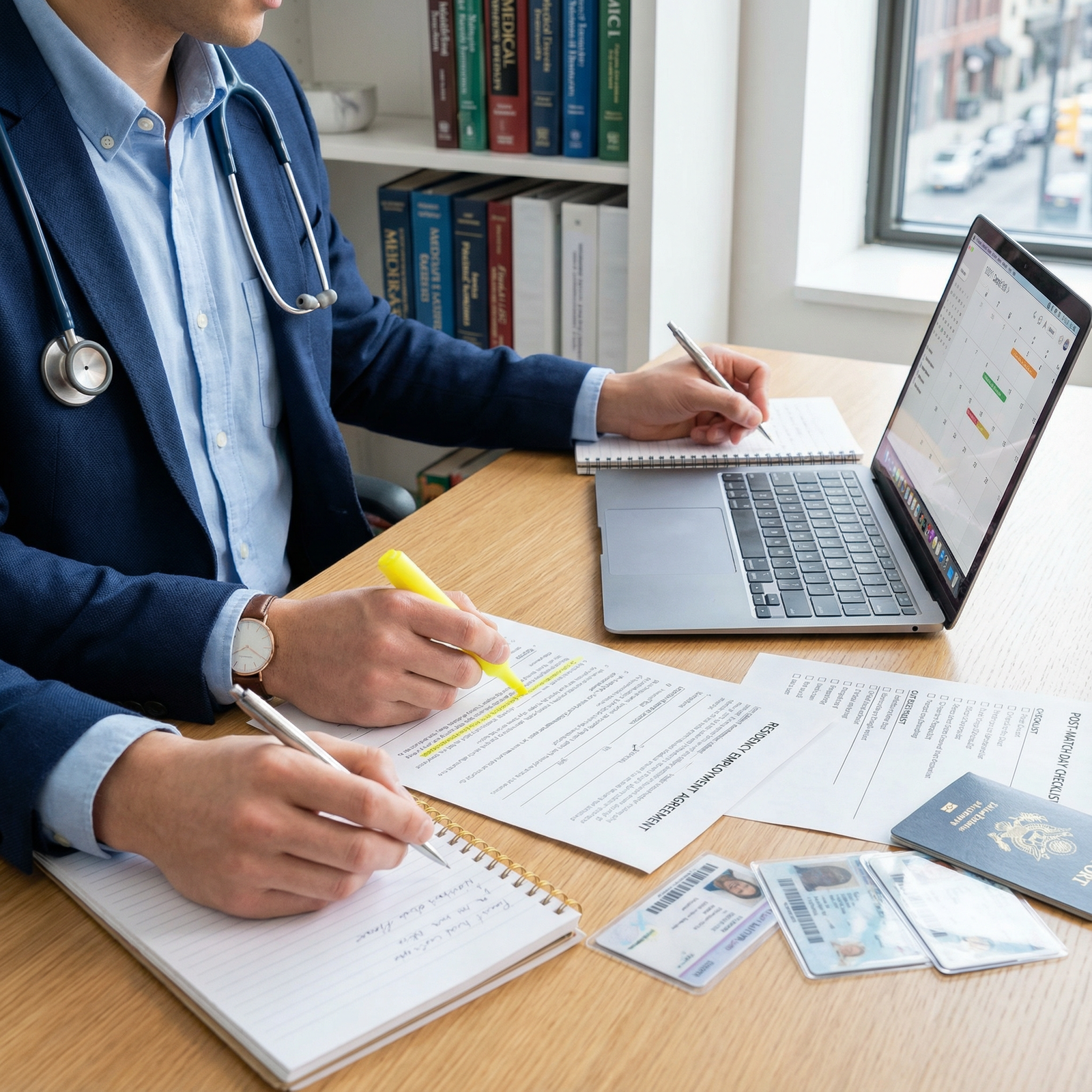
Interview day is not the time to discover that your laptop cannot connect. Here is the workflow you should follow, broken down step by step.
When you arrive at the hospital, you will be directed to a conference room or onboarding suite. The first technical hurdle is the Wi-Fi network. Hospitals typically run two networks: a public Guest Network for patients and visitors, and a secure Staff Network for employees and credentialed users. The Guest Network will let you browse the internet. It will not let you access the interview portal. You need the Staff Network, which requires authentication against Active Directory or Azure AD.
To get authenticated, you typically need to:
- Connect to the Guest Network initially.
- Download the hospital's VPN client or network registration portal.
- Run a device check that verifies your compliance baseline.
- Receive temporary credentials or certificate-based access.
- Connect to the Staff Network.
- Access the interview portal (often via Citrix, VMware Horizon, or a browser-based SSO).
Screen sharing etiquette matters. When you present your portfolio, research, or case logs, you are broadcasting from your laptop. Make sure no patient identifiers are visible in your browser tabs. Close your EHR windows. Clear your desktop. Use a clean virtual desktop if possible. IT is watching, and so is the program director.
The emergency protocol is the one nobody prepares for. What do you do if the hospital Wi-Fi goes down during your presentation? You switch to your phone's hotspot. You tether to your phone's data. You hope the VPN client can establish a tunnel over cellular. If it cannot, you verbally present while the IT team scrambles to restore connectivity. This has happened. It will happen again.
Here is the expectation IT departments will never verbalize: they expect you to troubleshoot your own connection before asking for help. The help desk is for emergencies, not for "my personal laptop is slow." Bring an ethernet adapter. Bring a backup hotspot. Bring printed materials as a Plan B.
Summary: The Strategic Tech Setup
Treat your laptop setup like a clinical tool, because that is what it becomes on day one of residency. Consumer-grade hardware optimized for Netflix and note-taking will fail under the weight of a VPN, an EHR browser session, disk encryption, and a Zoom call running simultaneously. The hardware that worked for medical school will not work for the match.
The strategic setup boils down to three requirements:
- Windows compatibility, either natively or via a fully supported dual-boot configuration. Do not rely on a VM as your primary workflow.
- 16GB of RAM minimum, with 32GB strongly preferred. Memory is the single most common bottleneck in clinical workflows.
- A modern NVMe SSD with full disk encryption enabled from day one. Anything older than 2019 will show its age.
Ignore the marketing around screen resolution, GPU power, and ultralight chassis. None of that matters when your browser is thrashing because your system ran out of RAM. Buy the boring laptop with the fast processor and the 32GB of RAM. Your future self, sitting in a busy hospital workroom with three applications open and a patient waiting, will thank you.
The match is decided by algorithms and interview performance. Do not let a preventable IT failure be the reason your match day goes sideways. Prepare your hardware the way you prepare your personal statement: deliberately, specifically, and with full awareness of what is actually being evaluated.