Most Match Day stress is not emotional. It is logistical – and most people prepare for it badly.
You can not control the algorithm on Match Day, but you can absolutely control whether you are scrambling between devices, fighting your Wi‑Fi, and losing track of which program is calling you back. That part is optional chaos. And preventable.
Let me break this down specifically: Match Day is a high‑frequency, high‑stakes information management problem. Your “workspace” is not just a desk. It is the entire ecosystem of:
- Screens
- Apps
- Notification channels
- Backup plans
that determines whether you respond in 10 seconds or 10 minutes when things start moving.
This is the tech + logistics setup I wish every MS4 had before 9:59 AM ET on Match Day.
1. The Core Principle: One Command Center, Zero Guessing
You need a single “command center” where everything important surfaces in front of you without you hunting for it. That means:
- One primary machine (laptop or desktop) as the brain
- One secondary screen to widen your situational awareness
- Phones and tablets as notification satellites, not the main cockpit
If you are bouncing between three apps on your phone, you are already slower than the classmates who built a cockpit.
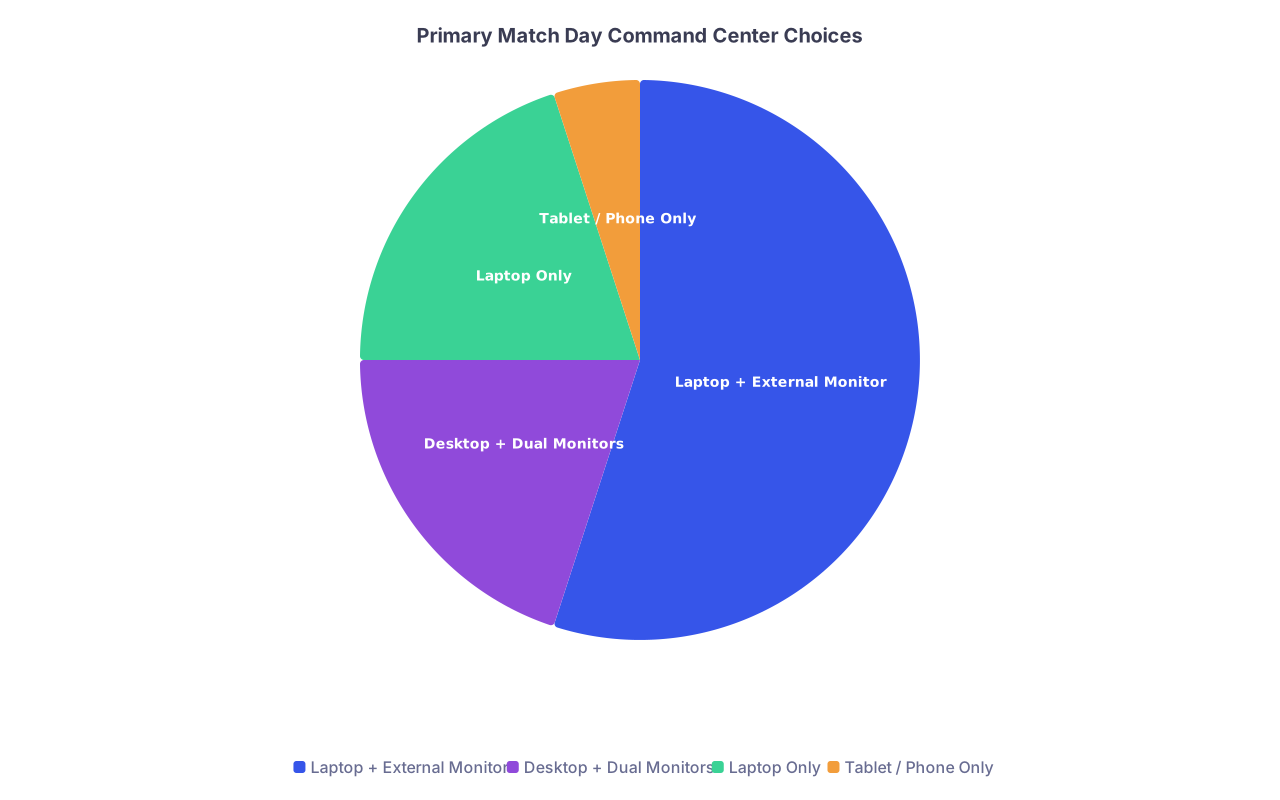
| Category | Value |
|---|---|
| Laptop + External Monitor | 55 |
| Desktop + Dual Monitors | 20 |
| Laptop Only | 20 |
| Tablet / Phone Only | 5 |
The hierarchy is simple:
- Primary screen – Live email, NRMP/ERAS or SOAP info, program list
- Secondary screen – Communication channels (Zoom, Teams, phone app, WhatsApp desktop, text gateway, etc.)
- Phone – Redundant alerts and last‑resort communication if your main setup dies
If your “workflow” is unlocking your phone, opening Gmail, refreshing, then backing out to the Phone app when an unknown number calls… you are operating in slow motion.
2. Hardware Setup: What You Actually Need (Not the Instagram Version)
Forget influencer desk setups. You need a functional, boring, bulletproof rig that works under stress.
A. Primary Computer: Stability > Fancy
Use the device you trust most, not the newest shiny toy.
Non‑negotiables:
- Stable OS: No beta versions, no big updates the week of Match
- All logins saved: Email, NRMP, ERAS, Zoom/Teams, iMessage/WhatsApp Web, cloud docs
- Power connected: Plugged in, battery at 100%, charger visible and secure
- Clean desktop: Only essential apps and documents visible. Clutter slows you down and hides what matters.
Windows, Mac, does not matter. Reliability does.
B. Extra Screen: The Biggest Speed Upgrade No One Talks About
If you have never used a second monitor, Match Day is not the time to “experiment” – but it is the time to plug in that TV or cheap monitor.
Ideal layout:
Screen 1 (main): Browser with
- Email (Gmail/Outlook) pinned
- NRMP/ERAS or SOAP info tab
- Shared Google Sheet or Excel with your rank list / contact tracker
Screen 2 (side): All live communication
- Zoom/Teams/Signal/WhatsApp desktop
- Web version of your messages if available
- Any live group chat with family/friends muted but visible
If you have only one laptop screen, simulate a second monitor with:
- Split screen (email + comms)
- Or run comms on laptop, and email + docs on a tablet with keyboard
Do not run everything on your phone. That is how you miss emails while you are on a call.
C. Phone: Not the Star, but the Alarm System
Your phone is:
- Redundant notification source
- Backup if internet or computer fails
- Fast response tool for unexpected calls / texts
Prep it like this:
- Confirm caller ID works and your voicemail greeting is:
- Short
- Clear
- Professional
- Silence every app except:
- Phone
- Primary messaging apps you actually use with programs (rare, but possible)
- Email (if you are not running email push on the desktop reliably)
AirPods / Bluetooth is optional. If your Bluetooth drops calls regularly, use a wired headset or just hold the phone. Stability over aesthetics.
D. Connectivity: Wi‑Fi Is Not a Personality Trait, It Is a Risk Factor
I have watched people try to negotiate SOAP opportunities over shaky campus Wi‑Fi. It is painful.
Your options:
- Best option – Home or apartment with stable high‑speed internet, close to the router.
- Upgrade path – Ethernet cable from router to your main computer. Boring. Flawless.
- Backup – Phone hotspot pre‑tested with your laptop.
Run this test the week before:
- Turn off your Wi‑Fi, connect laptop to your phone’s hotspot.
- Open: email, Zoom test meeting, NRMP site, a Google Doc.
- Make sure nothing times out or crashes.
If you cannot establish a stable hotspot in your building, know where you can: friend’s place, family, etc. Do not discover this at 10:02 AM on Monday of Match Week.
3. Software Stack: What Should Be Open At 9:00 AM
You want as few moving parts as possible. But the right ones.
Here is the minimal viable stack for Match Day and, if needed, SOAP logistics.
| Purpose | Recommended Option |
|---|---|
| Gmail / Outlook (web) | |
| Video calls | Zoom or MS Teams |
| Messaging | iMessage/WhatsApp Web |
| Docs/Tracking | Google Docs/Sheets |
| Notes | Simple text / Notepad |
A. Email: Your Lifeline
Your most important channel. Treat it that way.
Set it up like this:
- Pinned tab open before you wake up
- Inbox filter: Star or label likely high‑priority senders (school admin, NRMP, specific PD names you know)
- Desktop notifications ON for new mail in that account
- If using Outlook desktop, also open webmail in a browser as backup
Test: Send yourself an email from another account or phone – you should see an on‑screen alert within seconds.
B. Live Call Platform: Zoom / Teams / Webex
During SOAP, or if programs decide to “chat” about post‑Match opportunities, you will often be pulled into:
- 10–15 minute video conversations
- Quick “can you talk now?” messages where lag makes you look disorganized
Your prep:
- Install Zoom and/or Teams (whatever your school routinely uses) and log in beforehand
- Set your display name: “First Last, MS4 – [School]” or “Dr First Last” depending on your comfort and local culture
- Pre‑test camera and mic that morning
- Make sure background is not chaotic – neutral wall, bookshelf, or blurred background is fine
Do not spend an hour staging a fake aesthetic office. Just remove the laundry pile behind you.
C. Messaging Channels: Where Distraction Kills Focus
You need to separate “life noise” from “possible real‑time coordination.”
Typical channels I see on MS4 screens:
- iMessage
- GroupMe / Slack class channels
- Discord
- Various group texts with family, classmates, SO
This is how you turn that mess into something usable:
Desktop versions only for critical channels
- Your class’s official “Match updates” group (if it exists)
- Your school’s admin channel (some use Slack/Teams)
Mute or minimize everything else
- Family hype chats
- Random meme groups
Your brain can not triage 200 “CONGRATS!!!” pings while you are reading one crucial email from GME.
On Match Day morning, tell family plainly: “I will update you in batches; I may not answer every message immediately.” Then stick to it.
D. Documents & Notes: Where You Make Decisions Fast
You need two types of documents:
- Static reference – Your finalized rank list, program notes, deal‑breakers
- Dynamic log – Who contacted you, when, what was said, next step
I recommend:
- Google Drive (Docs/Sheets) or OneDrive because it saves automatically and syncs across devices
- One document for program list + commentary
- One sheet for contact log / SOAP tracker
Concrete examples.
Program reference doc structure:
- Section by specialty (if you dual‑applied)
- Under each, programs in your rank order with:
- City, hospital system
- Key pros/cons
- Notes from interview day (“PD very academic”, “Heavy scut”, “Partner has job in this city”)
SOAP / contact tracker sheet columns:
- Time
- Program
- Specialty
- Contact person + role
- Mode (email / call / Zoom)
- Summary of content
- Follow‑up needed (Y/N)
- Deadline / next step
It does not need to be pretty. It needs to be fast to update and easy to scan.
4. Pre‑Match Day Dry Run: The Dress Rehearsal Nobody Schedules
The students who look calm on Match Day almost never “wing it”. They have rehearsed, even if only for 20 minutes.
You need a Match Day Simulation the weekend before.

| Step | Description |
|---|---|
| Step 1 | Start Rehearsal |
| Step 2 | Power and Internet Check |
| Step 3 | Open All Required Apps |
| Step 4 | Test Notifications |
| Step 5 | Mock Email from School |
| Step 6 | Mock Program Contact |
| Step 7 | Document Update Practice |
| Step 8 | Backup Plan Test |
| Step 9 | End Rehearsal |
Walk through this:
Power & internet
- Plug in laptop
- Verify Wi‑Fi speed OR Ethernet
- Hotspot test (10 minutes)
Open everything
- Email in browser
- Messaging desktop apps
- Zoom/Teams with test meeting (just join a personal meeting room)
- Reference docs and trackers
Notification drill
- Friend or partner sends:
- One email
- One text
- One Zoom invite
- Confirm you see + respond to all, track them in your doc
- Friend or partner sends:
Failure scenario
- Temporarily disconnect Wi‑Fi, switch to hotspot
- Or close laptop, move to backup device (if you have one) and check you can still access core accounts
If anything is confusing or slow, fix it then. On Match Day your cognitive bandwidth will be half of normal. Systems must be idiot‑proof – including protecting you from yourself.
5. Match Day Morning: Exact Layout and Workflow
Let me give you a concrete, realistic setup for 9:00–11:00 AM ET.
Screen Layout Example
Primary monitor (front and center):
- Left half: Email (full height)
- Right half:
- NRMP/ERAS tab
- Your program reference doc (in a split or adjacent window)
Secondary monitor (to the side):
- Top: Zoom / Teams window ready
- Bottom: Messaging (class channel, school admin channel, maybe one family text thread)
Phone on your non‑dominant side, face up, Do Not Disturb OFF, but:
- Only allow notifications from “Favorites” or “Contacts” and phone calls
- Social media fully muted or closed
At 8:45–9:00 AM (Local Time Before Results)
Run a quick checklist:
- Laptop plugged in, brightness comfortable
- Email tab refreshed, signed in
- Volume up enough to hear notification pings and incoming calls
- Zoom/Teams open, signed in (not launching from cold start)
- Documents open: rank list, program notes, trackers
- Pen and physical notepad nearby (sounds old‑school, but when things get hectic, scribbling is faster than typing sometimes)
Then stop fiddling. You are ready.
When Result Email Arrives
For Match result at 11:00 AM ET Monday and for SOAP‑relevant notifications:
Read the actual result twice. Your brain will want to sprint ahead.
If matched:
- Confirm program name and location.
- Move to controlled celebration mode, not full meltdown until you are sure you do not need to make any calls that day.
If not matched / partially matched (SOAP):
- Take 2–3 minutes to feel whatever you feel. Then shift into operations mode.
- Open SOAP instructions from your school.
- Move your focus to: available programs list, your CV, your personal statements / letters.
6. SOAP and Post‑Match Logistics: Turning Tech into Response Time
During SOAP, your workspace is no longer about “waiting for one big email”. It is about juggling:
- Rapid program outreach
- Application submissions in NRMP/ERAS
- Screening and responding to offers
- Short‑notice interviews (phone or video)
This is where people either look methodical or chaotic. The difference is their tracking and how their tech supports it.
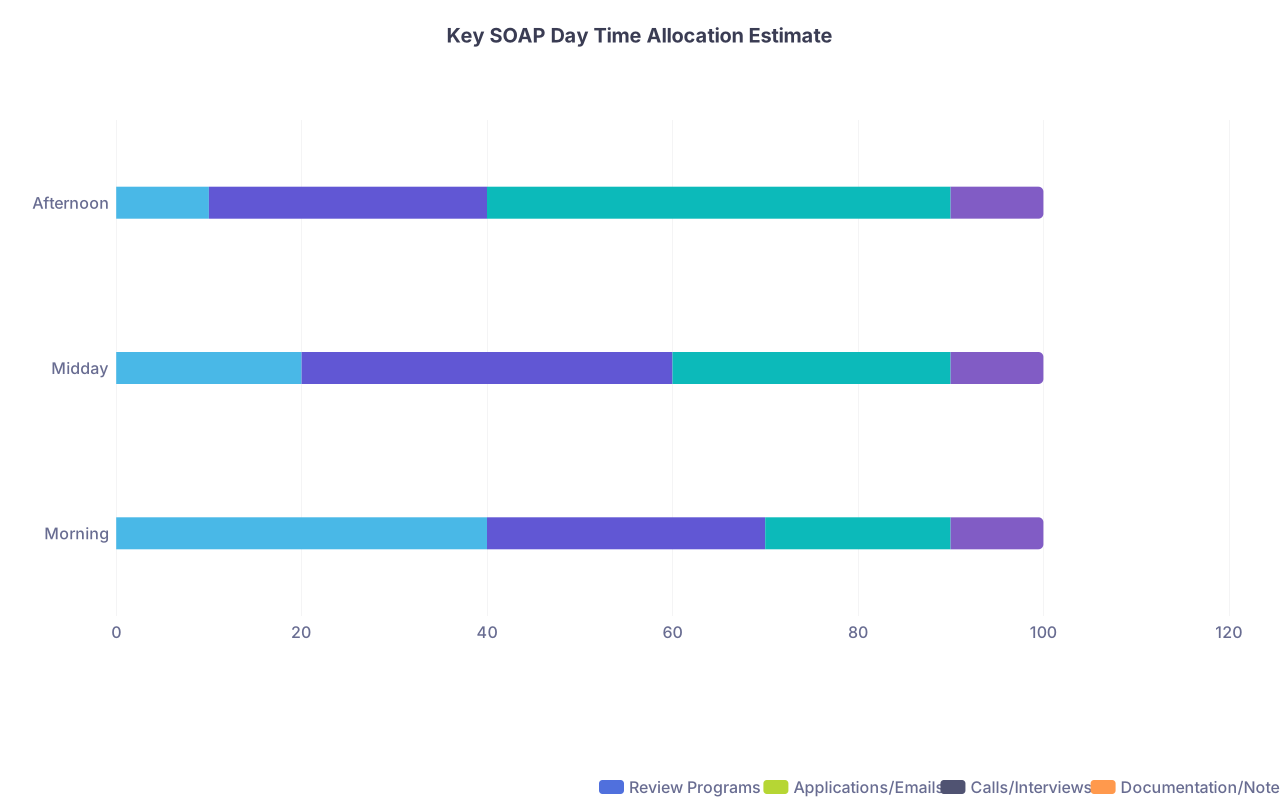
| Category | Review Programs | Applications/Emails | Calls/Interviews | Documentation/Notes |
|---|---|---|---|---|
| Morning | 40 | 30 | 20 | 10 |
| Midday | 20 | 40 | 30 | 10 |
| Afternoon | 10 | 30 | 50 | 10 |
A. Communication Rules During SOAP
Establish a personal rule set:
- Answer unknown numbers during SOAP hours. Full stop.
- If you are in a video call and another unknown number comes through, let it go to voicemail but call back ASAP.
- Always have a one‑line “available now” email template ready to send.
Example template you can paste and customize:
Subject: Re: [Program Name] – SOAP Availability
Dear Dr [Last Name],
Thank you very much for reaching out. I am available to speak today and can join a phone or video call at your convenience. Please let me know a suitable time and format, and I will confirm immediately.
Sincerely,
[Your Full Name], MS4 – [School]
Phone: [number]
Keep that in a text file or pinned note so you can send it in under 30 seconds.
B. Real‑Time Tracking: Your Second Brain
If a program director calls you at 10:07 AM, you will not remember at 3:30 PM exactly what was said, what you promised, and who else called within that same hour. Do not trust memory.
During each contact:
- Type timestamp and program name in your tracker
- Jot 2–3 bullet points:
- Impression (e.g., “PD seems enthusiastic, small program, strong ICU exposure”)
- Any expectations (“will email formal offer if selected”, “will follow up by 5 PM”)
- Your immediate gut reaction (fit / concerns)
Use plain language. You are not writing a note for publication. You are preserving your ability to make clear decisions when you are exhausted later.
C. Rapid Document Access
Have these one click away:
- Updated CV (PDF)
- Personal statement(s) per specialty
- Headshot (professional enough)
- Any program‑specific letters or statements your school expects you to send quickly
Store them in a clearly labeled folder both:
- On your desktop (local)
- In cloud storage (Google Drive/OneDrive) with shareable links
Name files something a PD can understand at a glance, not “finalCVv9_reallyfinal.pdf”. Use:
- Lastname_Firstname_CV.pdf
- Lastname_Firstname_PS_IM.pdf
You will look more composed and less like you assembled your life at 3 AM.
7. Physical Workspace: Tech Only Works If Your Brain Can Breathe
This article is about tech, but your brain is hardware too. If the physical space is a mess, your cognitive performance drops.

Baseline physical setup:
Clear desk. Only keep:
- Primary computer + monitor
- Phone
- Notepad and pen
- Water and maybe one non‑messy snack
Comfortable chair, screen height roughly at eye level
Power strip accessible, all chargers plugged in and tested the night before
Some people like having family in the room live‑streaming emotions. Most find it distracting. My strong recommendation:
- Have one support person in the home or on standby
- Keep the actual workspace mostly quiet until the dust settles
If you want to FaceTime family, do it after the critical information phase, not during.
8. Backup and Failure Scenarios: What You Do When Things Break
Things go wrong. Wi‑Fi crashes. Laptops freeze. Power goes out. The people who recover quickly are the ones who decided in advance what they will do.
Think through these cases:
A. Computer Dies Mid‑Day
- Plan B device: tablet with keyboard or a second laptop already logged into email and key accounts
- Cloud docs: All critical docs stored in Google Drive/OneDrive so you can pick up immediately
- Use phone for hotspot if the backup device has no separate internet
B. Power Outage
If you live somewhere with questionable power reliability:
- Fully charge laptop, phone, tablet night before
- Have a portable power bank charged
- Know the closest location (friend/family) with stable power where you could realistically get within 20–30 minutes if needed
C. Internet Outage
- Phone hotspot, pre‑tested
- Secondary hotspot (partner’s phone, roommate’s phone)
- As a last resort, a location you can physically relocate to quickly (ideally already warned: “If my internet dies, I might show up with a laptop and need a quiet corner for 2 hours.”)
Spell this out for yourself in one small note taped near your desk:
- “If Wi‑Fi dies –> Turn on hotspot. If still down –> Go to [Name/Address].”
You want zero decision‑making in crisis mode. Just execution.
9. After the Dust Settles: Archiving and Learning
Once you have matched or navigated SOAP, your workspace is not useless. It is evidence and experience.
Take 15–20 minutes (later that day or week) to:
- Save a clean copy of your program tracker and notes
- Archive all important emails (in a separate Match folder)
- Capture what worked and what did not about your setup – in a short note to your future self or to share with next year’s class
You are not just getting through Match Day. You are building the muscle of running your own professional operations. That will matter during residency recruitment, fellowship, job searches, and even day‑to‑day as a resident organizing patient data and service logistics.
FAQ (Exactly 5 Questions)
1. Do I really need a second monitor for Match Day, or is a laptop enough?
You can survive on a single laptop screen, but a second monitor (or even a TV with HDMI) significantly reduces task‑switching. With dual screens you keep email and docs open on one, and video + messaging on the other. When things get busy—especially during SOAP—that separation often means catching an email or call while you are still in another conversation. If you have access to a second screen, use it. If you do not, use split‑screen and offload some tasks (like reference docs) to a tablet.
2. Should I have family and friends with me physically during Match Day?
Logistically, it usually works better to separate “operations space” from “celebration space.” Having a crowd in the room while you are reading emails, scanning SOAP documentation, or jumping on quick calls tends to increase distraction and emotional pressure. I recommend: one calm support person nearby at most, your main workspace reasonably quiet, and then a planned time later to pull everyone in for calls, FaceTime, or in‑person celebration once the critical decisions are made.
3. How do I prevent missing an important call when so many numbers are unknown?
During Match Week (and especially SOAP hours), change your behavior: answer unknown numbers during the day. Let close family know that if you ignore a call, it is probably because you are on another call, not because you are avoiding them. Keep your phone ringer on, volume moderate, and vibration strong. If a second unknown call comes in while you are already talking to a program, let it go to voicemail but call back as soon as you finish. This is also why a clean, visible call log and voicemail greeting matter.
4. What if my school wants us on campus for a Match ceremony but I want my own tech setup?
Hybrid approach. For the Monday “Did I Match?” email and SOAP logistics, you want your optimized workspace—ideally at home or somewhere you control. Many schools only do the big ceremony on Friday at 12 PM local time, when you already know where you matched. That Friday event is mostly celebratory, not operational. If your school insists on you being on‑site during critical times, ask if there is a quiet room or office with stable internet where you can set up a small version of your command center (laptop, power, Wi‑Fi, maybe one extra monitor).
5. Do I need special “productivity” apps or project management tools for Match Day?
No. Fancy tools often create more friction. You need reliability and speed, not features. A simple combination of: email, one video platform, one or two messaging apps, and basic Docs/Sheets or Word/Excel is enough. The key is that everything is pre‑logged‑in, notifications are tuned, and you have a clear system for tracking contacts and decisions. Overcomplicating with new apps you barely know will slow you down when your brain is already under stress.
With a solid Match Day workspace, you move yourself out of reactive chaos and into deliberate action. You will not control every outcome, but you will control your responsiveness, clarity, and professionalism in the middle of it. Nail this setup now, and you will be ready when the next phase hits—orientation packets, credentialing portals, and the thousand tiny logistics of starting residency. That is its own operational challenge. And a conversation for another day.