
Only 19% of applicants actually test their full virtual interview setup (camera, audio, lighting, framing) under real conditions before their first residency interview.
The rest wing it. And it shows.
Let me break this down specifically: programs are not rejecting you because your ring light is slightly off-center. But a sloppy visual setup absolutely amplifies every other weakness—poor eye contact, low energy, awkward pauses. Conversely, a clean, intentional setup makes you look competent before you say a word.
This is not “be pretty on camera.” This is “remove distractions so they focus on your clinical judgment, not your grainy forehead.”
We are going to treat your virtual interview like a procedural skill: there is a standard setup, there are common failure modes, and there is a correctable technique.
The non-negotiables: what programs actually see
On their side, your interviewer is usually:
- On a 13–15 inch laptop
- With Zoom/Teams in gallery or speaker view
- Glancing between your face and your ERAS PDF
Your video is a small rectangle competing with 3–10 others that day. You have seconds to register as “collected, clear, pleasant to talk to.” Your setup either helps or harms that.
Here are the three pillars, in order of impact:
- Lighting (controls how alive/awake you look)
- Camera angle and distance (controls authority vs “FaceTime with a friend”)
- Framing and background (controls professionalism vs chaos)
You get those right, you are ahead of most applicants.
Lighting: how not to look like a nocturnal sub-intern
Bad lighting makes you look tired, older, and vaguely unwell. I have seen outstanding applicants look like they have been on nights for 6 weeks straight because they sat under a single overhead light.
You want three things: direction, softness, and balance.
1. Direction: where the light should come from
Best-case scenario: main light source 30–45° off center, slightly above eye level, in front of you. Not above you. Not behind you.
Think of it as “interviewer-facing light,” not “room light.”
Concrete setups that work:
Desk near a window:
Sit facing the window (or at a slight angle to it), not with the window behind you. Morning or late afternoon is usually better than noon (harsher light).No good window / early morning / night:
Use a single key light (ring light or LED panel) placed:- Just above your monitor or slightly to one side
- At or slightly above eye level
- Pointed directly at your face, not your chest
If your only light is overhead (ceiling light), you get eye sockets in shadow and a shiny forehead. Classic “on call room at 3 a.m.” look. Fix: add a front light and let the ceiling light be secondary.
2. Softness: avoid “interrogation room” lighting
Direct, harsh light creates hard shadows and specular highlights on skin. You want soft light: larger source, diffused, not blasting your face.
Cheap ways to get soft light:
Ring light:
Use at 20–40% brightness, arm’s length away. If it has color temperature control, set it to ~4500–5000K (neutral white). Avoid the orange-yellow “warm” extremes unless your room is equally warm.LED panel with diffuser:
Many Amazon panels come with a white diffusion panel. Use that. Angle the light slightly off to one side to avoid reflection in glasses.No gear at all:
Sit facing a large window with sheer curtains. That curtain is your softbox.
If your skin looks shiny on camera, the light is too harsh or too close. Either step it back or dim it.
3. Balance: avoid being a silhouette or a ghost
Two extremes I see all the time:
- Window behind you → you are a dark silhouette
- White monitor + bright ring light + dim room → your face glows, background is a cave
You want your face to be the brightest thing in frame—but only slightly. The background should be dimmer, not black.
Practical balancing steps:
If there’s a window behind you and you cannot move:
- Close blinds/curtains most of the way
- Turn on a bright key light in front of you
- Add a lamp in the background so it does not go black
If your background looks like a void:
- Add a table lamp or floor lamp behind you, off to the side
- Aim for your background to be about 30–50% as bright as your face
This is the difference between “normal human in a room” and “floating face on a dark screen.”
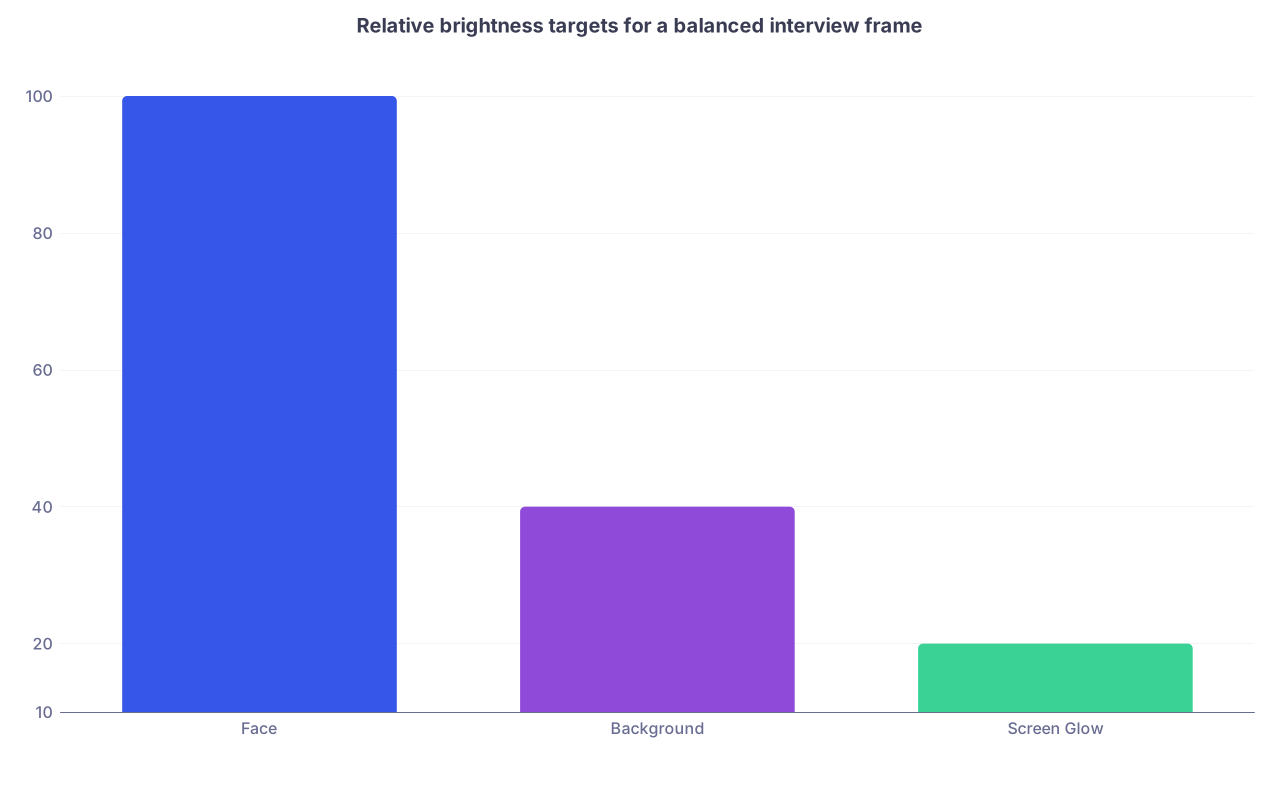
| Category | Value |
|---|---|
| Face | 100 |
| Background | 40 |
| Screen Glow | 20 |
Camera angle: stop looking down at your interviewer
The fastest way to look disengaged and unprofessional is to have the camera below your eyes, pointing up at your chin and nostrils. I see this at least once a day in real faculty meetings, never mind interviews.
You want:
- Camera at eye level or slightly above
- Lens centered around the top third of your screen
- You looking horizontally or slightly up, never down
1. Elevate the camera properly
The laptop-on-desk default is too low. Fix it:
- Stack 2–4 textbooks or a stable box under your laptop
- Use a laptop stand (cheap metal ones work fine)
- If using an external webcam, clip or mount it to the top of your monitor
Target: the camera lens should be roughly level with the bridge of your nose or slightly above your eyes.
You should not see the underside of your chin on camera. If you do, raise it.
2. Distance from camera: neither mugshot nor witness-protection
If your face fills the entire frame, you look intense and cramped. If you are miles away, you look disengaged.
Rule of thumb: frame yourself as if you were in a head-and-shoulders professional photo.
That usually means:
- Top of your head is close to the top edge of the frame, with a small margin
- Upper chest visible, not just from the neck up
- Your head occupies about 60–70% of the frame height
Do not sit so close that the camera distorts your face (wide-angle distortion). If your nose looks unusually large compared to your ears, back up a bit and zoom/crop with software if needed.
Framing and composition: rule of thirds, not “passport photo”
Your goal: look like someone speaking on a professional video call, not someone doing a DMV renewal.
1. Use the rule of thirds
Imagine your frame divided into tic-tac-toe. Your eyes should sit around the top horizontal line, roughly centered horizontally.
Common mistakes:
- Eyes in the exact middle of the frame → too much headroom, looks awkward
- Too much headroom (big gap above your head) → you look small and diminished
- Cut off at the chin or mouth → sloppy and distracting
Adjust your chair height and laptop tilt to get this right.
2. Symmetry vs slight asymmetry
Perfectly centered, with a dead-center blank wall, can look sterile. Slight asymmetry reads more natural. That might mean:
- A plant, lamp, or bookshelf visible over one shoulder
- Door frame or window off to one side (not directly behind your head)
But do not clutter the frame. One or two background elements, not ten.
3. Depth: avoid the “wall 6 inches behind me” problem
If you sit right up against a wall, it looks cramped, almost like a mugshot. If you have the option, sit at least 2–3 feet away from the wall behind you.
That little bit of depth softens the look. If your camera has any background blur (“portrait” or “blur” setting in Zoom/Teams), it will look better with some space behind you.
Background: what screams “red flag” vs “normal human”
No background ever got someone ranked to match. But a distracting or inappropriate background has absolutely hurt people.
There are four backgrounds I see over and over:
- Clean, neutral room with a couple of objects → excellent
- Virtual beach / fake ER hallway → bad
- Unmade bed + laundry pile → very bad
- Total void / black → off-putting
1. What a “safe” background looks like
Think “clinic room if you lived there.”
Good elements:
- Neutral wall color (white, light gray, light beige)
- One or two of:
- Simple framed art
- Small bookshelf
- Plant
- Neat, made bed (if you are in a bedroom and cannot avoid it)
- No obvious brand logos, political posters, or fandom shrines
Bad elements:
- Open closet stuffed with clothes
- Visible trash, food containers, or disorganized piles
- Roommates walking behind you
- TV on, even muted
If you have to choose between “slightly bare” and “visually busy,” choose bare.
2. Virtual and blurred backgrounds: when they help and when they betray you
If your physical background is impossible to fix (shared room, cramped space), blur can be your friend. But you have to test it.
Blur rules:
- Use mild blur, not full artificial replacement, when possible
- Test with your actual interview platform (Zoom, Webex, Teams all behave differently)
- Move your hands occasionally on test calls to see if they glitch or disappear
Full virtual backgrounds (fake offices, beaches, etc.):
- Often fail when you move
- Create visual halos or chunks of missing hair
- Scream “I am hiding a mess” or “I did not prepare my space”
There are exceptions (e.g., institution-branded backgrounds some programs provide), but as an applicant, a natural, real background almost always looks better.
Device and camera quality: use what you have, but optimize it
You do not need a DSLR and capture card. But you do need to get the best possible image out of the device you already have.
1. Laptop vs phone vs external webcam
Here is how I rank them for most applicants:
| Device Type | Typical Quality | Setup Complexity | Recommended Use |
|---|---|---|---|
| Modern smartphone | High | Medium | When laptop cam is bad |
| Newer laptop webcam | Medium-High | Low | Default choice |
| Older laptop webcam | Low | Low | Avoid if possible |
| External 1080p webcam | High | Medium | Best stable option |
If your laptop camera is older and grainy even in good light, you have two realistic options:
- Get a basic 1080p external webcam (Logitech C920-level or similar)
- Use your phone as a webcam (software like Camo, EpocCam, or built-in Continuity Camera on Mac+iPhone)
If you use your phone as a webcam, lock it down:
- Mount it on a tripod or stable stand at eye level
- Plug it in so the battery does not die mid-interview
- Turn on Do Not Disturb to avoid notifications flashing
2. Basic camera settings to check once
On Zoom/Teams/Webex, go to Video settings:
- Disable any aggressive “beauty filter / touch up my appearance” to the max. A slight smoothing is fine, but at 50–100% it can look uncanny.
- Check “HD” if available and your bandwidth is reasonable
- Turn off “adjust for low light” if it makes your image flicker or lag. This can be okay if you truly have no lighting options, but it often introduces weird exposure shifts
Audio, posture, and eye contact: the silent killers of an otherwise good setup
The title of this piece is about lighting, angles, and framing, but I would be doing you a disservice if I pretended audio and posture do not matter. They do. A lot.
1. Audio: they will forgive mediocre video before they forgive bad sound
You will not be ranked highly if half your answers come through as “Sorry, can you repeat that?”
Bare minimum:
- Use wired earbuds or a simple wired headset if your mic is poor or distant
- Avoid relying on your laptop mic if it is more than 2–3 feet away
- Test for echo by recording yourself in your actual room; hard surfaces (bare walls, tile floors) create reverb that makes you sound like you are in a bathroom
If you must choose between slightly visible wired earbuds and unclear audio, choose earbuds every time.
2. Posture and body position in frame
Your body language is part of the framing.
Aim for:
- Both shoulders visible
- Upright, relaxed posture
- Leaning slightly toward the camera (2–5 degrees), not slumped back
If you sit on a very low couch or super soft chair, your posture will collapse. Use a firm chair that keeps you at a consistent height from the camera.
Step-by-step: build your optimal setup in a small space
Let me stop being abstract and walk you through a realistic scenario.
Scenario: Single small bedroom, old laptop, north-facing window
Here is what I would tell you to do, step by step.
Move your desk or table so you can face the window
Not at an angle where the window is behind you. If impossible, position yourself so the window is at 30–45° to your side, then use an additional front-facing light.Raise your laptop
Stack 3–4 textbooks until the camera is at eye level. Sit on a firm chair. Adjust distance so the frame is head-and-shoulders.Add lighting
- Daytime: sheer curtain over the window if light is harsh; turn off overhead light if it creates strong shadows.
- Early morning/late evening: use a $20 ring light or LED panel directly behind or slightly above your laptop, angled at your face.
Clean and frame the background
- Make the bed; move visible clutter out of frame
- Place a single plant or small lamp on the far side of the bed or on a narrow table behind you
- Sit ~2–3 feet from the wall if the room allows
Check framing
- Open Zoom → Settings → Video → “Test my video”
- Adjust chair height and laptop tilt until your eyes are in the top third of the frame, little headroom, shoulders visible
Audio check
- Plug in wired earbuds with mic
- Record a short test in Zoom or QuickTime / Voice Recorder
- Walk lightly in the room to see if floor noise or echoes appear
Finalize angles and save
- Mark your chair position with a piece of tape on the floor
- Mark your laptop/book stack position on the table with tape
- Take a photo of the whole setup with your phone so you can rebuild it quickly on actual interview days

| Step | Description |
|---|---|
| Step 1 | Choose Room & Desk Position |
| Step 2 | Set Camera Height & Distance |
| Step 3 | Arrange Lighting |
| Step 4 | Clean & Stage Background |
| Step 5 | Test Video & Framing |
| Step 6 | Test Audio |
| Step 7 | Record Full Mock Interview |
| Step 8 | Adjust & Save Final Setup |
Rehearsal under real conditions: where most people fail
The silent majority of applicants do a 30-second Zoom test, think “looks fine,” and close the laptop. Then their first real stress test is with a PD.
You are smarter than that.
Do one full 20–30 minute mock interview with:
- Your actual device
- Your exact chair, desk, and lighting
- The same time of day as your scheduled interview (because daylight changes everything)
Record it. Watch it back. Do not obsess over micro-flaws, but look for:
- Are your eyes actually appearing to look at the interviewer (camera), or slightly downward at the video window?
- Does your background draw the eye away from your face?
- Do you ever disappear into shadow when clouds pass or as the sun shifts?
- Are you fidgeting out of frame, or does your chair swivel too much?
Fix the obvious things. Then stop tweaking.
Common myths and bad advice I keep hearing
Let me kill a few bad ideas quickly.
“You need an expensive camera to look professional.”
No. Good lighting and angle beat a $1,000 camera in bad light. Residents are matching with built-in laptop webcams every year.“Virtual backgrounds are more professional.”
Usually wrong. Unless it is an institution-branded neutral background that works well with your hair and lighting, a real, tidy room looks more trustworthy.“They do not care how you look; only your answers matter.”
In theory, yes. In practice, human beings are making snap judgments based on clarity, engagement, and perceived professionalism. Your setup affects all three—especially when they are tired after 8 hours of interviews.“Lighting does not matter if you are just answering questions.”
It affects how awake and healthy you look, whether your facial expressions are visible, and whether subtle non-verbals (like nodding) are perceived. It matters.
A quick reference build: what “good” looks like
Let me sketch one complete, realistic “gold standard” setup you can aim to approximate.
- Device: laptop with 720p or 1080p webcam
- Position: on a stack of 3 textbooks, camera at eye level, about 2–3 feet from your face
- Lighting:
- Daytime: facing window with sheer curtain; overhead light off
- Backup: small LED panel above and behind laptop, 30–40% brightness, neutral color temperature
- Background lamp turned on at low brightness behind you on one side
- Framing:
- Eyes at top third of frame
- Head almost touching top of frame, very little headroom
- Upper chest and shoulders visible
- Background:
- Neutral wall, made bed, single plant or bookshelf off to one side
- No visible clutter, doors closed
- Audio:
- Wired earbuds with mic, or laptop mic at <2–3 feet distance, echo-tested
- Software:
- Zoom HD on, no aggressive beautify filters, mild blur off or very subtle if needed
That is it. Not cinematic. Just clean and intentional.

Final 48-hour checklist
Two days before your first big interview, run through this:
- Same time of day, same room
- Full setup in place (lighting, device, chair, background)
- Join a test Zoom/Teams meeting alone
- Check:
- Is your face evenly lit? No harsh shadows or blown-out hotspots.
- Are your eyes in the top third of the frame, looking straight at the camera when you answer?
- Is the background quietly neat, with no distracting motion or clutter?
- Does audio sound clear, without echo or hiss, when recorded and played back?
If any of these are off, fix that single variable. Retest. Once it is solid, freeze the setup. Do not reinvent it on the morning of.
Core takeaways
- Lighting, camera height, and framing are not cosmetic extras; they directly affect how alert, engaged, and professional you appear on screen.
- You can get to a “better than 80% of applicants” setup with cheap or existing gear by facing a light source, lifting the camera to eye level, and composing a simple, clean background.
- A single full mock interview with your real setup, recorded and reviewed, will catch more problems than 20 random YouTube tips—and will do more to make you look like the resident they want on their team.