
You just signed your first attending contract with a small private practice. Great clinical fit, nice partners, decent pay. Then you show up for “onboarding” and realize:
There is no IT department.
There is Karen at the front desk who “knows how to reboot the Wi‑Fi.”
The router is from 2014, the Wi‑Fi password is the practice name + “123,” the EMR runs on one dusty desktop in the back, and nobody can tell you who manages backups. Or if they even exist.
If you’re thinking, “This is not what I trained for,” you’re right. But you are still on the hook when something goes wrong—clinically, legally, and often financially. So let’s build just enough infrastructure to keep your practice functional, safe, and not embarrassingly behind the times.
This is the “I just joined a private practice with no IT support, and I need a basic plan now” guide.
Step 1: Clarify Who Owns What (Before You Touch Anything)
First thing: do not start unplugging things or signing for new services out of panic.
You need answers to some boring but critical questions. Sit down with whoever actually runs the place (managing partner, practice manager, practice owner):
Ask directly:
- Who pays for internet, phones, EMR, and hardware?
- Who is allowed to sign contracts? (Internet, EMR add‑ons, phone systems, cloud services.)
- Who has admin passwords right now? For:
- Router / Wi‑Fi
- EMR admin account
- E‑fax / secure messaging
- Practice email
- Office computers (local admin)
- Is there anyone they call when “IT stuff” breaks? (A nephew, a local computer guy, an outside company.)
You’re aiming for a quick asset map, not a dissertation. Rough list is enough:
- Internet provider: spectrum/Comcast/whatever, speed, modem location.
- Router/Wi‑Fi: brand, age, password, who set it up.
- EMR: which system, web‑based vs installed, where data lives.
- Hardware: number of PCs, printers, tablets; who uses what.
- Phone: VOIP vs analog, who manages it.
- Backups: “Is there any backup of charts, billing, or schedule?” Watch their face when they answer. That’s usually telling.
Once you know the baseline, you can decide what to shore up and what to leave alone for now.
Step 2: Get the Internet and Network to “Good Enough”
You cannot run a practice on flaky Wi‑Fi and random consumer toys. But you also probably don’t need a full enterprise setup.
Your goal: stable, segmented, not wildly insecure.
2.1 Fix the basics: speed and reliability
Find out what you have:
- Look at the modem: ISP, plan speed if possible.
- Run a speed test on a wired computer during clinic: if you’re under 100 Mbps down and 10–20 Mbps up for a multi‑provider office, that’s weak.
If the internet is constantly slow or dropping:
- Have the practice (not you personally) upgrade to at least a business‑class connection with:
- 200+ Mbps down
- 20+ Mbps up
- Insist they put the account under practice ownership, NOT the manager’s personal name.
This is one of the few places where spending a bit more every month directly saves staff time and your sanity.
2.2 Replace the ancient router (if needed)
If the router looks like a museum piece, has visible antennas flopping around, and nobody knows the password—it usually needs to go.
Do not overcomplicate it. For a small practice (say up to 10–15 staff):
- Get a business‑grade or prosumer router/Wi‑Fi combo from a reputable vendor: Ubiquiti, Netgear “business” line, or TP‑Link Omada.
- Or use a mesh Wi‑Fi system (Eero, Google Nest, etc.) if the office is spread out, but make sure it supports:
- Separate guest network
- WPA2 or WPA3 encryption
Pay a local IT person one‑time to install and lock it down if you can. Worth it.
Minimal security setup:
- Change default admin username and password.
- Turn off remote administration from the internet.
- Create THREE networks:
- Staff secure network (for workstations, printers, tablets)
- Guest Wi‑Fi (patients, vendors) isolated from staff network
- Optional: “Back office” or “IoT” network for cameras, TVs, smart devices so they’re not touching PHI.
And for the love of all that is holy, no more “PracticeName123” as a password.
Step 3: Lock Down Devices that Touch PHI
Right now, in a lot of small practices, “IT security” is: “please don’t lose the laptop.”
That’s not enough. If every workstation is a generic Windows user with no lock screen, no encryption, and everyone knows the password, you’re just hoping you never get audited or breached.
3.1 Standardize logins
Ask your manager/partners for buy‑in on one basic rule:
- Each staff member has their own login to:
- Windows/Mac
- EMR
Shared logins are lazy and they backfire when something bad happens and you have no audit trail.
On each computer:
- Create named user accounts (e.g., “FrontDesk_Anna”, “MA_James”).
- Set them as standard users, not administrators.
- Have exactly one or two admin accounts per device, controlled by leadership or the “IT responsible” person.
3.2 Turn on basic protections
On Windows 10/11 Pro:
- Enable disk encryption (BitLocker).
- Ensure Windows Defender is on and updating.
- Turn on automatic updates—but not during clinic hours. Have them install at night.
On Macs:
- Turn on FileVault.
- Enable automatic OS updates, set them to off‑hours.
Set auto‑lock:
- Devices should lock after 5–10 minutes of inactivity.
- Require a password or PIN to unlock. No exceptions.
3.3 No PHI on personal devices… unless you do it right
If your partners constantly text about patients from their personal phones with random SMS, that’s a problem. Is everyone doing it? Yes. Is it defensible? No.
If the practice expects you to access PHI on your phone:
- Push for a secure messaging app (e.g., TigerConnect, OhMD, Klara, QliqSOFT—pick one, doesn’t matter, just don’t use raw SMS).
- Put PHI access through:
- EMR mobile app,
- secure email app with MFA,
- or secure messaging only.
At minimum on your own devices:
- Strong passcode or biometrics.
- Device encryption (modern iOS/Android does this by default).
- Remote wipe turned on (Find My iPhone / Find My Device).
If the practice refuses to address this, protect yourself: avoid storing anything sensitive on your personal phone beyond what’s unavoidable.
Step 4: Fix the EMR and Data Backbone
You’re not going to change the EMR in month one. That’s a multi‑year fight. What you can do is make sure what you have is not a ticking time bomb.
4.1 Cloud EMR vs. server EMR
Ask: “Where is our EMR actually hosted?”
- Cloud/web‑based: You log in via browser to a hosted system (Athena, eClinicalWorks cloud, DrChrono, etc.).
- Backups and redundancy are usually handled by the vendor.
- Your job is to maintain access (internet, credentials, MFA).
- Local/server‑based: There’s a physical server in the back room.
- Often a dusty tower under a desk.
- If that dies and there’s no backup, you’re cooked.
If it’s local and janky, you need three questions answered:
- Who maintains this server?
- Where are the backups?
- When was the last time a restore was tested?
If the answer to any of these is “I don’t know,” press gently but firmly for:
- A contract with a local IT firm to:
- Set up automated daily backups (on‑site + off‑site/cloud).
- Monitor the server’s health.
- Test restores at least twice a year.
You do not want to be the attending who discovers there’s zero EMR backup after a ransomware screen pops up.
4.2 Access and passwords
EMR must haves:
- Individual logins for each user.
- Role‑based permissions (front desk shouldn’t see everything you see).
- Strong passwords (or passphrases) + multi‑factor authentication (MFA) if the EMR supports it.
If your staff shares a “nurse” login or everyone uses the same doctor account, absolutely push to fix that. That’s basic compliance.
Step 5: Get Serious About Backups (Not Just EMR)
EMR might be safe if it’s cloud‑based. But it’s not the only thing that matters.
What else lives on your local computers?
- Scanned documents?
- Old PDFs of lab results?
- Financial spreadsheets?
- HR files?
You want at least two backup layers:
- Local automatic backup
- Use a NAS (network attached storage) or a large external drive attached to a main office machine or server.
- Use built‑in tools:
- Windows: File History or third‑party like Veeam Agent.
- Mac: Time Machine.
- Schedule daily backups at night.
- Off‑site / cloud backup
This is your protection from theft, fire, or ransomware.
- Use a reputable cloud backup provider (Backblaze, CrashPlan, Carbonite, etc.) set up on key machines or the server.
- Configure it to include all critical folders: business docs, HR, billing, anything not in the EMR.
Test it.
Do a pretend “we lost the main computer” drill. Can you actually get the important files back? If nobody has tried, you don’t have a reliable backup—just a story people tell themselves.
Step 6: Phones, Fax, and Patient Communications
You’re going to be judged (harshly) on how reachable and responsive your practice feels. That’s part tech, part workflow.
6.1 Phones that don’t make you look amateur
If your phones:
- Drop calls randomly,
- Have a confusing IVR (“press 1… now 2… now 9…”),
- Or go straight to busy signal half the time,
that’s an IT problem, not “staff rudeness.”
Bare minimum:
- A VOIP system or modern small‑office PBX where:
- Each staff member can manage voicemails,
- Voicemails can be transcribed or emailed,
- Outgoing caller ID shows the practice, not “Unknown.”
If they’re on ancient analog lines, don’t crusade immediately. But push for:
- Simpler call tree.
- Clearly assigned responsibility:
- Who checks each mailbox?
- How often?
- What’s the expected response time?
6.2 Fax that does not require a physical trip
If you still have a stand‑alone fax machine and people are printing, scanning, then shredding all day, that’s wasted time and risk.
A basic upgrade:
- Move to an e‑fax solution that:
- Sends faxes directly from EMR or email.
- Receives faxes into a secure inbox.
- Lets staff tag/route faxes electronically.
This alone can free several hours a week and reduce lost documents.
6.3 Patient portals and messaging
If your EMR has a patient portal and nobody uses it, that’s not just a patient problem. That’s partly infrastructure and workflow.
At minimum:
- Make sure staff can:
- Reset portal logins.
- Help patients sign up at check‑in.
- Have a simple rule: which messages go through portal vs. phone vs. fax.
You don’t need perfect adoption. You just don’t want staff improvising 17 different methods to send results.
Step 7: Basic Cybersecurity Without Becoming Paranoid
Look, you’re not going to turn a 4‑doc private practice into a fortress. But there are a few low‑effort, high‑yield moves.
7.1 Passwords and MFA
Do this, even if everyone groans:
Use a password manager for the practice:
- 1Password Business, Dashlane Business, or similar.
- Store shared logins (insurance portals, labs, imaging centers) securely.
- No more passwords on sticky notes.
Turn on MFA for:
- EMR (if available),
- Practice email (especially if it contains PHI or financial stuff),
- Banking and payroll systems.
Is MFA annoying? Yes. Is it less annoying than cleaning up after an email hack that sent fake invoices to hundreds of patients? Also yes.
7.2 Staff training (keep it real, not corny)
No one wants another cheesy phishing slideshow. But you need a 20–30 minute, once or twice a year “this is how we don’t get hacked” session.
Hit just a few points:
- Do not click random links in emails, especially about:
- Password resets you didn’t request.
- Invoices or attachments from unknown senders.
- Always verify bank, payroll, or wiring changes verbally with a known number.
- No PHI should be:
- Texted via regular SMS.
- Emailed unencrypted to patients.
One story from a real breach goes farther than ten theoretical warnings. If you’ve seen something ugly, share it (without naming names).
7.3 Physical security
People forget this.
- Server/IT closet should be locked.
- Backup drives/NAS should not sit out in the open.
- Old devices with PHI (PCs, hard drives, copiers) must be wiped or destroyed before disposal. Not “deleted,” actually wiped.
Step 8: HIPAA and Compliance: Do the Minimum Right
You can drown in HIPAA checklists if you’re not careful. Aim for a baseline that you can defend if—and when—someone asks.
You need:
A named Security/Privacy Officer
In a tiny practice, this might be the managing partner or the practice manager. Do not volunteer unless you’re willing to own it.A short written risk assessment
It doesn’t have to be 200 pages. A few pages that say:- Where PHI lives (EMR, local files, backups).
- What protections exist (encryption, passwords, locked rooms).
- Main risks (lost device, phishing, server failure).
- What you’re doing about them (backups, MFA, policies).
3–4 core policies that people actually follow:
- How to handle lost/stolen devices.
- How to handle records requests.
- How to handle sending results to patients.
- How to handle suspected breaches.
Don’t over‑engineer it. Give staff a clear answer to: “What do I do if X happens?” That’s 90% of compliance in practice.
Step 9: Decide Your Role (You Are Not the IT Department)
This matters: you are a physician, not a sysadmin. You can help steer, but do not become the unpaid, unofficial IT person for the rest of your career.
Structure it like this:
Short‑term (first 3–6 months):
- Identify obvious risks (no backups, shared passwords, ancient router).
- Push for 2–3 concrete fixes.
- Help pick and vet a local IT firm if none exists.
Medium‑term:
- Get leadership to sign a minimal annual IT budget.
- Hand day‑to‑day tech issues to someone else:
- Either a practice manager, or
- A contracted IT provider.
Long‑term:
- Advocate, don’t own.
“We should upgrade X” is different from “I’ll go buy and install X.”
- Advocate, don’t own.
If they explicitly want you to be the tech lead, fine—but negotiate time and compensation. That’s not “extra” for a full schedule; that’s an operational role.
A Simple “First 90 Days” Plan
If your brain is spinning, here’s a concrete sequence.

| Step | Description |
|---|---|
| Step 1 | Week 1-2 - Assess |
| Step 2 | Week 2-3 - Stabilize Internet and WiFi |
| Step 3 | Week 3-5 - Secure Devices and Logins |
| Step 4 | Week 4-8 - Backups and EMR Safety |
| Step 5 | Week 6-10 - Phones, Fax, Messaging |
| Step 6 | Week 8-12 - Policies and IT Support |
Breakdown:
Weeks 1–2:
- Map assets (internet, EMR, devices, who does what).
- Identify any “oh no” issues (no backups, single point of failure).
Weeks 2–3:
- Stabilize internet and router.
- Set up separate guest Wi‑Fi.
Weeks 3–5:
- Enforce individual logins for EMR and devices.
- Turn on encryption and auto‑lock.
Weeks 4–8:
- Implement local + cloud backups.
- Have someone test restoring key files.
Weeks 6–10:
- Clean up phone tree.
- Move faxing closer to e‑fax if possible.
Weeks 8–12:
- Do a basic risk assessment.
- Decide on an ongoing IT support arrangement.
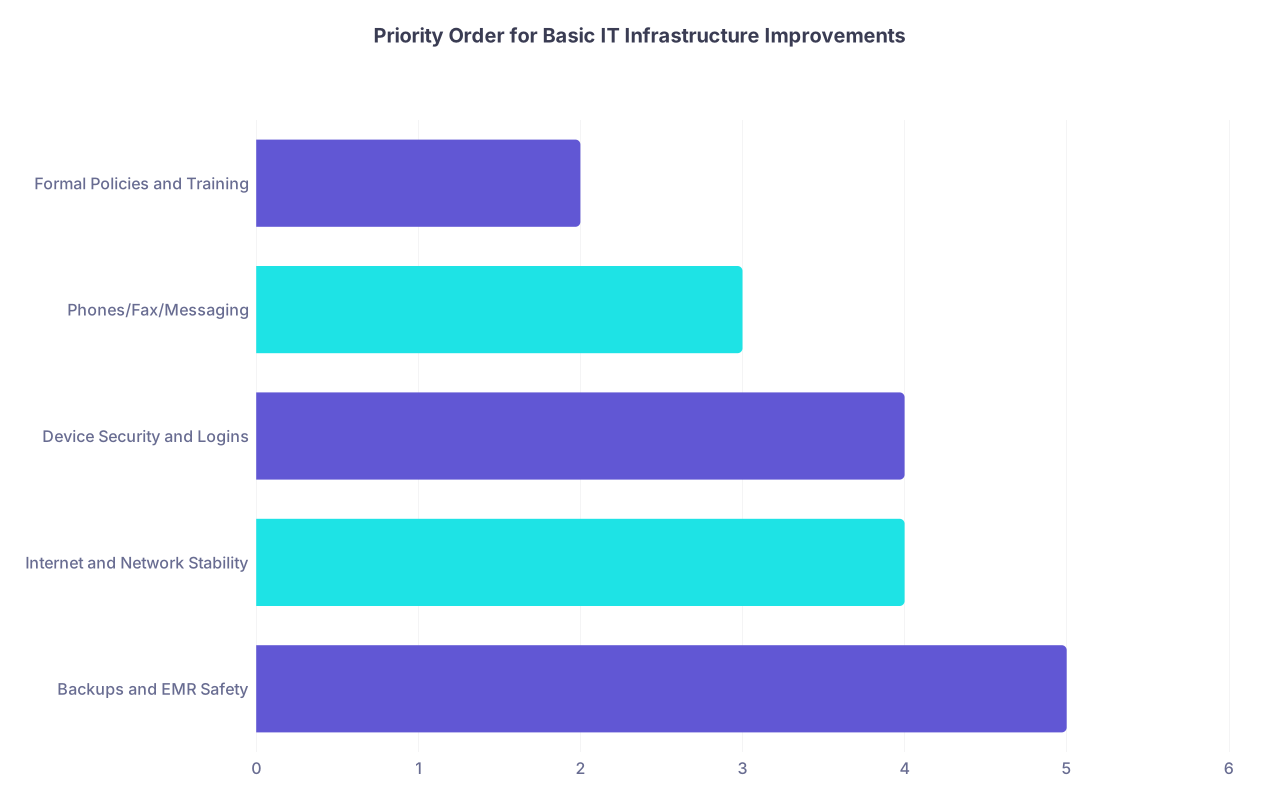
| Category | Value |
|---|---|
| Backups and EMR Safety | 5 |
| Internet and Network Stability | 4 |
| Device Security and Logins | 4 |
| Phones/Fax/Messaging | 3 |
| Formal Policies and Training | 2 |

Final Takeaways
If you’re walking into a private practice with no IT support, here’s what actually matters:
- Stabilize and secure the basics: reliable internet, a sane router/Wi‑Fi setup, individual logins, and encryption on any device that touches PHI.
- Make backups non‑negotiable: EMR (if local), plus critical business files, backed up automatically and tested at least a couple of times a year.
- Do not become the permanent IT hero: help the practice get from “risky and fragile” to “good enough and defensible,” then push leadership to fund ongoing support so you can go back to being a physician, not the network admin.