
The way most physicians handle digital communication is broken.
You are drowning in inboxes because nobody taught you how to design them.
Let me fix that.
This is not about “inbox zero” or cute productivity hacks. This is about building a routing system for your digital life so that:
- The right messages go to the right place
- The right person handles them
- At the right time
- With the least amount of your brain involved
You finished residency. You are in (or entering) the job market, faculty life, or early attending practice. Your digital workload just tripled: institutional email, EHR in-basket, patient portals, research, admin, recruiters, CME spam, committees, plus your actual personal life.
If you try to “work harder” instead of redesigning your workflow, you will end up doing unpaid clerical work every night at 11 p.m.
Let us rebuild your system.
1. Map Your Digital Mess Before You Touch a Single Rule
You cannot fix what you have not mapped. Start there.
Step 1: List Every Inbox You Actually Have
Not just email. All of it. On paper.
Typical post-residency setup:
- Hospital / health system email (e.g., [email protected])
- University/academic email (sometimes separate)
- EHR in-basket (Epic, Cerner, Meditech, etc.)
- Patient portal messages (Epic MyChart, etc.)
- Secure messaging apps (TigerConnect, Halo, Voalte, WhatsApp “but everyone uses it”)
- Clinic/department shared inbox (e.g., [email protected])
- Professional society email (e.g., ACS, AHA)
- Personal email (Gmail/Yahoo/iCloud)
- Recruiter spam to an old med school email that never dies
- Text messages that function as work (front desk, MA, nurse, call center)
- Project platforms (Teams, Slack, Asana, Trello, Basecamp, etc.)
Now mark which ones are “must check daily” and which are not.
| Inbox Type | Typical Frequency |
|---|---|
| EHR In-basket | Multiple times/day |
| Hospital Email | 1–2 times/day |
| Secure Messaging | Continuous/PRN |
| Patient Portal | 1–2 times/day |
| Personal Email | 1 time/day |
| Project Platforms | 3–5 times/week |
Step 2: Define Your Three Buckets
Every piece of digital communication belongs in one of three buckets:
- Action – you must do something (call, sign, order, respond, approve)
- Reference – useful information you might need later
- Trash / Low-value noise – 90% of newsletters, FYIs, marketing
The mistake most physicians make: letting all three live in the same inbox with equal visual weight.
Your new goal:
- Rules and filters move messages into the correct bucket automatically.
- You spend your brain only on the Action bucket.
2. Core Principles: How a Physician’s Inbox Should Actually Work
Let me be blunt. If your system violates these principles, you are bleeding time.
Principle 1: One Primary Action Hub per Context
You should have:
- One primary work action hub – usually your institutional email + EHR in-basket
- One primary personal action hub – your personal email
Everything else is either:
- A routing point (forwards to your hubs)
- A reference repository
- Or ignored by default
What you must avoid:
- Checking five different email accounts separately
- Letting patient care messages scatter across multiple places
- Letting colleagues and staff “choose their own adventure” in how they reach you
Principle 2: Default to “No” for New Channels
New job? New committee? New project? The first question is:
“Which existing channel should this live in?”
Do not accept:
- “We made a new shared inbox for this”
- “We will just start a new Teams/Slack space”
- “Let’s text each other, it’s faster”
Those all create permanent, unstructured work.
Your answer should be something like:
- “Clinical issues go through EHR messages only.”
- “Administrative questions go to my hospital email.”
- “Research group uses this single Teams channel only.”
Then you build rules and filters downstream, once the entry point is stable.
3. Email: From Dumpster Fire to Structured System
Most of your controllable chaos is in email. We fix that first.
Step 1: Create System Folders (Stop Over-Organizing)
Forget complex hierarchies. Use simple, functional folders/labels:
Minimum set:
- _Action – Today (must handle today)
- _Action – This Week (important but not urgent)
- _Waiting / Delegated (someone else must act)
- Reference – Clinical
- Reference – Admin / HR
- Reference – Research / Academic
- Newsletters / CME / Societies
- Receipts / Financial
The underscore at the start keeps core folders at the top.
If your email client uses labels (Gmail, Outlook web), treat these as labels rather than physical folders. Same logic.
Step 2: Build Smart Filters That Do the Sorting
You are going to teach your email to pre-sort your life. Here is the playbook.
Clinical vs Non-clinical
Create a rule:
- If sender = clinic staff, MA, RN, scheduler, or clinic shared inbox
- OR subject contains your clinic name, “STAT”, “patient”, “referral”
- Then:
- Mark as Important
- Apply label/folder: _Action – Today
- Optionally star/flag
Newsletters and Societies
Use “unsubscribe” aggressively for true garbage.
Then create a filter:- If sender domain contains:
@news.nejm.org, @jamanetwork.com, @acc.org, @medscape.cometc.
- Then:
- Skip inbox / mark as read
- Apply label: Newsletters / CME / Societies
You will pull this when you want it, instead of it pushing on you all day.
- If sender domain contains:
Recruiters
- If subject contains “exciting opportunity”, “recruiting for”, “sign-on bonus”, “lucrative”, “$” plus “per year”
- Or from domains like large recruiting agencies
- Then:
- Apply label: Recruiters
- Option: Auto-archive
When you are job hunting, you check this. When you are not, you do not.
Finance / Legal / HR
- If sender domain = HR/payroll/benefits vendor, malpractice carrier, retirement vendor
- Then:
- Apply label: Receipts / Financial
- Optionally star/flag for visibility
Academic / Research Projects
- If subject contains lab name, study acronym, IRB number, or from your collaborators
- Apply label: Reference – Research / Academic
- If you are the PI or responsible party, also add _Action – This Week
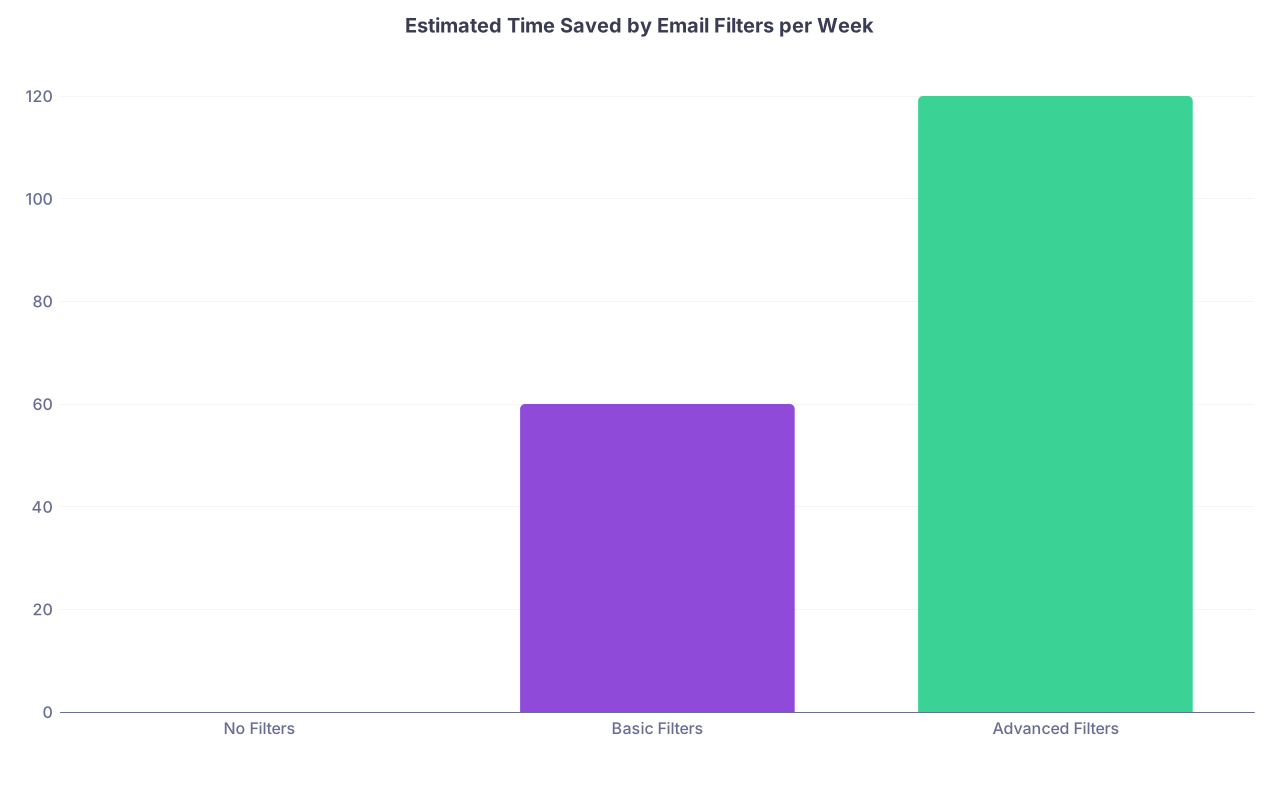
| Category | Value |
|---|---|
| No Filters | 0 |
| Basic Filters | 60 |
| Advanced Filters | 120 |
You do not need to build everything at once. Start with 3–5 high-yield rules. Then every week, add one more when you notice a pattern.
Step 3: Processing Protocol – How You Actually Use This
Twice per day (more on scheduling later), you:
- Go to your inbox
- For each email in under 2 minutes:
- If action takes <2 minutes → Do it now
- If >2 minutes but must be done today → Move to _Action – Today
- If this week → Move to _Action – This Week
- If someone else must do it → Forward, then move to _Waiting / Delegated
- If reference only → File under the right Reference folder
- If useless → Delete
That is it. No dithering. No re-reading the same email six times.
4. EHR In-basket and Patient Portals: Stop Letting Them Bleed into Everything Else
Your EHR in-basket is not email. Treating it like email leads to burnout and missed care.
Step 1: Segment Message Types
In Epic, Cerner, etc., you usually have:
- Results
- Patient messages
- Refill requests
- Staff messages
- Routing from other clinicians
- FYI / informational nonsense
You want clear, distinct work queues with clear rules on who handles what.
If you have any say in configuration (many new attendings do not realize they do), work with your clinic manager or EHR analyst to:
- Separate Refills from general patient messages
- Ensure Nurse/MA pool sees and handles standard protocol-driven items
- Create “Attending only” queue for messages that truly require physician-level judgment
Step 2: Build Protocols, Not Heroics
You cannot filter EHR messages exactly like email, but you can create routing rules and nurse protocols.
Standard actions:
Refills
- Build a written protocol: which meds, which last-visit cutoff, which labs needed
- Authorize nurses/pharmacists to act within protocol
- Use EHR “Quick Actions” / SmartPhrases for standardized responses
Results
- Configure default routing: simple normals → nurse pool; complex/abnormal → you
- Create standard result comments for common labs/imaging
Patient portal messages
- Set clear expectations: portal for non-urgent, 72-hour response, no new diagnoses
- Clinic staff pre-triage: scheduling/admin vs clinical questions
- Anything outside scope of “simple” → routed to visit (telehealth or in-person), not a 5-page novel response

| Step | Description |
|---|---|
| Step 1 | New EHR Message |
| Step 2 | Protocol Refill by Nurse |
| Step 3 | Nurse Triage |
| Step 4 | Nurse Informs Patient |
| Step 5 | Route to Physician |
| Step 6 | Front Desk Handles |
| Step 7 | Schedule Visit |
| Step 8 | Type |
| Step 9 | Abnormal or complex |
| Step 10 | Requires Visit |
You are designing a team inbox, not a personal one.
Step 3: Time-Boxed In-basket Sessions
You will not “keep up with messages” by randomly checking them between patients and during lunch. That only guarantees constant anxiety.
Instead:
- Plan 2–3 focused in-basket blocks per day:
- Morning before clinic
- Midday (protected time, not while eating standing in a hallway)
- End of day
- In each block:
- Process the queue in order
- Use quick actions / templates relentlessly
- Offload anything that should be a visit to an actual visit
5. Routing Across Platforms: Make Messages Go Where They Belong
Now the powerful part: routing. You decide which messages land in which system.
Step 1: Forward Non-core Accounts to a Hub
Rules:
- Old med school email → Auto-forward to personal Gmail with “[MEDSCHOOL]” prepended to the subject. Then use a filter to label and optionally auto-archive.
- Professional society / conference email accounts → Auto-forward to personal or work email into Reference – Research / Academic.
- Job-search specific email (e.g., [email protected]) → Forward to personal inbox, label as Recruiters / Career.
Step 2: Stop Using Personal Email for Work
This is not just about HIPAA (though that alone should be enough). It is also about cognitive separation.
Hard rules:
- No patient-related content ever in personal email
- Colleagues and staff use institutional email or EHR, not Gmail
- If someone sends work to your personal email:
- Reply once: “For anything work-related, please use my hospital email or send via EHR messages only. I do not manage work through this account.”
- Then stand firm
Step 3: Secure Messaging Policies
Choose one official channel for urgent but non-emergent clinical communication (often TigerConnect, Halo, or a similar app).
Your rules:
- “Urgent patient issues: call or secure-message only.”
- “Non-urgent questions: EHR staff message or clinic email.”
- “Personal professional conversations: text is fine.”
Then back this up with actual behavior. When someone sends a non-urgent complex issue via text, reply:
“This is important, can you please send via EHR message so it is in the chart and I can handle it properly?”
You are training your colleagues and staff the same way you train your inbox.
6. Daily and Weekly Routines: The Operating System for Your Workflow
Rules and filters are useless without rhythms. Here is a simple, realistic cadence for a practicing physician.
Daily Routine (Workdays)
Morning (15–20 minutes)
- Check EHR in-basket first – urgent results, overnight issues
- Quick sweep of work email:
- 2-minute rule for fast replies
- Route the rest to _Action – Today or This Week
Midday (10–20 minutes)
- Quick EHR block between sessions
- Only scan work email for anything tagged “Urgent” or from leadership / clinic manager
- Ignore everything else until later
Late Afternoon / End of Day (20–30 minutes)
- EHR block: clear what you realistically can
- Work email:
- Process _Action – Today
- Move anything that slipped into inbox into action folders
- Personal email:
- 5–10 minutes max. No deep diving.
Weekly Routine (30–45 minutes, once per week)
- Review _Action – This Week → promote or schedule tasks
- Review _Waiting / Delegated → nudge or close items
- Check Recruiters / Career label if you are on the market
- Skim Newsletters / CME / Societies for 5–10 minutes; bookmark anything interesting, ignore the rest
- Tweak or add one new filter based on the week’s annoyances
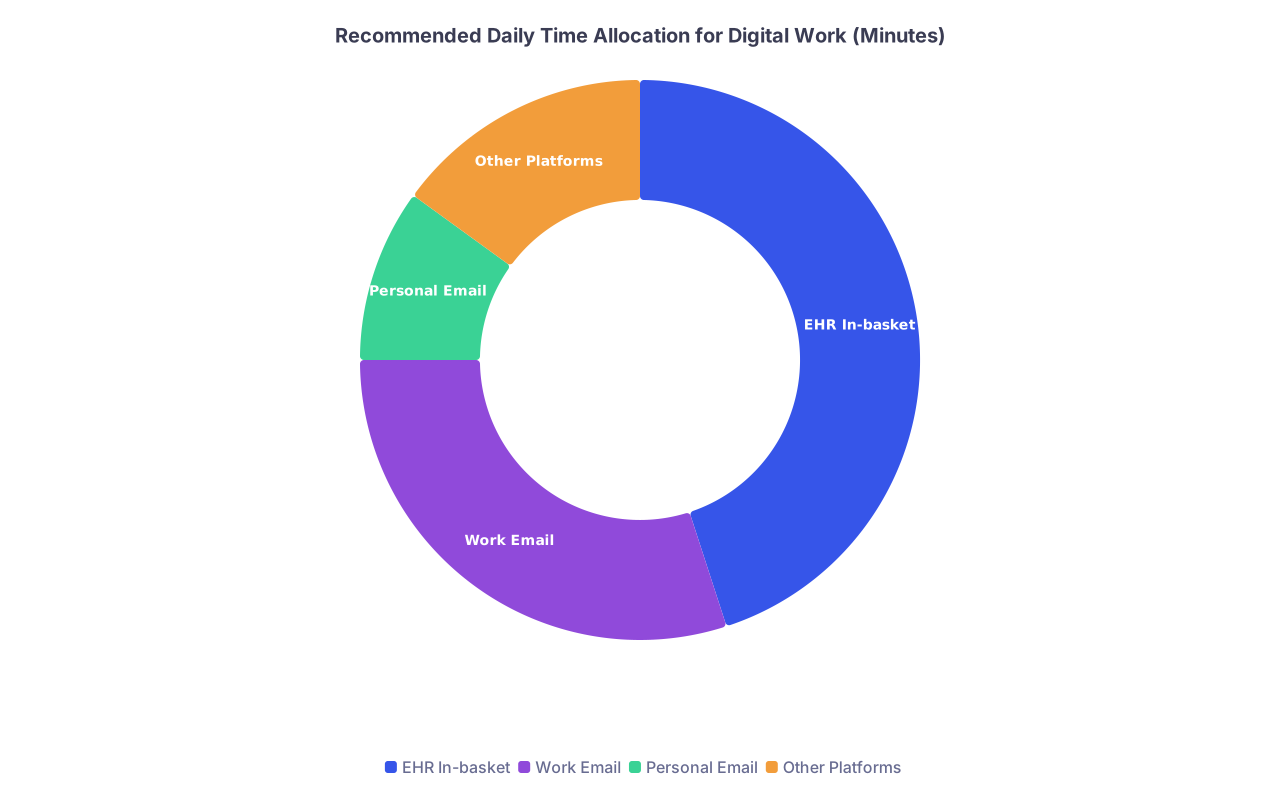
| Category | Value |
|---|---|
| EHR In-basket | 45 |
| Work Email | 30 |
| Personal Email | 10 |
| Other Platforms | 15 |
7. Job Market Specific: When You Are Actively Looking
When you are on the job market, your digital workflow gets noisier. You can make it manageable instead of chaotic.
Step 1: Isolate Career Traffic
Create a dedicated career email (if your contract allows; check first):
- Example:
[email protected] - Use this exclusively for:
- Recruiters
- Direct contacts with departments
- CV submissions
- Job sites (PracticeLink, HealthECareers, etc.)
Then:
- Forward this account to your personal email
- Filter everything from that address into a label/folder: Career – Active Search
- When you are done searching, change the filter to Career – Archive and check it monthly instead of daily
Step 2: Create Job Search Filters
In your main email hub, add filters:
- If subject contains “opportunity”, “opening”, “candidate”, “match for your profile”
- AND from known job boards or recruiter domains
- Apply label: Career – Recruiters
- If from hospitals or universities you contacted directly
- Apply label: Career – Priority
You now have a tiered recruiter system instead of a wall of spam.
8. Tools and Features You Should Actually Turn On
Every platform has features most physicians ignore. Some are gold.
Email Features
VIP / Focused Inbox / Priority Senders
- Tag your clinic manager, chair, division chief, scheduler as priority
- Their emails appear at the top or in a focused pane
Canned responses / templates
- Build standard replies for:
- “Happy to do this, please send via EHR for patient safety and documentation.”
- “Thank you, I am not taking on additional committees/projects this year.”
- “For scheduling, please contact my office at [number/email].”
- Build standard replies for:
Send later / scheduling
- Write emails when it suits you
- Schedule them to send during business hours so you do not train people to expect 11 p.m. responses
EHR Features
- SmartPhrases / macros for common portal responses
- QuickActions (Epic) for result handling patterns
- Team pools that include nurses/MA rather than defaulting everything to you
Task Managers (Lightweight Only)
Do not build a monstrous productivity stack.
Use:
- Your EHR in-basket as the clinical task list
- Email folders/labels as the administrative task list
- One simple app (Todoist, Things, Outlook Tasks) if you must track:
- Research deadlines
- Promotion/tenure steps
- Personal commitments
9. Implementation Plan: 7 Days to a Rebuilt Workflow
You are busy. You need a clear, short game plan.
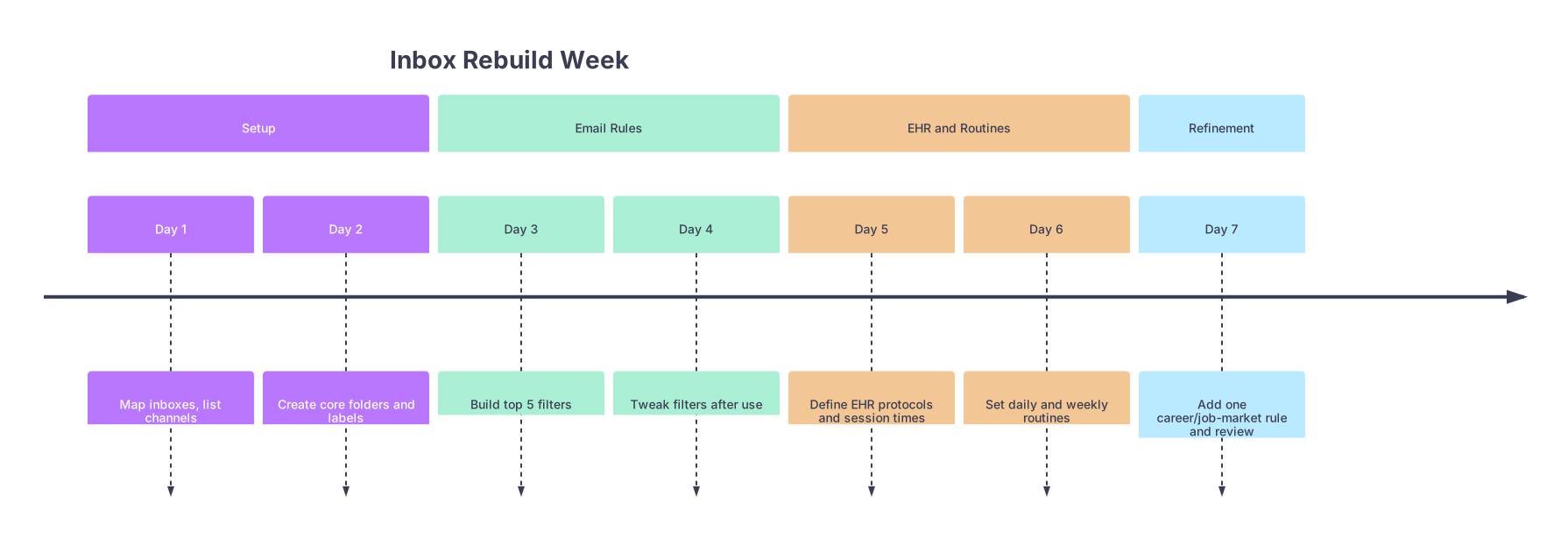
| Period | Event |
|---|---|
| Setup - Day 1 | Map inboxes, list channels |
| Setup - Day 2 | Create core folders and labels |
| Email Rules - Day 3 | Build top 5 filters |
| Email Rules - Day 4 | Tweak filters after use |
| EHR and Routines - Day 5 | Define EHR protocols and session times |
| EHR and Routines - Day 6 | Set daily and weekly routines |
| Refinement - Day 7 | Add one career/job-market rule and review |
Day 1 – Map and Decide
- List all inboxes and channels
- Decide on:
- One primary work email hub
- One primary personal email hub
- One official secure messaging channel
Day 2 – Build the Folder Skeleton
- Create the core Action and Reference folders/labels in your main work email
- Mirror the minimal structure in your personal email if needed
Day 3 – Top 5 Rules
- Clinical → _Action – Today
- Newsletters/CME → Newsletters / CME / Societies
- Recruiters → Recruiters / Career
- Finance/HR → Receipts / Financial
- Research/Academic → Reference – Research / Academic
Day 4 – Test and Tweak
- Watch for misrouted emails
- Adjust filters (add/remove keywords, senders)
- Add one new rule for anything that annoyed you today
Day 5 – EHR and Portal Protocols
- Sit down (15–30 minutes) with clinic manager / nurse lead
- Clarify:
- What nurses can handle by protocol
- What gets routed directly to you
- What must become a visit, not a message
- Adjust EHR pools/queues if possible
Day 6 – Lock in Your Routines
- Block time on your calendar for:
- 2–3 daily EHR blocks
- 2 daily email processing sessions
- 1 weekly review block
Day 7 – Career Layer
- Create or tune your career/job search filters
- If actively searching, set up a dedicated career email and forward + filter system

10. What This Looks Like When It Works
Here is the end state you are aiming for:
- You check work email twice a day.
- Your inbox has 5–15 items, not 5000.
- You know exactly where to look for:
- That HR form
- That IRB approval email
- That CME certificate from last month
- Your EHR in-basket feels like work, not chaos. Patients get timely results. You do not carry guilt home every night.
- Recruiter spam is quarantined in its own sandbox.
- Your personal email is for actual life, not overflow clinic drama.
Most importantly:
You are no longer the default full-time clerk for your own career.
You built a routing system that respects your time and your brain.
FAQ (Exactly 4 Questions)
1. What if my institution’s IT policies limit what filters or forwarding I can use?
Then you work inside the system instead of around it. Most hospital/academic email platforms still allow server-side rules for moving messages into folders based on sender or subject. Use those aggressively. If forwarding is blocked, do not fight it—keep work and personal entirely separate and build your rules within each environment. Where automation is limited, simplify even more: a small set of action folders and a strict processing routine beats a complex system you are not allowed to automate.
2. How do I keep rules from accidentally hiding something critical (like an urgent admin message)?
You build in safety nets. First, never auto-delete—auto-label and, at most, auto-archive non-critical categories like newsletters and recruiter spam. Second, whitelist key senders (your chair, manager, schedulers) by adding “Stop processing more rules” after a rule that flags their emails as high priority. Third, for the first 1–2 weeks after you add a new rule, periodically scan that label/folder to confirm nothing important is slipping through. Once you are confident, you can stop checking it so often.
3. I already feel behind. How do I start without spending an entire weekend cleaning my inbox?
You do not clean first. You declare bankruptcy on the backlog. Create a folder called “Pre-[Today’s Date] Archive” and move absolutely everything currently in your inbox into that folder in one move. Done. Then implement the new folder/rule system and routines starting from a clean slate. When you need something older, use search. You will save yourself 10–20 hours of pointless manual sorting and endless guilt about “catching up” on old messages that never needed a response anyway.
4. How does this system change if I move from job hunting to being fully employed and stable?
You turn down the volume on the Career channel. Change recruiter filters from “show and label” to “label and auto-archive”. Check that folder monthly instead of weekly. You can also demote your career inbox from “daily review” to “occasional scan”. The core remains the same—one primary work hub, clear action vs reference buckets, time-boxed EHR and email sessions—but the weight shifts away from external opportunities back toward internal responsibilities and career development.
Open your main work email right now and create three folders: _Action – Today, _Action – This Week, and Waiting / Delegated. Then take the top 20 emails in your inbox and force them into one of those three. That is the first brick in rebuilding your digital workflow.