
The way most physicians “track” CME is broken.
Random emails, half-downloaded certificates, vague memories of a webinar that might have been 0.75 credits. That chaos will burn you when licensing, MOC, or a hospital audit hits.
You need a system. Not another app. A system.
Here is the fix: a simple, durable, low-maintenance CME portfolio that you can set up over a weekend and run on autopilot for the rest of your career.
Step 1: Decide Your System – And Lock It In
Before you clean anything up, you need one decision: where will your “single source of truth” live?
I recommend a three-layer system:
- Master Log – where you tally and summarize credits
- Document Vault – where every certificate and proof lives
- Quick Capture – how you grab new CME on the fly
If you are already feeling resistance, that is usually because you are imagining something elaborate. This is not that. Let me lay out a pragmatic stack that works in real life.
1. Master Log (Required)
Use one of:
- Excel or Google Sheets
- Notion / Airtable if you are already comfortable with them
- A dedicated CME tracker in your specialty society portal (if it supports ALL your needs, which it usually does not)
For 95% of physicians, a simple spreadsheet is ideal.
Core columns you actually need:
- Date completed
- Activity title
- Provider / sponsor
- Format (live, enduring, journal, webinar, self-assessment, etc.)
- Credit type (AMA PRA Cat 1, Cat 2, AOA, MOC Part II, etc.)
- Credits claimed
- Topic / category (e.g., ethics, opioid prescribing, risk management)
- State/specialty requirement it applies to (e.g., “TX pain management,” “ABIM MOC”)
- Location of proof (file path or URL)
- Notes (e.g., “Counted for risk mgmt requirement 2024 cycle”)
That is it. Anything more and you will stop using it.
Here is what this looks like at a glance:
| Column | Example Entry |
|---|---|
| Date | 2025-03-15 |
| Activity Title | Advances in Heart Failure Management |
| Provider | ACC |
| Format | Live Webinar |
| Credit Type | AMA PRA Cat 1 |
| Credits | 1.5 |
| Topic | Cardiology |
| Requirement Tag | ABIM MOC, State Cardio Requirement |
| Proof Location | /CME/2025/03-15_ACC_HeartFailure.pdf |
| Notes | Included in 2025 ABIM MOC submission |
2. Document Vault (Required)
You need one canonical place where every bit of proof lives. Not six. Not “it’s in my email somewhere.”
Use:
- A folder in a cloud drive (OneDrive, Google Drive, Dropbox, iCloud)
- Synced to your phone and main computer
Top-level folder: CME
Subfolders:
/CME/By Year/2025(and so on)/CME/By Requirement/State License/CME/By Requirement/Board MOC/CME/Other Docs(policies, screenshots of requirement pages, etc.)
You are not going to perfectly file everything every time, so set a minimum rule:
- Every new CME certificate or proof goes at least into the current year folder.
- Sorting by requirement can be done later in bulk.
3. Quick Capture (Required)
This is the piece almost everyone is missing.
You need a frictionless way to grab:
- Certificates that pop up right after a webinar
- Screenshots of attendance pages
- Photos of sign-in sheets at live conferences
- Journal CME confirmations
Options that work:
- A notes app with scanning (Apple Notes, OneNote, Evernote, Notion)
- A dedicated scanning app (Adobe Scan, Genius Scan, CamScanner)
- Even your phone camera, as long as you follow a naming convention
Minimum viable workflow:
- Take picture or save PDF
- Immediately rename:
YYYY-MM-DD_Provider_ShortTitle_credits.pdfor.jpg - Move or share it directly into
/CME/By Year/2025
No naming cute stuff like “CME1” or “webinar”. Future you will not forgive you.
Step 2: Build a Clean Master Log Template
Stop living inside vendor portals. You need your master record.
Open a fresh spreadsheet and build this out once.
Suggested Columns (With Rationale)
Use these columns, in this order:
Date– for audit trails and groupingActivity Title– as listed on the certificateProvider– ACCME-accredited provider or sponsorFormat– Live, Enduring, Journal, Conference, etc.Credit Type– AMA Cat 1, Cat 2, MOC Part 2, AOA, etc.Credits– numeric value (use decimals)Topic / Category– broad topic; keep consistent labelsRequirement Tag– state or board requirement tagsProof Location– link or path to the file in your vaultNotes– optional but useful
Then, on a separate tab, create a requirements summary:
Requirement (e.g., “State – 40 total, 2 ethics, 3 opioid”)Cycle (e.g., 2024–2026)Credits RequiredCredits To Date(use formulas to sum from your main tab by tag)Status(OK / Short / Not started)
Now you have an actual dashboard, not guesswork.
Here is what that end state might look like:
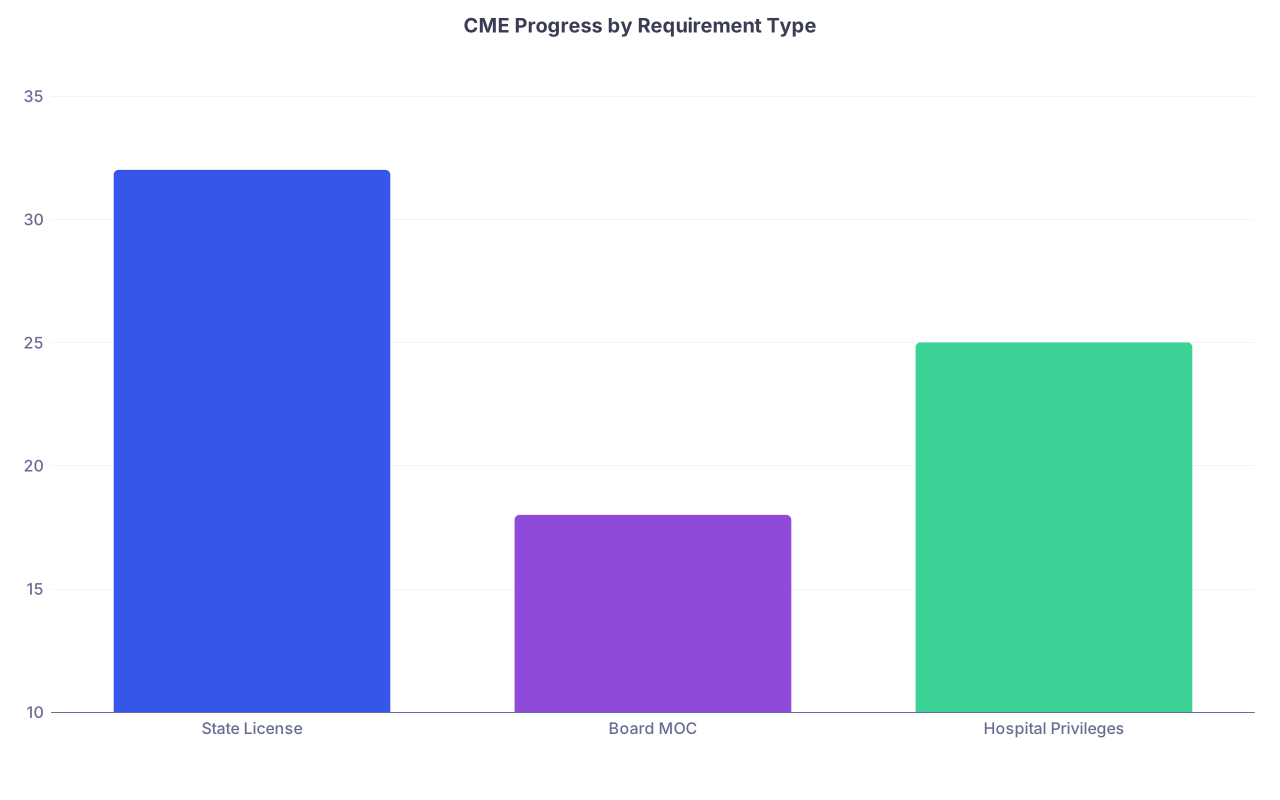
| Category | Value |
|---|---|
| State License | 32 |
| Board MOC | 18 |
| Hospital Privileges | 25 |
Step 3: Perform a One-Time Clean-Up of Your Backlog
This is the painful part. Do it once, correctly, and you never have to do this again.
1. Gather Everything
Set aside a 2–3 hour block. Treat it like call. You are not going to “squeeze this in” between patients.
Pull from:
- Old email accounts (search “CME certificate”, “AMA PRA”, “Your CME transcript”)
- Specialty society portals (download transcripts)
- Hospital LMS systems (Cornerstone, HealthStream, etc.)
- Board portals (ABIM, ABFM, ABS, etc.)
- Paper certificates tucked into drawers, bags, and conference folders
- Photos you took of sign-in sheets or conference badges
Dump all files into a temporary folder: /CME/_INBOX_BACKLOG.
2. Rename and Sort
Go through each file and rename them systematically:
YYYY-MM-DD_Provider_ShortTitle_credits.pdf
Examples:
2024-11-02_ACC_HeartFailureUpdate_1-5.pdf2023-04-19_Hospital_OpioidPrescribing_2-0.pdf2022-09-10_ACP_EthicsCases_1-0.pdf
Then move them into the correct year folder:
- Anything 2025:
/CME/By Year/2025 - 2024:
/CME/By Year/2024etc.
If you have absolutely no idea when something occurred, check:
- The metadata (right-click → properties → created/modified date)
- Email date of the certificate
- Event/program date on the document itself
Worst case: use your best estimate and add a note: “date approximated from email.”
3. Enter Summary Data Into the Log
Now, build your log retroactively from the files.
For each file:
- Open it
- Enter a new row in your master log
- Fill in date, title, provider, credit type, and credits from the certificate
- Set a basic topic (e.g., “Cardiology,” “Opioid,” “Patient Safety”)
- Add any requirement tags (e.g., “TX opioid,” “Ethics,” “ABIM MOC 2024–2026”)
- Paste the file path / cloud link into
Proof Location
If this sounds tedious, it is because it is. But it is finite. And you are creating a lifetime infrastructure while you do it.
Step 4: Map Requirements So You Stop Guessing
Chaos in CME portfolios usually comes from one root cause: nobody has a clear picture of their actual requirements. So everything feels random.
You will fix that with a requirement inventory.
1. Identify Every Entity That Cares About Your CME
Most physicians will have:
- State medical board(s) license requirements
- Specialty board MOC requirements
- DEA or state prescribing-specific requirements (opioids, controlled substances)
- Hospital or health system credentialing requirements
- Malpractice carrier requirements (occasionally)
- Sometimes subspecialty or added qualification requirements
Make a one-page list. Handwritten is fine at first.
2. Pull Official Requirements (and Save Them)
For each:
- Go to the official website (not third-party blogs)
- Find the page that spells out numbers and types of credits required
- Take a PDF or screenshot of the page and save it in
/CME/Other Docs/Requirementswith a clear name:State_TX_CME_Requirements_2024.pdfABIM_MOC_Requirements_2024-2026.pdf
This protects you when requirements change mid-cycle and someone questions what rules you were working under.
3. Turn Requirements Into Trackable Buckets
Convert vague statements into concrete tracking units.
Example:
- “40 hours of CME every 2 years, including 2 hours ethics, 3 hours opioid prescribing.”
Becomes: - Bucket 1 – General CME – 35 credits
- Bucket 2 – Ethics/Professional Responsibility – 2 credits
- Bucket 3 – Opioid/Controlled Substance – 3 credits
Then, in your log, use Requirement Tag values that match those buckets:
TX-GenTX-EthicsTX-Opioid
Do the same for your board and hospital:
ABIM-MOC-GenABIM-MOC-SA(Self-assessment, if applicable)Hospital-Quality(if they require quality/safety CME)
You now have a tagging language.
Step 5: Build a Reporting View That Actually Works
You are not doing this for fun. You are doing it because:
- Renewal forms ask for counts by category
- Credentialing offices want documentation
- Audits happen when you are least ready
- Some entities request logs or transcripts in specific formats
You can pre-build your outputs.
1. Summary Dashboard (Simple Spreadsheet Tricks)
Use:
SUMIFto total credits by requirement tagFILTERorSORTto show specific subsets (e.g., all TX-Ethics activities)- Pivot tables if you like them (but you do not need them)
Basic example for, say, Texas ethics credits:
=SUMIF(MainLog!H:H, "TX-Ethics", MainLog!F:F)
Where:
- Column H is
Requirement Tag - Column F is
Credits
Do the same for each requirement bucket. Pull those into your “Requirements” summary tab.
Now you can see, in one glance:
- How many of each type you have
- Where you are short
- If you are double-counting the same activity across entities (which is often allowed and smart)
2. Create Pre-Formatted Views for Common Use Cases
You will repeatedly need:
- A state license renewal CME summary
- A board MOC activities list
- A generic CME transcript for hospitals or insurers
Two ways to handle this:
Filtered views in your spreadsheet:
- Filter by
Requirement Tag - Export as PDF when needed
- Filter by
Separate “report tabs” that pull rows using formulas:
- Use
FILTER()(Google Sheets) orINDEX/MATCH/ Power Query (Excel) to build specialty reports
- Use
Once built, future reporting is three clicks: open, refresh, export.
Step 6: Implement a Zero-Drama Ongoing Workflow
If your system is annoying, you will abandon it. The goal is a sub-5-minute workflow for each new activity.
Here is the protocol I have seen work in practice.
Default CME Workflow – Each New Activity
Right after you complete a CME activity:
Capture the proof
- Download certificate as PDF
- Or take a screenshot/photo if only an on-screen confirmation is shown
- Save it immediately to
/CME/By Year/2025with your naming convention
Log the entry
- Open your CME log (phone or laptop)
- Add a single new row
- Date auto-fills or you type it
- Copy title and provider from the certificate
- Enter credits and credit type
- Add requirement tags (from your small, predefined list)
- Paste the file link or at least file name
Total time: 2–3 minutes.
Weekly or Monthly Maintenance (10–15 minutes max)
Once a week (or month if you have low CME volume):
- Clear any files sitting in your
_INBOXor Downloads into the correct/CME/By Yearfolder - Check the log for:
- Missing proof locations
- Entries missing tags
- Quickly update your requirement summary tab (if it does not update automatically)
That is it. No marathon catch-ups.
Step 7: Handling Common Pain Points and Edge Cases
Let me address the things that usually derail people.
1. Multiple State Licenses
If you hold licenses in multiple states, do not try to create completely separate systems. Instead:
- Continue using one master log
- Use separate tags per state:
TX-Gen,TX-Ethics,TX-OpioidCA-Gen,CA-Pain, etc.
- Many activities will be tagged with multiple state tags if the topics qualify
Your requirements summary tab will simply have separate rows per state.
2. Board MOC with Complex Categories
Some boards play games with categories: self-assessment, practice improvement, patient safety, etc.
Solution:
- Mirror their categories exactly in your
Requirement Tagcolumn - If the board portal auto-tracks certain activities (like ABIM), you might not need to log all of them—but I still recommend at least mirroring key MOC activities in your personal log with a note “auto-reported to ABIM.”
3. Activities Without Formal Certificates
Examples:
- Grand rounds where the system does not issue a certificate
- Journal clubs
- Self-directed reading
Many boards allow self-claimed or Category 2 CME with appropriate documentation.
Document like this:
- Create a simple self-attestation template (Word or a note) that includes:
- Your name
- Date
- Description of activity
- Estimated hours
- Learning objective / relevance
Export that as a PDF and store it like any other proof.
In the log, mark it as Cat 2 or equivalent, and tag it to the appropriate requirement bucket if allowed.
4. Live Conferences with Multiple Sessions
Major conferences generate a mess of individual certificates, session lists, and transcripts.
Simplify:
- If the provider gives you a single transcript summarizing total credits and categories (ethics, patient safety, etc.), use that as the primary document.
- Log either:
- One row for the entire conference (most practical), or
- A small number of rows by category if needed (e.g., “ASCO 2024 – Ethics total 2.0 credits”).
You do not need 27 line items for 27 talks. You need something that matches how most auditors think: by provider and total credits.
Step 8: Build a Simple “Audit Pack” for Sleep-at-Night Security
You want to be able to respond to an audit email without your blood pressure spiking.
Set up an Audit Pack folder:
/CME/AuditPack_CurrentCycle
Inside:
- Your master log exported as PDF
- Requirement summary tab exported as PDF
- A copy (PDF) of official requirement pages for each entity
- Subfolder
Proofwith:- All certificates for the current license/MOC cycle
- Or shortcuts/links to those files if your system supports that cleanly
At the start of each new cycle:
- Duplicate this structure
- Archive the old cycle into
/CME/Archive/20XX-20YY
Now, if someone says, “Send me your CME documentation for 2022–2024,” you zip one folder and you are done.
Step 9: Optional – Add Automation Without Overcomplicating It
You do not need automation. But if you like this stuff, a few light touches help.
Light Automation Ideas
Email rules:
- Create a rule that moves any email containing “CME certificate”, “credit statement”, “AMA PRA” to a folder “CME Certificates”.
- Periodically sweep that folder and dump attachments into
/CME/By Year.
Cloud folder shortcuts:
- Keep the current year folder pinned on your phone home screen for quick saving.
Form-based logging:
- In Google Sheets, create a simple Google Form connected to your log.
- Each time you complete CME, you fill out a 30-second form on your phone, which auto-populates your log.
Avoid “clever” scripts or integrations that only you understand. Your system must survive device changes, EHR migrations, and time.
Step 10: Visualizing Progress So You Stay Ahead (Optional but Useful)
Many physicians underestimate how behind they are until renewal is imminent.
You can use a simple visual dashboard to stay honest.
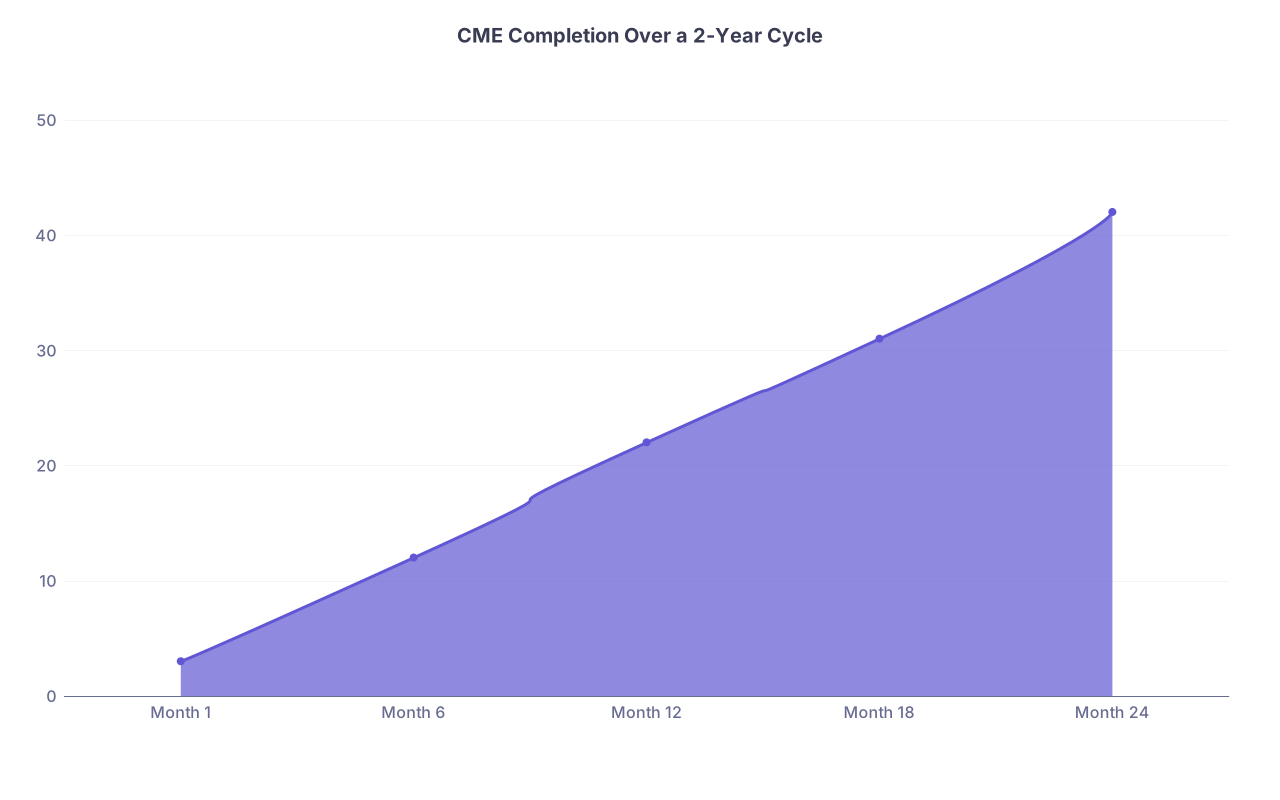
| Category | Value |
|---|---|
| Month 1 | 3 |
| Month 6 | 12 |
| Month 12 | 22 |
| Month 18 | 31 |
| Month 24 | 42 |
A basic approach:
- In your requirements summary tab, calculate:
PercentComplete = CreditsToDate / CreditsRequiredfor each bucket
- Add sparkline-style visuals or conditional formatting to flag:
- Green: ≥ 100%
- Yellow: 70–99%
- Red: < 70%
You do not need a beautiful dashboard. You just need something that shames you a little when the “Opioid” row is still at 0% three months before renewal.
How This Looks in Real Life
Let me walk you through a concrete scenario.
You are a hospital-employed internist with:
- State license – 40 CME / 2 years, including 2 ethics, 2 opioid
- ABIM MOC – 100 MOC points / 5 years, exam every 10 years
- Hospital credentialing – 25 credits / 2 years, with 5 in patient safety/quality
You attend a live hospital webinar:
- Title: “Safe Opioid Prescribing in Chronic Pain”
- Provider: Your hospital’s education department
- Credits: 1.5 AMA Cat 1, qualifies as opioid and patient safety
Your workflow:
Right after the webinar, you get an email with a link to your certificate.
You download as PDF, save to
/CME/By Year/2025as2025-02-10_Hospital_SafeOpioid_1-5.pdfYou open your CME log and enter:
- Date: 2025-02-10
- Title: Safe Opioid Prescribing in Chronic Pain
- Provider: Hospital XYZ
- Format: Live Webinar
- Credit Type: AMA PRA Cat 1
- Credits: 1.5
- Topic/Category: Opioid, Patient Safety
- Requirement Tag:
TX-Opioid; Hospital-Safety - Proof Location:
.../CME/By Year/2025/2025-02-10_Hospital_SafeOpioid_1-5.pdf - Notes: “Counts toward TX opioid and hospital safety requirement.”
When you later export a report for your:
- State license – you filter by tags
TX-Gen,TX-Ethics,TX-Opioid - Hospital – you filter by
Hospital-Gen,Hospital-Safety
The same row feeds multiple requirements. You did not duplicate work; you just tagged correctly.
Final Tightening: What To Stop Doing Immediately
If you want this to work long term, stop these habits:
- Relying on vendor portals as your “CME record.” Vendors merge, shut down, or redesign. Your log survives.
- Letting certificates sit in your email for months. They will vanish into the void of 40,000 unread messages.
- Believing “I will remember to log that later.” You will not. Log it the same day or it effectively did not happen.
- Overcomplicating categories. Your goal is compliance and clarity, not academic purity about tags.
Your system must be simple enough that you will actually maintain it when you are post-call, behind on notes, and half-listening to a webinar.
The Bottom Line
Three key points and you are done:
- Pick one system and make it your source of truth – a master log, a cloud-based document vault, and an easy capture method. No more hunting through emails and vendor portals.
- Translate vague CME rules into concrete, tagged buckets – then build a log that sums those buckets automatically so you always know where you stand.
- Treat each new CME like a lab result – captured, named, logged, and filed within minutes. Do that consistently, and licensing and MOC paperwork become trivial instead of terrifying.