
The way most interns use Epic is broken. You are fighting the software instead of making it work for you.
This is fixable. In weeks, not years. With specific click paths, templates, and muscle-memory workflows that slice minutes off every chart…and hours off your day.
Below is a concrete, intern-tested playbook for Epic (and most modern EMRs) that actually moves the needle on charting time.
1. Core Principles: How Fast Interns Actually Chart

Let me be blunt: the difference between a slow Epic user and a fast one is not intelligence. It is:
- Memorized click paths
- Aggressive reuse of prior work
- Keyboard shortcuts > mouse wandering
- Smart customization in week 1, not in month 11
You want this mindset:
- Every repeated click is a design problem, not “just how it is.”
- Anything you typed more than twice deserves a SmartPhrase or template.
- You should almost never start a note or order set from scratch.
Think like a programmer: build tools once, then reuse them 10,000 times.
2. Global Setup: Fix These Day 1, Not Month 6
Spend 60–90 minutes on a light call day or post-call morning to set this up. It will pay you back hundreds of hours.
2.1 Personalize your toolbars and workspaces
Your goal: the stuff you click 50 times a day is one click away.
Non-negotiables to pin / favorite:
Order sets
- Admit to medicine / surgery
- VTE prophylaxis
- Sepsis bundle / CAP / CHF exacerbation
- Post-op pathways for your service
Quick actions / buttons
- “New Note” in your go-to note types (H&P, Progress, Discharge)
- “Reconcile Orders/Medications”
- “Print AVS / Discharge instructions”
- “Sign all” (but do not abuse it blindly)
Panels / tabs
- Vitals, I/O, Labs, Imaging, MAR (meds), Flow sheets
- Results review with side-by-side days
Ask a PGY-2 on your service to sit down and show you their screen. If they are fast, copy 80% of their setup. There is zero prize for reinventing workflows.
2.2 Core keyboard shortcuts (or their equivalents)
These vary slightly by Epic build, but the pattern is similar. Ask your IT or superuser and write these on a sticky note for your monitor the first week:
- Jump to chart search
- Jump to orders
- Open new note
- “Accept and sign” without reaching for the mouse
- Toggle between patients (back and forward)
- Find text in note (Ctrl+F / Cmd+F)
You should be using a hotkey every time you:
- Open a new note
- Sign orders
- Navigate between chart sections
If your fingers are constantly leaving the keyboard to grab the mouse, you are bleeding time.
3. Rounds Workflow: Click Paths That Actually Work

| Step | Description |
|---|---|
| Step 1 | Start Pre-rounds |
| Step 2 | Open Patient List |
| Step 3 | Open First Patient Chart |
| Step 4 | Review Overnight Events |
| Step 5 | Review Vitals I&O Labs |
| Step 6 | Open Yesterday Note |
| Step 7 | Copy Forward |
| Step 8 | Edit Assessment Plan |
| Step 9 | Pre-enter Orders |
| Step 10 | Move to Next Patient |
This is where most interns drown. They click randomly. They bounce between list, chart, and notes. They retype the same phrases.
You want a consistent, boring click path for every patient on pre-rounds.
3.1 Pre-rounding: the 7-click pattern
Here is a pattern that works across most Epic builds:
Start in your patient list, not the main menu.
- Sort by room or team.
- Add critical columns: last weight, last BP, last creatinine, diet, code status.
Open chart → immediately go to “Summary” or “Snapshot” tab.
- You want a one-screen view: problem list, meds, last vitals, recent labs.
- If your build has a “Rounds” or “Intern” workspace, customize it ruthlessly.
Check overnight events in this order:
- New nursing notes / significant events
- New vitals trend (RR, O2, MAP)
- Input/output
- New labs / imaging
Open yesterday’s progress note or H&P.
- Use “Chart Review → Notes” and set default to “Last 24–48 hours.”
- Right-click yesterday’s note → “Copy forward” (or equivalent).
Immediately strip the junk.
- Delete old assessment/plan content sections that changed.
- Clear “yesterday” wording.
- Remove autopopulated “all systems reviewed” nonsense you did not do.
Update subjective / objective in real-time before you see the patient.
- Pre-fill: “No acute events overnight,” or “See nursing note for rapid response at 0300.”
- Update vitals, weights, I/O from panels, not manual typing.
- Many builds let you insert “SmartLinks” that auto-pull vitals, labs etc.
Draft assessment and plan bullets while you think.
- Use your standardized problem list structure (see below).
- Enter tentative orders (but do not sign) based on likely plan.
Then move on. Patient to patient. Same sequence every time. No improvising.
4. Note Templates That Do the Work For You

You are wasting time if you are:
- Typing full A&P paragraphs from scratch
- Rewriting the same COPD / CHF / DM plans daily
- Manually formatting every note like a term paper
Fast interns build a small arsenal of aggressive templates.
4.1 Build a single master progress note template
You do not need 25 versions. You need one good daily note skeleton per specialty.
Core structure that scales:
Subjective
- “Overnight events:”
- “Today patient reports:”
Objective
- Vitals summary (linked)
- Physical exam in problem-oriented chunks (cardio/pulm/abd/neuro)
Assessment & Plan – always as numbered problems
Example skeleton:
Problem 1 – [DX]
- Brief assessment line
- Plan:
- Med change 1
- Labs / imaging
- Consults
- Monitoring parameters
Problem 2 – [DX]
- Assessment
- Plan bullets
Chronic / background issues
- DM2 – stable, continue [meds]
- HTN – borderline, adjust as above
Prophylaxis / Dispo
- VTE: [ ] heparin / [ ] enox / [ ] SCD only
- GI: [ ] PPI / [ ] H2
- Dispo: [home / SNF / rehab], barriers: [barrier]
Turn this into a SmartPhrase (like .IMPROGRESSNOTE or .SURGDAILY) with checkboxes and placeholders. Ask a senior for their phrase and customize.
4.2 Disease-specific mini SmartPhrases
Anything you type more than twice gets its own SmartPhrase. Period.
Examples:
.COPDexac– standardized steroid, nebs, ABG, BiPAP criteria, follow-up CXR.CHFexac– IV diuresis, daily weights, BMP, I&O goals, echo, restriction.DVTprophy– indications, choice, dose, contraindications.ETOHwithdrawal– CIWA protocol, benzo regimen, thiamine/folate, electrolytes
Structure each with:
- Very brief summary assessment line
- Templated plan bullets with blanks to fill
Do not make them novels. 6–10 concise bullets that you edit, not rewrite.
4.3 H&Ps that do not own you
For admissions:
- Use a strong H&P template (often your program shares one).
- Pre-fill demographics, PMH, meds, allergies automatically using SmartLinks.
- Focus your manual typing on:
- Story of present illness (few tight paragraphs)
- Targeted ROS (or quick negative if truly done)
- Assessment & plan by problem (again, numbered)
After a month, you should be reusing 70–80% of an H&P structure each time.
5. Orders and Results: Click Paths That Save Your Evening
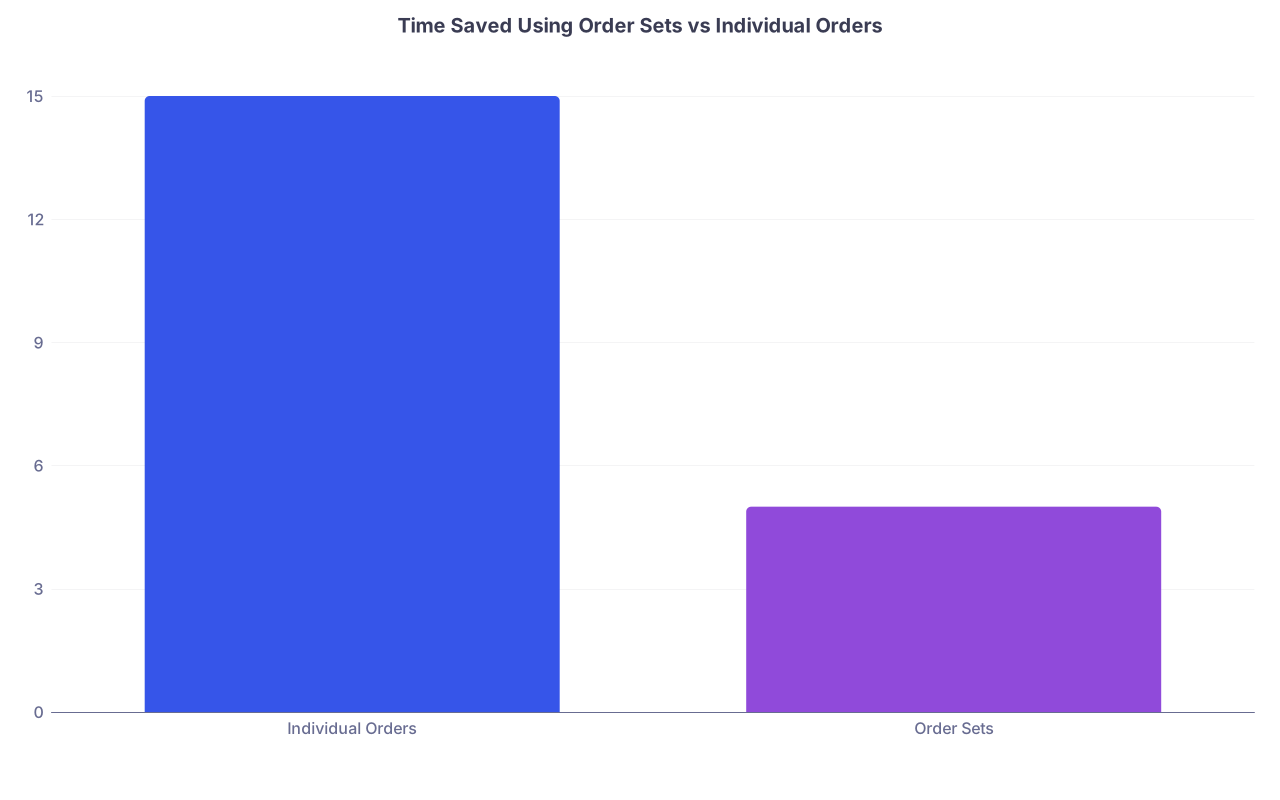
| Category | Value |
|---|---|
| Individual Orders | 15 |
| Order Sets | 5 |
You lose massive time in three places:
- Hunting for orders
- Rewriting the same sets for every COPD/CHF/Sepsis patient
- Clicking through lab and imaging results in a disorganized way
5.1 Order sets: use them or suffer
For common scenarios, never manually build orders from zero:
- Sepsis / SIRS
- Chest pain / ACS
- COPD exacerbation
- CHF exacerbation
- DKA
- Post-op care sets
Your click path rule: if you are placing ≥3 orders for a common problem, search for an order set first.
Then customize:
- Uncheck the junk that does not apply
- Add service-specific tweaks (e.g., your attending always wants Mg and Phos daily)
- Save a “favorite” version where Epic allows
5.2 Favorites bar for single orders
Make a Favorites folder with:
- Daily labs (CBC, BMP, Mg, Phos)
- One-time labs (lactic acid, troponin, BNP)
- Imaging (CXR, KUB, CT head, CT PE)
- Meds you order often (PPIs, bowel regimen, sliding-scale insulin)
Click path:
- Open orders.
- Click “Favorites.”
- Select from 10–20 most common orders.
- Sign.
You should not be typing “CBC” into a search bar 25 times a day.
5.3 Results review: stop fishing, start patterning
When you enter a chart to review results:
- Open “Results Review” (or your EMR’s equivalent longitudinal view).
- Use the timeline: set it to 3–7 days.
- Group by:
- Chemistry
- Hematology
- Microbiology
- Imaging
Click path for daily labs:
- Open Results Review
- Click “Labs” filter
- Scan down columns: creatinine, Na, K, Hgb, WBC, etc.
- Ctrl+click to open abnormal results in a side-by-side or separate tab if supported.
For imaging:
- Sort by date/time.
- Open the most recent, read impression, close.
- If you need to compare, some builds have side-by-side imaging; if not, rely on prior report in the impression.
6. Discharge Summaries and AVS: Finish Before the Nurse Pages

Discharges eat an insane amount of intern time. Mostly because people start from scratch at 4 pm.
Fix the workflow:
6.1 Start the discharge summary on admission
Yes, on admission.
Create the discharge summary note shell once the patient is stable.
Auto-pull PMH, meds, allergies via SmartLinks.
Put a placeholder in “Hospital Course” like:
“Admitted on [date] for [reason]. Hospital course summarized by problem:”
This lives as a draft. Every day or two, update a couple lines for big events. By discharge, you are editing, not writing.
6.2 Use a tight discharge template
Your template for the hospital course should look like:
Principal Problem:
- Brief narrative: 2–5 sentences
- Key diagnostics and interventions
- Status at discharge
Secondary Problems:
- COPD – stable, home regimen continued
- DM2 – insulin started, outpatient follow-up planned
Follow-up & Pending Results:
- PCP in 7 days
- Specialist in 2–4 weeks
- Pending labs / cultures + who will follow
Make this a SmartPhrase like .DISCHARGECOURSE. Use it on every patient.
6.3 AVS (After Visit Summary) without pain
Click path to sanity:
Open Discharge Navigator / AVS builder.
Pull in medication list – reconcile aggressively (remove in-hospital only meds).
Use SmartPhrases for common instructions:
.CHFDCINST– weight checks, low salt diet, when to call.COPDDCINST– inhaler schedule, red flag symptoms.POSTOPDCINST– wound care, activity limits, pain meds rules
Preview AVS quickly with the patient if possible, to avoid nurse calls later.
7. Cross-Cover and Night Float: Surviving with Speed
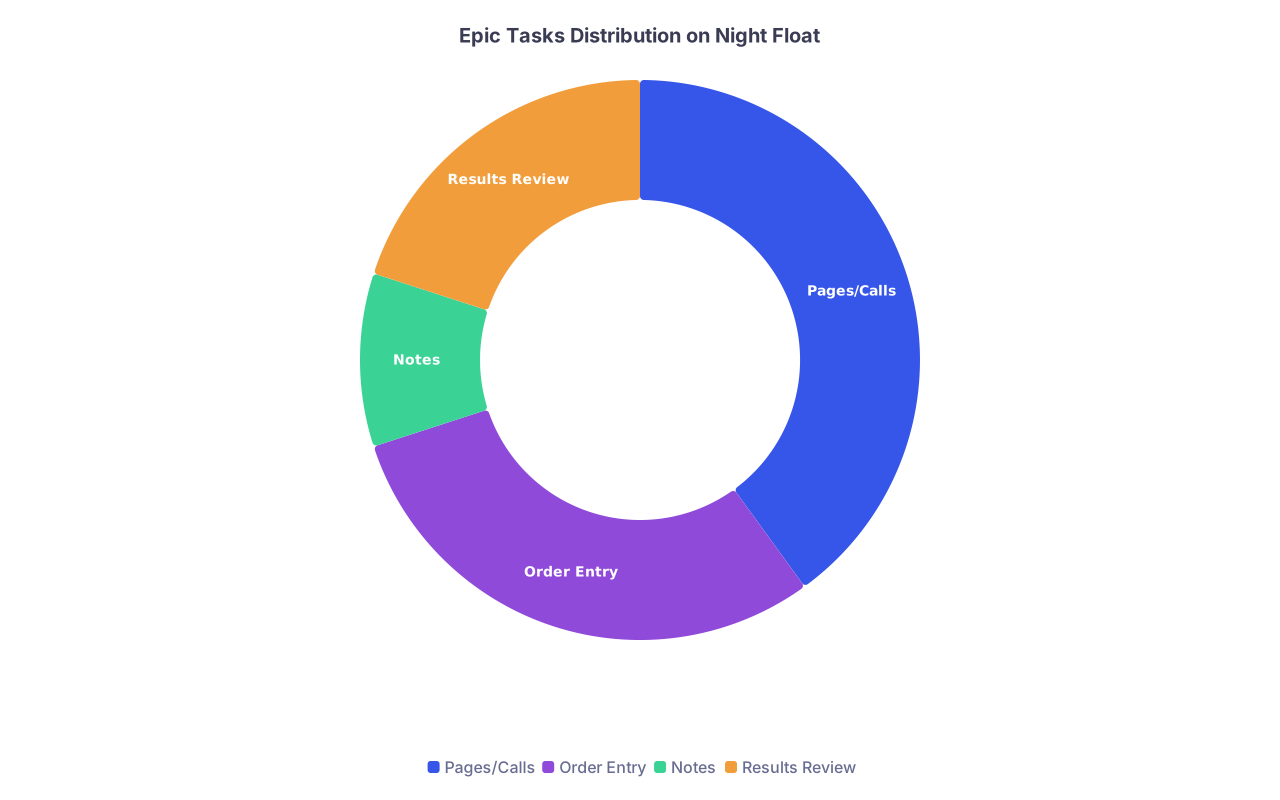
| Category | Value |
|---|---|
| Pages/Calls | 40 |
| Order Entry | 30 |
| Notes | 10 |
| Results Review | 20 |
Night float and cross-cover expose every weakness in your Epic skills. You are paging through 30–60 charts with minimal context.
You need a specific click path to handle cross-cover pages.
7.1 The “page to action” sequence
Every time a nurse calls you about a patient:
Open patient chart directly from your on-call list.
- If you do not have an “On Call” or “Cross Cover” list, build one or ask IT.
Go to “Summary” / “Snapshot.”
- Quick scan: diagnosis, code status, last vitals, meds, allergies.
Click “Results Review” for immediate objective context.
- Check last labs, imaging related to the complaint.
- Example: for chest pain, check last troponin, ECG, imaging.
Go to “Recent notes” for context.
- Read the last attending or resident note (just the A/P if rushed).
Enter orders using favorites/order sets.
- Example: new fever? Use sepsis / infection evaluation favorites: blood cultures, lactate, UA, CXR, etc., if appropriate.
- Avoid searching each order individually.
Quick sign-out note if your program wants it (e.g.,
.CROSSCOVERNOTEphrase).
Target: from page to action in under 3–4 minutes for most routine issues.
7.2 Sign-out and handoff templates
Build a tight sign-out SmartPhrase that includes:
- Active issues
- What to do “if X then Y” overnight
- Things not to forget (pending tests, transfusion thresholds)
Use it in your sign-out notes in the EMR. The more precise your sign-out, the less random overnight firefighting.
8. Templates, Tools, and Favorites: Concrete Examples
Here is what a practical intern “toolkit” looks like in Epic terms.
| Category | Example Name | Use Case |
|---|---|---|
| SmartPhrase | .IMPROGRESSNOTE | Daily medicine progress note |
| SmartPhrase | .CHFexac | CHF exacerbation A/P |
| SmartPhrase | .DISCHARGECOURSE | Hospital course in DC summary |
| Order Set Fav | MED ADMIT STANDARD | General medicine admission |
| Order Favorite | CBCBMPDAILY | Common daily labs bundle |
You want:
- 1–2 master note templates (progress + H&P)
- 6–10 disease-specific A/P SmartPhrases
- 1 discharge course SmartPhrase
- 1 sign-out SmartPhrase
- 5–10 favorite order sets
- 10–20 favorite single orders
Once you build these, your Epic usage stops feeling like typing and starts feeling like editing.
9. Training Your Hands: How to Get Actually Fast
Productivity in Epic is not just intellectual. It is physical. You are training muscle memory.
9.1 Micro-drills during downtime
On a slower call night or clinic afternoon, practice:
- Opening the next patient, copying yesterday’s note, updating A/P in under 3 minutes.
- Entering a standard admission order set without looking at your keyboard.
- Signing 10 notes in a row with only keyboard and minimal mouse.
Try a little game: time yourself for one full patient loop:
- Open chart from list
- Check summary, labs, imaging
- Update note
- Place needed orders
Then shave 30–60 seconds off over the next week.
9.2 Watch the fastest person on your team
Pick the PGY-3 who seems to leave the hospital on time. Ask them to walk through:
- How they pre-round in Epic
- How they structure notes
- What SmartPhrases they use
- Any weird shortcuts or macros you have not seen
Steal everything that makes sense for you.
10. Common Mistakes That Waste Your Time
Let me call out a few habits that are killing your evenings:
Free-text novels
- Long paragraphs, no bullets, no structure. Hard to write, hard to read, not appreciated.
Refusing to copy-forward
- Afraid of “cloning,” you retype stable chronic problems daily. Bad trade.
- Copy-forward, then edit aggressively. That is how experienced attendings do it.
Searching for every order from scratch
- Not using favorites or order sets. You will burn out.
Random navigation
- Every patient, new sequence of tabs. Your brain has to think about navigation, not medicine.
- Fix a pattern and stick to it.
Building new templates constantly
- You do not need 20 templates. You need a small, powerful core set you actually refine.