
It’s mid‑November. You just booked four interviews in two days, across three time zones, from three different Gmail threads. Your phone is a graveyard of “Confirming my availability” drafts, and you’ve already almost replied to Program A’s coordinator with Program B’s date options… twice.
This is the point where people start mixing up programs, sending the wrong “thank you for the invitation” to the wrong PD, and double‑booking themselves into a 7 a.m. Zoom in Eastern and an “8 a.m.” in Pacific. Same time. Different coasts.
You need a system. Not vibes. Not “I’ll remember.” A system that specifically protects you during overlapping interview weeks and keeps your emails, dates, and follow‑ups straight.
Here’s what that system looks like on a timeline.
Step 0 (1–2 Weeks Before Interviews Start): Build Your Command Center
At this point you should not be trusting your brain. You’re setting up infrastructure.
0.1: Create a master spreadsheet (non‑negotiable)
Open Sheets/Excel/Notion. Make one single source of truth.
Columns I’ve seen actually work:
- Program (exact name as in ERAS)
- City / Time zone
- Specialty (if you’re dual‑applying)
- Coordinator email
- Interview format (virtual / in‑person / hybrid)
- Offered dates (as sent)
- Selected date (your choice)
- Status (Invite received / Reply sent / Confirmed / Scheduled / Completed / Thank‑you sent)
- Conflicts / Notes (e.g., “Can move if needed,” “Second look interest”)
| Column | Purpose |
|---|---|
| Program | Avoid name/program mix-ups |
| Time Zone | Prevent wrong-time scheduling |
| Offered Dates | See options at a glance |
| Selected Date | Final choice for calendar entry |
| Status | Know exactly what’s pending |
| Coordinator Email | Fast, accurate follow-up |
Rule: if it’s not in this sheet, it does not exist.
0.2: Standardize your folder + label system
If your inbox is chaos, overlapping weeks will crush you.
Do this once:
- Create a top‑level email folder:
Residency 2024–25 - Inside it, subfolders:
01_Incoming Invites02_Scheduling03_Confirmed Details04_Post-Interview
- Then create Gmail/Outlook labels:
INTERVIEW – Not ScheduledINTERVIEW – ScheduledTHANK YOU – PendingTHANK YOU – Sent
Set up filters:
- Any email with “interview” and your specialty name → auto‑label
INTERVIEW – Not Scheduledand move to01_Incoming Invites. - Any reply you send that includes “we have you scheduled” → move that thread to
03_Confirmed Detailsand labelINTERVIEW – Scheduled.
At this point, you should be able to open your 01_Incoming Invites and see only unscheduled stuff. That’s your active work queue.
0.3: Lock in a naming convention for calendar events
Do this before you book anything, so you don’t end up with “Interview” x 12.
Use something like:
[Specialty] – [Program Abbrev] – Interview – [Virtual/In‑Person]
Example:IM – MGH – Interview – VirtualEM – Denver Health – Interview – In-Person
And always:
- Put time zone in the title: “(ET)” or “(CT)”.
- Add the Zoom link / address in the description.
- Paste coordinator’s email + phone into the description.
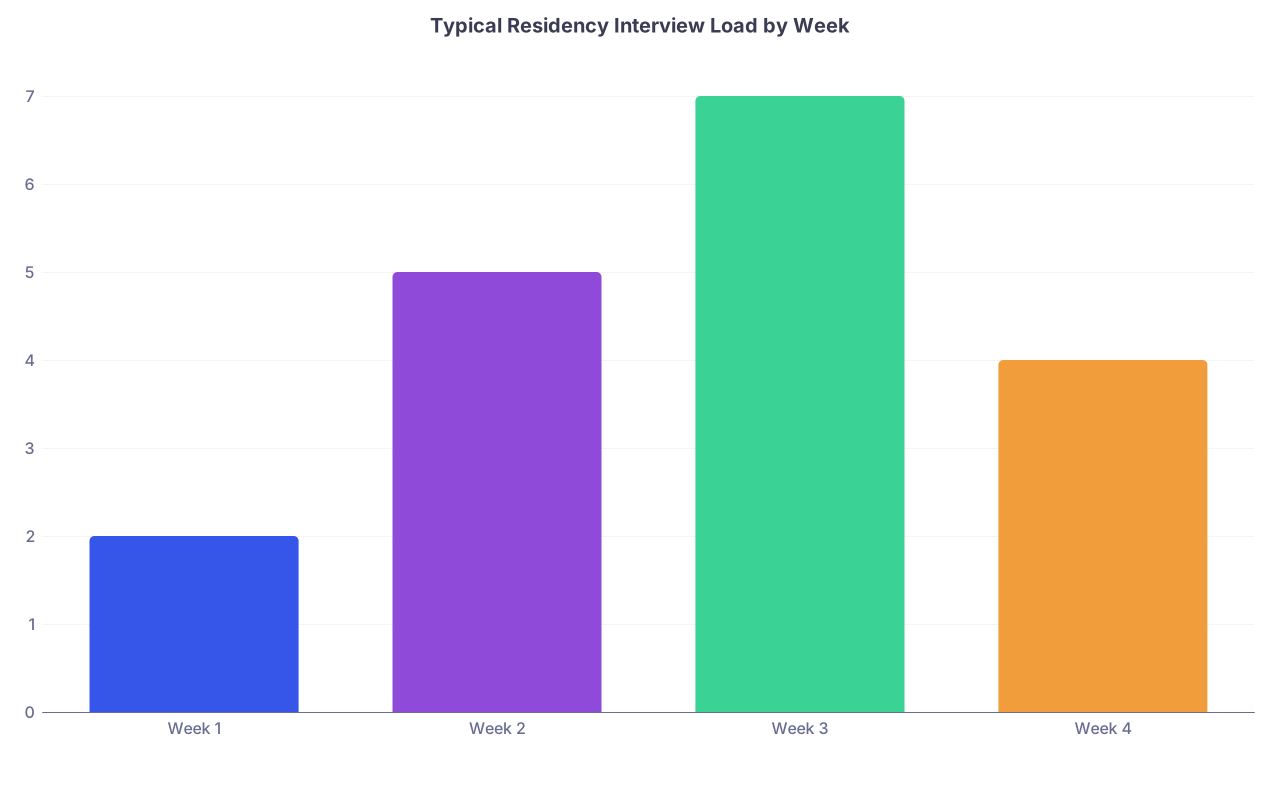
| Category | Value |
|---|---|
| Week 1 | 2 |
| Week 2 | 5 |
| Week 3 | 7 |
| Week 4 | 4 |
You want to know, just from phone lock screen, exactly which program and which time zone you’re dealing with.
Step 1 (When Invites Start Coming Fast): 24-Hour Intake Workflow
It’s a Tuesday afternoon. You just scrubbed out of a case and see three “Interview Invitation” subject lines. This is where people panic‑respond.
Instead, you stick to the intake sequence. Every single time.
Step 1.1: Log first, decide later (same day, ideally within a few hours)
For each new invite:
- Do NOT pick a specific date yet.
You’re going to get more invites, and dates will collide. - Open your spreadsheet and:
- Add the program.
- Add all offered date options in the “Offered Dates” column.
- Mark status as
Invite received.
- In email, reply with a brief acknowledgment if there’s no risk of slots disappearing instantly.
Template:
Dear [Coordinator Name],
Thank you for the invitation to interview with the [Program Name] [Specialty] Residency. I’m very interested in your program.
I’m currently reviewing my schedule across several upcoming interviews and will respond with my availability within the next [12–24] hours.
Best regards,
[Your Name], [AAMC ID]
This buys you time without looking disorganized.
Step 1.2: Do a quick conflict scan (end of day)
Once you’re home, now you compare.
For the new program:
- List their options vs. your already confirmed interviews.
- Use your calendar in week view, not month view. Overlaps are much clearer that way.
- If there are direct conflicts, mark them in the “Conflicts” column.
At this point you should know:
- If you can accept one of the offered dates easily.
- If accepting any date forces you into a brutal but possible day (e.g., back‑to‑back Zooms).
- If you’re going to need to ask someone for an alternate date or reschedule.
Only now do you start actually picking dates.
Step 2 (Overlapping Weeks Hit): Priority and Trade System
The third week of interview season is when everything piles up. You’ll have a Thursday where four programs all want that day. You can’t attend all four. So you need a priority framework.
2.1: Pre‑assign a priority tier to each program
Do this before you’re in a crunch. Add a “Priority” column in your sheet:
- Tier 1: Dream / geographic must / top realistic choices
- Tier 2: Solid options
- Tier 3: Safety / unlikely to rank high
Be honest. I’ve watched people pretend everything is Tier 1 and then end up half‑assing all of them.
When weeks overlap:
- Tier 1 always gets first pick of clean, low‑stress dates.
- You’re willing to stack interviews or take early mornings for Tier 2.
- Tier 3 gets whatever’s left or gets sacrificed if there’s no safe way to do it.
2.2: Use a “trade” rule for same‑week overlaps
If two programs want the same day:
- Ask yourself: Which program am I more likely to rank higher if the day goes smoothly?
- That one gets the better slot.
- You “trade” the stress to the lower‑priority program (early morning, near back‑to‑back).
Write it explicitly in your notes:
“Traded good slot to UW IM; stacking Minnesota EM with NYC Peds.”
Why write it? Because in week 5 you won’t remember your logic, and you’ll second‑guess everything.
Step 3 (Scheduling Emails): Preventing Mix‑Ups Before They Happen
This is where people actually screw themselves: replying to the wrong thread with the wrong dates.
3.1: One program at a time, from the spreadsheet down
Don’t bounce between tabs. Don’t multitask this.
Your flow:
- Open your spreadsheet.
- Choose ONE program with
Invite receivedstatus. - Decide on your preferred date(s) based on your calendar.
- Then open that program’s email thread.
- Compose reply with those date options.
- Immediately:
- Update “Selected Date” in sheet.
- Change status to
Reply sent – awaiting confirmation.
Only then move to the next program.
3.2: Use program names in every single email
The easiest way to avoid sending Program B’s options to Program A?
Explicit identifiers.
Subject line (reply, keep their subject, but add your bracket):
RE: Interview Invitation – [Your Last Name] – [Program Name IM]
First line of your email:
Dear [Coordinator],
Thank you again for the invitation to interview with the [Program Name] Internal Medicine Residency.
That one extra line means if you mis‑click a draft, you’ll see the mismatch immediately.
3.3: Date selection templates that reduce confusion
Use clear preferences with redundancies.
Good version:
I’d be grateful to schedule on one of the following dates (in order of preference):
- Wednesday, December 4
- Tuesday, December 3
- Friday, December 6
All dates listed are in [Program’s Time Zone, e.g., Eastern Time].
Avoid:
- “Next Wednesday works” (time zones).
- “The first week of December” (no one has time to decode that).
Step 4 (Week‑By‑Week: Running Overlapping Interview Weeks)
Once you hit 3–4 interviews in one week, the system needs daily upkeep.
Weekly routine (Sunday or day off)
At this point in the season, every Sunday night should look the same.
- Open your spreadsheet.
- Filter by
Status = Scheduled. - For the upcoming week, list interviews:
- Date
- Time (with time zone)
- Format
- Cross‑check your calendar:
- Every interview this week must have:
- A calendar event with correct time zone.
- Zoom link / location in description.
- Updated if any emails changed times.
- Every interview this week must have:
Then do a week visual scan:
- Any back‑to‑back interviews within 90 minutes? Flag them.
- Any 7 a.m. Pacific after a 5 p.m. Eastern the night before? Decide whether that’s survivable.
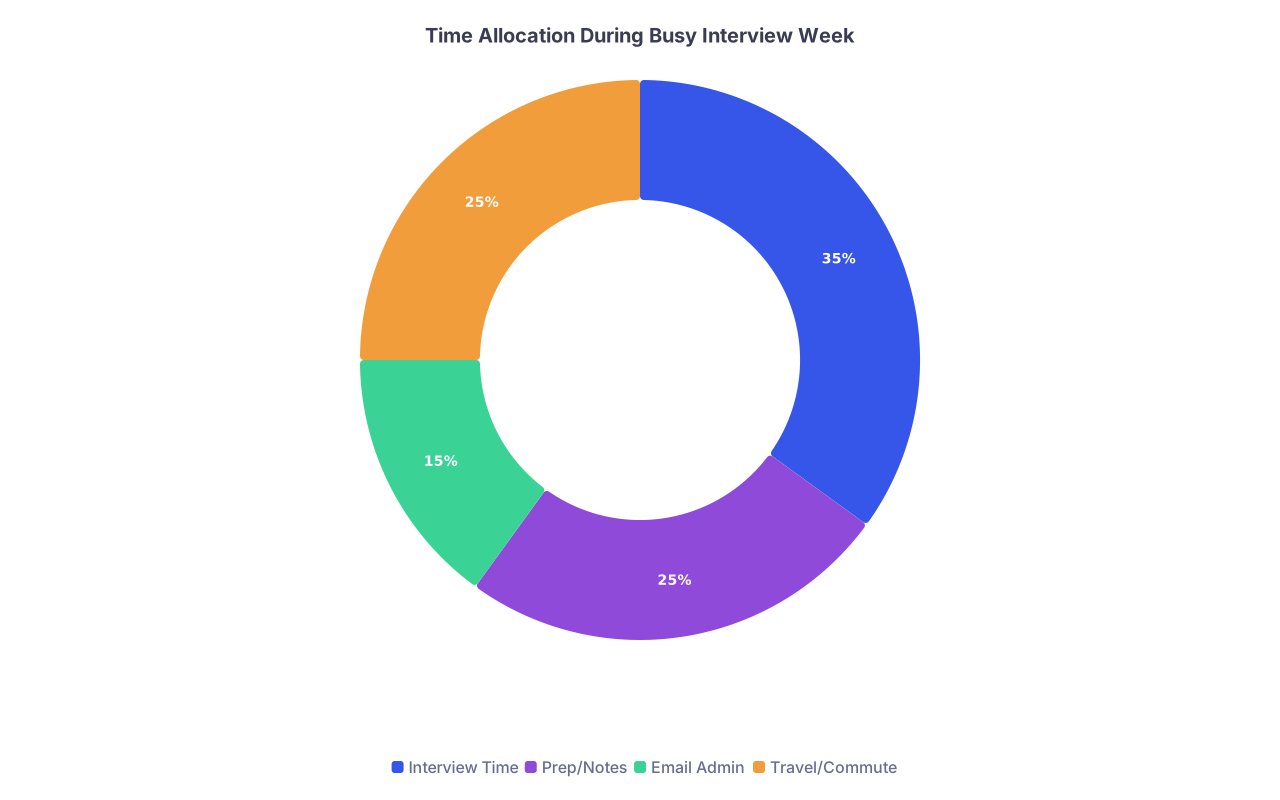
| Category | Value |
|---|---|
| Interview Time | 35 |
| Prep/Notes | 25 |
| Email Admin | 15 |
| Travel/Commute | 25 |
If you spot a disaster week, this is when you send reschedule emails. Not 12 hours before.
Daily routine (evening before)
Night before any interview:
- Open the specific program’s email thread.
- Re‑read:
- Date
- Time and time zone
- Platform and backup phone number.
- Then open calendar event and confirm it matches exactly.
- Open your spreadsheet and:
- Mark “Tomorrow” next to that row.
- Confirm that status is
Scheduled.
At this point you should physically not be capable of mixing up program A’s Zoom link with program B’s. You’ve reconfirmed the details from the actual email thread.
Step 5 (Day‑Of and Immediate After: Locking Down Follow‑Ups)
Mix‑ups don’t end when the Zoom call does. Sloppy follow‑up emails can leave a bad taste or make you look disorganized.
5.1: Right after the interview (same day)
Within 1–2 hours of finishing:
- Open your spreadsheet.
- Change status:
- From
ScheduledtoCompleted – Thank‑you pending.
- From
- Paste:
- Interviewers’ names and roles.
- Any stand‑out topics you discussed.
This takes 3–5 minutes and will save you when writing thank‑yous after three interviews in a row.
5.2: Thank‑you email system that avoids wrong program names
Standard rule: if you’re going to send thank‑you’s, send them the same day or next morning.
Do NOT mass‑draft across programs. That’s how you send “I really enjoyed learning about your community health track” to the program that does not have one.
Instead, one interview at a time:
- Open the program’s row in your spreadsheet.
- Confirm:
- Exact program name.
- Interviewers’ names.
- Open that program’s email thread.
- Draft thank‑you’s in that thread or as separate emails, but:
- Use program name in the first or second line.
- Reference a specific thing from that day.
Example:
Dear Dr. Smith,
Thank you for taking the time to speak with me today about the [XYZ Medical Center] Internal Medicine Residency. I especially appreciated our discussion about the longitudinal clinic experience and the opportunity to follow a consistent patient panel.
Once sent:
- Immediately mark
Thank‑you sentin the spreadsheet.

| Step | Description |
|---|---|
| Step 1 | Interview Completed |
| Step 2 | Log notes in spreadsheet |
| Step 3 | Draft thank-you email |
| Step 4 | Send email |
| Step 5 | Update status to Thank-you sent |
| Step 6 | Program name checked? |
Step 6 (Handling Reschedules and Conflicts Without Chaos)
Overlapping weeks guarantee at least one reschedule.
6.1: When you realize a conflict
Maybe a Tier 1 program only has one date left, and it collides with your Tier 3 interview.
Your steps:
- In the spreadsheet:
- Mark the lower‑priority program row with
Needs reschedule.
- Mark the lower‑priority program row with
- In your calendar:
- Temporarily block off both events as “Tentative – Do not book over”.
- Draft a reschedule email to the lower‑priority program.
Use something professional, not apologetic groveling.
Dear [Coordinator Name],
Thank you again for the opportunity to interview with the [Program Name] [Specialty] Residency. Due to an unavoidable conflict with another professional obligation, I was hoping to inquire about the possibility of rescheduling my interview to another available date.
I remain very interested in your program and would be grateful for any alternative dates you may have.
Best regards,
[Your Name]
Once they respond:
- Update spreadsheet date + status.
- Update calendar immediately.
- Remove “Tentative” block from conflicting slot.
6.2: Same‑day emergencies
If something explodes (clinic runs late, flight delayed):
- Do not overthink.
- Open that program’s most recent email (not your spreadsheet).
- Call if a phone is listed. If not, email with subject:
Time-Sensitive: [Your Name] – Today’s Interview.
Then update your spreadsheet after.
The system is there to protect you, not trap you. Real life still happens.
Step 7 (Preventing the Classic Mix‑Ups: Specific Failure Points)
Here are the three screwups I see every year, and where in your timeline to block them.
7.1: Wrong program name in email
Cause: Mass‑drafting, copy‑pasting between windows.
Prevention checkpoints:
- Step 3.2: Program name in first line of every scheduling email.
- Step 5.2: Program name + specific detail in first two lines of thank‑you.
If your first line says “Thank you for the opportunity to interview at [Wrong Program],” you catch it before send.
7.2: Wrong time zone = late arrival
Cause: Calendar defaulting to your local time but email listing theirs.
Prevention checkpoints:
- Step 0.3: Time zone in title of every event.
- Step 4 weekly review: Cross‑check email vs. calendar time for each upcoming interview.
- Step 4 daily routine: Re‑read original email the night before.
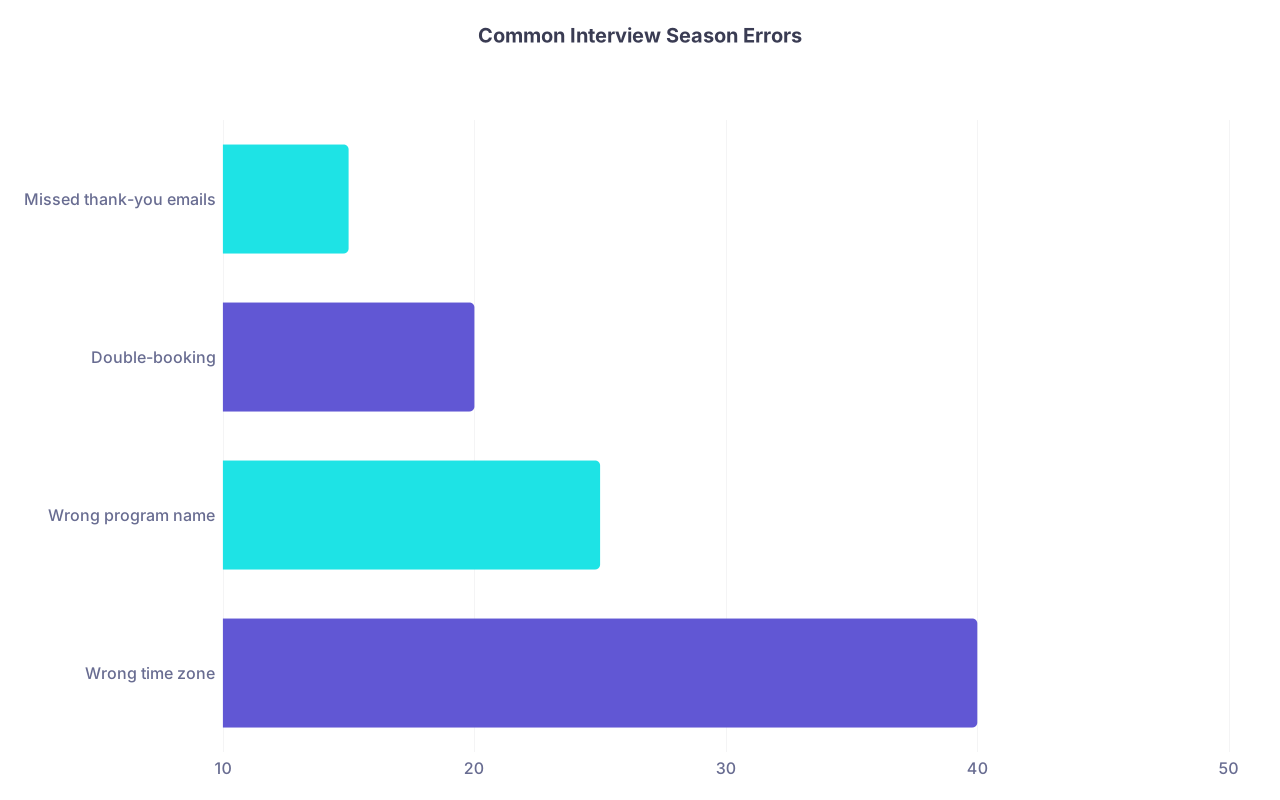
| Category | Value |
|---|---|
| Wrong time zone | 40 |
| Wrong program name | 25 |
| Double-booking | 20 |
| Missed thank-you emails | 15 |
7.3: Double‑booking same slot
Cause: Saying “Yes” before checking the spreadsheet, or not marking slots as “tentative.”
Prevention checkpoints:
- Step 1.1: Log invites before choosing dates.
- Step 3.1: Only schedule from spreadsheet → email, not the other way around.
- Step 6.1: Use “Tentative – Do not book over” holds when in doubt.
Quick Visual: Your Season System at a Glance
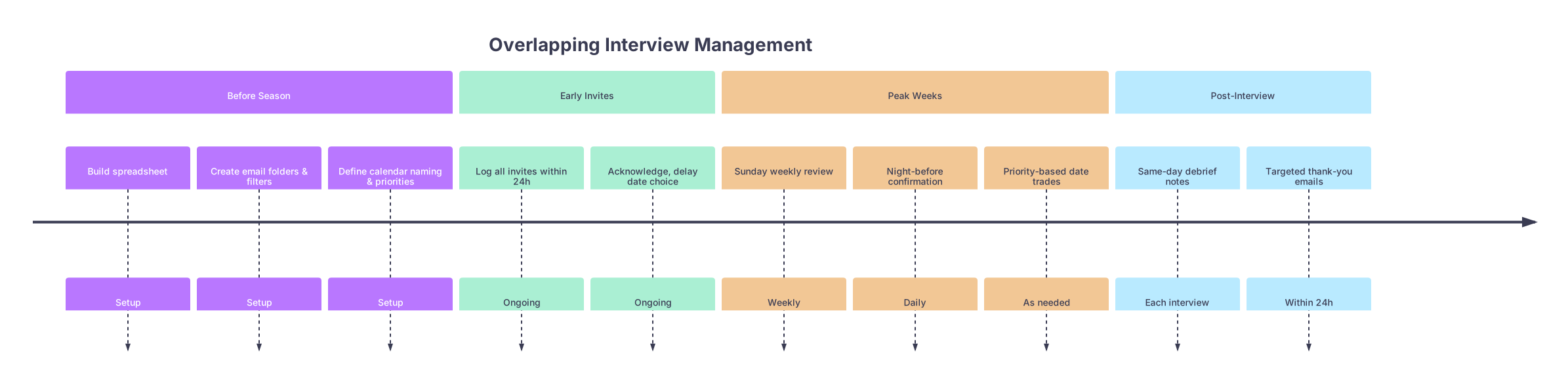
| Period | Event |
|---|---|
| Before Season - Build spreadsheet | Setup |
| Before Season - Create email folders & filters | Setup |
| Before Season - Define calendar naming & priorities | Setup |
| Early Invites - Log all invites within 24h | Ongoing |
| Early Invites - Acknowledge, delay date choice | Ongoing |
| Peak Weeks - Sunday weekly review | Weekly |
| Peak Weeks - Night-before confirmation | Daily |
| Peak Weeks - Priority-based date trades | As needed |
| Post-Interview - Same-day debrief notes | Each interview |
| Post-Interview - Targeted thank-you emails | Within 24h |
Final Takeaways
- Treat your interview season like a logistics job, not a vibes job. The spreadsheet + calendar + email folder trio is your non‑negotiable backbone.
- Make decisions in the right order: log → compare → choose → email → confirm → update. Skipping steps is where mix‑ups are born.
- Protect future‑you during overlapping weeks with clear priorities and weekly/daily check‑ins. If you run the system consistently, you don’t need a perfect memory—you just follow the plan.