SOAP Day does not forgive technical mistakes. It punishes them. Hard.
I’ve watched otherwise qualified applicants lose their only realistic shot at residency because of a password reset loop, a mistimed click, or a frozen browser. Not because they were lazy. Because they assumed “the system will work” and “I’ll figure it out that morning.”
You cannot afford that attitude during SOAP. Especially if you’re navigating SOAP with limited interviews and a thin margin of error.
This isn’t about being dramatic. It’s about survival.
Let’s walk through the specific technical errors around logins, timing, and clicks that blow up SOAP Monday–Wednesday—and exactly how to avoid joining that horror story group text.
1. The “I’ll Just Log In That Morning” Disaster
The worst SOAP mistake? Treating Monday morning like a normal login day.
Here’s what actually happens:
- ERAS is slammed.
- NRMP is slammed.
- Your internet might be spotty.
- Everyone is panicking and refreshing.
- Support lines are backed up.
If you discover a login problem on SOAP Day, you are already in trouble.
Critical systems you MUST test days before
You should be confidently logged into, familiar with, and functional in all of these before SOAP starts:
- MyERAS
- NRMP Registration / R3 system
- Email (ALL accounts you used anywhere—school, personal, backup)
- Any program-specific portals (rare in SOAP, but check)
- Video platforms (Zoom, Microsoft Teams, Webex) linked to your main interview email
Do not just “know your password.” Actually log in. Click around. Confirm everything loads fully.
| System | What To Check |
|---|---|
| ERAS | Can open applications and programs |
| NRMP R3 | SOAP eligibility and status |
| Receiving test emails reliably | |
| Video apps | Audio/video and screen name |
| Phone | Voicemail works, storage not full |
Common login errors that wreck SOAP
Password resets tied to a dead email.
You used your med school email for NRMP, but it auto-forwarded to Gmail. That forward breaks. You no longer get reset emails. On SOAP Monday, you’re staring at an empty inbox.Multi-factor authentication (MFA) on a phone you no longer use.
Old phone, lost authenticator app, SIM card changed. No code = no access.Auto-filled passwords that are actually wrong.
Chrome or Safari “remembers” something from last year. You never tested it. It’s wrong. You lock yourself out, start a support ticket while time is leaking away.Locked institutional accounts.
Your school email password expired. Or your school deactivated your account earlier than you expected.
How to not be that person
Do this no later than the Friday before SOAP begins:
- Log in manually to:
- ERAS
- NRMP
- Every email account tied to ERAS/NRMP
- Turn OFF any reliance on:
- Old school forwarding rules
- Mystery password managers you never fully set up
- Confirm:
- You can receive a test email from a friend to each account
- MFA codes arrive properly to your current device
- You know your security questions (yes, seriously)
If you discover a problem on Friday, you have the weekend (and your dean’s office) to help. On Monday? You’re in a stampede.
2. Timing Mistakes: Misreading the SOAP Clock
People don’t just miss deadlines. They misread them. Over and over.
SOAP has rigid, unforgiving time windows:
- When you see if you’re unmatched (Monday)
- When you can see unfilled positions
- When you can start contacting programs (you cannot initiate)
- When rounds of offers go out
- When offers expire (accept/decline window)
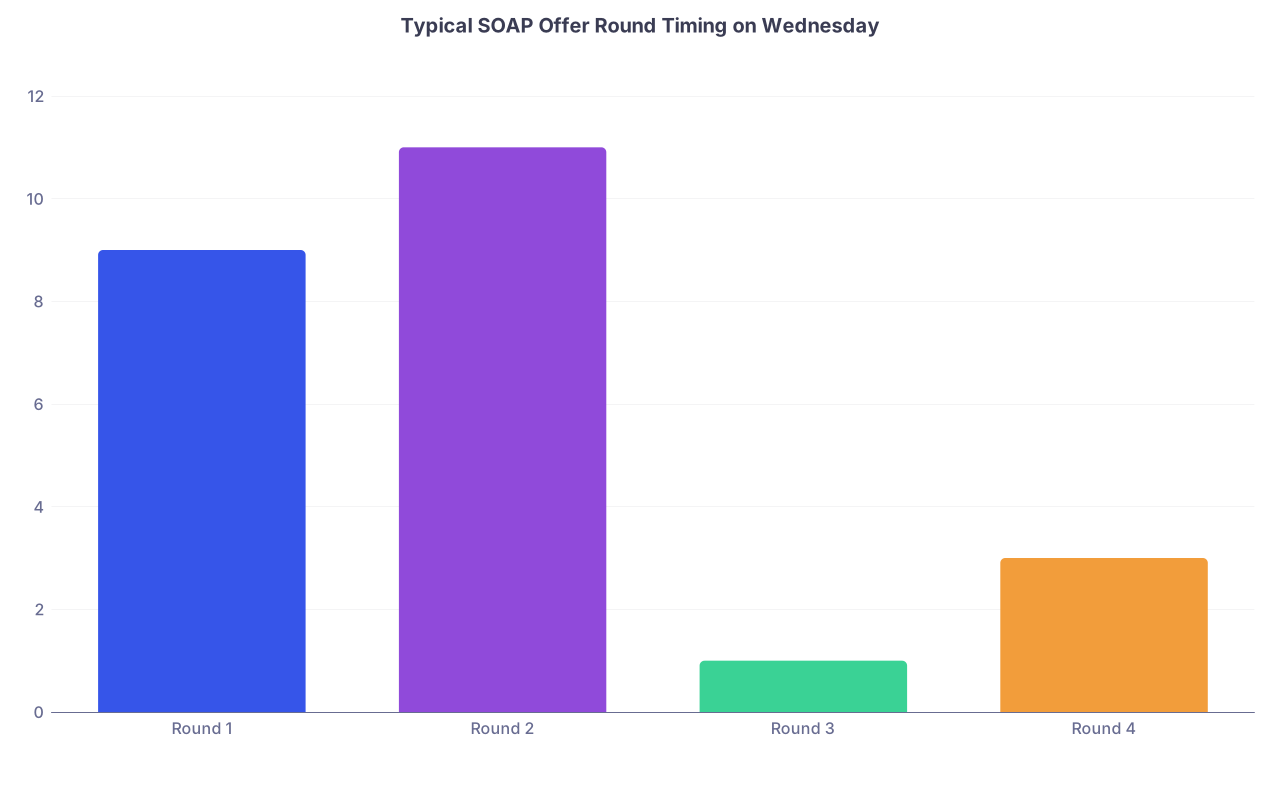
| Category | Value |
|---|---|
| Round 1 | 9 |
| Round 2 | 11 |
| Round 3 | 1 |
| Round 4 | 3 |
That chart is just an example, but the pattern is the same: small windows, high stakes.
Classic timing errors that cost positions
Thinking “business hours” instead of SOAP hours.
The SOAP schedule is posted in Eastern Time. If you’re in Central, Mountain, Pacific—or abroad—this will burn you if you don’t convert correctly.Mixing up “view” times vs “respond” times.
Seeing unfilled positions ≠ being allowed to contact programs. Responding to an offer has its own countdown.Using a flaky clock.
I’ve watched a student stare at their oven clock and swear “I have two more minutes” while their Round 1 offer expired server-side.Trying to multi-task at the wrong moment.
You don’t accept offers “after you finish this call” or “once you reread the program website.” SOAP timing is ruthless. Each second you hesitate, someone else clicks accept.
Protect yourself with an aggressive timing plan
Day before SOAP:
- Print the official NRMP SOAP schedule and circle:
- When rounds of offers will be sent
- When each round expires
- Convert all times to your local time zone. Write them on the paper by hand.
- Set:
- Phone alarms 10 minutes before each round
- A final alarm 2–3 minutes before offer expiry
Day of SOAP (especially Wednesday):
- Use a clock synced to internet time:
- Your phone
- Or a site like time.gov
- Keep your oven/microwave clocks out of this. They drift.
- Don’t assume “they’ll give a grace period.” They will not.
3. The Click That Costs You an Offer
SOAP isn’t just about getting an offer. It’s about managing offers correctly. Many strong candidates screw this up with one careless click.
The key concepts you can’t afford to misunderstand:
- Accept vs. Decline vs. Let Expire
- Contingent vs. final
- How many offers you can accept
- What happens if you accept then try to change your mind
Click mistakes that have actually happened
Accidentally hitting Decline instead of Accept.
Sounds stupid. Until you realize you’re on hour 6 of panic, you’re shaky, and the buttons are right next to each other on a cramped laptop screen. One wrong click, and that spot is gone for good.Letting offers expire by indecision.
You’re thinking, “Maybe I’ll get a better one in the next round.” Then your only offer evaporates while you’re still looking at the program’s website, debating.Accepting an offer you don’t understand.
Vague program description. You misread the specialty or the track. Yes, I’ve seen someone accidentally accept a preliminary year they thought was categorical. That error is almost impossible to undo.Trying to game the system.
Sitting on an offer to see if you get another simultaneously. You underestimate the clock, and the “sure thing” becomes nothing.
How to click like your future depends on it (because it does)
Before offers start:
- Decide your absolute priority order of realistic positions:
- Categorical > Prelim (if you still need a PGY-2)
- Home state > unknown location (if support system matters)
- Any ACGME-accredited residency > no residency
- Write this out physically. Under stress, your judgement gets fuzzy.
During offer rounds:
- Read the offer out loud:
- “Program name, specialty, categorical vs prelim, location.”
- Confirm it matches your priority list.
- Have a rule:
- If it’s in your top tier → Accept immediately. Do not overthink.
- If it’s mid-tier but your alternative is “pray for something better with no interviews” → Accept.
Do not:
- Decline anything unless it’s truly unacceptable long-term (and you’re OK with not matching this year).
- Try for elegance or perfection. You’re trying to match, not win a lifestyle contest.
4. ERAS & SOAP Portal Snafus: When the System Fights You
The ERAS portal during SOAP is… fragile. Under heavy load. And your laptop isn’t invincible either.
I’ve watched people blow precious minutes on stuff that was 100% preventable.
Portal-related errors that stall your SOAP
Browser incompatibility.
You used Safari or an ancient browser. Buttons don’t load correctly. Pop-ups get blocked. The offer screen doesn’t refresh.Multiple logins from multiple devices.
You log into ERAS on your laptop, your friend logs in for you somewhere else “to help,” and the sessions conflict. You both start seeing weird behavior.Relying on one dying device.
Laptop battery at 11%. Two offer rounds left. No charger. Wi‑Fi unstable.Pop-up blockers hiding critical windows.
The confirmation dialog or updated list is blocked, and you think nothing changed.
Stabilize your tech environment ahead of time
Day before:
- Update:
- Your browser (Chrome or Firefox are safest)
- Your operating system, if it doesn’t risk breaking things (don’t do a massive OS upgrade the night before SOAP)
- Test:
- Logging into ERAS and NRMP on both:
- Primary laptop/desktop
- Backup device (another laptop, tablet, even phone)
- Logging into ERAS and NRMP on both:
- Disable or adjust:
- Aggressive ad-blockers or script-blocking extensions
- Pop-up blockers (or whitelist ERAS/NRMP)
Day of:
- Plug your laptop in. Keep it charging.
- Keep a backup device open and logged in, but don’t keep clicking on both. Only use the backup if the primary fails.
- Don’t have 20 tabs open streaming video or gaming. You need stable bandwidth.
5. Email, Phone, and Notification Fails
You will not always get a phone call first. Some programs email. Some message through ERAS. Some call once, then move on forever.
Missing those contacts because you “forgot to unmute” is painful. And very common.
Communication failures to avoid
Silent phone with unknown callers blocked.
A surprising number of residents almost didn’t match because their iPhone was set to:- “Silence Unknown Callers”
- “Do Not Disturb” Programs rarely leave long voicemails. They call. No answer. They move on.
Full voicemail box.
They try to leave a message. “Mailbox is full.” They interpret that as disorganization.Email routing disasters.
Your school email forwards to Gmail, but:- Spam filter is aggressive
- Auto-sorting puts program emails into random labels/folders you never check
Notification overload.
You get pinged by group chats, social media, news alerts, random apps. You mute everything… including the one channel that matters.
Make yourself actually reachable
At least 24 hours before SOAP:
- Phone:
- Turn OFF “Silence Unknown Callers”
- Turn OFF “Do Not Disturb” during business hours
- Clear your voicemail box completely
- Record a neutral, professional voicemail greeting
- Email:
- Add filters to highlight any email with:
- “Residency”
- “Program”
- “Interview”
- Your specialty name
- Check spam and promotions tabs manually
- Add filters to highlight any email with:
- Notifications:
- Temporarily mute:
- Instagram/TikTok/Twitter/etc.
- Non-essential group chats
- Leave ON:
- Calls
- Email alerts from your main account
- Calendar/alarms for SOAP rounds
- Temporarily mute:
6. “I Thought My School Would Handle It” – Dependency Errors
One more harsh truth: your dean’s office or advising office is helpful, but they are not your personal IT department or time manager. During SOAP, they’re also slammed.
I’ve seen people assume:
- “My school will make sure I’m set up.”
- “They’ll tell me when to click.”
- “They’ll help if something goes wrong.”
They will try. But they can’t fix a locked email account at 8:58 a.m. if central IT opens at 9:00 a.m.
Red flags you’re relying too much on others
- You haven’t personally logged into every account because “my advisor checked.”
- You don’t know your own NRMP ID by heart.
- Your SOAP strategy is basically “I’ll sit in the dean’s office and they’ll guide me.”
Your school can:
- Help prioritize programs
- Talk through strategy
- Make phone calls on your behalf if something really breaks
They cannot:
- Click “accept” for you
- Reset external system passwords faster than the system allows
- Stop an offer from expiring because your internet froze
Own your side of this
By the Friday before SOAP:
- Have a printed sheet with:
- NRMP ID
- ERAS AAMC ID
- Email logins (not passwords—just which account is used where)
- Key phone numbers (Dean’s office, IT helpdesk, NRMP support)
- Do a dry run:
- Pretend you just got an offer
- Walk through the exact clicks you’d make, on the actual portal, until you reach the confirmation screen (don’t accept anything, obviously—just get close)
- Confirm with your advisor:
- “If I’m locked out of X, who do I call first? You or IT or NRMP?”
If nobody can answer that question clearly, fix that before SOAP.
7. Mental Overload: When Panic Breaks Your Technical Skills
One more subtle but deadly error: assuming you’ll think clearly under pressure.
You probably won’t. Most people don’t.
That’s why simple technical tasks are turning into catastrophes on SOAP Day. Not because they’re complicated. But because you’re exhausted, discouraged from going unmatched, overwhelmed, and trying to perform while your brain is in threat mode.
How panic shows up technically
- You misread time zones you usually handle fine.
- You click the wrong button even though you “never do that.”
- You forget passwords you’ve used for months.
- You stare at the screen and do nothing while a countdown clock is running.
Build buffers against your future panicked self
Do not trust your future brain. Support it instead:
- Write down:
- Step-by-step: “If I get an offer, I will: 1) Reconfirm program, 2) Check against my list, 3) Click Accept, 4) Take screenshot.”
- Prepare a one-page SOAP Action Sheet taped next to your computer:
- Top priority program types and locations
- Time windows
- Key logins (just usernames/emails, not passwords)
- Emergency contacts
- Ask one trusted person to sit quietly nearby (in person or on call):
- Their job is not to decide for you.
- Their job is to say, “Read the screen slowly,” and, “You have 3 minutes, make a choice,” when you freeze.
FAQ (Exactly 3 Questions)
1. What should I do if I realize I’m locked out of NRMP or ERAS on SOAP Monday morning?
Move fast and don’t waste time trying the same broken thing over and over. Document the problem (screenshots), then simultaneously:
- Start the official password reset process.
- Call NRMP or ERAS support immediately.
- Contact your dean’s office so they can also reach out on your behalf.
While you’re doing this, get into any related systems you can access (email, phone, video platforms) and keep them open. Don’t wait passively—keep pushing all available channels.
2. Is it ever smart to let a SOAP offer expire instead of accepting or declining it?
No. Letting an offer expire is the worst of both worlds: you lose the spot, and it signals hesitation or disorganization. If an offer is truly unacceptable, decline it intentionally. If it’s one you’d even realistically consider, your safest move in SOAP—especially with limited interviews—is to accept. You can’t “hold” offers without risk.
3. How early should I start testing logins and tech for SOAP?
A safe baseline is the week before SOAP starts. By the Friday before SOAP:
- Every login should have been tested manually.
- Every device you might use should have been checked with ERAS/NRMP.
- Your email/voicemail/notification setup should be finalized.
If you wait until the weekend or, worse, Monday morning, you’re gambling your match on help desks and server stability. That’s a terrible bet.
Open your calendar and the NRMP SOAP schedule right now. Convert every critical time window into your local time, write them on paper, and set alarms. Then test every single login you’ll need during SOAP—before you talk yourself into “I’ll do it later.”