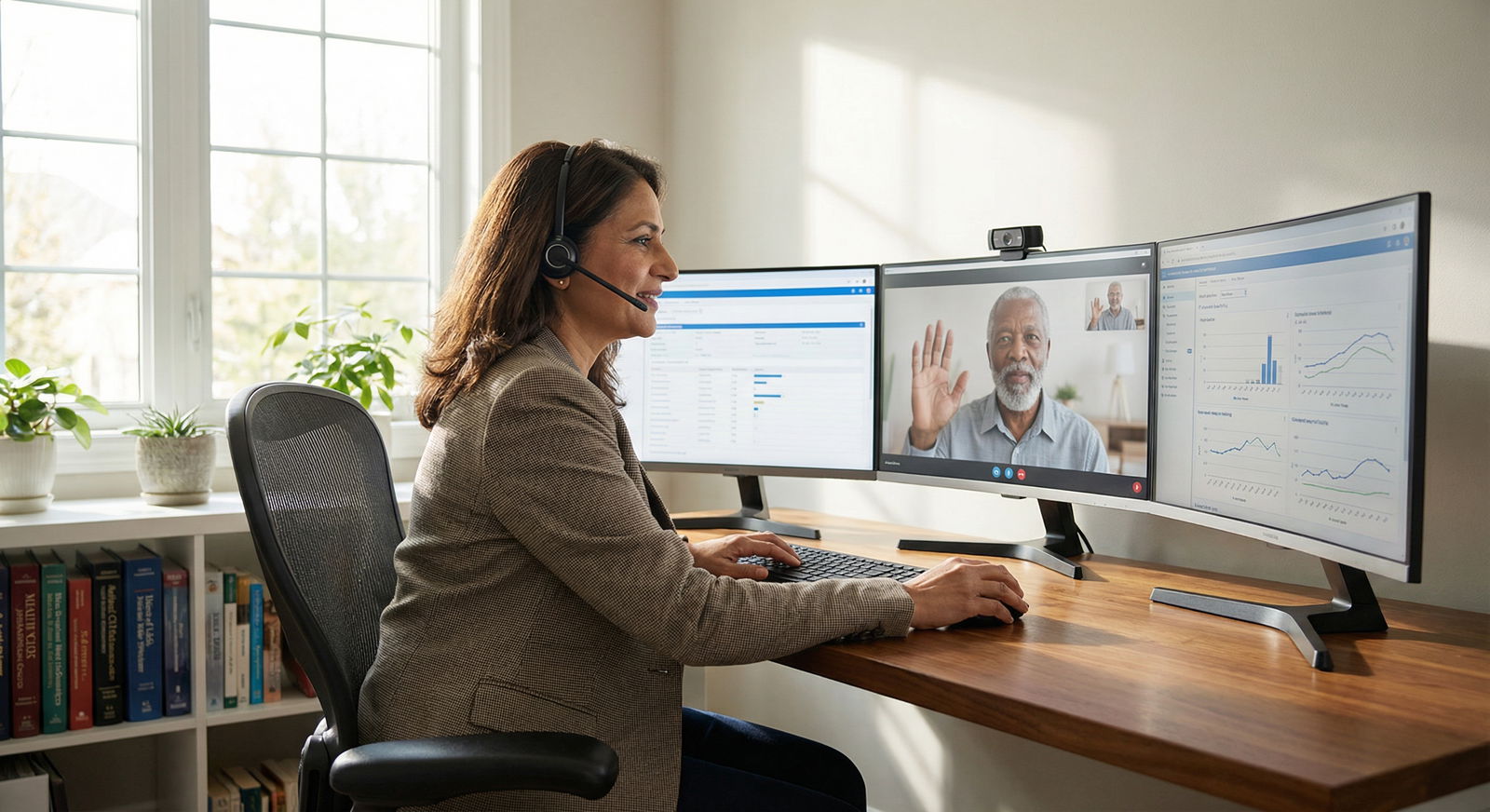
The way most physicians "do telehealth from home" is a privacy incident waiting to happen.
If you are practicing real medicine (not casual urgent-care scripts) and your home setup looks like a normal work-from-home desk, you are already behind. Hospitals, plaintiffs’ attorneys, and state boards will not care that your employer’s IT “said it was fine” when something goes wrong.
Here is how to fix it, step by step, like you would any clinical process.
1. Decide Your Home Office Scope Before Buying Anything
Start here or you will overspend on gadgets and underbuild on security.
Ask and answer three questions:
What type of telemedicine are you doing?
- Employed by a large health system using their EHR and video platform
- 1099 contractor across multiple telehealth companies
- Private practice or small group using your own tech stack
What data will live at home?
- Just transient video + EHR via hospital Citrix / VPN
- Local files: PDFs, scanned forms, billing reports, personal notes
- PHI screenshots or photos (yes, people do this; yes, it is risky)
Who else uses your home network and space?
- Kids streaming on the same Wi‑Fi
- Partner also working from home on sensitive data
- Shared devices (iPad for kids, family laptop)
Your answers dictate your minimum bar:
- Employed + hospital-managed laptop + no local PHI:
- You can get away with a simpler hardware setup but must lock down environment and network.
- Private practice + your own devices + local storage:
- You are now IT, compliance, and risk management. Build like a small clinic, not like a home office.
Once that is clear, you can follow a concrete build sequence.
2. Build the Physical Environment First (Privacy Starts With Walls)
Your tech can be flawless and you still violate confidentiality if your teenager hears your psych intake through the door.
A. Room and Layout
You need:
- A door that fully closes. Not a curtain. Not a half-wall loft.
- Walls that are not paper thin. If they are, you adjust.
Minimum viable private space:
- A spare bedroom, dedicated office, or finished basement room.
- Desk facing a wall, not a window. Background: simple, neutral, no clutter, no family photos, no diplomas with your home address.
If walls are thin:
- Add a door sweep and adhesive weatherstripping around the frame.
- Use a solid-core door if you can replace it; hollow-core doors leak sound badly.
- Add rugs, a bookcase, or acoustic panels on the wall opposite the door.
B. Sound Privacy
You do not want:
- Family hearing sensitive details.
- Patients hearing background conversations.
Practical fixes:
- White noise machine or fan outside the office door to mask speech.
- Door sign: “On Telemedicine Call – Do Not Enter.” Low tech, very effective.
- If spouse / roommates ignore signs:
- Simple household rule: during scheduled clinic blocks, office is treated as “exam room – no interruption unless fire/bleeding.”
C. Visual Privacy
Patients should never see:
- Doors opening behind you.
- Other people walking by.
- Personal items that undermine professionalism.
Set up:
- Camera pointed at a plain wall.
- If the only option is a busy room, use a physical backdrop (collapsible screen) rather than virtual backgrounds, which can glitch and reveal more than you want.
3. Lock Down Your Hardware (Devices That Touch PHI)
If you remember nothing else: no shared family computer for telemedicine. Ever.
A. Choose a Dedicated Clinical Device
Best options, ranked:
- Employer-managed encrypted laptop with their security stack
- Your own business-only laptop with full-disk encryption and strong policies
- As a last resort, a dedicated desktop in a locked room with equivalent protections
If you currently use:
- Your personal MacBook where your kid plays Roblox: stop. Time to separate work and personal.
Checklist for your telemedicine computer:
- Full-disk encryption enabled:
- macOS: FileVault on
- Windows: BitLocker on (Pro edition or higher)
- Automatic screen lock at 5–10 minutes of inactivity with password required.
- Login only via:
- Strong password (12+ characters) or
- Password + biometric (Touch ID, Windows Hello) if hardware supports it.
- Regularly updated OS (current major version) and security patches auto-applied.
B. Peripherals That Actually Matter
You are not a Twitch streamer. You do not need RGB lights. You do need to look and sound competent.
Minimum kit:
- External webcam (1080p, adjustable). Built-in laptop webcams are usually terrible at framing and low light.
- Decent microphone:
- USB mic, or
- Good-quality wired headset.
- Lighting:
- Simple ring light or LED panel behind the monitor pointing at your face.
- Second monitor:
- One for the patient / video platform.
- One for EHR, references, messages.
Why it matters:
- Clear audio reduces misunderstandings and “I did not hear that” charting gaps.
- Two monitors prevent amateur-hour tab switching and “hold on while I find that” awkwardness.
Place your webcam:
- At eye level, centered on your primary monitor.
- Far enough back that your torso and hands are visible, not just a giant floating face.
C. Secure Physical Access
You are responsible for the device even if you are not at home.
Do this:
- Lock the office door when you are away and there is PHI on screen or local data.
- For desktops: use a BIOS/UEFI password or ensure disk encryption with pre-boot authentication.
- For laptops: never leave them in visible places like kitchen counters when logged in.
4. Secure Your Network and Internet (No, Your Default Router Settings Are Not OK)
Most physicians skip this step and blindly trust “WPA2 password” as sufficient. It is not, when you are streaming PHI all day.
A. Internet Connection: Wired > Wi‑Fi
Your video visits are only as good as your upstream bandwidth.
Rule:
- Wired Ethernet to your telemedicine computer if possible. Telehealth traffic gets stability and better latency.
- If you must use Wi‑Fi:
- Use 5 GHz, strong signal (office near router or use a hardwired mesh node).
- Avoid doing visits over weak signals or extenders that drop.
Target bandwidth:
- Minimum 10 Mbps upload per active telehealth stream.
- Check via speedtest.net at your actual clinic times (evenings often slower).
B. Router and Wi‑Fi Security
If your router is still using the password printed on the bottom, you are behind.
Baseline steps:
- Log into your router admin interface.
- Change:
- Router admin password to a long, unique passphrase.
- Wi‑Fi network name (SSID) to something generic (no names, no addresses).
- Wi‑Fi password to strong passphrase (16+ characters).
- Enable WPA2-AES or WPA3 if available. Avoid WPA/WEP or mixed “WPA/WPA2” modes if you can.
Critical: create a separate Wi‑Fi network structure:
- Main network: for your clinical devices only (telemedicine PC, maybe your work phone).
- Guest network: for all family devices, smart TVs, IoT junk, kids’ tablets.
If router supports VLANs or traffic prioritization:
- Give your telemedicine device higher QoS priority so video calls do not stutter when your teenager starts a 4K Netflix stream.
C. VPN and Remote Access
Two categories here:
Employer-provided VPN or Citrix
Use it. Do not bypass it. Do not store PHI locally just because “Citrix is slow today.”Your own telemedicine practice
If you host anything accessible over the internet (EHR, file server, VoIP):- Use a commercial, vetted VPN solution with business-grade features, or
- Use your vendor’s secure cloud and do not expose your home network directly.
Never:
- Open RDP (Remote Desktop) directly to the internet with a port forward.
- Use “free VPN” browser extensions from unknown companies.
5. Software: EHR, Video Platform, and Local Data Hygiene
This is where most compliance failures live—screenshots, downloaded PDFs, sticky notes with MRNs.
A. Use Only Approved Platforms
If you are:
- Employed: your hospital or telehealth company dictates the EHR and video platform. Use those. Do not improvise with FaceTime or Zoom personal accounts because “it was easier.”
- Independent: choose platforms that:
- Are explicitly HIPAA compliant.
- Offer a Business Associate Agreement (BAA).
- Have clear audit logs and user management.
For video specifically, examples (not endorsements, just reality):
- Doxy.me (professional or clinic tier)
- Zoom for Healthcare (not standard Zoom)
- VSee
- Integrated telehealth modules in mainstream EHRs (Epic, Athena, Kareo, etc.)
B. Browser and Application Practices
You do not want PHI leaking into random corners of your system.
Set up:
- One dedicated browser profile for clinical work (Chrome/Edge profiles, Firefox containers).
- Disable password auto-saving for EHR and telehealth logins.
- Block notifications from social media, messaging apps during clinical sessions.
Mitigate leakage:
- Configure browser to clear cookies and cache on exit for your clinical profile, unless IT policies require otherwise.
- Never download PHI to default “Downloads” folder that syncs to personal cloud (iCloud Drive, OneDrive personal, Dropbox personal) unless that cloud is covered by your BAA and clearly segregated.
C. Local Files and Storage
If you absolutely must keep local documents with PHI:
- Store them in an encrypted folder or volume:
- On Mac: encrypted DMG or FileVault + separate user account for clinic.
- On Windows: BitLocker + EFS or encrypted container (e.g., VeraCrypt).
- Use a folder structure:
- /Clinic/PHI/Patients
- /Clinic/Admin (no PHI)
- Regularly review and delete unneeded PHI after it is properly uploaded to EHR.
Never:
- Email yourself PHI to Gmail or similar.
- Store PHI in Evernote, Apple Notes, or generic note apps without a BAA.
- Take pictures of screens with your personal phone.
6. Identity, Passwords, and 2FA: Your Account Security Stack
Your accounts are more likely to be attacked than your router.
Here is the minimum stack:
A. Password Manager
Stop trying to “remember” strong passwords for a dozen clinical systems. You will reuse them or make them weak.
Use a reputable password manager:
- 1Password, Dashlane, Bitwarden, or enterprise manager your employer dictates.
- Opt for business/teams plan if you run your own practice.
Behavior:
- Unique password for every clinical system.
- Master password = long passphrase (four or five random words, plus a symbol or number).
B. Multi-Factor Authentication (MFA / 2FA)
Any service that offers it, you enable it. Non-negotiable, especially:
- EHR and practice management.
- Telehealth platform.
- Email that touches PHI or clinical business.
- Cloud storage with any PHI.
Prefer:
- App-based codes (Authy, Microsoft Authenticator, Google Authenticator).
- Hardware keys (YubiKey) where supported, particularly for email and primary identity accounts.
Avoid:
- SMS codes as the only factor, if you have better options. But SMS is still better than nothing.
C. Email and Identity Hygiene
Your email is the skeleton key to everything.
- Use a professional domain for clinical work ([email protected]), not Hotmail or Yahoo.
- Protect that email with:
- Strong, unique password.
- MFA.
- Do not mix clinical and personal newsletters, junk, etc. in the same inbox if you can avoid it.
7. Documentation, Policies, and the “If I Got Audited Today” Test
You may not care about HIPAA nuance. OCR and lawyers will.
Run your setup through this mental exercise:
If a regulator or malpractice attorney asked, “Show me how you protect PHI in your home telemedicine office,” what could you hand them in writing within 24 hours?
You want at least:
- Written Telemedicine Work-from-Home Policy (even if it is just you)
- Device requirements (encryption, OS updates, screen lock).
- Network requirements (separate Wi‑Fi, strong passwords).
- Physical security rules (door closed, no recording, no family entry during visits).
- List of Systems and Vendors with BAAs
- EHR
- Telehealth platform
- Cloud storage
- E-fax
- Incident Response Plan
- Lost or stolen device: who you call, what you do.
- Suspected unauthorized access: password resets, notifications, logging review.
Write it once. Update yearly or when you change tools.
8. Daily Operational Checklist: Before, During, After Visits
This is the practical part. The routine that keeps you out of trouble.
Use this short, repeatable checklist for each clinic block.
A. Before Your First Visit
- Door closed, sign up.
- White noise on (if needed).
- Camera framing checked: neutral background, good lighting, no visible PHI.
- Headset / mic levels tested (do a test call or recording).
- EHR, telemedicine platform open and logged in.
- Notifications muted:
- Phone on Do Not Disturb (exceptions: clinic line, family emergency).
- Computer notifications for messaging apps off.
- Speed test if you have had recent issues:
- If upload is poor, move to wired connection or reboot router before starting.
B. During Visit
- Confirm patient’s identity at the start (name, DOB, at minimum).
- Confirm patient location (state) for licensing liability.
- Confirm who else is in the room on their side.
- Make a point of stating:
- “I am in a private office and our connection is secure on my end.”
- Chart in real-time while talking if your style permits, but:
- Never leave PHI visible on the screen when you step away, even briefly. Lock screen.
No recording:
- Do not record sessions unless your program explicitly requires it and you have clear consent and storage policies.
C. Between Visits and At Session End
- Close unnecessary tabs with PHI.
- If you wrote temporary notes outside the EHR (whiteboard, scratch pad), transfer key data to chart and immediately erase / shred.
- For long breaks:
- Lock your screen.
- Close door.
End of day:
- Log out of EHR and telehealth platforms.
- Lock or shut down computer.
- Quick glance around desk:
- No printed PHI lying around.
- No sticky notes with MRNs or passwords.
9. Handling Paper, Devices, and “Edge Cases”
Edge cases are exactly where investigations focus.
A. Paper in a Paperless Practice
Sometimes you still receive:
- Mailed records.
- Faxes printed by mistake.
- Your own scribbled diagrams.
Rules:
- Either scan to your EHR-secured system and then shred, or
- Store in a locked file cabinet in the office, not on open shelves.
Use a cross-cut shredder. Not “rip into four pieces and toss in kitchen trash.”
B. Personal Phone Use
Your phone is a privacy grenade if unmanaged.
If you use your phone for:
- Two-factor codes: fine.
- Professional calls / texts with patients: it must be handled like a clinical device.
Safer configurations:
- Use a separate work number (VoIP app with BAA, like Doximity Dialer, Google Voice for business, or your telehealth platform’s dial-out feature).
- Lock screen with PIN or biometric.
- Enable remote wipe (Find My iPhone / Android Device Manager).
- Do not store patient info in your personal Contacts app if you can avoid it.
Texting:
- Only through secure, HIPAA-compliant messaging if PHI is involved.
- No casual SMS with diagnoses, labs, or photos.
C. Family and Visitors
You are running a mini-clinic from home. Treat it that way.
Ground rules:
- No one uses your telemedicine computer except you.
- No one enters during clinic hours unless you explicitly allow it.
- If someone must enter (e.g., urgent child need), you:
- Mute mic.
- Turn camera off.
- Lock screen if leaving seat.
10. Quick Investment vs. Risk Table
Here is how a few targeted investments dramatically reduce risk and improve professionalism:
| Item | Approx. Cost | Risk / Quality Impact |
|---|---|---|
| External webcam + mic | $100–$200 | Major visit quality boost |
| Second monitor | $120–$250 | Documentation efficiency |
| Ethernet cable + adapter | $20–$50 | Connection stability |
| White noise machine | $25–$50 | Audio privacy |
| Password manager (annual) | $30–$60 | Account security |
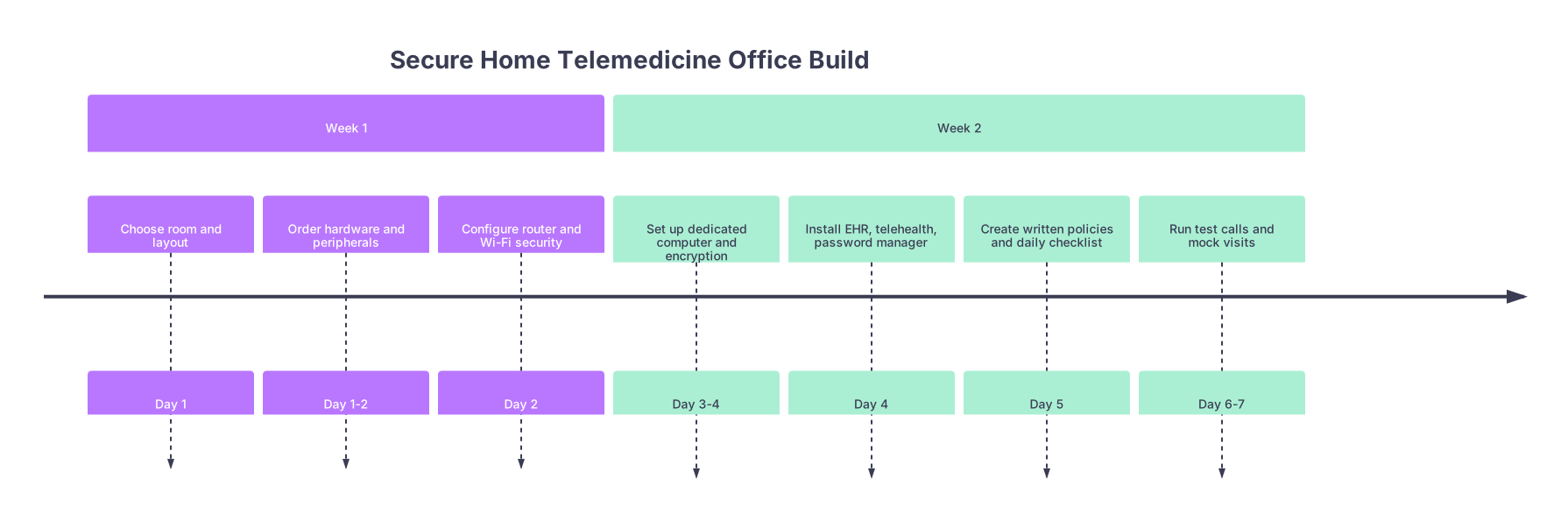
11. Step-by-Step Implementation Plan (Do This Over 1–2 Weekends)
You do not need to build everything in one night. Here is a sane rollout.
| Period | Event |
|---|---|
| Week 1 - Choose room and layout | Day 1 |
| Week 1 - Order hardware and peripherals | Day 1-2 |
| Week 1 - Configure router and Wi-Fi security | Day 2 |
| Week 2 - Set up dedicated computer and encryption | Day 3-4 |
| Week 2 - Install EHR, telehealth, password manager | Day 4 |
| Week 2 - Create written policies and daily checklist | Day 5 |
| Week 2 - Run test calls and mock visits | Day 6-7 |
Weekend 1
- Choose/dedicate your telemedicine room.
- Move desk, adjust layout for camera background.
- Add basic sound privacy (door sweep, rug, white noise).
- Lock down router and Wi‑Fi (admin password, new SSIDs, guest network).
- Run speed tests; plan for Ethernet if needed.
Weekend 2
- Set up or reconfigure a dedicated work computer:
- OS updates, encryption, screen lock.
- Install:
- EHR access.
- Telehealth platform.
- Password manager and MFA apps.
- Configure browser profile for clinical use.
- Write:
- One-page WFH/telemedicine policy.
- One-page “Daily Checklist” taped near your monitor.
- Do multiple mock visits:
- With a friend or family member as fake patient.
- Test lighting, audio, and flow switching between EHR and video.
After that, refine. But you will have crossed the threshold from “risky informal setup” to “defensible professional environment.”
12. Final Thoughts: Treat Your Home Office Like a Satellite Clinic
You are not “working from the couch.” You are running a small clinical site under your medical license, inside your house.
Three key points to carry forward:
- Physical privacy and network security matter as much as your software. A closed door, separate Wi‑Fi, and dedicated device do more for risk reduction than any fancy telehealth feature.
- Write down your rules and follow a daily checklist. Policies and routines are what make your setup defensible when something goes wrong.
- Separate clinical from personal aggressively. Separate device, separate accounts, separate networks. Your future self, and your legal team, will thank you.
Build your home telemedicine office like a real clinic, and it will serve you for years without keeping you awake at 3 a.m. wondering what your router is doing.