
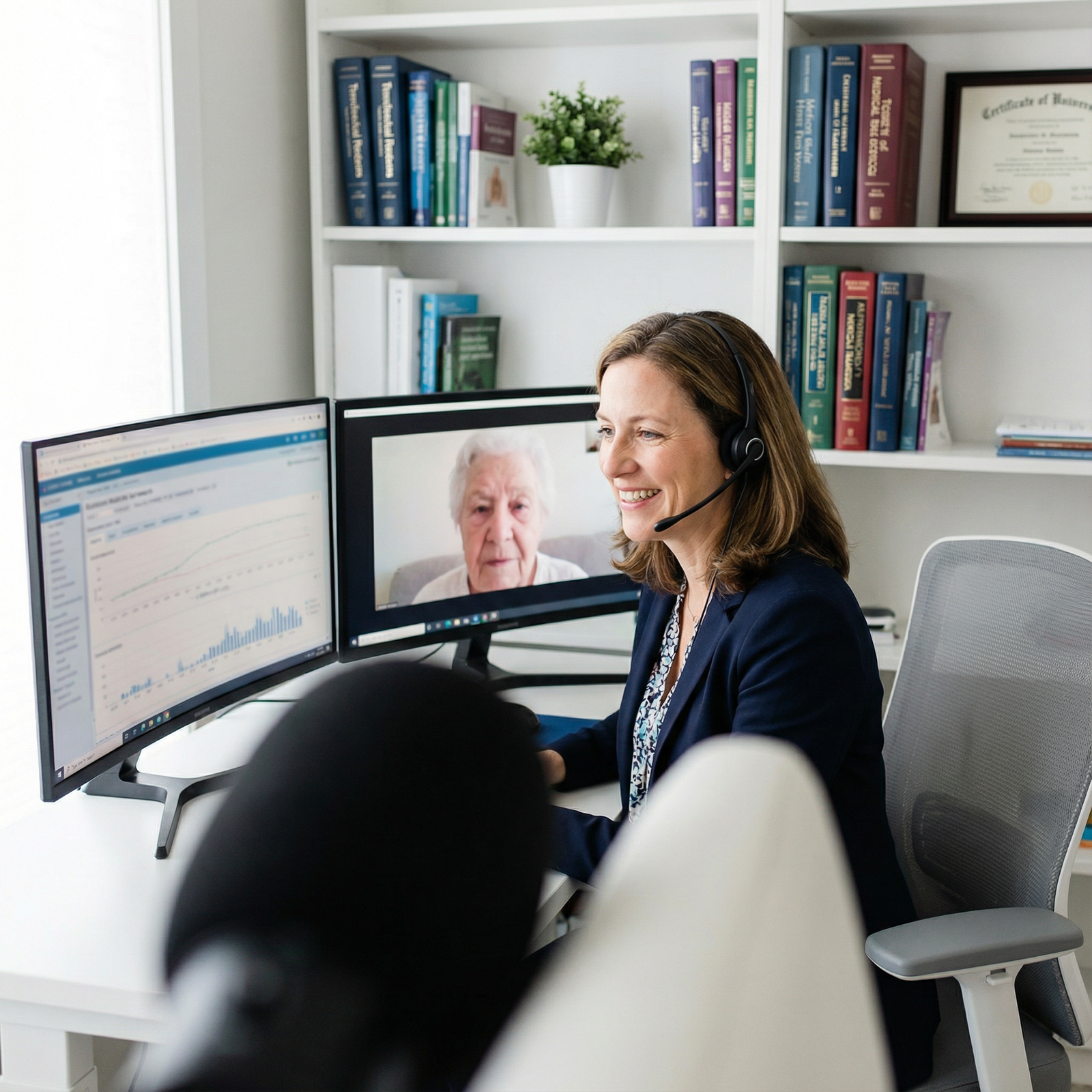
The biggest mistake new telehealth physicians make is buying the wrong gear and then wondering why their visits feel amateur.
You do not need a TV studio. But you do need a deliberate, professional setup. Here’s exactly what to buy, what to skip, and how to assemble a telehealth office that actually works—whether you’re employed, 1099, or building your own virtual practice.
1. The Non‑Negotiables: Core Telehealth Equipment
If you want to look and sound like a serious clinician, these five are mandatory:
- A reliable computer
- Stable, fast internet
- Quality camera
- Professional audio
- Clean lighting and background
Let’s walk through each with real numbers and model-level detail.
Computer: Stop Trying to Do This on a 7‑Year‑Old Laptop
Telehealth platforms, EHR, e‑fax, email, and reference tools open at once will crush a weak machine.
You want:
- At least 16 GB RAM
- Solid-state drive (SSD)
- A reasonably recent processor (Intel i5 / Ryzen 5 or better, or M1/M2 Mac and newer)
- 13–27" screen; bigger is better when you’re charting while on video
Laptops give you flexibility; desktops give you stability and better ergonomics. If you’re doing full‑time remote clinical work, a laptop + docking station + external monitor is the best balance.
For example:
- A MacBook Air M2 + 24" external monitor
- Or a midrange Windows laptop (Lenovo ThinkPad / Dell XPS) + 27" monitor
Do not run visits from a tablet or phone except in true emergencies. It screams “casual” and slows you down with documentation.
Internet: Where Most Telehealth Disasters Start
If your video freezes, it does not matter how good your clinical judgment is. Patients will lose confidence.
Minimums I recommend:
- Download: 50 Mbps or higher
- Upload: 10 Mbps or higher (upload is what often kills video quality)
- Latency: consistently low; do a ping test during peak hours
Hard‑wire your connection:
- Use an ethernet cable from router to computer whenever possible
- If you must use Wi‑Fi, sit close to the router and avoid shared, congested networks
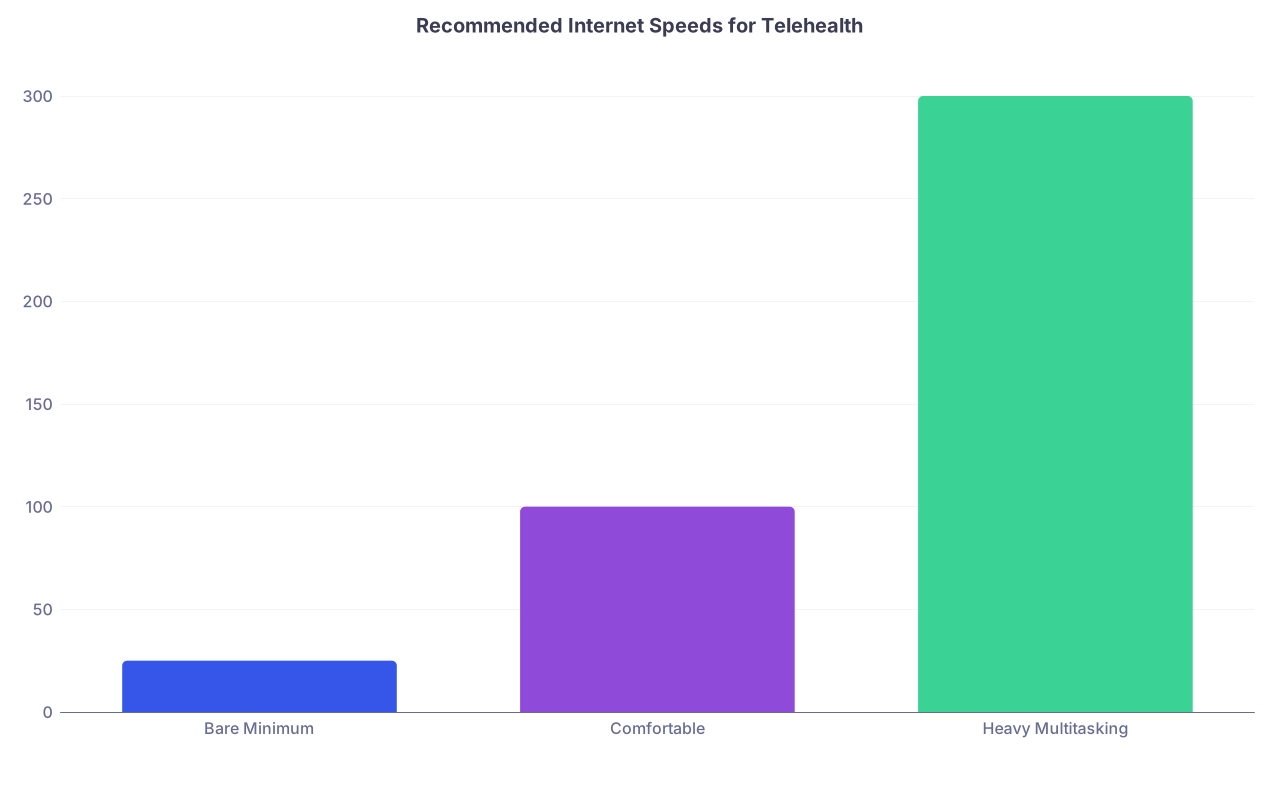
| Category | Value |
|---|---|
| Bare Minimum | 25 |
| Comfortable | 100 |
| Heavy Multitasking | 300 |
If your home internet is shaky, consider a business‑class plan or a backup 5G hotspot. Losing a clinic half‑day to an outage is far more expensive than a slightly higher monthly bill.
2. Video: Your Camera, Lighting, and Background
Your patient is judging you in the first two seconds based entirely on what they see and hear. Let’s fix the “see” part.
Camera: Built‑In Is Usually Not Enough
Laptop webcams are usually 720p, poorly placed, and bad in low light. That combo makes you look tired, shadowed, and unprofessional.
Look for:
- Resolution: 1080p (Full HD) or better
- Frame rate: 30 fps is fine
- Autofocus and decent low‑light performance
You’re not filming YouTube; you just need clear, sharp, stable video. External webcams in the $60–$150 range (e.g., Logitech C920/C930/Brio or similar) are usually perfect.
Position the camera:
- At or slightly above eye level
- Centered in front of you (not off to the side)
- About an arm’s length away
Nothing kills connection like the “nostril shot” from a low laptop camera pointed at your chin.
Lighting: This Is 80% of Looking Professional
You can have an average camera and still look good if your lighting is right.
Basic rules:
- Light your face from the front, slightly above eye level
- Avoid strong light behind you (windows, bright lamps)
- Use soft, diffuse light—no harsh overhead downlighting
Simple setups that work:
- A desk‑mounted ring light behind or around your webcam
- Or a small LED panel on a stand, about 45° off‑center, aimed at your face
If you have a window, face it. Don’t sit with your back to it unless you like looking like a silhouette.
Background: Do Not Look Like You’re in a Dorm
Your background is a professionalism signal. It does not need to be fancy. It needs to be neutral and tidy.
Good options:
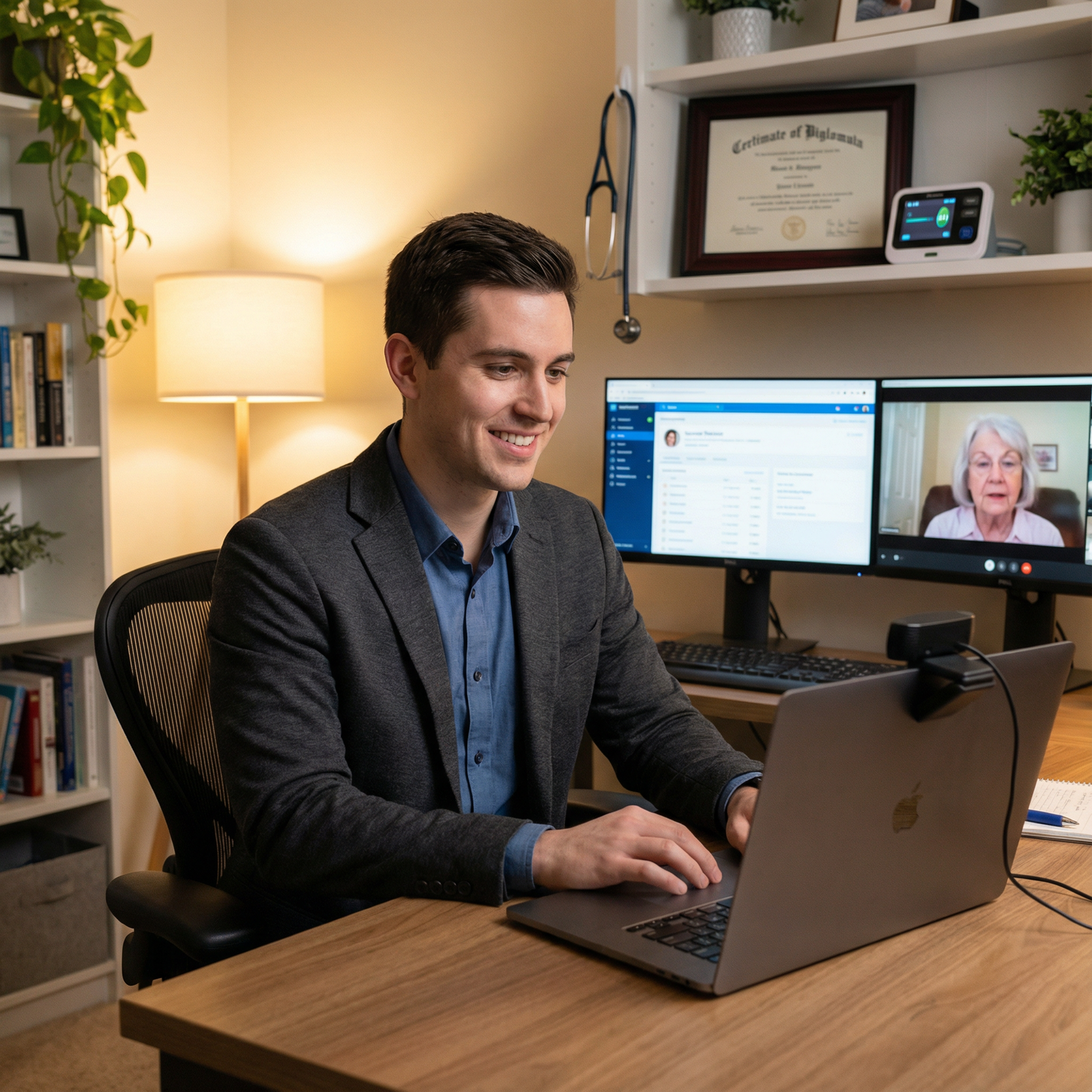
- Plain wall with a framed diploma or basic art
- Bookshelf that isn’t cluttered
- Simple plant, lamp, or neutral decor
Avoid:
- Bed in the frame
- Piles of laundry or boxes
- Distracting art or political content
If your space is messy or multi‑use (e.g., small apartment), use a very subtle blur or a static virtual background with your company’s branding. But if the virtual background flickers and eats half your hair, turn it off and clean up your real space instead.
3. Audio: Patients Forgive Mediocre Video, Not Bad Sound
This is where most clinicians under‑invest. They shouldn’t.
You want three things:
- Clear, warm voice
- Minimal echo
- No background noise
Microphone and Headset Choices
Skip the built‑in laptop mic. It picks up keyboard noise, echo, and room sound.
Good options, in order of simplicity:
- USB headset with boom mic: Easiest, clearest, great for noisy environments. You’ll look like a call center worker, but your sound will be superb.
- USB desktop mic (e.g., a small condenser or dynamic mic): Better aesthetics on camera, still easy, but make sure it’s close to your mouth.
- AirPods / Bluetooth earbuds: Acceptable as a backup or for very mobile setups; just remember to keep them charged and test them.
For most full‑time telehealth physicians, a wired USB headset + a quiet room beats everything.
Room Acoustics and Noise
If you sound like you’re in a bathroom, patients will notice. So will your peers in group visits or team meetings.
Simple fixes:
- Add soft materials: rug, curtains, books, fabric chair
- Close doors and windows
- Use a white noise machine outside your office door if there’s household noise
If you’re in a very echoey room, there are cheap acoustic foam panels you can stick on the wall outside the camera frame.
4. Clinical Tools: What You Actually Need vs. What Sounds Cool
Most telehealth work does not require you to own an entire exam room. But there are a few categories to think about.
Basic Clinical Support Tools
These are usually enough for general outpatient telehealth:
- Up‑to‑date drug reference (digital; e.g., Lexicomp, UpToDate, Micromedex)
- E‑prescribing through your EHR or a stand‑alone platform
- Secure messaging and e‑fax for labs, referrals, and records
- A good scanner app on your phone or a small document scanner
Remote Monitoring Devices
Here’s the key distinction: do you need to own devices, or do patients?
Patients often should have:
- Blood pressure cuff
- Glucometer if diabetic
- Pulse oximeter for certain chronic conditions
- Thermometer
- Scale
You, as the clinician, rarely need physical diagnostic tools on your end. What you need is workflow:
- A platform that can integrate patient‑generated data (BP logs, glucose, etc.)
- Clear protocols for when you trust home readings vs. when you send them for in‑person evaluation
If you’re working in a higher‑acuity telehealth niche (e.g., tele‑cardiology, RPM programs, hospital‑at‑home), your employer may supply or specify FDA‑cleared remote devices. Do not go buying fancy tele‑stethoscopes or otoscopes on your own unless you’re building a niche private tele‑practice with that exact value proposition.
| Category | Clinician Owns | Patient Owns |
|---|---|---|
| Stethoscope | No (usually) | No |
| BP Cuff | No | Yes |
| Glucometer | No | Yes |
| Pulse Oximeter | Optional | Yes (select) |
| Scale | No | Yes (chronic) |
5. Security, Privacy, and Compliance Gear
Telehealth is not just a webcam and Zoom. You’re now a remote PHI endpoint. Treat yourself like one.
Physical Privacy
Start with the obvious:
- A door that closes and actually latches
- Sound privacy: patients should not hear your kids, spouse, or roommates talking
- A “Do Not Disturb – Session in Progress” sign outside the room during clinics
Do not see patients from public spaces or shared coworking areas that you cannot fully control. Ever.
Digital Security
You’re going to be storing and accessing PHI. Your equipment needs to respect that.
Non‑optional:
- Device encryption enabled (FileVault on Mac, BitLocker on Windows)
- Strong passwords and/or password manager
- Two‑factor authentication (2FA) on EHR, email, and telehealth platforms
- Auto‑lock screen after short inactivity
If you’re employed, your organization may:
- Provide a managed device
- Enforce VPN usage
- Lock down software installation
If you’re independent, you own the security problem. That means:
- Business‑grade antivirus/anti‑malware
- HIPAA‑compliant telehealth/video platform
- HIPAA‑compliant email or secure messaging for PHI (not Gmail without BAA)

| Step | Description |
|---|---|
| Step 1 | Start of Workday |
| Step 2 | Log in with 2FA |
| Step 3 | Connect to VPN if required |
| Step 4 | Open EHR and Telehealth Platform |
| Step 5 | Confirm Identity and Location |
| Step 6 | Conduct Visit |
| Step 7 | Document and Close Note |
| Step 8 | Admin or Charting Work |
| Step 9 | Log Out and Lock Device |
| Step 10 | Patient on Video? |
6. Workspace Ergonomics and Redundancy
You’ll underestimate this until your back and neck start complaining after month three.
Ergonomics
Basic, yet often ignored:
- External keyboard and mouse so you’re not hunched over a laptop
- Monitor at eye level; top of screen roughly at or slightly below eye height
- Chair with lumbar support; your $40 folding chair is a short‑term solution only
- Camera at eye level, not stacked on tower of random books permanently
You’ll be spending hours in that chair. Treat it like you treated your loupes or OR shoes: a real work tool, not an afterthought.
Redundancy: Your Backup Plan
Things will fail. You need a simple Plan B for:
- Internet outage → Backup: 5G phone hotspot or second ISP
- Power failure → Laptop with good battery + possibly small UPS for router
- Device death → At least one secondary device (spare laptop or tablet) with your telehealth platform tested and ready
You’re not a hospital with full IT. You still need to keep clinic moving enough to reschedule or transition visits safely.
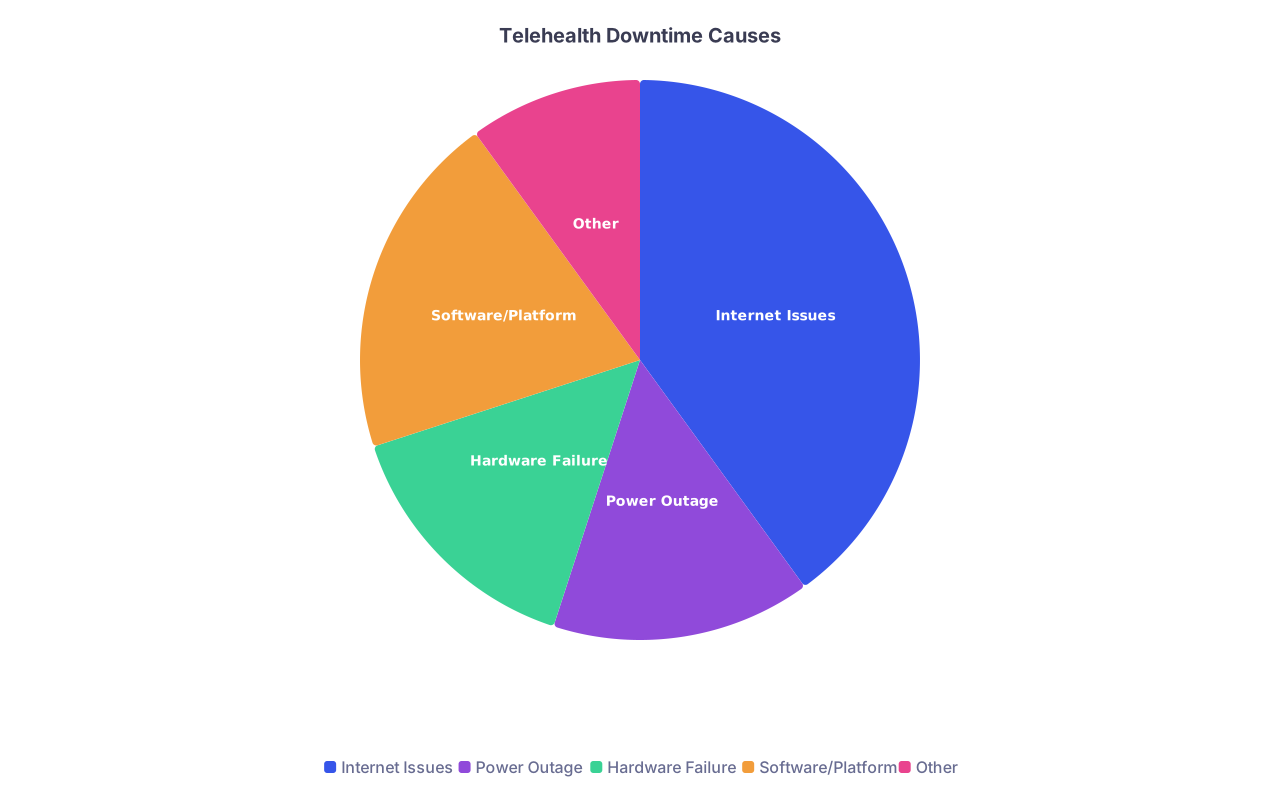
| Category | Value |
|---|---|
| Internet Issues | 40 |
| Power Outage | 15 |
| Hardware Failure | 15 |
| Software/Platform | 20 |
| Other | 10 |
7. What You Don’t Need (Yet)
Let me save you money and clutter. As a post‑residency physician building a telehealth career, you usually do not need:
- Multi‑camera switching setups
- Green screens and complex lighting rigs
- Studio microphones with mixers and boom arms (unless you enjoy AV gear)
- Your own “all‑in‑one” telemedicine carts
- Home server racks and enterprise‑grade switches
If you are spending more time researching cameras and mics than refining your telehealth workflow, you’re optimizing the wrong problem. Get the basics right, then upgrade slowly if there’s a specific, real need.
8. Putting It All Together: A Practical Starter Setup
Here’s what a lean but professional full‑time telehealth setup realistically looks like for a new attending working remotely 3–5 days a week:
- Mid‑range laptop (16 GB RAM, SSD)
- 24–27" external monitor
- 1080p external webcam mounted on that monitor
- USB wired headset with microphone
- Small LED panel or ring light behind the webcam
- Hard‑wired ethernet to a 100+ Mbps internet line
- Comfortable office chair and simple desk
- Neutral background with minimal decor
- Encrypted, password‑protected, 2FA‑enabled device access
- Secondary device (tablet or older laptop) tested for backup access
You can assemble that without going anywhere near “luxury” gear. And it will feel dramatically more professional than the default “I’m just opening my laptop on the kitchen table” experience.
FAQ (Exactly 6 Questions)
1. Can I do professional telehealth visits using only a laptop?
You can, but you probably should not long term. A modern laptop can technically handle telehealth, but the built‑in webcam, mic, and small screen will all work against you. For occasional remote days, it’s fine. For recurring or full‑time telemedicine, add at least an external monitor, a 1080p webcam, and a USB headset. Those three upgrades alone change the whole experience for you and your patients.
2. Do I need a separate “business” internet line for telehealth?
Not necessarily, but you do need stability and adequate speed. A standard residential 100–300 Mbps plan is usually enough if you’re not sharing with five people streaming 4K at the same time. If your connection is unreliable, a business‑class line or a second ISP as backup can be worth it, especially if your income depends heavily on uninterrupted telehealth clinic sessions.
3. What’s the cheapest thing I can upgrade that makes the biggest difference?
Audio. A $40–$80 wired USB headset with a decent boom microphone often has more impact on perceived professionalism than a pricey camera. Patients care more about clearly hearing you than about seeing you in 4K. After that, a basic LED light or ring light improves your appearance more than a camera upgrade alone.
4. Is it okay to use Zoom, FaceTime, or WhatsApp for telehealth sessions?
For professional medical care, no, unless you’re using a HIPAA‑compliant, BAA‑backed version of a platform that your organization has approved. Many systems use a “Zoom for Healthcare” or integrated video solution through their EHR. Consumer FaceTime/WhatsApp are fine for calling your family, not for sustained telemedicine practice that involves PHI, documentation, and legal risk.
5. Do I personally need to buy remote exam tools like a digital stethoscope?
In most standard outpatient telehealth roles, absolutely not. Your employer either won’t use them or will provide them as part of a specific program (RPM, cardiology, hospital‑at‑home). Focus instead on optimizing history taking, virtual physical exam techniques, and clear thresholds for sending patients for in‑person assessment. That’s far more important than owning a gadget that you rarely use.
6. How much should I budget to set up a solid telehealth office at home?
Assuming you already own a decent laptop, you can get to a professional level for roughly $400–$800: external monitor ($150–$250), webcam ($60–$150), USB headset ($40–$100), lighting ($30–$80), and a decent chair if you need one ($150–$250). Compared to the revenue from even a few half‑days of clinic, that’s a very reasonable investment in your long‑term comfort and professional image.
Key points: You don’t need a studio or exotic gadgets. You do need rock‑solid internet, clean audio and video, and a controlled, private space. Build a simple, reliable setup first; only then worry about upgrades or specialty devices as your telehealth career grows.



