It’s 7:45 a.m. on your big interview day. Zoom is open on your laptop. Your second screen is glowing on the side with your meticulously organized notes, list of faculty, and program website. And you’re wondering: is this smart… or is this going to make me look shady?
Here’s the blunt answer and then we’ll break it down.
You can use a second monitor during residency video interviews. Lots of people do. But there’s a right way and a wrong way. Do it wrong and you look distracted, dishonest, or technically clueless. Do it right and it just looks like you’re making good use of your setup.
Let’s walk through the “can I” first, then the “how exactly.”
1. Is It Allowed To Use a Second Monitor?
Short version: Usually yes, but not for cheating.
Most programs don’t have any explicit rule against having two screens. They care about three things:
- You looking engaged (not staring off into the distance at your “secret” screen)
- You not reading obvious scripts
- You not violating any stated policies (like reading test-style questions or using unauthorized materials if they have special assessments)
If a program has special instructions, they’ll say so in the interview email or on their website. Very rare, but I’ve seen:
- “Please do not use external notes or documents during the Multiple Mini Interview (MMI).”
- “For this situational judgment exercise, you may not consult written materials.”
If you see anything like that, follow it. No exceptions.
But for standard residency video interviews (Zoom, Thalamus, Webex, Teams):
- Having a second monitor with the program website, your one-page notes, or your rank list priorities is fine.
- No one is going to come check your hardware.
- What they do notice is your eyes constantly darting to the side like you’re reading a teleprompter.
So the real question isn’t “Is it allowed?” It’s “Can I use it without looking weird or dishonest?” That’s what the rest of this is about.
2. The Right Way To Use a Second Monitor (Big Picture)
Think of the second monitor as a reference, not a script.
Good uses:
- One-page bullet sheet: your key stories, 3–4 “why this program” points, major red flags you want to address cleanly.
- Quick-access info: program’s key features, leadership names, research areas, call schedule basics.
- Logistics: your interview schedule, who you’re meeting when, time zones.
Bad uses:
- Word-for-word answers you plan to read. They will see your eyes moving. It looks awful.
- Long paragraphs or dense spreadsheets. You won’t be able to scan those naturally.
- Anything that makes you sound like a robot (lists of canned phrases you’re trying to cram into every answer).
Rule I use: if you can’t summarize it in a few bullets you can glance at in under 2 seconds, it doesn’t belong on the screen.
3. How To Physically Set Up Two Monitors for Interviews
Let’s talk nuts and bolts: positioning, windows, camera angles. This matters more than you think.
A. Preferred layout
Best setup:
- Main screen = the one with your camera (usually laptop).
- Second screen = off to the side, elevated close to eye level, used for reference materials.
Very simple setup:
- Put Zoom/Thalamus/Webex on your main screen.
- Pin or enlarge the interviewer’s video so it’s just below or next to your camera.
- Keep the second monitor just slightly to one side, not 90 degrees to your left.
That way, when you glance at the second monitor, it looks like a mild eye shift, not like you’re turning your head away from them.
B. Keep your eyes mostly on the main screen
This is where people screw up. They:
- Put the main video window on the second monitor.
- Look at that monitor the whole time.
- So to the interviewer, it looks like you’re staring off to the side for 30 minutes.
Fix:
- Always keep the main video window (the actual faces) on the same screen as the camera.
- Second monitor is only for quick glances.
If you want to test how it looks, record a fake Zoom call with your camera on and watch your own eye movement. You’ll see immediately if it looks off.
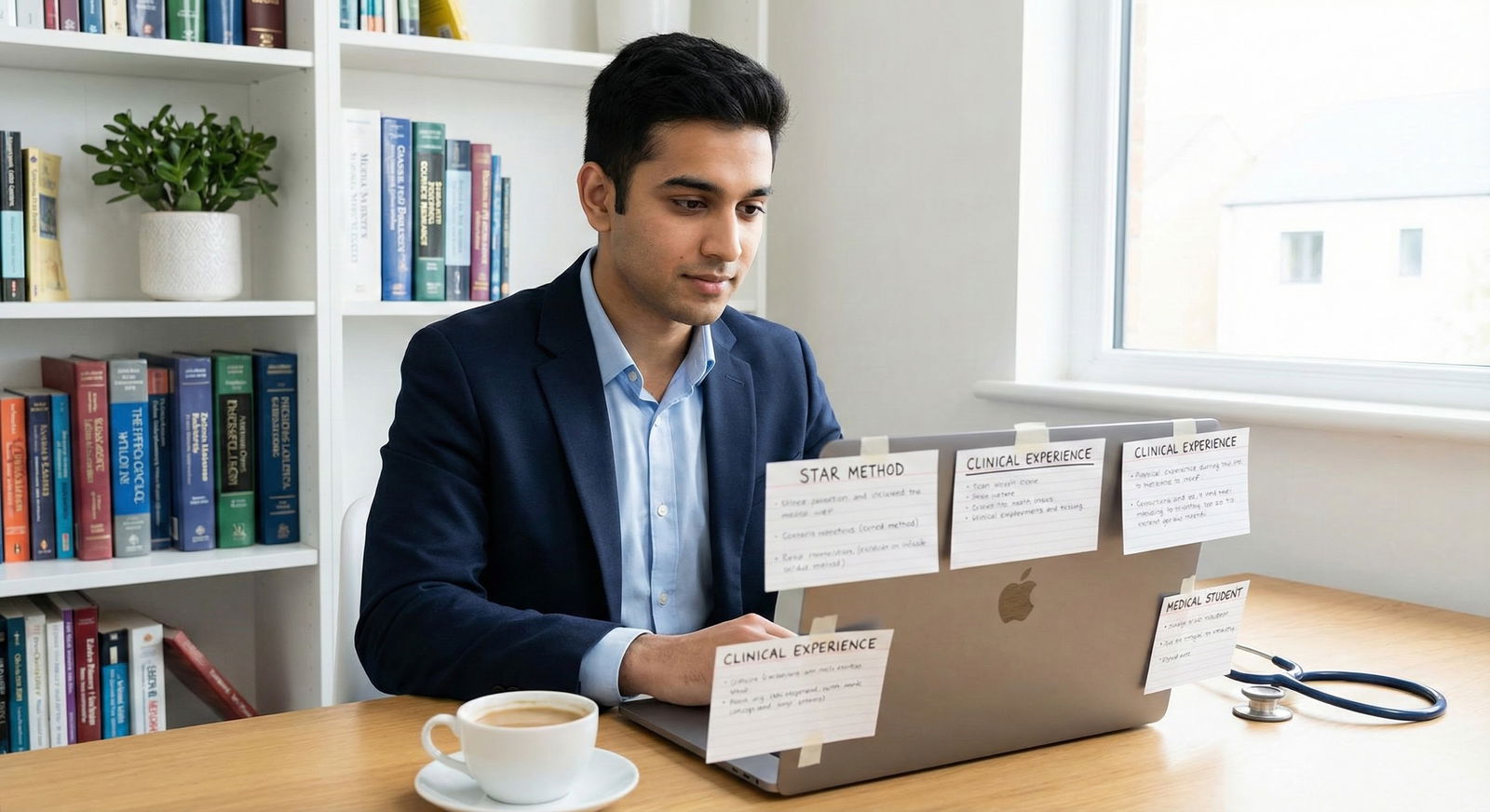
C. Window arrangement that works
Here’s a simple, reliable layout:
- Main monitor (with camera):
- Zoom full screen or near-full screen
- Your video preview small but visible (to check framing)
- Second monitor:
- Left half: one-page “cheat sheet” document (we’ll outline what goes here next)
- Right half: browser with program website / schedule / ERAS
No dozens of tabs. No multitasking. You’re not at work; you’re selling yourself for a job.
4. What To Actually Put on Your Second Monitor
If your second monitor is cluttered, you’ll either get distracted or obviously read.
Keep it tight. One doc. One browser window. That’s it.
Here’s a clean structure for your notes document.
One-page interview helper doc
Section 1 – Top talking points (at the top of the page):
- 3 bullet “Why this specialty”
- 3 bullet “Why this program” (update per program)
- 3 bullet strengths you want to highlight
- 1–2 weaknesses / red flags with your rehearsed framing
Section 2 – 3–4 go-to stories:
Each as literally one line:
- “Difficult patient – de-escalation – learned to slow down, validate first”
- “Team conflict – senior vs intern issue – I escalated appropriately”
- “Leadership – QI project on handoff errors – reduced near-misses by X%”
- “Failure – Step/rotation setback – remediation and habits now”
These are just memory triggers, not scripts.
Section 3 – Program-specific bullets:
- Program’s unique features you actually care about
- 2–3 names: PD, APD, chair, key faculty (with roles, not full bios)
- Local factors: location, patient population, specific clinics or tracks
Section 4 – Questions to ask:
5–7 questions that show you’ve done your homework and are thinking like a future resident, not a tourist.
That’s it. If your note file is longer than a single screen height, you’ve gone too far.
5. How To Use the Second Monitor Without Looking Suspicious
The “how” is mostly about behavior.
A. Practice glancing, not reading
You should be able to:
- Glance at a bullet,
- Look back at the camera,
- Then answer in your own words.
If you catch yourself trying to read phrases verbatim, the interviewer will too.
Practice recommendation:
- Do a mock interview with a friend on Zoom.
- Use your dual-monitor setup exactly like you plan to on game day.
- Ask them specifically: “Do I look like I’m reading off something?”
- Record it. Watch your eye movements.
You’ll self-correct fast once you see it on video.
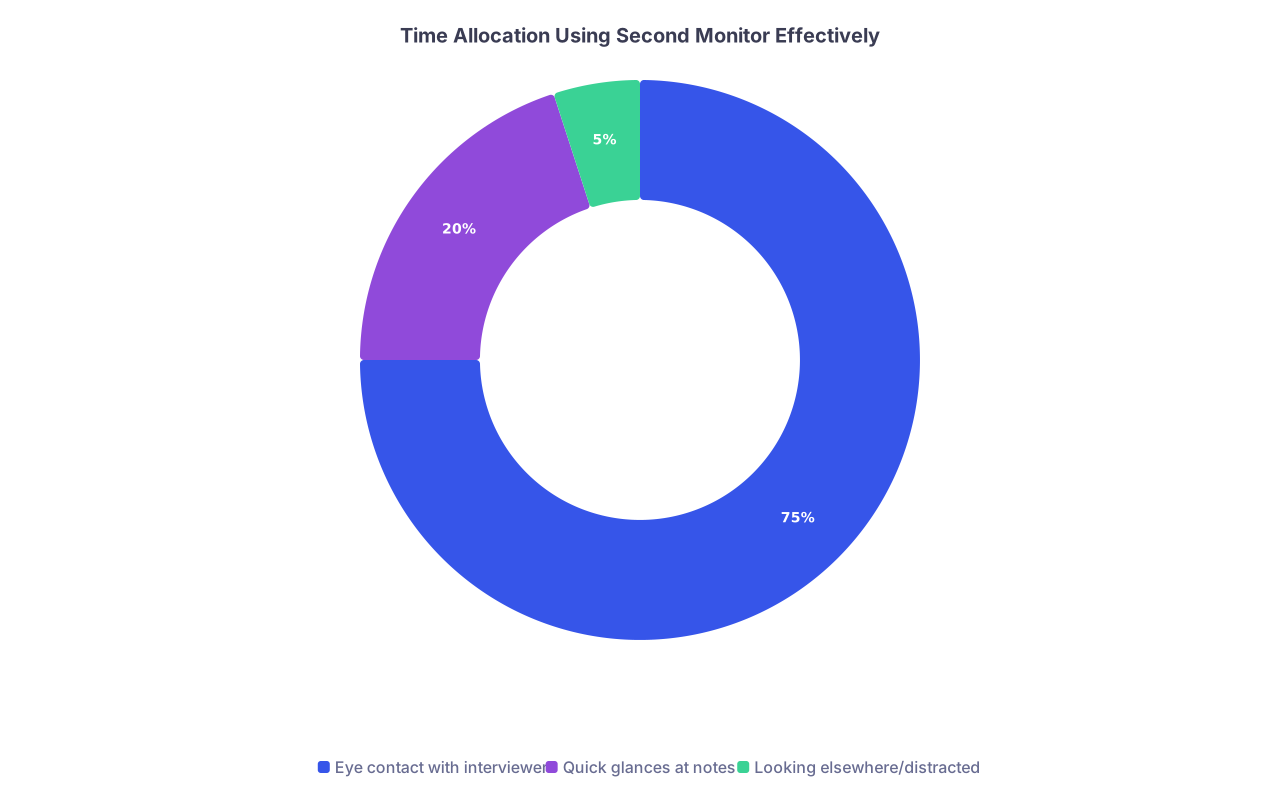
| Category | Value |
|---|---|
| Eye contact with interviewer | 75 |
| Quick glances at notes | 20 |
| Looking elsewhere/distracted | 5 |
B. Be up front if needed
If you’re clearly scanning something (e.g., reading your schedule, checking a specific rotation name), it’s totally fine to narrate it lightly:
- “I’m just glancing at my schedule here to remember the name of the longitudinal clinic…”
- “I have your program website up on my other screen—that primary care track sounds fantastic.”
That actually makes you look prepared and normal, not sneaky.
C. Don’t multitask
This should be obvious, but: no email, no Slack, no texting, no social media. Even if they can’t see your screen, they can see your face. People are bad at hiding distraction.
Close everything you don’t need. Turn off notifications. Put your phone in another room.
6. Common Mistakes People Make With Two Monitors
I see the same dumb errors over and over. Avoid these and you’re already ahead of half your competition.
| Mistake | Better Approach |
|---|---|
| Main video on side monitor | Keep video on same screen as camera |
| Reading full scripts | Use brief bullets as prompts |
| Too many open tabs/windows | One doc + one browser window max |
| Monitor way off to the side | Keep second monitor near eye level, close |
| Ignoring explicit program policies | Adapt plan if program forbids notes |
Let’s spell a few of those out.
Teleprompter vibe
You write full answers and read them. Your tone flattens, your eyes slide side-to-side, and the PD mentally checks out. They’ve seen it all day.Bad camera angle
Camera below your face, looking up your nose, with your main focus clearly off to the right. They feel like they’re talking to your ear.Over-customization fantasy
You build a crazy-detailed note doc for every single program, then fumble around because you can’t find anything in the chaos.
Straight talk: most of your performance comes from preparation and practice, not from an immaculate note system. The second monitor is an assist, not the foundation.
7. What About MMIs and Assessments?
MMIs, Casper-style scenarios, or special “ethical station” setups are a bit different.
General rules:
- If they explicitly say “no notes/externals,” obey that. Some schools/programs really do care for these.
- Even if they don’t say it, relying on notes in high-speed scenario stations is usually more harmful than helpful. Time is tight and reading slows you down.
For classic ERAS-style residency program interviews, though—half-hour with PD, 20 minutes with faculty, resident room—your second screen is fair game, used correctly.

| Step | Description |
|---|---|
| Step 1 | Interview Type |
| Step 2 | Do NOT use second monitor notes |
| Step 3 | Use second monitor as reference only |
| Step 4 | Limit use; rely on preparation |
| Step 5 | Any no notes rule? |
| Step 6 | Standard residency interview? |
8. Technical Checks Before Interview Day
Last piece: don’t discover your setup issues 5 minutes before your PD interview.
Run this checklist at least a day before:
- Camera: on the main monitor, roughly eye level, you centered, with decent lighting.
- Audio: mic tested, no echo, no fan noise.
- Internet: stable on wired or strong Wi-Fi.
- Platform: whichever they’re using (Zoom/Thalamus/Webex/Teams) installed and updated.
- Window placement: main video on camera screen, notes on second monitor, tested.
Then do one full mock interview with a trusted friend, mentor, or even alone with a recording. Same exact setup you’ll use on interview day.
You want zero surprises when you log on with a PD at 7:58 a.m.
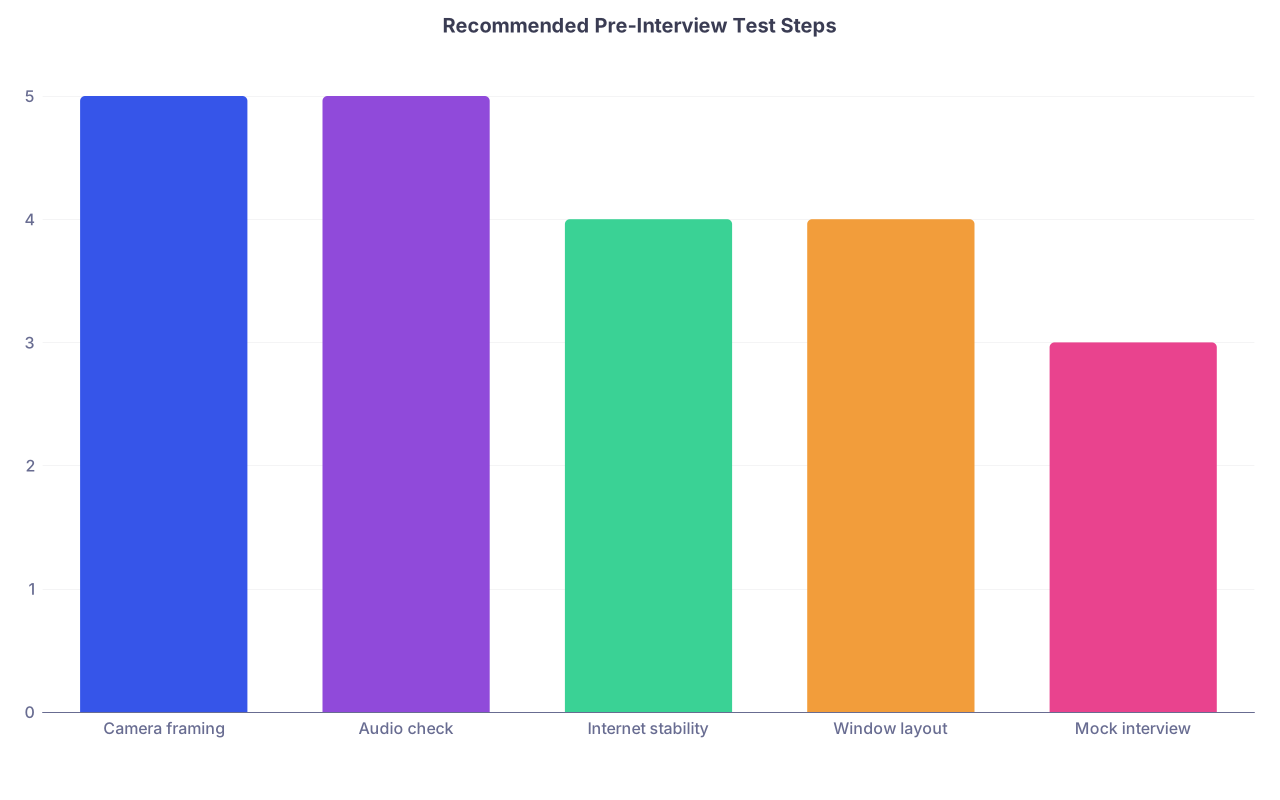
| Category | Value |
|---|---|
| Camera framing | 5 |
| Audio check | 5 |
| Internet stability | 4 |
| Window layout | 4 |
| Mock interview | 3 |
FAQ (Exactly 7 Questions)
1. Will programs think I’m cheating if I use a second monitor?
Not if you use it like a normal, prepared adult. Glance occasionally at short bullets or the program website and keep your eyes mostly on the main screen. What looks suspicious is constant side-gazing and obviously reading full sentences.
2. Should I tell them I’m using notes or a second monitor?
You don’t need to make a formal announcement. If you’re clearly looking at something while referencing a detail, a simple aside like “I have your website up here” is enough. Over-explaining it makes it weirder than it is.
3. Is it better to put Zoom on the big monitor or the laptop?
Put Zoom on whichever screen has the camera. If your external monitor has a better camera on top, use that as your “main.” The key is that your eyes should be looking roughly toward the camera when you’re engaged with the interviewer.
4. Can I keep my ERAS application or CV open on the second monitor?
Yes, that’s actually smart. Having your ERAS, CV, and personal statement open lets you quickly anchor details (dates, project names, roles) without guessing. Just don’t read from them line by line.
5. How many notes is too many for the second monitor?
If your document is more than one screen long or you need to scroll constantly, it’s too much. Compress your notes into one page of bullets that you can scan quickly. Anything beyond that becomes a distraction and tempts you to read.
6. What if the program uses a browser-based platform that forces full screen?
Most still let you alt-tab or use a second monitor, but if it truly locks you in, assume you won’t be able to see your notes. In that case, print a one-page cheat sheet on paper and keep it just off camera, using the same “glance, don’t read” rule.
7. Is it unprofessional to occasionally look away from the camera?
No. Humans glance around. It becomes unprofessional when you’re looking away more than you’re looking at the interviewer or obviously reading something. Aim for ~70–80% of the time looking at the main screen/camera, with brief, purposeful glances to the side.
Open your laptop and second monitor right now. Set Zoom to the screen with your camera, put a one-page bullet doc on the other screen, and record yourself answering two common questions: “Tell me about yourself” and “Why this program?” Watch the recording and fix whatever looks off before your real interviews start.