The average applicant sits too far from the camera and looks like they’re calling in from airport Wi‑Fi. You’re asking the right question.
The Short Answer: How Close Should You Sit?
For residency video interviews, you want to sit about 20–30 inches (50–75 cm) from the camera so that:
- Your frame is mid‑chest or upper torso up
- Your eyes are roughly one-third from the top of the screen
- There’s a little space above your head, not a giant gap
Forget the inches for a second. Here’s the visual you’re aiming for:
- They can clearly see your face and shoulders
- Your hands occasionally enter the frame when you gesture
- You don’t look like a passport photo. Or a security camera screenshot.
If you’re seeing most of your torso and lots of wall? You’re too far. If your face fills the frame and your chin is almost cut off? Too close.
That’s the core answer. Now let’s get precise so you can set it up in 5 minutes and stop worrying about it.
The Ideal Framing: What Should the Interviewer See?
Think about what program directors actually want on screen: a clear, stable view of a calm, professional human being they might trust with patients at 3 a.m.
Here’s the target composition:
Headroom
- Small space between the top of your head and the top of the video frame
- Aim for about an inch (2–3 cm), not a giant chunk of background
Crop point
- Frame should cut you off at mid‑chest or upper abdomen
- Shoulders fully visible
- Avoid framing that cuts at the neck or right under the chin. That looks unsettling and a little amateur.
Eye level
- Your eyes should sit at roughly the top third line of the screen
- If your eyes are dead center or lower, you look “sunk” into the frame
Distance impression
- Your face should occupy a good portion of the frame—not tiny
- Interviewer should easily see micro‑expressions: smiles, nods, concern
That composition usually happens naturally when you’re about an arm’s length away from a laptop or external webcam.
How Distance Affects Professionalism
Let me be blunt: distance changes everything. Not just how you look, but how you’re perceived.
Here’s what different distances do:
| Setup | Distance (approx) | Visual Impression |
|---|---|---|
| Too close (face fills) | < 15 in / 38 cm | Intense, distorted, awkward |
| Ideal framing | 20–30 in / 50–75 cm | Professional, conversational |
| Too far | > 36 in / 90 cm | Detached, distracted, casual |
Too Close: The “Up Your Nose” Problem
If you’re practically hugging the laptop:
- Your nose and forehead look bigger due to lens distortion
- Every blink, lip lick, and micro twitch is exaggerated
- It feels like you’re invading the interviewer’s personal space
Program directors might not consciously think “they’re too close,” but they will feel something is off. It’s a subtle “this feels weird” reaction. You don’t want that.
Too Far: The “Sitting in the Back Row” Problem
If you’re sitting way back:
- Your face is small, harder to read
- The background gains too much attention
- It feels like you’re not fully “in” the conversation
I’ve watched panels where a distant applicant looked less engaged even when content was solid. Human brains read distance as emotional distance, especially on video.
The Sweet Spot: Conversational Distance
You’re aiming for a distance that feels like:
- Sitting at a small table from someone across
- Not in their face, not shouting across a room
This is why 20–30 inches works so well. It mimics real conversational space.
How to Set This Up in 5 Minutes
Stop guessing. Here’s the fast method the night before your interview.
1. Place Your Camera
If you’re using a laptop:
Put it on a stable surface, then raise it so the camera is at your eye level
Use: textbooks, a boogie board, a cardboard box—whatever. Just no wobble.If you’re using an external webcam:
Center it on top of the monitor, directly in front of you.
The number one framing mistake? Camera too low, shooting up your nose. Fix that first.
2. Find Your Distance
Sit down where you’ll actually be for the interview:
- Plant your chair at a distance where your forearms can rest comfortably on the desk while typing
- Sit up straight, look at the camera
- Open Zoom/Teams/Webex and use the self‑view as a mirror
Adjust by moving the chair:
- Move closer/farther until:
- You’re framed mid‑chest up
- Eyes sit around the top third of the preview
- There’s a small gap above your head
Lock that chair position. Literally mark it with tape if you’re going to roll around.
3. Micro‑Adjust With the Screen Tilt
Once you like the distance:
- Tilt the laptop screen slightly forward or backward
- Tiny tilt changes can fix:
- Cutting off your head
- Too much ceiling
- Strange perspective
You want the camera roughly level with your eyes, not pointing up from your lap or down from your ceiling.
Background, Lighting, and Distance: How They Interact
Distance doesn’t exist in isolation. It affects your background and lighting too.
Background Control
When you sit closer:
- Less background is visible
- Distractions (door, messy bed, random roommate) are more easily cropped out
- You can make a small space look professional
When you’re too far:
- More of the room is visible
- You’re exposing wall art, clutter, other people walking by
- It looks sloppy very quickly
So if your space is less than perfect? Sit slightly closer (still within that 20–30 inch range) and tighten the frame.
Lighting
Here’s the basic rule:
- Light source behind the camera, facing you
- Not behind you, not directly overhead casting harsh shadows
When you’re at the right distance:
- A simple desk lamp behind your laptop, pointed at your face, can be enough
- Or sit facing a window with indirect light (not direct blazing sun)
Too close to a bright screen and you get a ghostly “monitor glow.” Too far and you fall into shadow.
Common Mistakes (And How to Fix Them Fast)
You don’t have time to become a cinematographer. You just need not to look like you rolled out of bed and opened Zoom.
Here are the predictable errors I see over and over:
Mistake 1: “Floating Head” Framing
Only your head and a sliver of neck are visible.
Fix:
- Push your chair back 5–10 inches
- Lower the laptop slightly or tilt the screen back
- Aim for shoulders and upper torso visible
Mistake 2: “Room Tour” Framing
Your whole upper body, a ton of wall, bookshelf, doorway, etc.
Fix:
- Move the chair closer
- Or move the laptop closer to the edge of the desk
- Check that your head and shoulders now fill most of the vertical height
Mistake 3: Angled From the Side
Camera way off-center so you look like you’re constantly talking “past” the interviewer.
Fix:
- Place the camera directly in front of where you’ll look
- Center yourself in frame, not off to one side
Mistake 4: Laptop in Your Lap
You’re on a bed or couch, laptop on your knees, camera shooting up.
Fix:
- Hard stop. This is an interview, not Netflix.
- Use a table or desk
- Raise the laptop so the camera is at eye level
- Then redo your distance and framing
Testing Your Setup
Do this once, save yourself stress on interview day.
- Open Zoom/Teams and start a test meeting
- Record 30–60 seconds of you:
- Saying your name
- Answering “Tell me about yourself” in 2–3 sentences
- Watch it back focusing only on:
- Framing (headroom, chest up, eyes in top third)
- Distance (face easily visible, not distorted)
- Background and lighting
Ask yourself:
- Would I trust this person on my team at 3 a.m.?
- Or do they look like they’re calling from a hotel lobby with bad Wi‑Fi?
If something feels off but you can’t name it, you’re probably too far or too low. Adjust chair distance and laptop height first before messing with anything else.
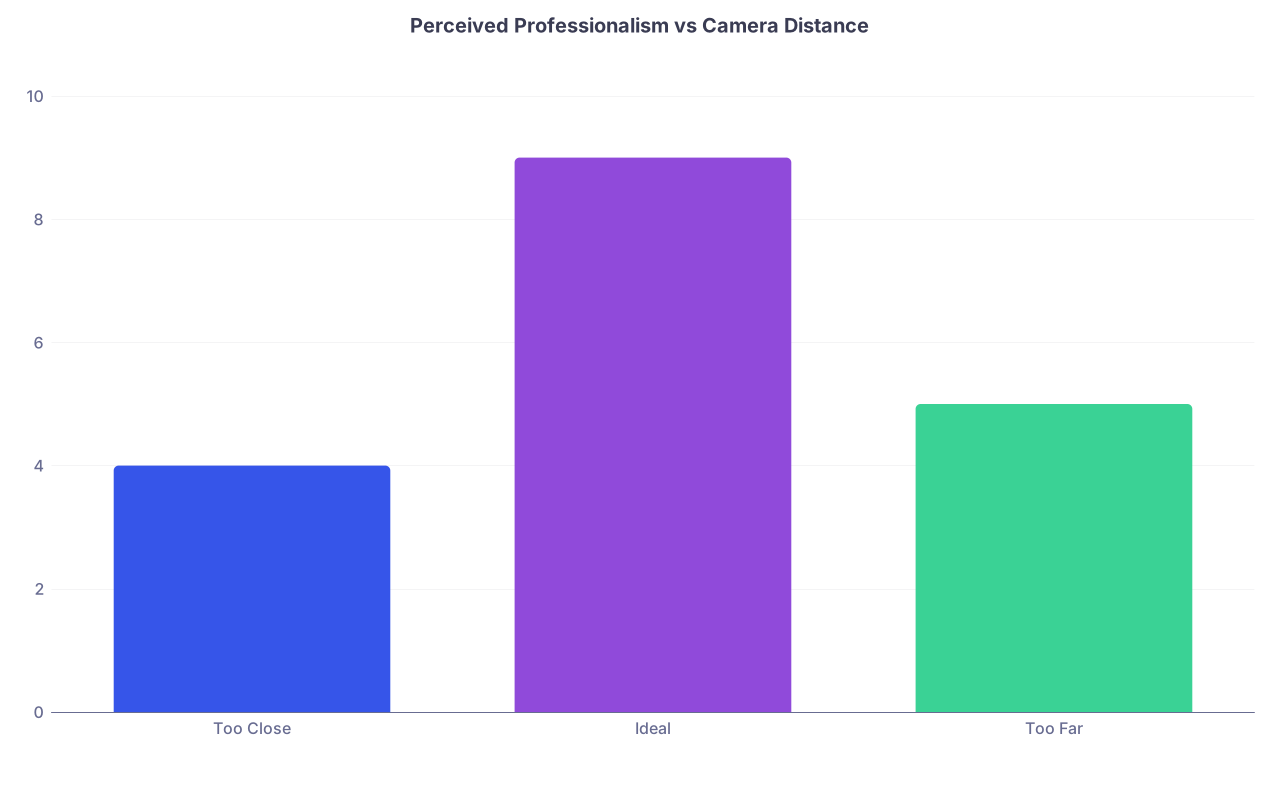
Example Distance vs Effect (Residency Context)
Let’s tie this back to what you care about: how you come across to PDs and faculty.
| Category | Value |
|---|---|
| Too Close | 4 |
| Ideal | 9 |
| Too Far | 5 |
(Think of those numbers as “professionalism score” out of 10, based on framing alone. Content of your answers will matter more, but this stuff does nudge people subconsciously.)
I’ve seen two candidates with equally strong CVs:
- One framed too far, small on screen, dimly lit
- One framed well, clear face, neutral background
The well-framed candidate felt more confident and prepared before they said a word. People on the committee commented on it. Not as “their framing was better,” but as “they seemed more polished.”
That’s the leverage you’re playing with here.
Quick Checklist Before Every Interview
Takes 60 seconds:
- Camera at eye level
- You’re 20–30 inches from the camera
- Framed mid‑chest up, eyes at top third
- Small space above head, not a lot of ceiling
- Background simple, not chaotic
- Light source in front of you, behind the camera
If you hit those, you’re fine. Stop tweaking and go focus on your answers.

| Step | Description |
|---|---|
| Step 1 | Open Video App |
| Step 2 | Raise Camera to Eye Level |
| Step 3 | Adjust Chair Distance |
| Step 4 | Check Framing Mid-Chest Up |
| Step 5 | Fix Background |
| Step 6 | Add Front Lighting |
| Step 7 | Test Recording 30s |
| Step 8 | Done |
| Step 9 | Framing OK? |
FAQ: Camera Distance for Residency Video Interviews
1. Is it better to sit slightly closer or slightly farther from the camera?
Slightly closer is better, as long as you’re not distorting your face. If you’re between 20–30 inches, err on the closer side. It keeps your face more readable and minimizes background distractions. Just don’t go so close that your face fills the entire frame.
2. Should I zoom in digitally or physically move closer?
Physically move closer. Digital zoom on most built‑in webcams degrades quality and can make the image soft or grainy. Adjust with your chair and laptop position first, then only use minor in‑app zoom or cropping if absolutely necessary.
3. What if my room is small and I can’t move back much?
That’s fine. In a small space, you just frame tighter: mid‑chest up, eyes in the top third, minimal background. A tight, clean shot in a small room looks far more professional than you trying to show more of the space and accidentally revealing your laundry pile.
4. How high should the camera be relative to my eyes?
As close to eye level as you can get it. Not significantly above, not below. If you’re looking down into the camera, it reads as submissive or tired. If you’re looking up into it, it’s unflattering and looks lazy. Stack books, use a stand, do whatever you need to hit eye level.
5. Should my hands be visible in the frame?
Occasionally, yes. If your frame is mid‑chest up, your hands will naturally enter the frame when you make small gestures. That’s normal and human. Just don’t widen the frame solely to show your hands; prioritize your face and eyes.
6. Does sitting closer affect the microphone sound?
Yes, usually for the better. At the ideal distance (20–30 inches), your voice will be clear on most laptop mics or basic USB mics. If you sit too far, you’ll sound echoey and distant. If you use an external mic, place it just off camera, about 6–12 inches from your mouth, and you’re set.
Key Takeaways:
Sit about 20–30 inches from the camera, framed mid‑chest up with your eyes in the top third of the screen. Keep the camera at eye level, background simple, and light source in front of you. Nail those basics once, and your setup stops being a liability—and starts quietly working in your favor on every residency interview.