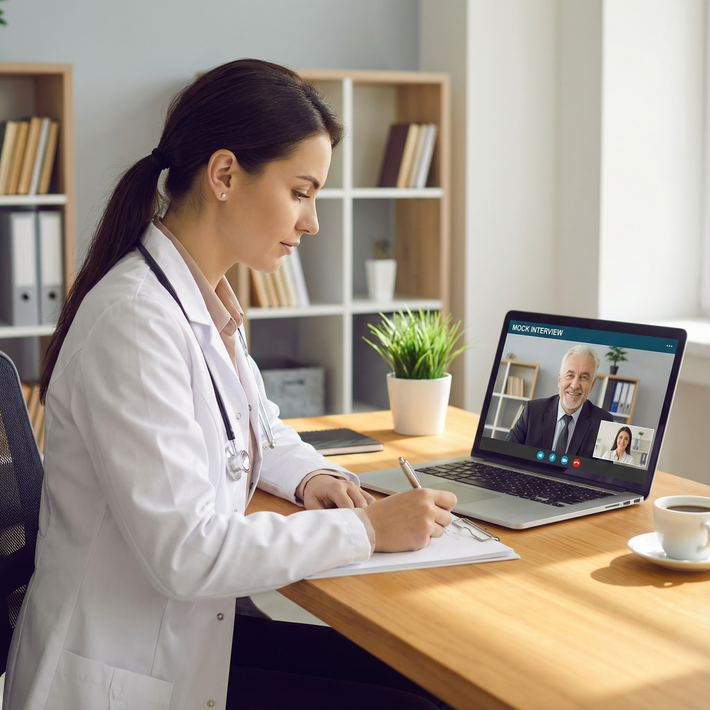
The biggest myth about virtual residency interviews is that “it’s just Zoom, you’ll be fine.” That attitude costs people spots every single year.
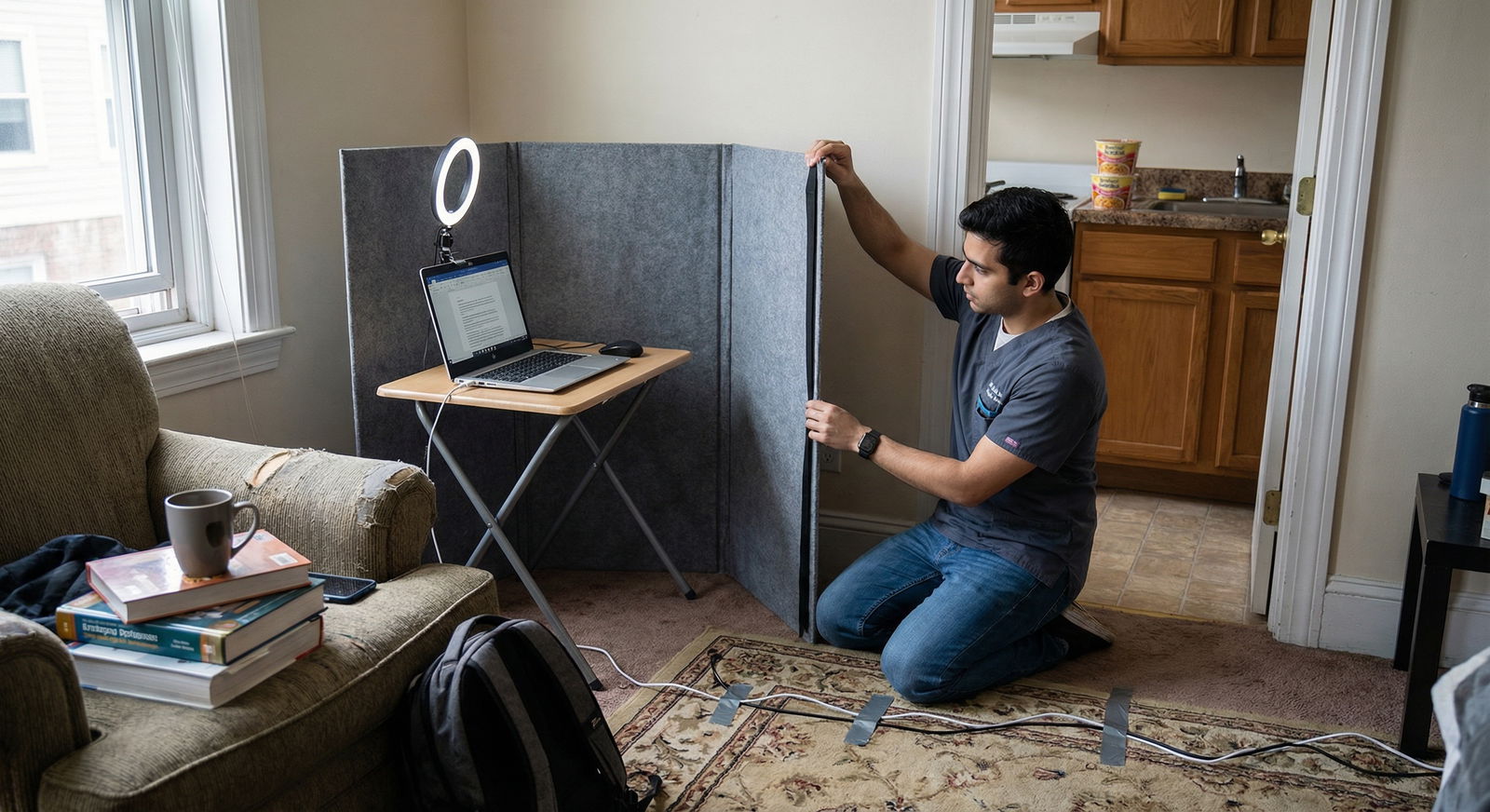
Programs are judging your tech and setup as part of your professionalism. Glitchy audio, bad lighting, cluttered backgrounds, and dropped calls all scream one thing: unprepared.
Here is a six-week, step‑by‑step tech and setup timeline so you do not look unprepared.
Week 6: Audit Your Gear and Internet (Reality Check Week)
At this point you should stop assuming your current setup is “good enough” and actually test it like an adult.
Day 1–2: Full Tech Inventory
Sit down at your actual computer. No hypotheticals.
Check these, one by one:
- Computer:
- Age < 5 years, boots quickly, no random shutdowns.
- Can run Zoom/Teams + browser + PDF viewer without lag.
- Camera:
- Built‑in laptop cam or external HD webcam (720p minimum, 1080p ideal).
- Test with Zoom “preview” – is it grainy, dark, or delayed?
- Microphone:
- Built‑in mics are usually terrible. You want:
- USB mic or
- Wired headphones with mic or
- Quality wireless earbuds that do not randomly disconnect.
- Built‑in mics are usually terrible. You want:
- Headphones:
- You must have some. Echo/feedback is an instant professionalism hit.
- Internet:
- Wired Ethernet preferred. If Wi‑Fi only, you need strong signal where you will interview.
Now, run a real speed test where you plan to sit for interviews.
Use speedtest.net or similar. Do not guess.
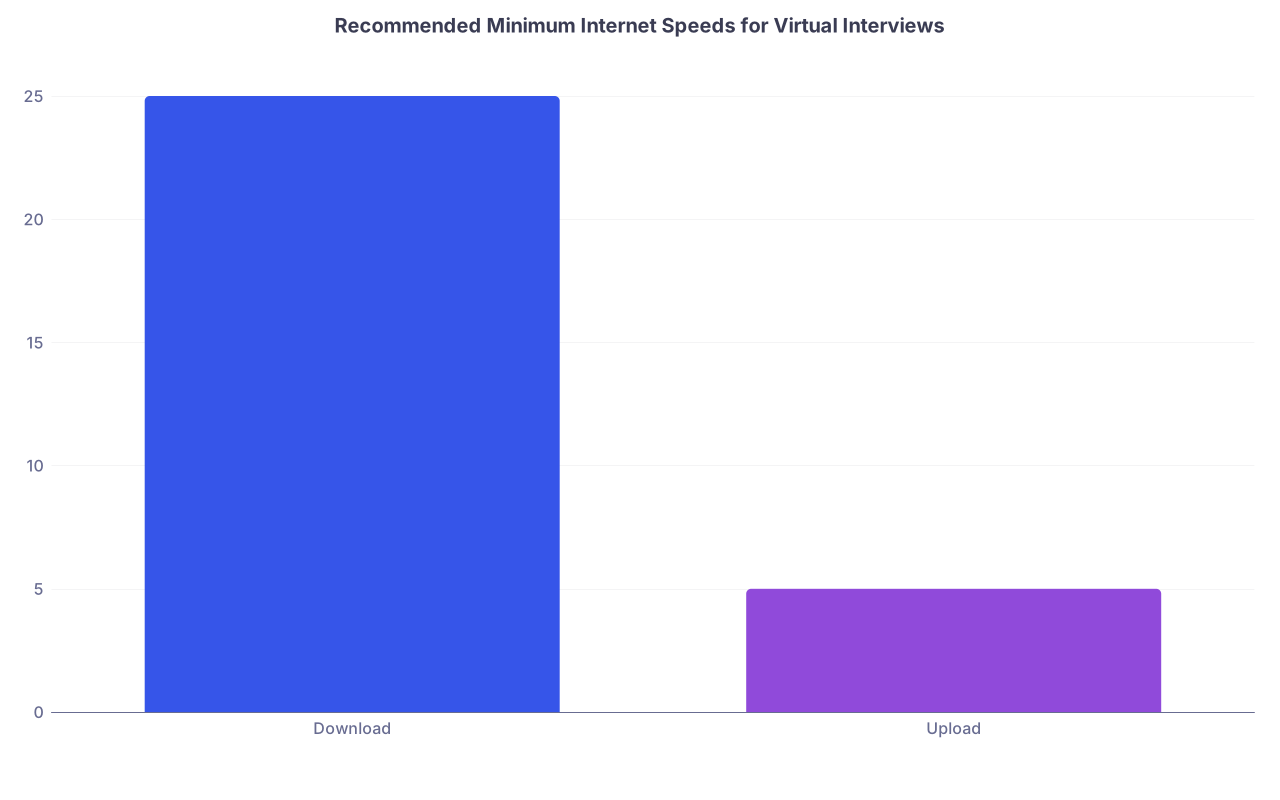
| Category | Value |
|---|---|
| Download | 25 |
| Upload | 5 |
If you are below these numbers, or your connection fluctuates wildly, flag this now. You will need backup plans.
Day 3–4: Decide What to Upgrade
At this point you should make actual purchase or borrowing decisions. Not “I’ll look into it later.”
Minimum priority order:
- Audio – weak audio is worse than weak video.
- Internet stability – especially upload speed and Wi‑Fi reliability.
- Camera – clarity and angle.
- Lighting – you can fix some of this cheaply.
Concrete actions:
- If your audio is muffled, echoing, or distant:
- Buy a simple USB mic (e.g., Blue Snowball, Fifine) or wired headset.
- If your laptop mic picks up fan noise:
- External mic, positioned closer to your mouth, away from the keyboard.
- If your video is dim or blurry:
- Get an external 1080p webcam. Laptop cams are often garbage, especially on older PCs.
- If your Wi‑Fi is weak in your intended interview room:
- Run a long Ethernet cable from the router.
- Or move your interview setup closer to the router.
- Or budget for a Wi‑Fi range extender.
Day 5–7: Choose Your Interview Location (Primary and Backup)
At this point you should decide: exactly where you will sit.
Primary location checklist:
- Door can close? Good.
- Noise controllable? (Roommates, kids, pets, street noise.)
- Surface for laptop at eye level? Or space for external monitor and webcam?
- Power outlet nearby?
- Cell signal acceptable if you need to use your phone as a hotspot?
Then choose a backup location:
- Library private room.
- Friend or family member’s quiet office.
- Empty study room at your med school.
Do not assume your primary location will cooperate. Fire alarms go off. Neighbors do renovations. It happens.
Week 5: Build the Physical Setup (Background, Lighting, Angles)
Now you stop worrying about hardware specs and start worrying about what the PD actually sees.
At this point you should physically arrange and lock in your background and framing.
Day 1–2: Background – Clean, Neutral, Boring
You want “reliable future colleague,” not “college dorm chaos.”
- Behind you:
- Plain wall, bookcase, or neatly made bed with simple bedding.
- Remove:
- Posters. Political slogans. Sports flags. Piles of laundry.
- Add (optional, subtle):
- One plant or simple framed print.
- Avoid:
- Door directly behind you that people constantly walk through.
- Windows behind you (they will backlight you into a silhouette).
Take a screenshot in Zoom preview and actually look at it. If your eye goes to anything other than your face, fix it.
Day 3–4: Lighting – Fix the “Cave” Effect
Bad lighting makes you look tired, disinterested, or low‑effort.
Priority rules:
- Light should hit your face from in front or slightly to the side.
- Never rely only on ceiling light overhead.
- Avoid bright window behind you.
Simple setup:
- Sit facing a window during daytime (soft, indirect light).
- If that is not possible or interviews are early/late:
- Add:
- Desk lamp behind your screen, aimed slightly above your face, not into your eyes.
- Or an inexpensive ring light.
- Add:
Test lighting at the actual times your interviews might happen (8–11 a.m., early afternoon). Morning light and afternoon light can look totally different.
Day 5–7: Camera Height and Framing
At this point you should stop letting your laptop camera look up your nose.
- Raise your laptop:
- Stack of books or laptop stand so the camera is roughly at eye level.
- Frame:
- Top of your head near the top of the frame.
- Upper chest visible. Not just your face. Not full torso miles away.
- Distance:
- About arm’s length from the camera works for most setups.
Record a 1–2 minute video of yourself talking and play it back. Watch for:
- Chin too high or too low.
- You looking at the wrong spot (more on that later).
- Weird shadows or glare from glasses.
Week 4: Software, Platforms, and Redundancies
By now the physical setup should be mostly stable. This week is about software, accounts, and “what breaks when Zoom updates itself the night before.”
Day 1–2: Lock Down Software
At this point you should install and configure:
- Zoom (desktop app, not just browser).
- Microsoft Teams.
- Webex if any program mentions it.
- Browser:
- Chrome or Edge for most platforms.
- Log out of strange extensions that spam notifications.
Actions:
- Update all these platforms now.
- Sign in on the computer you will actually use.
- Turn off disruptive notifications:
- Email pop‑ups.
- Messaging apps.
- System notifications.
Configure Zoom (and mirror for other platforms):
- Test microphone and speaker.
- Disable “Automatically adjust microphone volume” if it overcompensates.
- Turn on “Touch up my appearance” lightly if it helps, not full plastic‑face.
- Turn off virtual backgrounds unless your real background is truly unfixable. Blurry fake rooms look worse than a clean real room.
Day 3–4: Redundancy Planning
At this point you should assume something will fail.
You need:
- Backup device:
- Tablet or second laptop with the same apps installed and logged in.
- Backup internet:
- Mobile hotspot tested once with video call.
- Know your plan data limits.
| Component | Primary Plan | Backup Plan |
|---|---|---|
| Device | Main laptop | Tablet or second laptop |
| Internet | Home Wi‑Fi or Ethernet | Phone hotspot |
| Audio | USB mic + wired headphones | Wired earbuds with mic |
| Location | Bedroom/office | Library/private room/friend’s office |
| Platform | Zoom desktop app | Zoom in browser on second device |
Write this down in a single document you can glance at quickly if disaster hits.
Day 5–7: Full Mock Interview Tech Check
This is non‑negotiable. One mock interview focused only on tech and setup.
- Ask a friend, upper‑year resident, or mentor to:
- Call you on Zoom / Teams.
- Simulate entering the waiting room, being let in, screen sharing if needed.
- While you talk, have them:
- Rate your audio clarity (0–10).
- Rate video quality and lighting (0–10).
- Comment on background distractions and framing.
Record the session (with their permission) and watch your own video like a program director would. Fix what annoys you.
Add one more layer:

| Step | Description |
|---|---|
| Step 1 | Start Mock Interview |
| Step 2 | Test Audio |
| Step 3 | Test Video & Lighting |
| Step 4 | Adjust Mic/Headphones |
| Step 5 | Check Internet Stability |
| Step 6 | Rearrange Background |
| Step 7 | Setup Approved |
| Step 8 | Plan Backup Internet |
| Step 9 | Clear & Loud? |
| Step 10 | Background OK? |
| Step 11 | Stable 20+ mins? |
Week 3: Fine‑Tuning and Daily‑Use Stability
By week 3, the structure is done. Now you make it idiot‑proof.
Early Week: Cable Management and Stability
At this point you should remove anything that can snag, unplug, or fall mid‑interview.
- Secure:
- Power cables taped or tucked behind the desk.
- Ethernet cable taped along the floor/wall.
- Microphone and webcam cables not dangling off the edge.
- Decide:
- Will your laptop be plugged in the whole time? It should be.
- Turn off aggressive power‑saving modes and automatic sleep.
Do a 30–40 minute “fake work session” in your interview setup:
- Sit as you would during an interview.
- Use the same chair, desk, and devices.
- Notice:
- Chair squeaks?
- Table wobbles when you type?
- Fan noise from your laptop loud on the mic?
Fix these now. Not in October.
Mid–Late Week: Build the Habit of Looking at the Camera
Eye contact is weird on video. But programs still judge it.
At this point you should train yourself:
- Move the Zoom video window as close to your webcam as possible.
- Practice:
- Answering questions while glancing at the small video box near the camera, not the full screen below.
- Do another short recorded session and watch:
- Do you look like you are talking to yourself off‑screen?
Some people put a small sticky dot right next to the webcam as a focal point. Use what works.
Week 2: Lock in the Final Setup and Practice Recovery
Two weeks out, you are not adding big new hardware. You are stress‑testing everything and rehearsing backup moves.
Early Week: Full‑Day Stability Test
At this point you should simulate interview day load.
- Keep your system on for several hours while:
- Zoom open in the background (no active call).
- Browser tabs, PDF reader, maybe Spotify (low volume).
- Check:
- Device overheating?
- Fans suddenly roaring?
- System crashes or forced updates?
Then do a 60‑minute video call with a friend while recording:
- Switch between:
- Mute/unmute.
- Turning video off/on.
- Screen sharing a PDF (for any programs that may use games/cases).
- Watch for:
- Audio lag.
- Desync between lips and sound.
- Random resolution drops.
If your machine struggles with this, strongly consider a backup device as your primary for interviews.
Mid Week: Rehearse Tech Failure Scenarios
Yes, actually rehearse. For 20–30 minutes.
Scenarios:
- Wi‑Fi drops mid‑answer
- Practice:
- Quickly enabling your phone hotspot.
- Rejoining the meeting.
- Saying:
“Apologies for that, my connection just dropped unexpectedly. I have switched over to my backup connection and we should be stable now.”
- Practice:
- Audio stops working
- Practice:
- Switching audio devices in Zoom (from USB mic to headset etc.).
- Using the “Call me” or dial‑in feature if the program shares it.
- Practice:
- Computer freezes and reboots
- Have your phone nearby with:
- Interview email open.
- Zoom link accessible.
- Be ready to email the coordinator a one‑line update if disaster happens.
- Have your phone nearby with:
You will feel ridiculous practicing this. You will feel much worse if you have to improvise for the first time with a PD staring at a blank Zoom square.
Late Week: Environment Stress Test
At this point you should test the real‑world noise level:
- Same time of day as likely interviews.
- Window open vs closed.
- Ask roommates/family to behave “normally.”
Then:
- Close windows if street noise is too much.
- Communicate clearly with roommates/household:
- Dates and times when absolute quiet is required.
- What “quiet” actually means (no blender, loud TV, door slamming).
Week 1: Final Checks, Rehearsal, and Routine
You are not rebuilding anything now. You are confirming, rehearsing, and eliminating avoidable chaos.
7–5 Days Before: Final Mock Interview in Full Gear
At this point you should do one full mock interview with:
- Exact outfit you plan to wear (including pants, in case you stand up).
- Exact devices, headphones, lighting, background.
- Same time of day as a typical interview slot.
Ask your mock interviewer to focus on:
- Clarity and volume of audio.
- Any echo or background hum.
- How your face is lit.
- Whether your eye contact feels natural.
- Whether your background distracts at all.
Record this and do a brutal self‑review. You are looking specifically at tech and presence, not content.
4–3 Days Before: Lock in Settings and Turn Off Surprises
At this point you should freeze the environment:
- Disable:
- Automatic OS updates during your usual interview windows.
- Scheduled antivirus scans.
- Confirm:
- All apps are up to date.
- You are logged into Zoom/Teams on your primary and backup device.
- Prepare:
- Printed or local (offline) copy of:
- Program list with Zoom links.
- Email addresses for coordinators.
- Your own CV and personal statement for quick reference.
- Printed or local (offline) copy of:
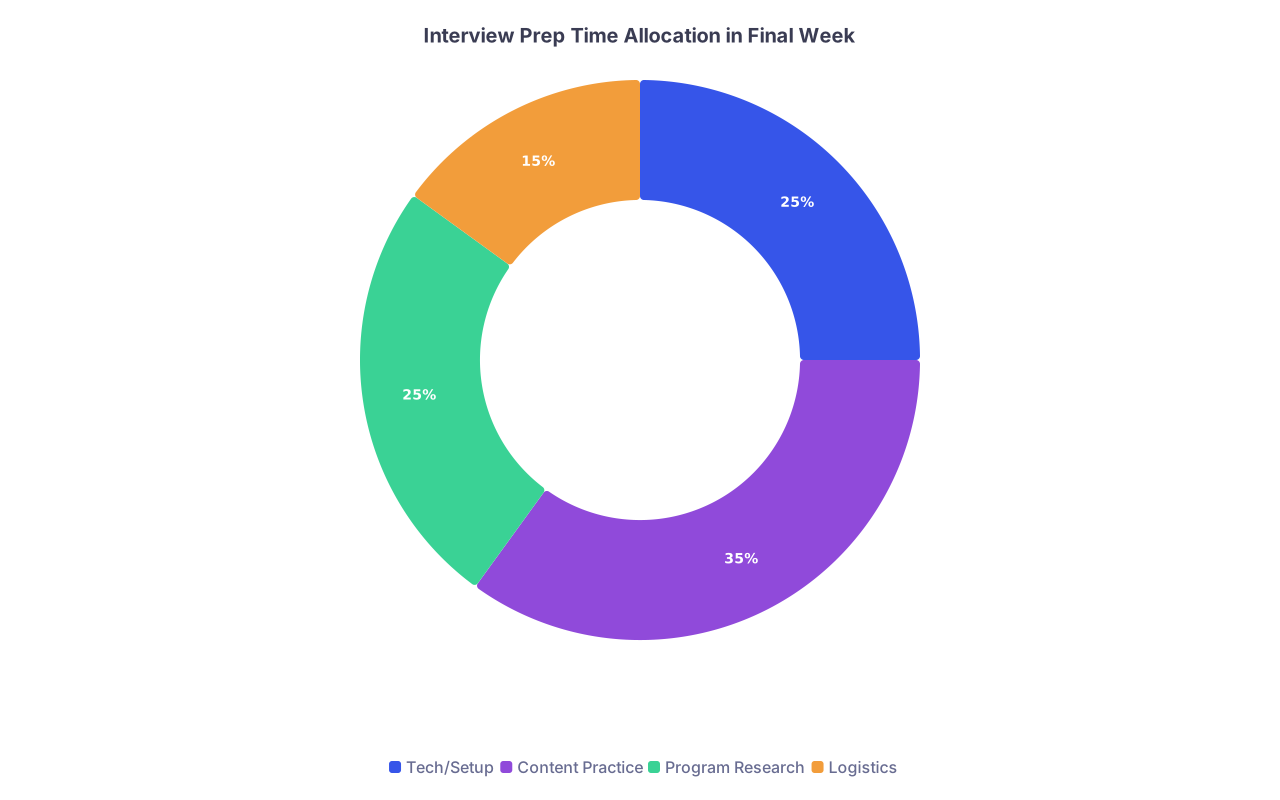
| Category | Value |
|---|---|
| Tech/Setup | 25 |
| Content Practice | 35 |
| Program Research | 25 |
| Logistics | 15 |
Keep your workspace physically ready:
- Desk cleared except:
- Laptop / monitor.
- Notepad and pen.
- Glass of water.
- One printed one‑page “cheat sheet” (program names, key experiences).
2 Days Before: Short System Check + Backup Confirmation
At this point you should do a 10–15 minute live check:
- Open Zoom.
- Test audio and video.
- Confirm Ethernet or strong Wi‑Fi.
- Brief call with a friend if possible: “Do I sound the same as last time?”
Then verify backups:
- Phone hotspot still works.
- Backup device still logged in and updated.
- Backup location still available (no surprise closures, exams, etc.).
1 Day Before: Minimal Touch, Max Certainty
Do not overhaul anything the night before.
End‑of‑day checklist:
- Plug in:
- Laptop and backup device to charge fully.
- Place on desk:
- Headphones.
- Mic.
- Ethernet cable connected.
- Set:
- Two alarms (phone + backup device).
- Calendar reminder 30–45 minutes before start time.
Then stop tinkering. You are more likely to break something than improve it now.
Interview Morning: 90‑Minute Countdown
Here is the hour‑and‑a‑half timeline you should follow.
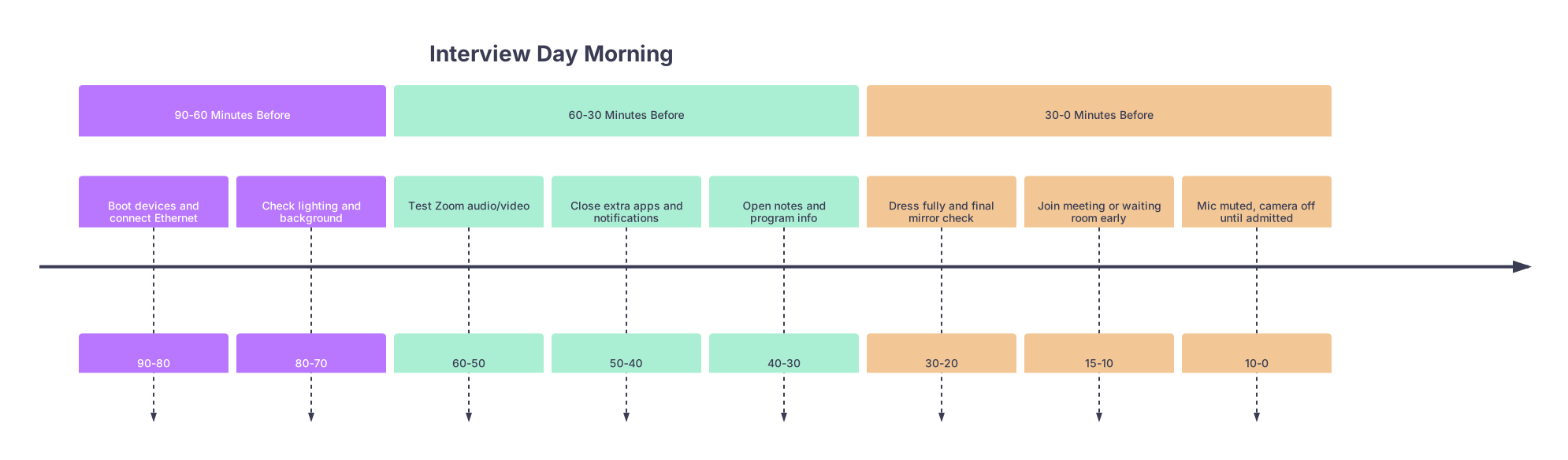
| Period | Event |
|---|---|
| 90-60 Minutes Before - Boot devices and connect Ethernet | 90-80 |
| 90-60 Minutes Before - Check lighting and background | 80-70 |
| 60-30 Minutes Before - Test Zoom audio/video | 60-50 |
| 60-30 Minutes Before - Close extra apps and notifications | 50-40 |
| 60-30 Minutes Before - Open notes and program info | 40-30 |
| 30-0 Minutes Before - Dress fully and final mirror check | 30-20 |
| 30-0 Minutes Before - Join meeting or waiting room early | 15-10 |
| 30-0 Minutes Before - Mic muted, camera off until admitted | 10-0 |
90–60 Minutes Before
At this point you should:
- Turn on your primary and backup devices.
- Connect to power and Ethernet.
- Confirm:
- Zoom/Teams opens without forced updates.
- Audio and video devices are correct in settings.
- Check lighting and curtains/blinds based on current daylight.
60–30 Minutes Before
- Do a quick solo Zoom test:
- Use “Test speaker and microphone.”
- Check your video preview for framing and background.
- Close:
- Email.
- Messaging apps.
- Any software that might pop up notifications.
- Open:
- One browser window with:
- Program website.
- Your schedule.
- One PDF or document with your CV/PS if needed.
- One browser window with:
Place your phone on silent, face down, but within reach in case the program needs to contact you.
30–10 Minutes Before
- Full outfit on. Tie straight, collar flat, hair checked.
- Final mirror or camera check for shine, smudges on glasses, etc.
- Sit at your station, posture comfortable but upright.
- Join the Zoom/Teams link:
- 10–15 minutes early if they provide a waiting room.
- Mute mic and turn camera off until officially admitted if instructed.
Have your notepad, pen, and glass of water exactly where you want them. No last‑minute scrambling.
5 Minutes Before and During the Interview
At this point you should not touch any settings unless something breaks.
- Eyes:
- Look primarily at the small box near your camera.
- Hands:
- Rest on desk, avoid constant mouse fiddling.
- Voice:
- Project slightly more than in person. Video eats energy.
If a tech issue happens:
- Acknowledge calmly.
- Fix quickly using the backup you have already rehearsed.
- Brief, professional explanation if needed. Then move on.
Core Takeaways
- Treat your virtual setup like part of your application, not an afterthought. You are being judged on it.
- Build and test everything by Week 3, then spend the last two weeks proving it is stable and rehearsing failures.
- On interview day, your only job should be to show up and talk. The tech should already be invisible.