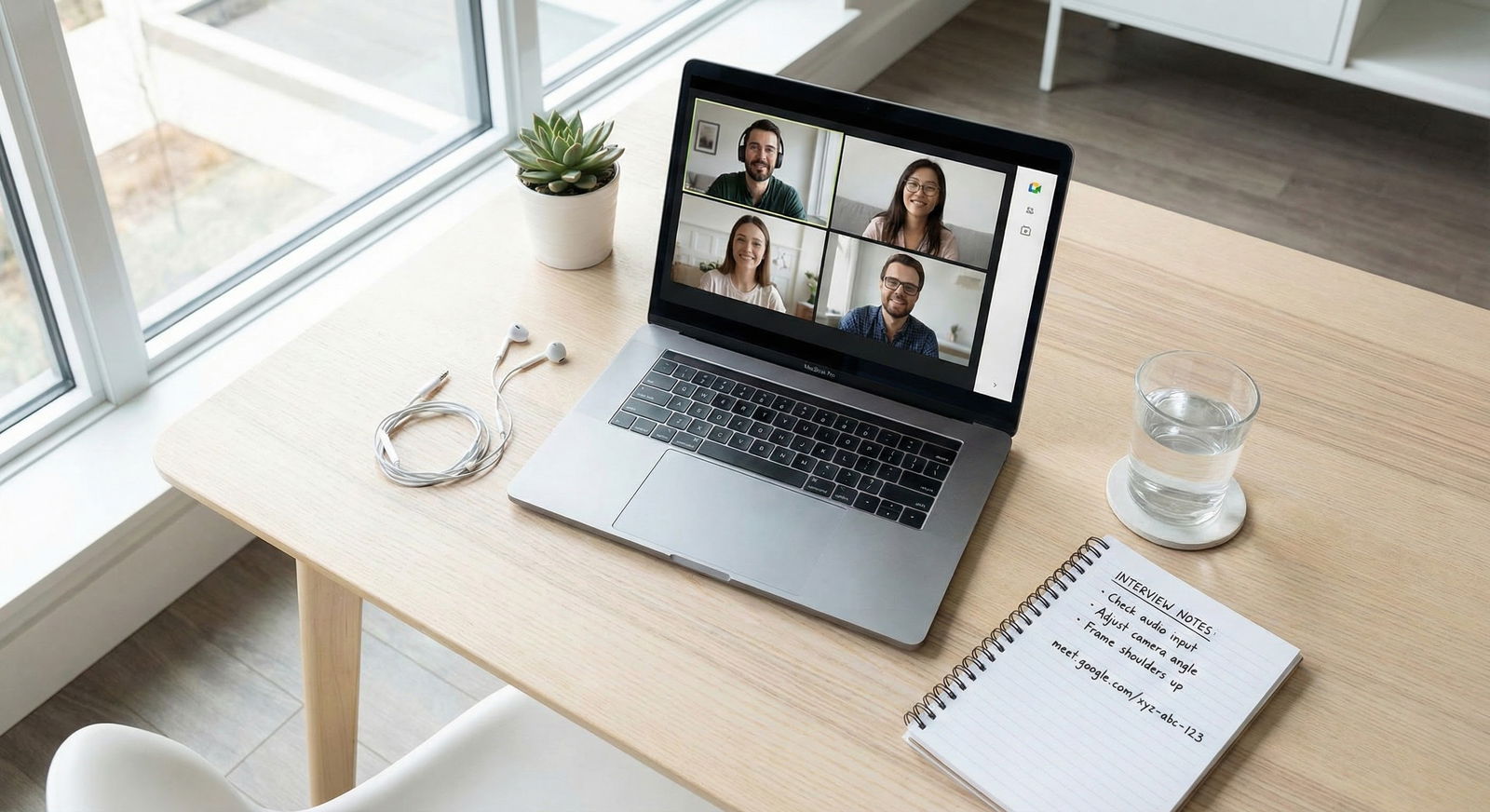
The residency interview you’ve waited years for can be wrecked in 30 seconds by bad Wi‑Fi. Planning to “hope the internet works” is not a strategy; it is malpractice on yourself.
Here’s the fix: you build a day‑of contingency timeline that assumes something will fail—and you decide now what you’ll do at each minute if it does.
This is your hour‑by‑hour, then minute‑by‑minute playbook for video interviews in the residency Match when the power flickers, Zoom freezes, or your router dies.
T‑12 to T‑2 Hours: Pre‑Interview Risk Check and Setup
At this point you should be trying to break your own setup on purpose so it doesn’t break on you later.
12–8 hours before: Stress‑test your tech
The night before (or early morning for an afternoon interview):
- Run a 10–15 minute video call (Zoom/Teams/Thalamus/WhateverTheyUse) with:
- Laptop on home Wi‑Fi
- Phone on cellular hotspot (test switching mid‑call)
- Turn your camera on and:
- Walk a few rooms away to see if Wi‑Fi drops
- Turn on a streaming video on another device to simulate network load
- Confirm:
- Audio isn’t echoing
- Background is clean and not darker than a cave
- Your name in the platform is correct:
First Last, MS4(not “iPhone”)
At this stage, your goal is to find out:
- Where your Wi‑Fi is weakest
- How quickly you can flip to a hotspot
- Which device behaves best on the hospital’s preferred platform
8–4 hours before: Lock in your backup locations
At this point you should have two physical locations where you can interview:
Primary location
- Quiet room at home / dorm / student housing
- Stable desk + chair
- Power outlets reachable without gymnastics
Backup location if home loses power or internet:
- Friend’s apartment with different ISP
- Library or study room with reserved space
- Campus building you’ve actually sat in before with working Wi‑Fi
Contact the backup host (if applicable) and literally say:
“I have a residency video interview tomorrow at 1 pm. If my power or Wi‑Fi dies, can I show up at your place 60–90 minutes before to use your internet? I’ll be quiet and gone in two hours.”
Write their address and instructions on paper and put it on your desk.
4–2 hours before: Build your redundancy stack
At this point you should be creating layers of redundancy, not improvising.
Set up:
Device hierarchy
- Primary: laptop (plugged in)
- Secondary: tablet (fully charged, app installed, logged in)
- Tertiary: smartphone (fully charged, app installed, logged in)
Internet hierarchy
- Home Wi‑Fi
- Phone hotspot
- Backup location Wi‑Fi
Power hierarchy
- Wall outlet
- Long charging cable or power strip to reach outlet easily
- Portable battery pack (for phone/tablet at minimum)
Print or handwrite (yes, on paper):
- Interview schedule and time zones
- Program coordinator name, phone, and email
- Generic script:
“Hi [Name], this is [Your Name], I’m scheduled for a video interview at [time]. I’m currently experiencing a [power outage / internet failure]. I’m moving to my backup plan and will [switch to phone / relocate] and rejoin within [X] minutes.”
Tape this near your screen so you can read it under stress.
T‑120 to T‑60 Minutes: Final Checks and “If X Happens, Then Y” Rules
This hour is about tightening the system and making your decisions ahead of time.
T‑120 to T‑90: Dry run the full switch
At this point you should practice the switch under time pressure:
- Start a test video call on your laptop + home Wi‑Fi
- After 2–3 minutes:
- Turn off your router or disconnect Wi‑Fi
- Immediately:
- Turn on your phone hotspot
- Connect laptop to hotspot
- Time how long it takes you to have stable video again
Repeat, but this time:
- Simulate laptop failure:
- “Pretend” your laptop died
- Move to tablet or phone
- Join the same meeting link from that device
- Check that your name and audio are correct
You should know, by feel:
- Which buttons to press without thinking
- How long each transition realistically takes
T‑90 to T‑60: Decide your hard thresholds
This is where most applicants mess up: they freeze when Zoom freezes because they didn’t pre‑decide their rules.
At this point you should write down hard triggers like a checklist:
| Problem | Trigger Time | Action |
|---|---|---|
| Video freezes, audio still OK | 10 seconds | Turn off self‑view, keep speaking |
| Video & audio frozen | 20 seconds | Leave meeting, rejoin on same device |
| Rejoining fails | 60 seconds | Switch to phone hotspot on laptop |
| Laptop unresponsive | 90 seconds | Join from phone app with video |
| Local power failure | Immediate | Call/email coordinator, switch to phone |
You’re not going to invent this logic calmly in the moment. You create it now.
T‑60 to T‑15 Minutes: Power, Network, and Environment Lockdown
You’re moving from planning failure to preventing it.
T‑60: Power lockdown
At this point you should be inviting zero surprises from your battery icons.
- Plug in:
- Laptop at 100%
- Tablet at 100%
- Phone at 100%
- Put your portable battery pack within arm’s reach
- Turn off:
- Laptop battery savers that might throttle performance
- Aggressive auto‑updates (set manual for the day)
If you’re in a storm‑prone area or unstable grid:
- Keep phone unplugged at 80–90% if power is flickering so it’s not charging during surges
- Know your building’s emergency lighting—don’t get stuck in a dark hallway mid‑relocation
T‑45: Network lockdown
At this point you should be protecting your bandwidth like an ICU bed.
- On your network:
- Ask roommates/family: no 4K streaming, big downloads, or online gaming during your interview window
- Turn off auto‑sync apps (Dropbox, OneDrive, Google Drive) on your laptop
- On your devices:
- Close every non‑essential tab and app
- Log out of VPNs unless your institution requires one
Run a fresh speed test on:
- Home Wi‑Fi
- Phone hotspot (from laptop)
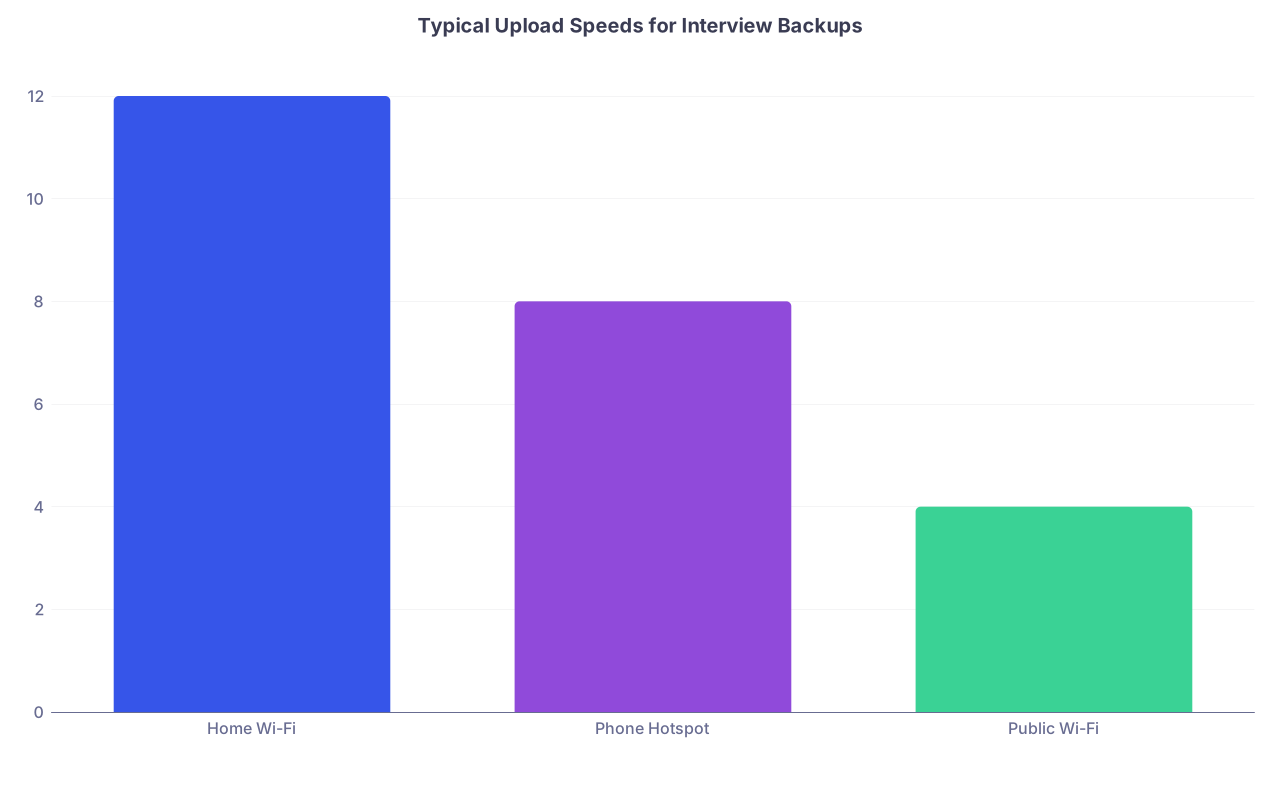
Write your upload speeds next to your paper notes. Upload is what kills video.
| Category | Value |
|---|---|
| Home Wi-Fi | 12 |
| Phone Hotspot | 8 |
| Public Wi-Fi | 4 |
You want >5 Mbps upload for smooth video. Less than that means you’re living on borrowed time.
T‑30: Environment lockdown
At this point you should be removing all non‑technical chaos so only Wi‑Fi and power can hurt you.
- Silence:
- Put phone on Do Not Disturb, but allow calls from “Favorites” in case the coordinator calls
- Turn off notifications on laptop (Focus Assist, Do Not Disturb, etc.)
- Visuals:
- Adjust lighting so your face is clear even if it gets slightly darker or brighter
- Close blinds if changing sunlight is an issue
- Background:
- Keep it simple and consistent if you switch devices (no huge change between locations)
- Have the same virtual background queued on all devices if you use one
Print your most critical documents:
- 1‑page summary of:
- Program names
- Interviewer names (if known)
- 3 key stories you must hit
- This lets you keep going if your screen or laptop fails.
T‑20 to T‑15: Platform lockdown
At this point you should be inside the platform, not wondering which link to click.
- Open:
- Official interview link in your primary browser
- Backup tab with the same link in a second browser (or incognito)
- Log into:
- Email on your phone (in case the coordinator sends a backup link)
- Messaging platform if they use Thalamus/Interview Broker chat
Do a quick audio/video self‑check in the platform. Don’t join the room early if they’ve told you not to; just use their test features.
T‑10 to T+10 Minutes: Live Failure Scenarios and Exact Responses
This is the danger window. You’re in the room (or about to be), and Murphy’s Law comes to play.
At this point you follow your pre‑written rules. No debating.
Scenario 1: Wi‑Fi glitch but not full failure (T‑10 to T+10)
Symptoms:
- Video freezing intermittently
- Interviewers say “You’re cutting out a bit”
- You hear audio dropping for a few seconds
At this point you:
- First small fix (inside 10–20 seconds):
- Turn off HD video if the platform allows it
- Turn off self‑view to reduce load
- Speak slightly slower, pause after answers so they can interject if needed
If the coordinator/interviewer mentions ongoing issues or you keep hearing “sorry, you’re breaking up”:
- Trigger #1: Persisting issues for ~30–60 seconds
Say clearly:
“I’m noticing some connection issues on my end. I’m going to switch to a more stable connection—it should just take a few seconds.”
Turn on your phone hotspot
Switch your laptop from Wi‑Fi to hotspot between questions or while they’re speaking
Do not wait 5–10 minutes hoping it improves. That’s where people dig their own grave.
Scenario 2: Full Wi‑Fi failure, power intact (T‑5 to T+10)
Symptoms:
- Internet icon shows disconnected
- Browser won’t load anything
- Zoom/Teams/Thalamus kicks you out
At this point you should execute the 3‑step emergency script:
- Immediately (within 30 seconds):
- Enable phone hotspot
- Connect laptop to hotspot
- Rejoin the interview link
If you rejoin successfully within 2–3 minutes:
When they’re back on screen, say:
“Thank you for your patience. My home internet cut out briefly, so I’ve switched to a backup connection. I’m all set to continue.”
And then move on. Do not keep apologizing.
If laptop will not reconnect within 2 minutes:
- Grab your phone
- Open the meeting link from the email or calendar invite
- Join with video on, good name, mute off, camera at eye level as much as possible
If you still can’t rejoin or they’re not in the room:
Use your pre‑written script to call or email the coordinator from your phone:
“Hi [Name], this is [Your Name], scheduled for [Program] interview at [time]. My home internet just went down unexpectedly. I’ve switched to my phone and am attempting to rejoin via cellular. If the main link isn’t working, could you please send a backup link or phone option? I’m fully available and trying to reconnect now.”
Document time and actions on your paper just in case there are questions later.
Scenario: Power Outage—The Worst‑Case Timeline
This is the big one. No lights. No router. No laptop charging. But you’re not helpless if you’ve planned.
T‑0 to T+2 Minutes: Immediate response
Symptoms:
- Lights go out
- Laptop may stay on briefly (battery)
- Router dies instantly
- Silence
At this point you do not wait and see. You pivot.
Within 30 seconds:
- Grab your phone (which should be charged)
- Turn off Wi‑Fi so it switches to cellular data
- Open interview link in the app or browser
- Join with video if possible; if connection is weak, start with audio and add video if stable
Simultaneously (within 2 minutes):
Call or email the coordinator from your phone:
“Hi [Name], this is [Your Name], scheduled for an interview right now. We’ve just had a building‑wide power outage, but I’m on my phone with cellular data and ready to continue. If the video quality is poor, I’m happy to continue by audio or reschedule a portion as needed.”
You’re showing two things programs care about: adaptability and respect for their time.
T+2 to T+15 Minutes: Decide to stay or relocate
Now you ask a simple question: Is this a short outage or a long one?
At this point you:
- Check:
- Hallway lights: emergency only?
- Neighbors: also out?
- Utility app/texts if you have them
If there’s any sign this will last >30–60 minutes and you have another interview block later the same day:
- Trigger your backup location plan:
Text/call your host: “Power is out here, heading your way now.”
Grab:
- Phone + charger
- Tablet
- Printed notes
Leave safely and email coordinator with exact ETA:
“Our power outage appears prolonged, so I’m relocating to my backup site with reliable internet. I expect to be online there by [time]. I’m committed to completing today’s schedule and will stay flexible with timing.”
Programs don’t expect perfection; they expect proactive communication.
Same‑Day Multi‑Interview Block Strategy
Many applicants have 2–4 interviews in one day (breakout rooms, multiple faculty, etc.). Failure at 9:15 am can ruin 1 pm if you don’t reset.
At this point between sessions (any 10–15 minute break) you should:
- Reassess power:
- Plug all devices back to 100%
- Rotate which device is primary for the next block if one overheated or acted up
- Reassess network:
- If you used hotspot earlier, decide:
- Stay on hotspot if home Wi‑Fi is still weird
- Or reboot router during a break and quickly test stability
- If you used hotspot earlier, decide:
- Update coordinator (briefly) if there was past disruption:
A single chat message or email:
“Just a quick update—my earlier connection issue is resolved, and I’m now on a more stable setup. I’m ready for the remaining sessions.”
Do not rehash the whole disaster. Just signal stability.
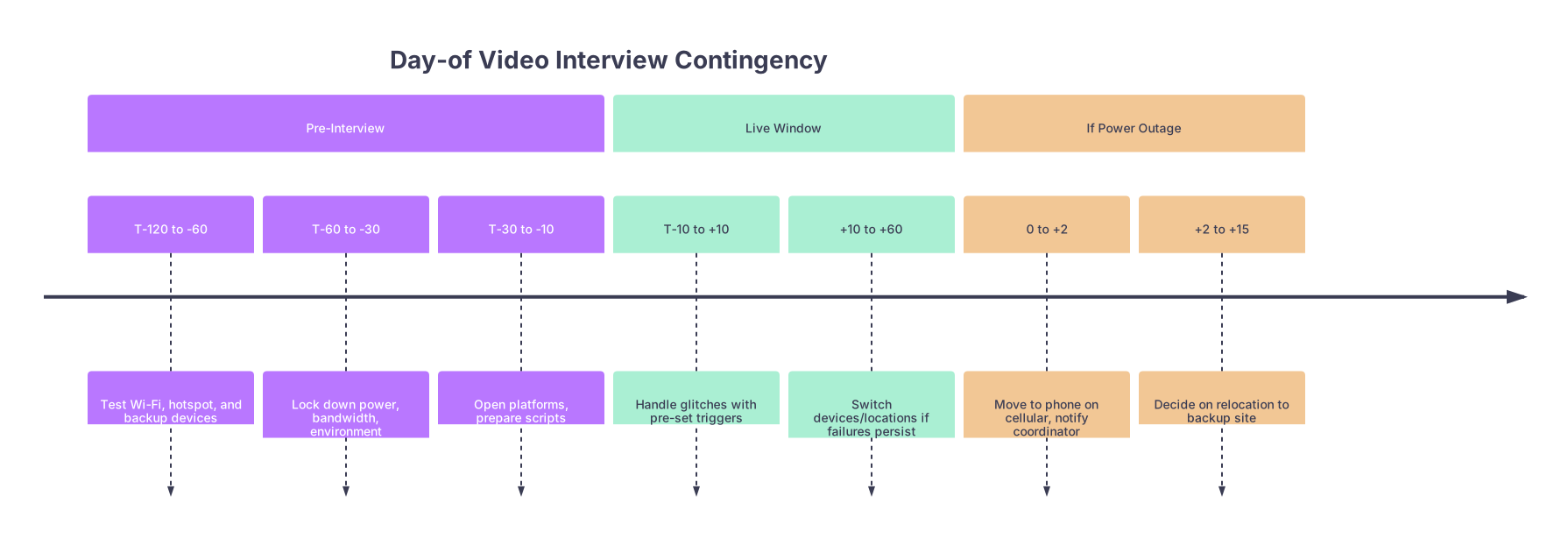
Visual: Simple Day‑Of Contingency Timeline
| Period | Event |
|---|---|
| Pre-Interview - T-120 to -60 | Test Wi-Fi, hotspot, and backup devices |
| Pre-Interview - T-60 to -30 | Lock down power, bandwidth, environment |
| Pre-Interview - T-30 to -10 | Open platforms, prepare scripts |
| Live Window - T-10 to +10 | Handle glitches with pre-set triggers |
| Live Window - +10 to +60 | Switch devices/locations if failures persist |
| If Power Outage - 0 to +2 | Move to phone on cellular, notify coordinator |
| If Power Outage - +2 to +15 | Decide on relocation to backup site |
Post‑Interview: Quick Debrief and Hardening for Next Time
The interview is done. You’re tired. This is where most people just collapse and repeat the same mistakes next time.
At this point, within 30 minutes of finishing, you should:
- Jot down:
- Did Wi‑Fi drop at all?
- Did your hotspot handle it?
- Did any device lag, overheat, or run low on battery?
- Update your rules:
- If home Wi‑Fi was shaky: make hotspot your primary next time
- If laptop struggled with the platform: promote tablet to primary device
- Adjust your backup location choice if needed:
- Maybe the coffee shop you thought was quiet is actually an espresso jet engine
Then, and only then, close the laptop.
Three Things to Remember
- Decide your triggers before the interview. “If X happens for Y seconds, I will do Z.” Write it down.
- Layer your backups. Multiple devices, multiple internet paths, one alternate location. That’s the minimum, not overkill.
- Communicate fast, not perfectly. Programs forgive outages. They don’t forgive disappearing without explanation.