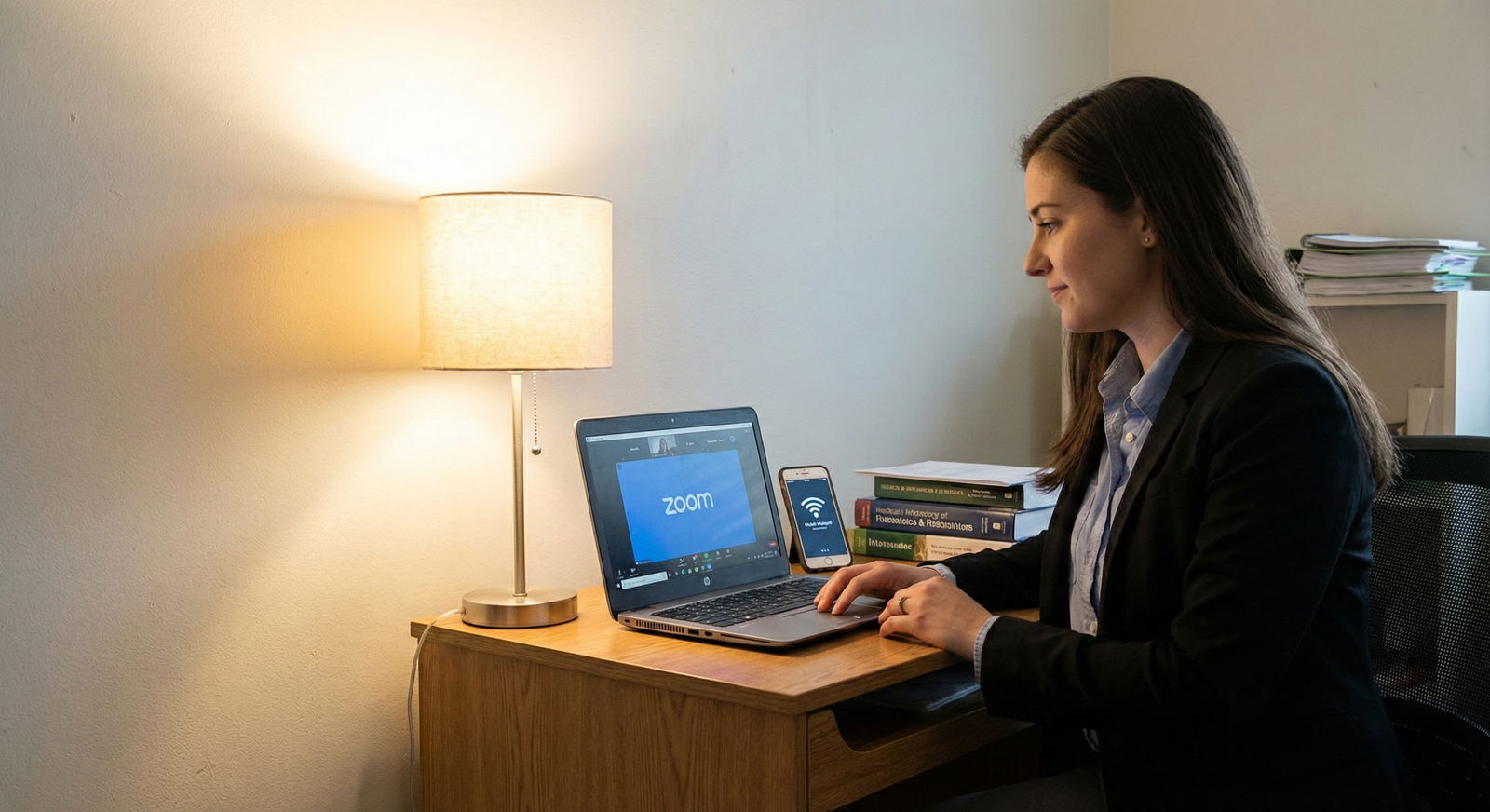
You do not need a ring light, 4K webcam, and fiber internet to look like a professional residency applicant. You need control.
I’m writing for you if:
- Your internet barely streams Netflix.
- You’re using a hotspot or dorm Wi‑Fi that dies randomly.
- You’re interviewing from a shared apartment, call room, or your parents’ house.
- You feel sick thinking a glitchy Zoom will tank your chances.
Here’s the reality: programs do not expect studio quality. But they do notice chaos—choppy video, bad audio, constant “Sorry, can you repeat that?” If you’re in a low‑tech, low‑bandwidth situation, your goal is simple: trade flashy for stable, and noisy for clear.
Let’s walk through exactly how.
1. Your Real Constraint: Bandwidth, Not Gear
Stop thinking, “I need to buy more stuff.” Start thinking, “I need to squeeze every drop out of the little bandwidth I have.”
On low bandwidth, video calls fail in predictable ways:
- Your video freezes.
- Audio cuts in and out.
- People talk over each other because of lag.
- Screen share becomes a slideshow.
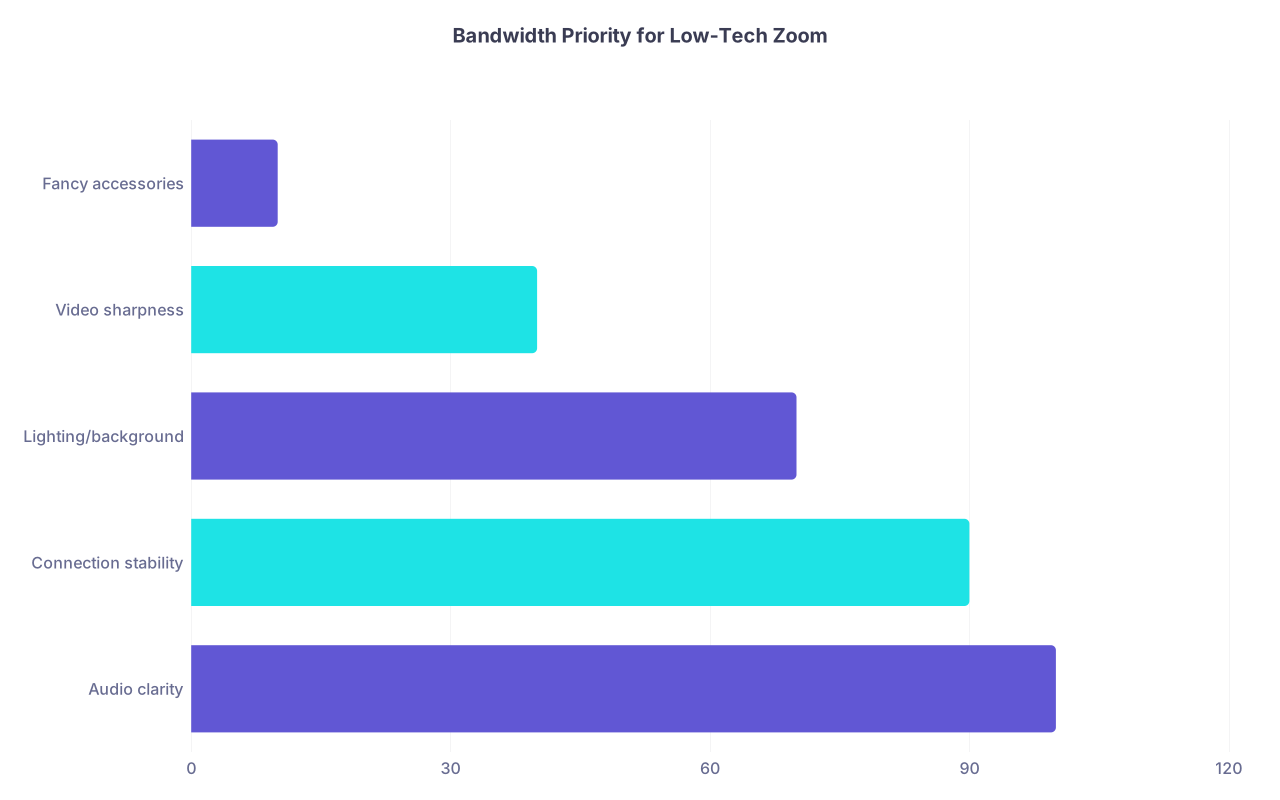
Almost every fix we’re going to use comes down to this: protect the audio first, then make the video “good enough.” If your face is a little grainy but they hear every word, you’re fine. If your audio drops repeatedly, you’re done.
| Category | Value |
|---|---|
| Audio clarity | 100 |
| Connection stability | 90 |
| Lighting/background | 70 |
| Video sharpness | 40 |
| Fancy accessories | 10 |
Read that again: fancy accessories are last.
2. Pre-Interview Reality Check: What Are You Actually Working With?
Before you obsess over Zoom filters, figure out your baseline.
Step 1: Test Your Connection When It’s “Real”
Do NOT test your Zoom at 11pm when no one else is online if your interview is at 10am. You need to simulate the worst case.
Do this at least 3–5 days before your first interview:
- At the same time of day as your interview, run a speed test (e.g., speedtest.net) on the exact device you’ll use.
- Do it:
- On your usual Wi‑Fi.
- On your phone hotspot in the same location (and once by a window if you’re in a low-signal building).
Write the numbers down. You care about:
- Upload speed (key for your video)
- Ping/latency (key for lag)
If you’re seeing:
- Upload ≥ 3 Mbps: You can usually do video at 720p with careful tweaks.
- Upload 1–3 Mbps: You need aggressive optimization but still workable.
- Upload < 1 Mbps: Hotspot or alternate solution should be your default.
Now you actually know: “I’m not unlucky. I just have 0.8 Mbps upload. I need to plan for that.”
3. Choosing the Lesser Evil: Home Wi‑Fi, Hotspot, or Somewhere Else?
You probably have three imperfect options. You’re trying to choose the most predictable one, not the prettiest.
| Option | Pros | Cons |
|---|---|---|
| Home Wi‑Fi | Comfortable, private | Shared, inconsistent |
| Phone hotspot | Dedicated to you | Data limits, signal variable |
| Library/office | Stronger internet | Less control, noise risk |
Home Wi‑Fi: When It’s Okay
Use your home/dorm Wi‑Fi if:
- Speed test at interview time shows ≥ 3 Mbps upload consistently.
- You can control other users (roommates/family won’t stream during your time).
- Router isn’t in another building or behind 3 concrete walls.
Non‑negotiable: Use wired if at all possible.
- Ethernet cable from router to laptop is a huge upgrade.
- If you can’t reach the router, at least sit in the same room.
Phone Hotspot: When It’s Actually Better
Use a hotspot when:
- Home Wi‑Fi has big dips or packet loss.
- You’re in temporary housing with sketchy shared internet.
- Your speed test on hotspot is more stable, even if the raw numbers are similar.
Tight moves here:
- Place the phone by a window or higher spot for better signal.
- Plug the phone into power; hotspot drains batteries fast.
- Turn off all auto‑updates/downloads on the laptop and phone.
Call your carrier if you need to temporarily bump your data for this month. That $20 add‑on is cheaper than not matching.
Library / Hospital / Friend’s House
Viable if:
- You can get a private room you can fully control.
- You’ve tested from that exact room at the right time of day.
- Noise and interruptions are realistically manageable.
Don’t assume “hospital Wi‑Fi must be great.” I’ve seen call rooms where Zoom barely works, but the coffee shop across the street is flawless. Test. Do not guess.
4. Zoom Settings: How to Make Low Bandwidth Work For You
This is where people screw up. They leave Zoom on default, which is built for decent internet. You’re going to reconfigure it for survival mode.
Open Zoom settings (do this days before, not 10 minutes before your interview).
Video Settings to Change
Turn OFF:
- “HD” video
- “Touch up my appearance”
- “Adjust for low light” (unless your image is literally pitch black without it)
- Any virtual background (unless your real background is truly unacceptable and you’ve tested it doesn’t lag)
Keep:
- Original ratio, no “Mirror my video” if it distracts you.
- “Always display participant names” doesn’t matter much.
You want your video lighter, simpler, less demanding.
Audio Settings to Change
Audio is king. Make Zoom favor it.
- Use “Original sound” if you’re in a quiet environment—it can help clarity.
- Turn OFF aggressive background noise suppression only if you’re in a truly quiet room. If there’s noise (street, roommates), keep suppression on.
- Disable “Automatically adjust microphone volume” and set your mic level manually:
- Say a few sentences at your normal interview voice.
- Ensure the volume meter hits yellow but not red.
If you have to choose: a bit of background hiss is better than your voice cutting in and out.
Turn Off Everything You Don’t Need
During the interview:
- Close:
- Email clients
- Cloud sync (Dropbox, OneDrive, Google Drive)
- Music/streaming
- Any background download (Steam, Windows Update, etc.)
- Turn off:
- Auto-backup apps
- Browser tabs running social media or other media
Your computer should basically be running:
- Operating system
- Zoom
- Maybe a PDF of your CV / notes
That’s it.
5. Your Device and Audio: Use What You Have, But Use It Smartly
You do not need a fancy external mic. But you can’t be sloppy.
Laptop vs Phone for Zoom
Use a laptop when:
- The camera isn’t completely trash.
- The microphone is decent.
- You can put it on a stable surface at eye level.
Use a phone only if:
- Your laptop is very old or has fan noise / failing battery.
- Your phone camera + mic are clearly superior and you have a solid stand/tripod.
- You can plug it in and keep it steady—no handheld interviews.
If you must use a phone, use the Zoom app, lock orientation in landscape, and turn on Do Not Disturb so you don’t get calls interrupting.
Headphones: Yes or No?
If you have wired earbuds with a mic (like old iPhone style or any cheap set): use them.
Why:
- Reduced echo.
- Mic closer to your mouth.
- Less likely the interviewer hears your roommate yelling in the background.
Avoid big gaming headsets unless they’re all you have. They’re fine technically, but they scream “college gamer” more than “future colleague.” If that’s your only mic, accept it and move on—the audio matters more than aesthetics.
Wireless earbuds:
- Can be okay, but they sometimes cut out with weak Bluetooth or low battery.
- If you use them, charge them fully and have a wired backup ready on the desk.
6. Low-Tech Visual Setup: Making a Cramped Space Look Professional
You’re not building a studio; you’re removing distractions.
Background: Clean, Simple, Boring
You want the PD to stop noticing your room after 0.5 seconds.
Best low‑tech options:
- Plain wall behind you.
- Corner of a room with nothing chaos-inducing in frame.
- Back of a closet door if the wall space is tight.
If your only option is your bedroom:
- No visible bed if possible. If not, make the bed aggressively neat, neutral blanket, no pile of clothes.
- Remove:
- Posters
- Political flags
- Messy shelves
- Stack random boxes or laundry baskets outside the camera frame. You only need a 3x3 foot square that looks professional.
Virtual backgrounds:
- Only if:
- Your computer can handle it without glitching.
- You’ve tested it on Zoom and it doesn’t blur your hair/face constantly.
- Choose something extremely simple: plain color or basic office—not a beach, not the Golden Gate Bridge.
Lighting on a Tight Budget
You don’t need a ring light. You need light hitting your face from the front.
Zero-cost setup:
- Sit facing a window (not with the window behind you).
- Put the laptop between you and the window so the light hits your face.
- If the window light is too harsh, hang a thin curtain or sheet to diffuse.
If no window:
- Grab a desk lamp or floor lamp.
- Place it slightly behind the laptop and a bit above eye level, pointing at your face.
- Use a white lampshade or bounce the light off a light-colored wall.
Avoid:
- Overhead lights only → deep eye shadows.
- Strong backlight (window behind you) → silhouette.

Camera Angle and Framing
This matters more than people think.
- Camera at eye level: stack books under the laptop until the camera is roughly even with your eyes.
- Frame: Top of your head almost reaches the top of the frame; mid-chest visible.
- Distance: About an arm’s length from the screen. Too close looks aggressive, too far looks detached.
You should look like you’re sitting across a small table, not like you’re leaning into a selfie.
7. Backup Plans for When (Not If) Tech Fails
Residency programs know tech fails. What they judge is how you handle it.
Before Interview Day: Communicate Smartly
If you know your connection is fragile:
- Email the coordinator 2–3 days before:
- Briefly acknowledge you’re in a low-bandwidth situation.
- Confirm the best number to call in case of disconnection.
- Ask if they prefer you to switch to audio-only if the video is unstable.
This does two things: shows professionalism and sets expectations.
During the Interview: Real-Time Moves
If things start lagging mid‑interview:
- Say calmly:
- “I’m noticing a bit of lag on my side—if needed I’m happy to turn off my video to keep the audio clear.”
- Turn off your own incoming video (View Options / hide non‑video participants) and, if needed, turn off your video to save bandwidth.
- If you get kicked out entirely:
- Rejoin immediately.
- Once back: “Apologies for that disconnect, my connection is a bit unstable today, but I have a backup plan ready if it continues.”
- If it happens more than twice, ask if you can switch to phone audio with Zoom or a direct call.
Know how to:
- Use “Join by phone audio” within Zoom.
- Mute one source (computer or phone) to avoid echo.
8. The Dry Run: Your Non-Negotiable Rehearsal
You cannot skip this if your tech is shaky.
At least 3 days before:
- Set up exactly like interview day:
- Same room
- Same device
- Same time of day
- Same internet source (Wi‑Fi vs hotspot)
- Do a 20–30 minute Zoom call with a friend on another network.
Have them evaluate:
- Audio:
- Any static?
- Any moments where your voice drops?
- Video:
- Are you too dark / too bright?
- Does the background pull attention?
- Delay:
- Do you constantly talk over each other?
- Is there a noticeable few‑second lag?
Also practice:
- Looking at the camera when you start answers, then glancing down at notes.
- Briefly acknowledging lag with poise: “There might be a slight delay on my side; I’ll pause an extra beat to avoid talking over you.”
Record a short part of the Zoom locally (if your laptop can handle it), and watch 1–2 minutes. You’ll instantly see issues you didn’t feel in real time—like how often you fiddle with your hair or swivel in your chair.
9. Day-Of Checklist for the Low-Tech Applicant
Here’s your tight, realistic routine.
60–90 Minutes Before
Confirm the space:
- Clear visible clutter.
- Check background in actual Zoom video preview.
Plug in everything:
- Laptop to power.
- Phone (if hotspot).
- Headphones charged or wired plugged in.
Run one quick speed test just to ensure nothing catastrophic changed.
30 Minutes Before
- Restart your laptop. This clears random processes eating bandwidth/CPU.
- Turn off:
- Auto-backup
- Cloud sync
- Music/TV on other devices if they use the same network.
- Switch to Do Not Disturb / Focus mode on your device.
- Put phone on Do Not Disturb if not using it for hotspot; or allow only critical contacts if you’re on hotspot.
10–15 Minutes Before
- Join the Zoom waiting room as soon as they allow it.
- Sit still in frame, check:
- Lighting
- Background
- Mic level on Zoom audio meter
- Take 3–4 slow breaths. You’ve done the work; now it’s just execution.

| Step | Description |
|---|---|
| Step 1 | 60-90 min: Set up space & power |
| Step 2 | 30 min: Restart & close apps |
| Step 3 | 20 min: Final internet choice Wi-Fi vs hotspot |
| Step 4 | 15 min: Open Zoom, check video/audio |
| Step 5 | 10 min: Join waiting room |
| Step 6 | Interview: Monitor lag, prioritize audio |
| Step 7 | If tech fails: switch to audio / backup plan |
FAQ (Exactly 4 Questions)
1. Should I turn off my video entirely if my connection is really bad?
If your video is clearly causing audio problems—frequent freezes, robotic voice—yes, switch to audio-first. Say something like, “To keep our audio clear, I’m going to turn off my video on my end, but I’m still fully here and engaged.” Most interviewers will be relieved you prioritized clarity over vanity. Do not start with audio-only unless explicitly instructed; try video, then scale down if needed.
2. Is it unprofessional to email the coordinator about my bad internet ahead of time?
No. Done correctly, it looks responsible. Keep it short and solution-focused: mention you’re in a limited bandwidth setting, that you’ve tested things, and ask if they have a preferred backup (phone number, Zoom call-in audio) if disconnection happens. Programs have already seen everything during COVID—they won’t be shocked you’re not on corporate-grade fiber.
3. I only have my phone—no laptop. Can I still do a decent interview?
You can, but you need to lock down everything else. Get a stable stand or stack of books so the phone is at eye level. Use wired or reliable wireless earbuds. Plug the phone into power. Use your rear camera if feasible (better quality) with someone helping you frame it ahead of time; otherwise, the front camera is fine. Make sure notifications and calls are silenced but allow Zoom to stay active. And absolutely do a test run with a friend before the real day.
4. Will programs judge my living situation if I’m clearly in a small bedroom or shared space?
They’ll judge chaos, not square footage. A tiny, quiet, tidy bedroom with a plain wall behind you looks perfectly professional. A giant, messy living room with people walking behind you does not. Remove visible clutter, choose the calmest corner you have, and behave like you’d behave in their conference room—present, focused, respectful. That reads as maturity, not poverty, and most faculty will respect the effort you made under less-than-ideal circumstances.
Key things to remember:
- Protect audio quality and connection stability; everything else is secondary.
- Simplify: low Zoom settings, boring background, straightforward lighting.
- Have a tested backup plan (hotspot, phone audio) and handle glitches calmly and directly.