The worst time to discover your tech is failing is 3 minutes before a residency interview.
You are on a tight clock. ERAS is open, invites are coming, and your webcam, Wi‑Fi, and laptop battery suddenly matter almost as much as your Step scores. Here is exactly when to upgrade what, so you do not tank an otherwise strong application because your audio cut out during a program director’s question.
Big Picture Timeline: From “Interviews Are Months Away” To “You’re In The Waiting Room”
Let me give you the entire arc first. Then we will zoom into each phase.
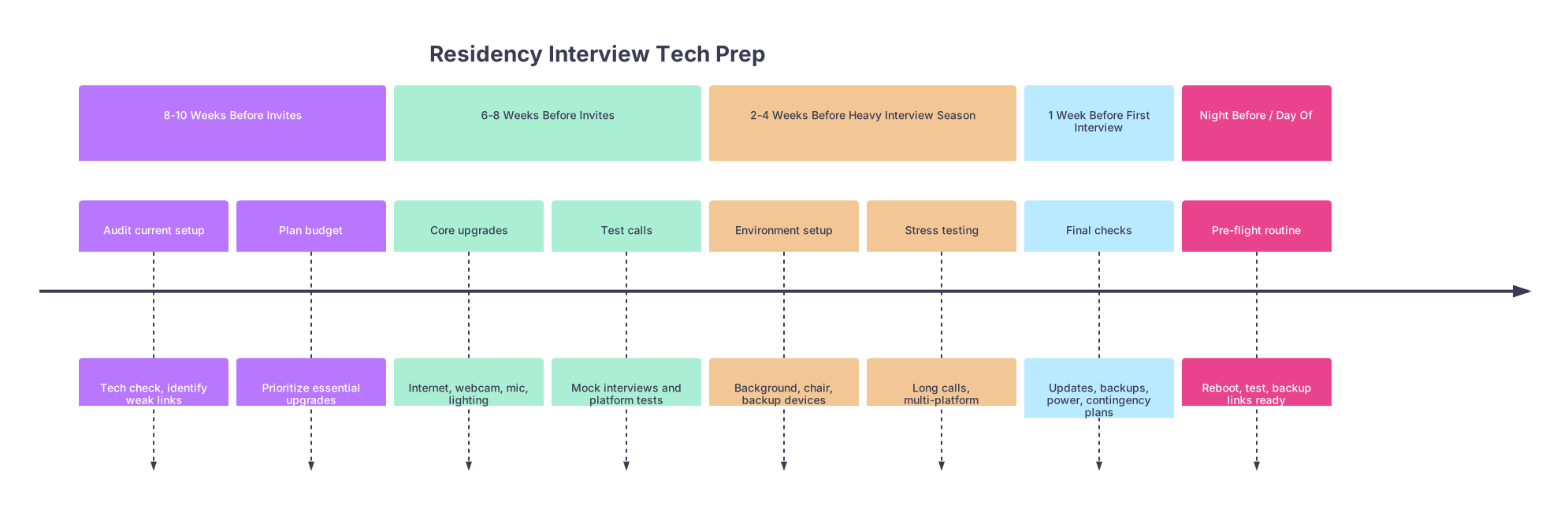
| Period | Event |
|---|---|
| 8-10 Weeks Before Invites - Audit current setup | Tech check, identify weak links |
| 8-10 Weeks Before Invites - Plan budget | Prioritize essential upgrades |
| 6-8 Weeks Before Invites - Core upgrades | Internet, webcam, mic, lighting |
| 6-8 Weeks Before Invites - Test calls | Mock interviews and platform tests |
| 2-4 Weeks Before Heavy Interview Season - Environment setup | Background, chair, backup devices |
| 2-4 Weeks Before Heavy Interview Season - Stress testing | Long calls, multi-platform |
| 1 Week Before First Interview - Final checks | Updates, backups, power, contingency plans |
| Night Before / Day Of - Pre-flight routine | Reboot, test, backup links ready |
At each point in this timeline, you have different upgrade priorities. Miss the early windows and you are stuck throwing money at same‑day shipping and praying it arrives before your first interview block.
8–10 Weeks Before Invites: Audit And Decide What Actually Needs Upgrading
At this point you should stop guessing and start measuring.
Step 1: Run a ruthless tech audit (60–90 minutes)
Do this once, early:
Device check
- Open your laptop’s system info. If it:
- Regularly overheats
- Has a battery that dies in under 1.5 hours on a Zoom call
- Freezes with >1 app open
Then it is a problem for interview season.
- Test on Zoom, Webex, and Teams (download all three now):
- Start a meeting with your own phone as the “other person”
- Record 2–3 minutes of yourself talking
- Watch it back: lag, fan noise, weird exposure shifts, audio dropouts
- Open your laptop’s system info. If it:
Internet speed test
- Go to speedtest.net at:
- 7–9 pm on a weekday (peak)
- Midday on a weekday
- You need, at minimum:
- 15 Mbps upload
- 25 Mbps download
Below that, your video will struggle.
- Go to speedtest.net at:
Webcam quality
- Ask yourself bluntly:
- Is your image soft, grainy, or oddly yellow?
- Does the exposure blow out your face when clouds move?
- If you have a modern smartphone, compare:
- Join a Zoom from your phone and your laptop simultaneously
- See which image you would hire based on
- Ask yourself bluntly:
Audio
- Record with:
- Built‑in laptop mic
- Wired earbuds mic
- Any Bluetooth headphones you own
- Listen with decent headphones. If:
- You hear static, room echo, or inconsistent volume
→ plan a mic upgrade.
- You hear static, room echo, or inconsistent volume
- Record with:
Environment
- Sit where you think you will interview.
- Take a screenshot of your video tile.
- Ask two honest friends: “Would you interview this person?”
If they notice clutter, distractions, bad angles, or dark caves, write that down.
At this point you should have a short, ugly list that might say:
- Wi‑Fi upload 4 Mbps in evenings → unstable.
- Laptop fans screaming on Zoom.
- Camera grainy, yellow, facing up my nose.
- Audio echo in my small kitchen.
Perfect. Now you know what to fix.
Step 2: Prioritize upgrades based on pain and time
With 8–10 weeks left, you have time to be smart, not reactive.
Here is the hierarchy, from non‑negotiable to nice‑to‑have:
| Priority Level | Item | Minimum Target |
|---|---|---|
| 1 (Critical) | Internet/Wi‑Fi | ≥25 Mbps down / ≥15 Mbps up |
| 1 (Critical) | Stable Device | No freezing on 60‑min calls |
| 2 (High) | Audio/Microphone | Clear, consistent, no echo |
| 2 (High) | Camera/Webcam | 720p+ with decent low light |
| 3 (Helpful) | Lighting | Even, front‑facing |
| 3 (Helpful) | Background/Chair | Neutral, quiet, non‑distracting |
At this point you should:
- Decide if you need:
- New laptop vs. borrowing vs. using a desktop at home.
- Internet plan upgrade vs. interviewing from school/hospital.
- Set a hard budget (example: $150–$250 for essentials).
Do not buy anything yet. Give yourself 3–5 days to compare.
6–8 Weeks Before Invites: Make The Core Upgrades
By now, early interview invites can appear any day. You cannot afford 2‑week shipping on something critical.
Internet and location upgrades (do this first)
At this point you should lock in where you will actually interview.
Options, in order of stability:
Wired at home
- Upgrade your plan if below target speeds.
- Ask for a free or low‑cost better modem/router from your ISP.
- Run an Ethernet cable if possible. Stability beats everything.
Designated quiet space
- If home is chaos:
- Library private rooms
- Med school offices
- Hospital conference rooms that you can reserve
- Test Wi‑Fi there at the exact times you expect interviews (usually 8 am–3 pm).
- If home is chaos:
As a last resort: mobile hotspot
- Not ideal, but keep it as an emergency backup.
- Test your phone’s hotspot with a full 30‑minute Zoom.
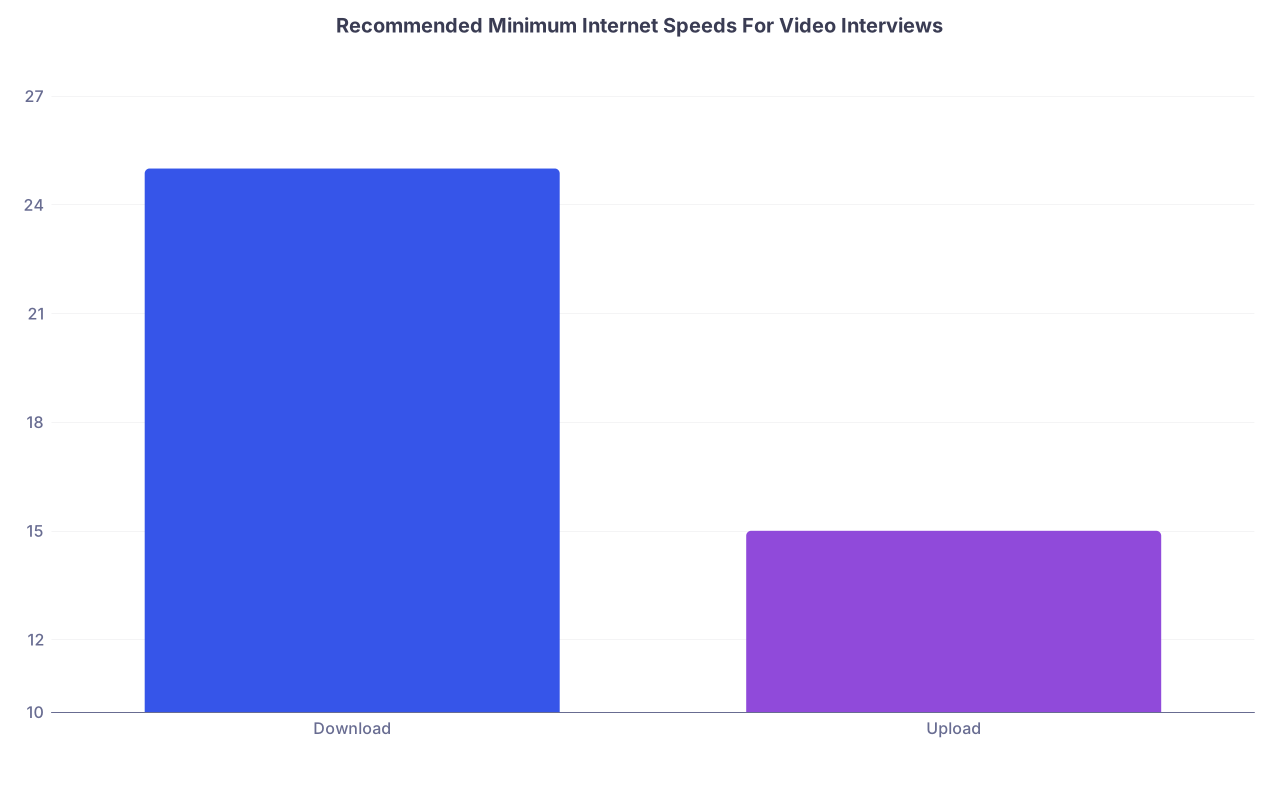
| Category | Value |
|---|---|
| Download | 25 |
| Upload | 15 |
If your home speeds cannot hit those numbers even after plan changes, commit now to using a campus/hospital space for all big interviews. Do not wait until the night before.
Device and webcam: when to upgrade
At this point you should have decided if your current laptop can survive 3–4 hour interview days.
Upgrade your primary device if:
- It overheats or the fan is maxed within 10–15 minutes of Zoom.
- You see consistent lag with only:
- Zoom
- Browser
- Notes app open.
You have three realistic paths:
- Buy a mid‑range laptop (best if you are starting residency soon and need something anyway)
- Borrow from:
- School IT (many have loaner laptops)
- A friend or family member with a newer machine
- Use a desktop at home if you have one that is stable
If your device is acceptable but your camera is trash:
- Get a basic external webcam (1080p, $30–$70 range).
- Priority: good low‑light performance, not 4K marketing hype.
- Mount it at eye level. Always.
Audio: upgrade by this point, no excuses
Bad audio is what actually ruins interviews. You talk for an hour; PDs need to hear every word without strain.
At this point you should:
- Avoid:
- Laptop built‑in mic in echoey rooms
- Cheap Bluetooth earbuds that cut out mid‑sentence
- Aim for:
- A simple USB condenser mic (Blue Snowball, Fifine, etc.) or
- High‑quality wired earbuds with mic that you have tested
Test again:
- Do a 20‑minute mock interview with a classmate.
- Ask only one question: “How did my audio sound over the entire call?”
If they hesitate, fix it now.
Lighting and background: lock in the basic setup
You do not need a studio. You do need to not look like you are calling from a cave or a dorm party.
By this point you should:
- Choose a final background spot:
- Plain wall, bookshelf, or simple art
- No bed in frame if you can help it
- No open doorways behind you
- Buy or rig front‑facing light:
- A cheap ring light behind your webcam or
- A desk lamp bounced off a wall in front of you
- Sit 2–3 feet from the wall:
- Reduces shadows
- Looks more professional than being plastered directly against it
Take another screenshot in your interview outfit. If it does not look “program‑ready,” adjust.
2–4 Weeks Before Heavy Interview Season: Stress‑Test And Build Redundancies
At this point interviews are either scheduled or will be soon. The luxury phase is over. Now you prepare for failure scenarios.
Week‑by‑week checklist
Week 4 Before First Interview
At this point you should:
- Do two full mock interviews:
- One on Zoom
- One on whatever secondary platform your target programs use (Teams/Webex)
- Use your exact setup:
- Same room
- Same device
- Same internet
- Same time of day if possible
Watch or listen to the recording and evaluate:
- Any lag or desync?
- Audio level okay the whole time?
- Your posture and eye contact?
Week 3 Before
Lock in backups:
- Backup device:
- Old laptop updated and charged
- Or tablet/phone with all apps installed
- Backup internet:
- Tested mobile hotspot
- Confirmed campus/hospital room as emergency location
- Backup audio:
- Spare wired earbuds in drawer
Label a folder on your desktop: “INTERVIEW DAY” with:
- PDF of your ERAS CV
- Program notes
- Links to Zoom/Teams/Webex for that day
Week 2 Before
At this point you should:
- Stop making major changes.
- Do “mini stress tests”:
- Join a 60‑minute call while:
- Running your browser
- Having your notes app open
- See if the laptop copes.
- Join a 60‑minute call while:
If anything fails now (overheating, crashing, horrific lag), that is your last window for an emergency upgrade or arrangement.
1 Week Before Your First Interview: Tighten Every Loose Bolt
You are past the big purchases. Now it is about software, settings, and routines.
Software and system prep
At this point you should:
- Disable auto‑updates for:
- Operating system
- Zoom/Teams/Webex
- Any non‑critical software
- Run all updates now, not the night before:
- OS patches
- Video platform updates
- Browser
Then reboot. Twice. Let everything settle.
- Set Do Not Disturb defaults:
- Silence notifications during specific hours
- Turn off pop‑ups from messaging apps and email
Final environment adjustments
Walk through your space at the exact time your interviews will happen:
- Check background in natural lighting if you rely on windows
- Decide:
- Curtains closed + artificial light only
or - Blinds angled to avoid light stripes across your face
- Curtains closed + artificial light only
Set a shot template:
- Eyes level with top third of screen
- Head and upper torso visible
- No ceiling fan cutting across the frame
Take one last screenshot in your actual suit. If it looks off, fix the camera angle or distance, not the suit.
Night Before Every Interview: Your 15‑Minute Tech “Pre‑Flight”
At this point you should stop tinkering. You are only checking.
Run this in order, the evening before:
Charge everything
- Laptop to 100%
- Backup device to 100%
- Headphones, if wireless
Reboot
- Fully shut down your laptop
- Turn it back on
- Open only:
- Browser
- Video platform
- Notes app or PDF viewer
Test links
- Click every meeting link
- Confirm:
- It opens the correct app
- You are not forced into a weird browser‑only mode
- Do not join the actual meeting room; just confirm the pre‑join screen works.
Quick mic/camera test
- Open the “Test speaker and microphone” tool in Zoom/Teams/Webex
- Say a few sentences. Check:
- Mic levels move smoothly
- Camera framing has not changed
Set physical space
- Chair adjusted
- Water bottle placed out of frame
- Notepad and pen within reach
- Phone silenced and out of sight, but nearby in case you need hotspot backup fast
That is it. No new gear, no last‑second installations.
Day Of: 60‑, 30‑, And 5‑Minute Checkpoints
Here is how your clock should look on each interview morning.
60 minutes before start
At this point you should:
- Power on your laptop and let it sit 5–10 minutes
- Verify:
- Wi‑Fi connected
- Battery >80% if unplugged (preferably you are plugged in)
Optional but smart:
- Do a 2‑minute video test call with a friend or a second account:
- Confirm audio and video are fine today, not just last week.
30 minutes before
Switch into “no more changes” mode.
You should:
- Close all non‑essential apps:
- Spotify, Slack, iMessage, WhatsApp, anything that might throw a notification
- Open:
- Interview platform
- Your notes file (program‑specific bullets)
- Check:
- Lighting on your face is even
- Background is unchanged
If you find a problem now, you still have 20+ minutes to pivot to your backup plan (e.g., move rooms, switch to hotspot).
5–10 minutes before
At this point you should already be in the virtual waiting room or on the “pre‑join” screen.
Your checklist:
- Camera:
- Lens clean (wipe with cloth once)
- No weird zoom or filters on
- Audio:
- Device using correct mic and speakers/headphones
- Posture:
- Feet flat
- Hands where they can gesture slightly but not flail
- Eyes level with camera
- Phone on silent but:
- Hotspot ready
- Video app installed
- Meeting link emailed to yourself just in case
If the platform crashes in the last 5 minutes, you know your exact Plan B. You are not improvising under adrenaline.
What To Skip When You Are Truly On A Tight Clock
You do not have unlimited time, money, or mental bandwidth. Ignore:
- Fancy DSLR streaming setups
- Multi‑monitor “command centers”
- High‑end studio mics on boom arms
- Complex background green screen tricks
If your:
- Internet is stable
- Video is clear and properly framed
- Audio is clean and consistent
- Environment looks professional
Then you are done. More gear will not get you ranked higher.
Core Takeaways
- Upgrade decisions are time‑sensitive: fix internet and device 6–8 weeks out, not when you start getting invites.
- Audio and stability beat fancy visuals: if people can hear you clearly on a rock‑solid connection, you are ahead of many applicants.
- In the final week, stop buying gear and start running your pre‑flight routine: reboots, test calls, backups, and simple, repeatable checks before every interview.