The bar for video interview quality is embarrassingly low. That is your opportunity.
Most residency applicants spend weeks polishing ERAS and 30 seconds checking their camera. Then they show up backlit, echoey, and framed like a security camera screenshot. Programs will not consciously reject you for video quality, but they absolutely will feel the difference between “crisp, clear, and composed” and “dim, muffled, and chaotic.”
You can fix 90% of video issues in 20 minutes or less. I will walk you through exactly how.
The 20-Minute Setup Blueprint
Here is the structure we are aiming for: one focused pass through your setup in this order:
- Location and background – 3–4 minutes
- Camera position and framing – 5–7 minutes
- Lighting – 5 minutes
- Microphone and audio – 5 minutes
- Final test and backup checks – 2–3 minutes
That is it. Not a home studio. Just a controlled, professional environment that makes you easy to see, easy to hear, and easy to like.
1. Lock In Your Location and Background (3–4 Minutes)
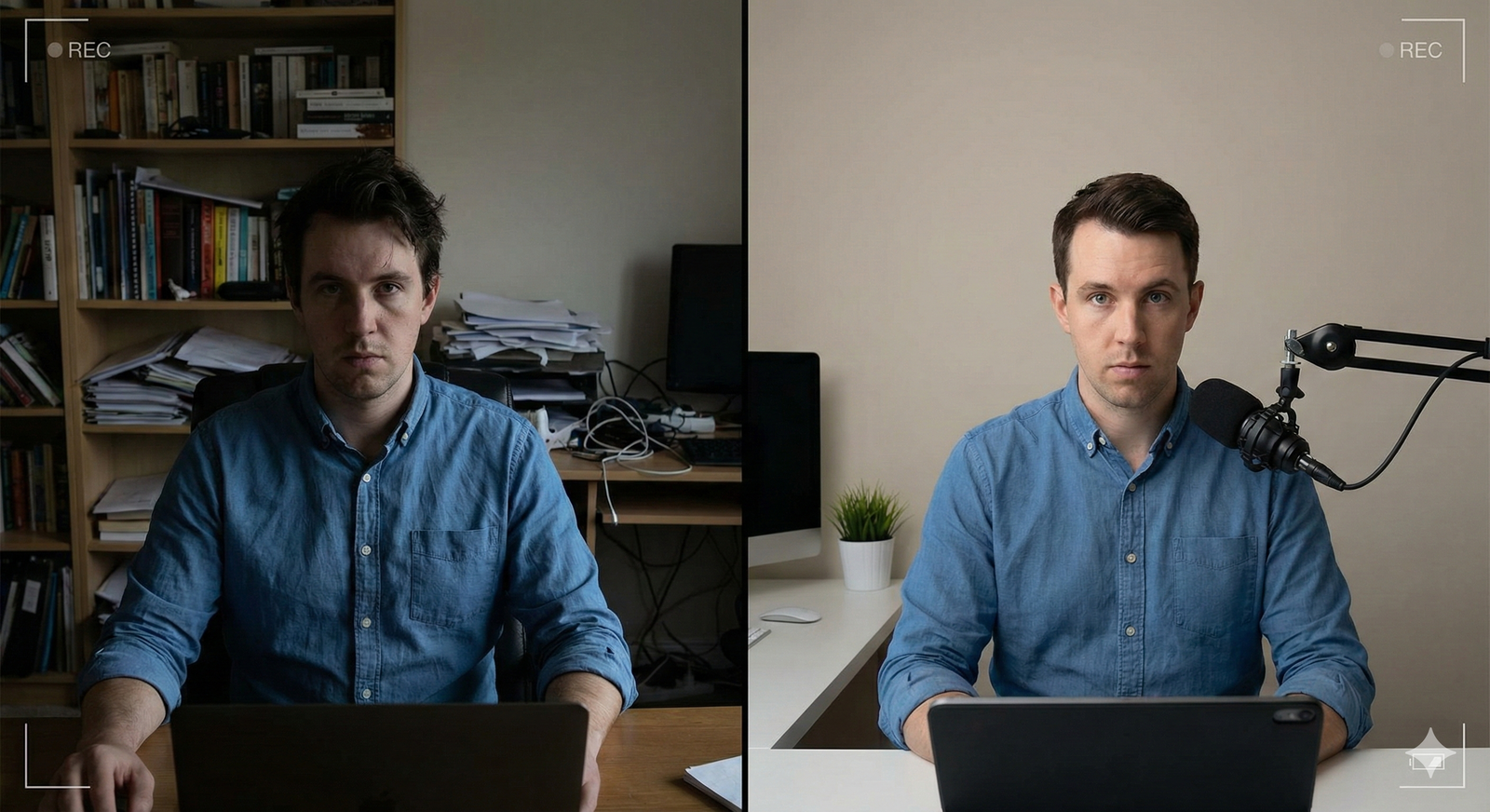
You cannot fix a chaotic background with “personality.” You fix it by removing 80% of what is visible.
A. Choose the right spot
You want:
- A table/desk you can sit at comfortably for 30–60 minutes
- A wall or simple space behind you (4–10 feet behind you is ideal)
- Power outlet nearby for your laptop
If you have multiple options:
- Pick the quietest space first
- Then pick the space with least clutter behind you
B. Clean the frame, not the room
Do not deep-clean your apartment. Clean the rectangle behind you.
- Sit where you plan to interview.
- Turn on your camera (Zoom/Teams/webcam app).
- Look only at what the interviewer would see behind you.
- Pull everything non-essential out of that frame: laundry, kitchen clutter, posters, random decorations, open doors.
Aim for:
- One or two neutral elements at most: a plant, bookshelf, framed diploma.
- No political signs, sports banners, or anything that screams “strong opinions.”
- No bed if you can reasonably avoid it. If the bed must be there, make it hotel-level neat and keep it partially out of frame.
C. Depth beats flat walls (if possible)
If you can:
- Sit 3–6 feet in front of a wall, not pressed against it
- Leave visible “depth” behind you – a bit of room, maybe a plant or shelf slightly out of focus
It makes you look more three-dimensional and less like a passport photo. If the room is tiny, that is fine. Clean and simple wins over perfect.
2. Dial In Camera Position and Framing (5–7 Minutes)
The two biggest sins: camera too low (nostril shot) and you sitting too low (floating head).
You fix both with two ideas: eye level and rule of thirds.
A. Camera height: eye level or slightly above
Your goal: when you look at the screen, the camera lens is roughly at your eye level or just a bit higher.
How to fix in 2 minutes:
If using a laptop camera:
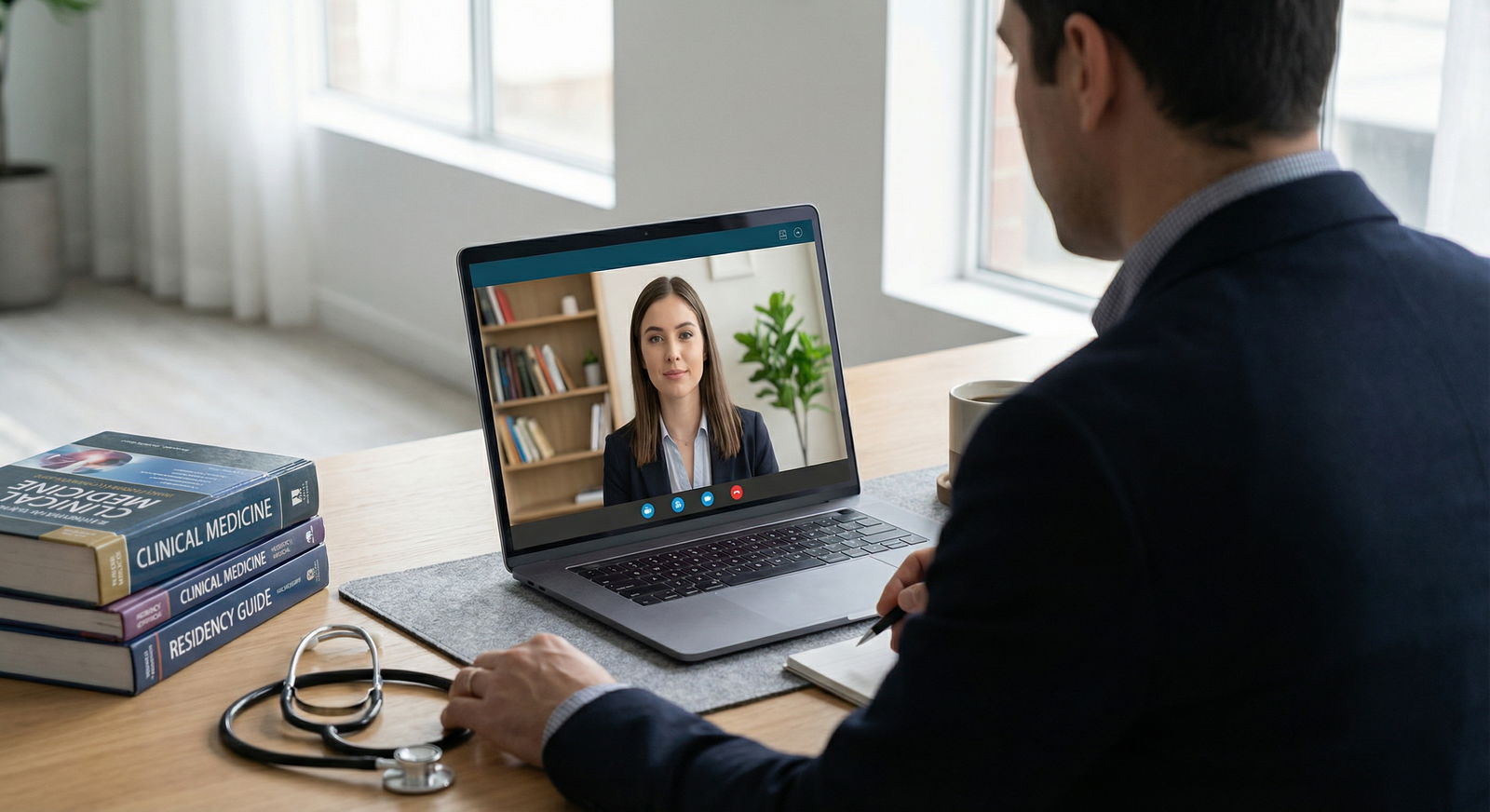
- Put the laptop on a stack of textbooks, board prep books, or a shoebox
- Raise until the camera is at your eye height when you sit up straight
If using an external webcam:
- Mount it on top of the monitor
- Tilt slightly down so your head and upper torso are centered
Avoid:
- Camera below your nose line
- Extreme top-down angles that make you look like you are peering into a phone
B. Distance from the camera
You want:
- Head and upper chest visible
- Some space above your head, not chopped off
Simplest check:
- Extend your arm toward the camera
- Your fingertips should roughly reach the back of your monitor or a little past it
- If you look comically large or tiny, adjust chair distance
C. Framing: use the “rule of thirds” loosely
You do not need to be a photographer. Just do this:
- Your eyes should land about 1/3 down from the top of the frame
- Leave a little headroom (do not touch the top edge)
- Center yourself left-right unless you intentionally put something balanced on one side (like a bookshelf)
If you see:
- Too much headroom (tons of empty space above you) → raise your chair or tilt camera down
- Chopped forehead → tilt camera up or move back slightly
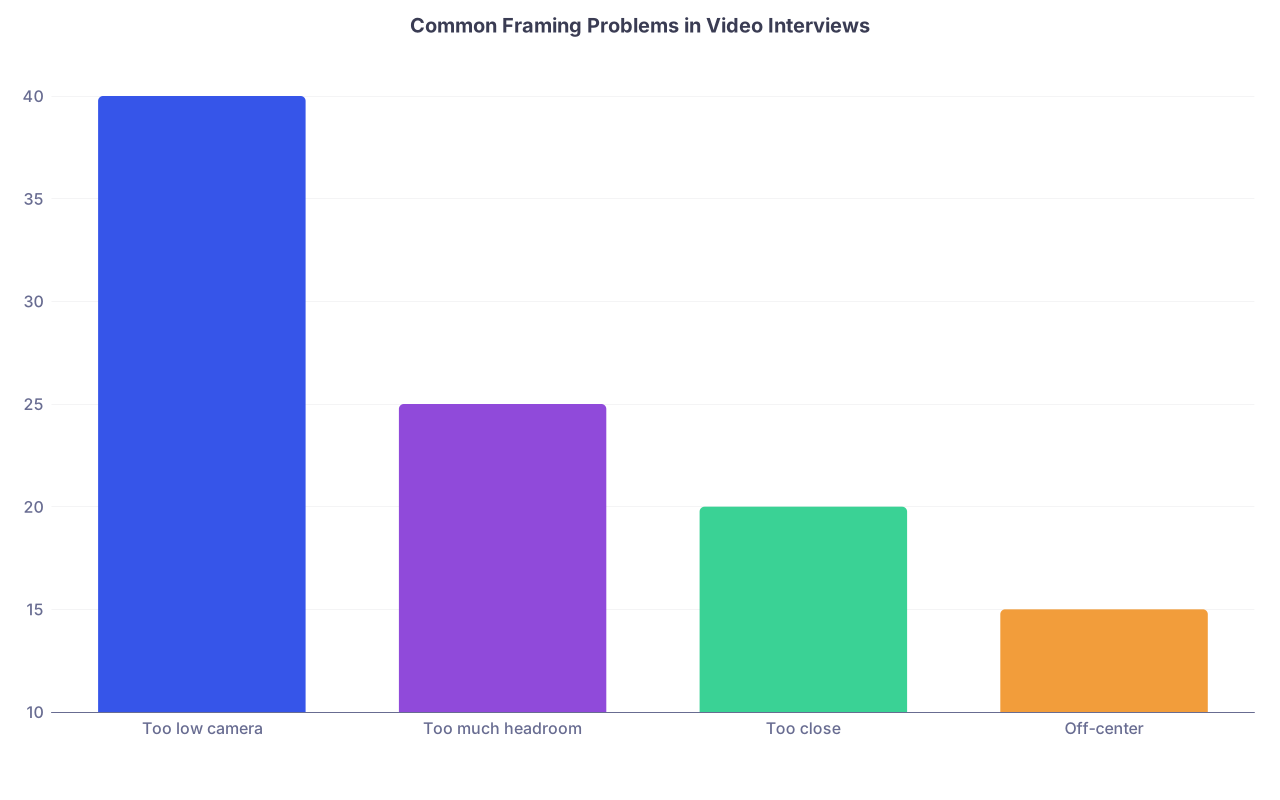
| Category | Value |
|---|---|
| Too low camera | 40 |
| Too much headroom | 25 |
| Too close | 20 |
| Off-center | 15 |
D. Eye contact: stop staring at yourself
Programs do not care how pretty your iris looks. They care that you seem engaged.
Two fast fixes:
Move the video window (Zoom / Teams) to sit directly under your webcam.
- Drag the gallery window to the top middle of your screen.
- Now, when you look at them, your eyes are almost aligned with the camera.
For key moments (introductions, big answers, closing):
- Look directly into the camera lens while you speak for a sentence or two.
- Then go back to looking at their faces.
If you tend to stare at yourself, hide self-view after initial setup. You already checked your framing; you do not need a mirror for the next 30 minutes.
3. Fix Lighting Without Buying a Ring Light (5 Minutes)
You do not need studio lights. You need soft, frontal, non-backlit light.
A. Kill backlighting immediately
Backlighting is when a bright window or lamp is behind you. That turns you into a silhouette.
Check your camera preview. If:
- Background is bright and your face is dark → you have backlighting
Fix options:
- Rotate 90–180 degrees so the window is in front of you or at a 45-degree angle.
- If you cannot move, close blinds/curtains and rely on room lights or a lamp.
Never sit with a big window directly behind your head during an interview. That is how you become the “mysterious shadow applicant.”
B. Use window light the right way
If you have a window:
- Sit facing it or at a slight angle (about 30–45 degrees)
- Place your laptop between you and the window
- Move closer or farther until your face is bright but not washed out
This gives you soft, free, flattering light. Best case.
C. No window? Use lamps strategically
You can do a lot with a single desk or floor lamp.
Goal: one main light source slightly above and in front of your face.
Try this in 3 minutes:
- Put a lamp behind your laptop, a bit to the left or right, so the shade is not in the shot.
- Aim it at you but not directly into your eyes (bounce off a wall if possible).
- Turn off or dim harsh overhead lights that create strong shadows under your eyes.
If the light is harsh:
- Drape a thin white cloth or paper over the lamp shade, not the bulb itself (do not burn your apartment down).
- Or turn the lamp to bounce off a wall instead of pointing straight at your face.
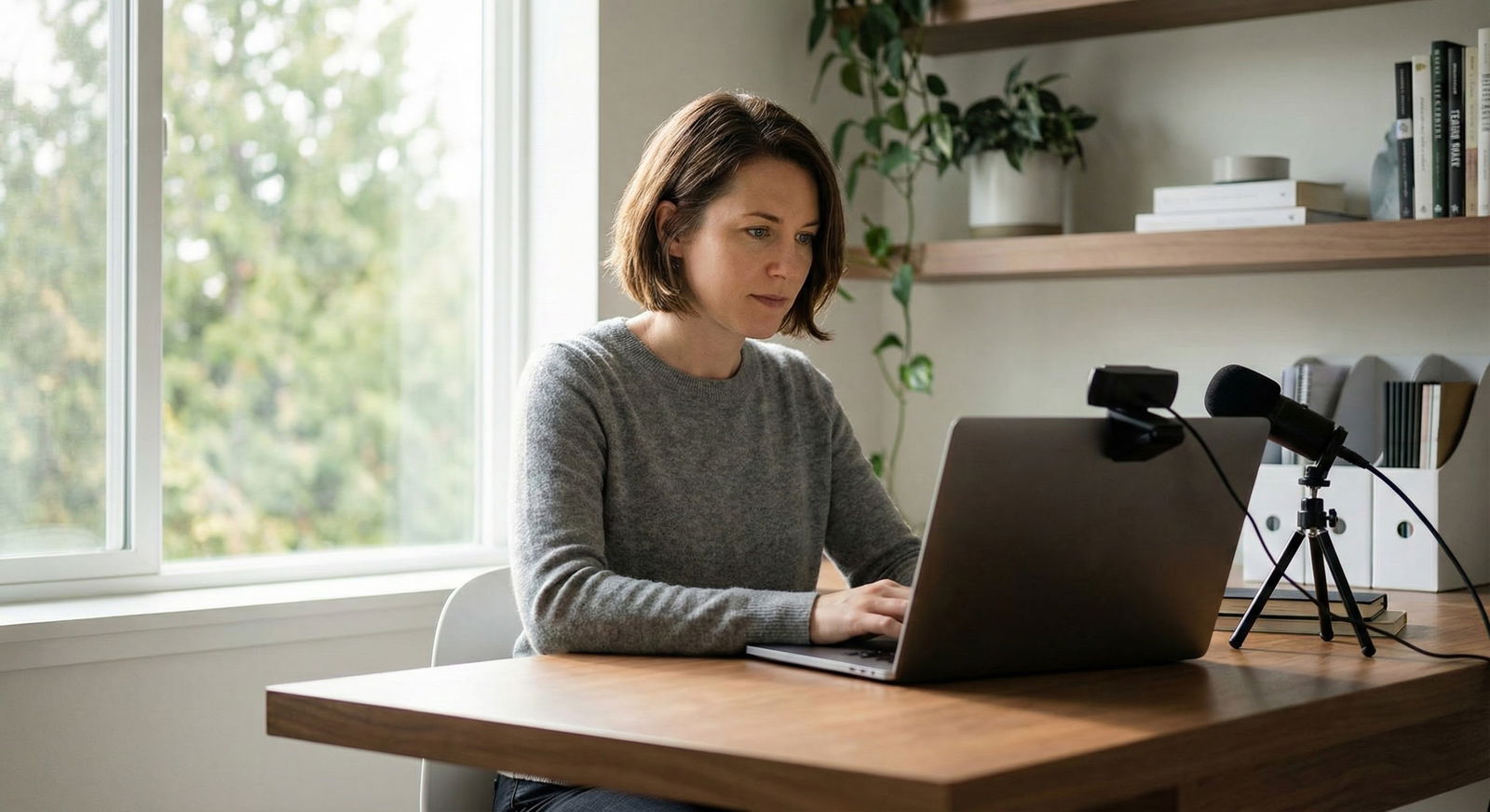
D. Quick camera settings tweak (optional but powerful)
In Zoom and similar apps:
- Turn off aggressive “Touch up my appearance” if it makes you look blurry.
- Slightly enable “Adjust for low light” if your room is darker; test both on and off.
Your metric is simple: can you see your own eyes clearly in the preview? If yes, you are fine.
4. Get Your Audio to “Quiet Room, Clear Voice” (5 Minutes)
If I had to choose between perfect video and perfect audio, I would pick audio every time. Interviewers can tolerate slightly grainy video; they will be exhausted by muffled or echoey sound.
A. Choose your mic: use anything except the bare laptop if possible
Best to worst, realistically:
- A decent USB or podcast-style mic (e.g., Blue Yeti, Fifine)
- Wired earbuds with inline mic (Apple wired earbuds, standard smartphone earbuds)
- AirPods / wireless earbuds (only if the connection is stable and no battery risk)
- Built-in laptop mic as a last resort
If you have more than one option, pick wires over wireless. Bluetooth glitches at the worst times.
B. Mic positioning 101
USB mic:
- Place 6–10 inches from your mouth
- Slightly off to the side, not directly in front (reduces “p” popping sounds)
- Set on a book or stand to bring it closer to mouth level
Wired earbuds:
- Let the mic hang naturally; do not rub it with clothing
- Avoid touching it during the interview
Laptop mic:
- Do not lean too far back; stay a consistent distance
- Do not type or shuffle papers directly in front of the laptop
C. Kill echo and background noise fast
You are not soundproofing a studio. You are softening the room.
Do these in 3 minutes:
- Close windows. You are not auditioning with traffic noise.
- Close doors. Tell roommates/partner: “Interview from X to Y, please no loud noise.”
- If the room is echoey:
- Lay a blanket or towel on the desk
- Toss an extra blanket on the floor off camera
- Close curtains, not blinds
Sound likes hard, bare surfaces. Fabrics are your friend.

| Step | Description |
|---|---|
| Step 1 | Check mic source in Zoom |
| Step 2 | Select USB or wired earbuds |
| Step 3 | Use laptop mic |
| Step 4 | Place mic 6-10 inches from mouth |
| Step 5 | Close windows and doors |
| Step 6 | Add soft surfaces if echoey |
| Step 7 | Test recording & adjust |
| Step 8 | External mic available? |
D. Do a 20-second audio test
In Zoom:
- Settings → Audio → “Test Mic” or “Record a short message”
- Speak like you are answering “Tell me about yourself” for 15–20 seconds
- Listen back:
You want:
- Your voice clear, not distant
- No obvious hum (AC, fridge buzz) dominating
- No clipping (distortion) when you speak louder
If you sound far away, move the mic closer or speak a bit louder. If you hear hiss or hum, see if turning off a nearby fan or moving from a fridge wall helps.
5. Final System Check and Backup Plan (2–3 Minutes)
You would be surprised how many excellent candidates get sunk by one stupid tech issue they could have prevented.
A. Quick device and internet sanity check
2 minutes:
- Plug in your laptop or confirm battery is >60% and charger nearby
- Kill bandwidth hogs: streaming, large downloads, cloud backups
- If possible, move closer to your router or use Ethernet
B. Confirm settings in your interview platform
Whether it is Zoom, Thalamus, Webex, or something else:
- Open the app the program is using
- Go to Settings →
- Video: confirm the correct camera is selected, framing still OK
- Audio: confirm correct mic and speaker selected, test sound
C. Set up a backup stack
This takes 1 minute and will save you if something breaks:
- Backup device: phone or tablet with the interview app installed and logged in
- Backup audio: wired earbuds sitting on your desk, even if you are using a fancier mic
- Backup internet: hotspot capability on your phone turned on and tested once before interview season
Write down on a sticky note:
- Meeting link
- Contact email/phone for the program coordinator
Tape it next to your screen. That way if your system crashes, you do not lose time digging through email.
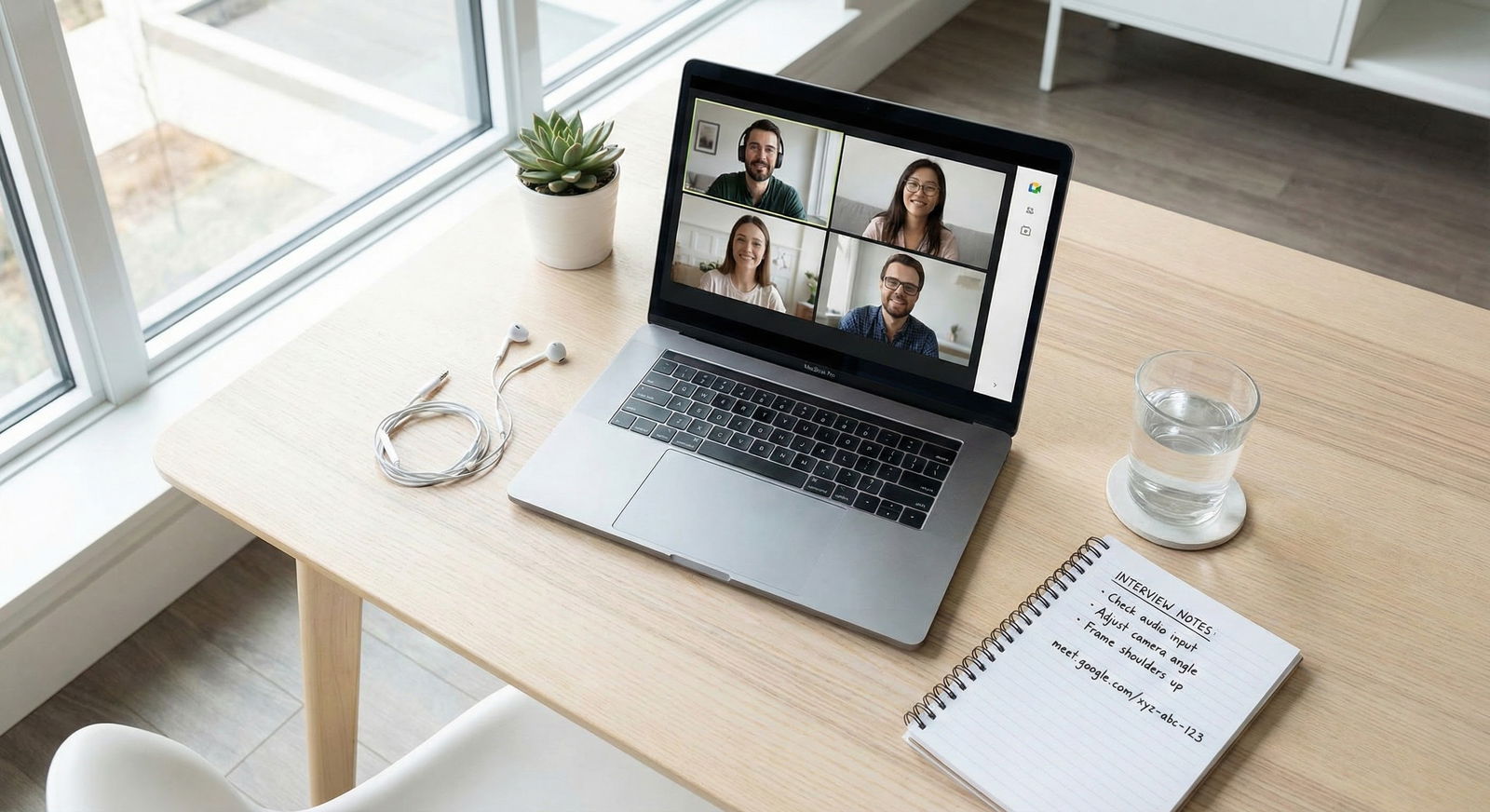
A Sample 20-Minute Pre-Interview Checklist
This is exactly how I would spend the last 20 minutes before an interview, assuming you have already chosen your room.
| Minute | Task |
|---|---|
| 0–3 | Turn on camera, check background, remove clutter from frame |
| 3–7 | Adjust camera height, distance, and framing; move call window under camera |
| 7–12 | Fix lighting: position near window or adjust lamps, test exposure |
| 12–17 | Select mic, position it, reduce echo/noise, record a 20-second test |
| 17–20 | Confirm app audio/video settings, plug in devices, set up backups |
Print that. Tape it to your wall. Run it before every single virtual interview day.
Common Mistakes That Make You Look Less Prepared
I have seen variations of these every single interview season.
Sitting in a dark room because “it is quiet there.”
Fix: light first, then quiet. You can make a slightly noisier room quieter. You cannot make a pitch-black closet look good without gear.Using fancy wireless earbuds that die mid-interview.
Fix: start with wired, or at least keep wired earbuds plugged in and ready to swap immediately.Leaning way back in a chair that reclines.
You look disinterested and your mic distance changes constantly.
Fix: use a non-reclining chair or consciously sit forward, back straight, both feet grounded.Relying on virtual backgrounds to hide chaos.
Virtual backgrounds almost always glitch around your hair, hands, or white coat.
Fix: real background first. If you must use virtual, pick the most neutral, subtle option and avoid moving a lot.Putting the camera on a second monitor off to the side.
You will look like you are talking to someone else.
Fix: always use the camera that is directly in front of your main screen.
How to Do a 5-Minute Same-Day Tune-Up
Sometimes you will not have 20 minutes. Here is the compressed, emergency version:
Open camera preview.
- Move random clutter out of visible frame.
- Close open closet doors.
Raise laptop with books until camera is near eye level.
- Slide chair so your head and upper torso are visible.
Rotate to face the brightest light source.
- If window is behind you, turn 180 degrees.
Plug in wired earbuds and select them as mic.
- Quick audio test: talk, listen, ensure clarity.
Move video window under webcam and hide self-view.
- Look at the top-center of the screen when you speak.
Is that perfect? No. But it is dramatically better than what most applicants are doing in their dorm rooms and hospital call rooms.
Quick Reality Check: What Programs Actually Notice
No PD is sitting there saying, “We reject any applicant without a $300 camera.” That is nonsense.
They do notice:
- Can they see your facial expressions clearly?
- Do they struggle to hear you or miss words?
- Do you seem to have prepared a professional environment, or did you just roll out of bed and open Zoom?
Good audio, decent lighting, and stable framing signal exactly what you want to project:
- You respect their time.
- You can prepare for details.
- You will not be the resident FaceTiming during rounds from a noisy hallway.
That is the bar. Meeting it consistently will put you in the “this person has their life together” bucket automatically.
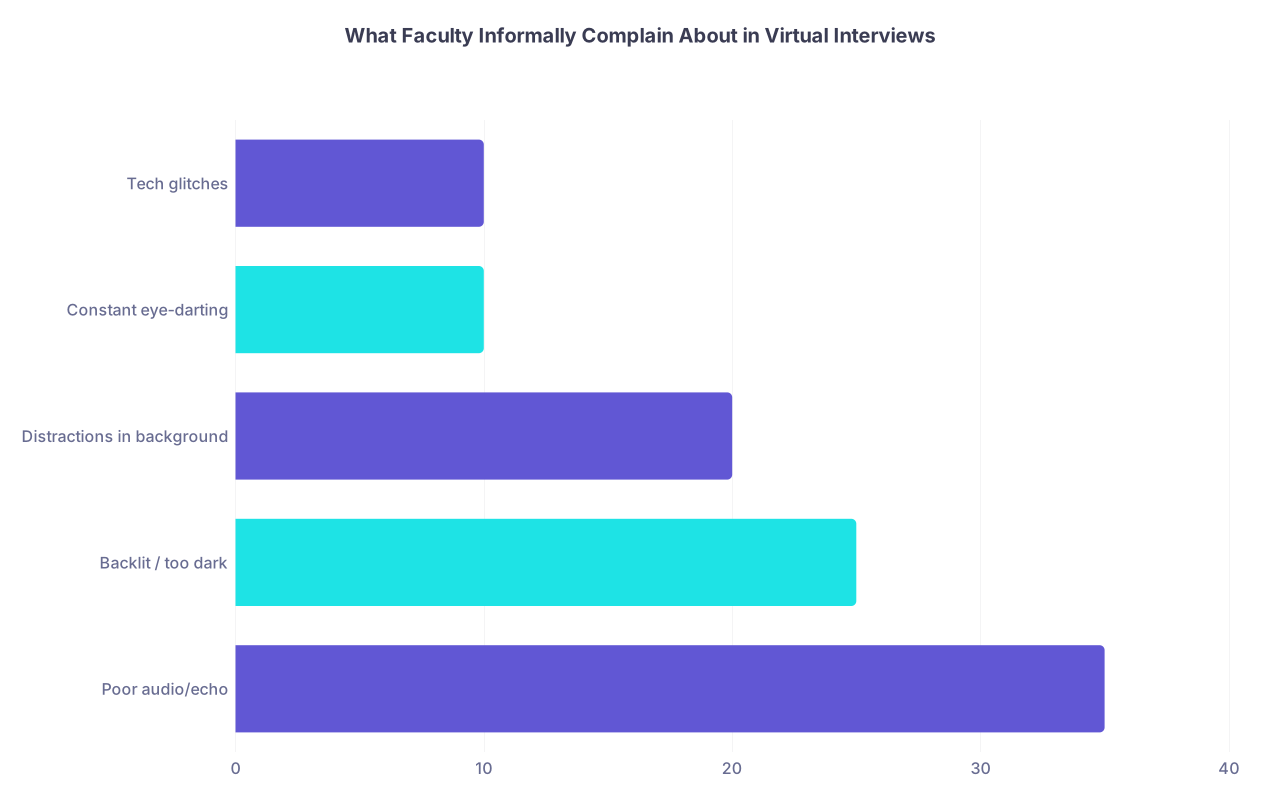
| Category | Value |
|---|---|
| Poor audio/echo | 35 |
| Backlit / too dark | 25 |
| Distractions in background | 20 |
| Constant eye-darting | 10 |
| Tech glitches | 10 |
Your Move: A 10-Minute Dry Run Today
Do not wait until your first real interview to test this. That is how you discover your mic is broken at 7:55 a.m. for an 8:00 a.m. start.
Today, do this:
- Open Zoom (or any video app) and start a new meeting alone.
- Walk through the 5 sections above in order.
- Record a 1-minute fake answer: “Tell me about yourself.”
- Watch it back once with brutal honesty:
- Can you see your eyes clearly?
- Can you hear every word without strain?
- Does anything in the background draw your eye away from your face?
Fix what bothers you. Then lock in that setup as your default “interview station.”
Open your laptop right now, start a test meeting, and raise your camera to eye level. That single move will instantly improve how you appear in every video interview this season.