Most residency applicants spend hours rehearsing answers and almost zero time preventing their Wi‑Fi from betraying them. That is backwards.
If your connection drops mid–PD question, it does not matter how strong your Step score or research is. You will be remembered as “the one we could not hear.”
Let me break this down specifically: optimizing internet stability for residency interviews is not about being “techy.” It is about eliminating failure points one by one. You do not need to be an engineer. You do need a checklist and the discipline to follow it.
1. The Non‑Negotiables: What “Stable” Internet Actually Means
Most people use “good Wi‑Fi” as a vague compliment. For virtual interviews, that vagueness will hurt you.
Here is what you actually need for Zoom / Thalamus / Teams residency interviews:
- Minimum sustained speeds:
- Download: ≥ 25 Mbps
- Upload: ≥ 5 Mbps
- Latency (ping): < 50 ms to a major server (e.g., Google)
- Packet loss: ideally 0%; anything > 1% is concerning
- Jitter (variation in latency): < 30 ms
Most programs will tell you “high speed internet required.” That is almost useless. I have seen “high speed” hotel Wi‑Fi that barely hits 3 Mbps upload with constant drops. You want headroom. If your internet tests at 25/5 on a good day, you are already marginal if someone else in the home hits Netflix during your interview.
How to test your actual connection
Do not test this once. Test it like you test UWorld blocks: repeatedly, under realistic conditions.
Go to two or three test sites:
- speedtest.net
- fast.com
- cloudflare’s speed test (speed.cloudflare.com)
Run tests:
- At the same time of day as your scheduled interviews (network congestion differs at 8 AM vs 8 PM).
- On the exact device you’ll use. Same room. Same cable/Wi‑Fi.
- On at least 3 different days.
Record:
- Download and upload speed
- Ping/latency
- Jitter, if shown
If any test drops below ~20 Mbps down or ~5 Mbps up, or ping starts jumping all over the place, you do not have “rock solid” internet. You have “maybe okay until the neighbor’s kids wake up.”
2. Wi‑Fi vs Ethernet: Stop Gambling with Air
If you remember one sentence from this guide, make it this: for residency interviews, you should be on wired Ethernet, not Wi‑Fi, whenever humanly possible.
Wi‑Fi is radio. Radio is interference, congestion, and instability. Your neighbor’s microwave, their baby monitor, the guy upstairs starting a 50 GB game download—these all live in the same invisible space as your interview.
Ethernet is copper (or fiber). Direct path. Orders of magnitude more stable.
Direct cable vs “ok Wi‑Fi”
I have sat with applicants who were struggling with choppy audio. Nine times out of ten, they were on Wi‑Fi from 1–2 rooms away from the router, with 2 walls in between and 18 visible networks in their apartment list.
When I had them plug in a $15 USB‑to‑Ethernet adapter and 50 ft cable, the issue disappeared instantly. Same laptop. Same internet plan. Different path.
| Connection Type | Stability | Latency | Setup Complexity |
|---|---|---|---|
| Direct Ethernet | Excellent | Lowest | Moderate |
| Wi‑Fi (same room) | Good | Low | Easy |
| Wi‑Fi (different room/walls) | Variable | Higher | Easy |
| Phone hotspot | Unreliable | High | Easy |
| Public/Hotel Wi‑Fi | Poor | Variable | Easy |
How to get Ethernet working (even in a tiny apartment)
Most modern laptops do not have Ethernet ports. Fine. You fix that with:
- A USB‑C or USB‑A to Ethernet adapter (Anker/UGREEN/Belkin, ~$15–25)
- A Cat5e or Cat6 Ethernet cable (25–50 ft, ~$10–15)
- Direct connection from router to your laptop
If your router is in another room:
- Run the cable along the wall or baseboard.
- Use tape or cheap cable clips so you do not trip during your interview.
- Yes, it looks a bit ridiculous for a few days. You will survive.
If your landlord’s router is in a locked closet or far away, and you only have a wall jack, ask if you’re allowed to plug a small switch or your own router into that jack. In many student apartments, that works.
If you absolutely cannot get Ethernet to your desk, at least sit in the same room as the router, with clear line of sight, and use 5 GHz Wi‑Fi. But understand: that is Plan B, not Plan A.
3. Router Reality Check: Stop Using the ISP’s Default Box Blindly
The modem/router combo your internet provider gave you is built to be cheap, not excellent. Sometimes it is fine. Often it is mediocre, especially in crowded buildings.
Key router points no one explains to applicants:
- Router age matters. Anything older than ~5 years is suspect.
- Dual‑band (2.4 GHz + 5 GHz) is mandatory if you ever use Wi‑Fi.
- Placement is not cosmetic. Shoving the router behind a TV or inside a cabinet can kill your signal.
Basic router optimization
Do this two weeks before interviews, not the night before:
Log into your router
- Typically at 192.168.0.1 or 192.168.1.1 in a browser.
- Username/password often printed on the router (change that after).
Check:
- Firmware update: run any available updates.
- Wi‑Fi network names: make separate SSIDs for 2.4 GHz and 5 GHz if possible.
- Channel selection:
- For 2.4 GHz, use channels 1, 6, or 11.
- For 5 GHz, auto is usually fine.
Place the router:
- As central as possible.
- Off the floor, on a table or shelf.
- Away from thick concrete walls, big metal objects, or microwaves.
But again: even a perfectly tuned router does not beat Ethernet for interviews.
4. Controlling Network Load: Your Roommate’s Netflix Is Your Enemy
Your internet speed test is a snapshot under one set of conditions. Interviews happen under another: roommates home, neighbors online, other devices updating in the background.
You need to minimize simultaneous load during your interview block.
Bandwidth hogs you must control
On your network:
- 4K streaming (Netflix, YouTube, Twitch on TV or laptops)
- Cloud backups (iCloud Photos, Google Drive, OneDrive, Dropbox)
- Online gaming (Xbox, PlayStation, PC)
- Large OS or app updates (Windows, macOS, iOS, Android)
On your own laptop:
- Cloud sync (Dropbox, Drive, Box, iCloud)
- Automatic updates (Windows Update, Steam, Epic Games Launcher)
- Background apps: Slack, Teams, Outlook, browser tabs with auto‑refresh
Tell housemates explicitly: “I have residency interviews on X date from Y–Z time. I need you to avoid streaming/gaming/large downloads during that window.” Most people cooperate if you actually ask in advance instead of hoping.
Then, on the day before interview:
- Pause or schedule cloud backups outside your interview window.
- Turn off auto‑updates where possible.
- Log out of bandwidth‑heavy apps or quit them completely.
5. Laptop Configuration: Your Computer Can Tank a Perfect Connection
I have seen flawless internet ruined by a laptop screaming at 100% CPU because Chrome had 47 tabs open and the antivirus decided now was a great time to run a full scan.
Stability is not just about the pipe; it is about your device handling real‑time audio and video cleanly.
Pre‑interview laptop checklist
Do this 24–48 hours before, then again quickly on the morning of:
OS updates:
- Update Windows / macOS completely at least 3 days before.
- Do not trigger big updates the night before; they can break things.
Specific platform test:
- Install Zoom / Teams / Webex / Thalamus client (not just browser use, unless the program mandates browser).
- Log in with the exact account you’ll use.
- Join a test meeting with a friend or from another device.
- Verify camera, mic, and speaker/headphones.
Background processes:
- Close browsers and apps you will not use.
- Disable auto‑launch apps at startup (Spotify, Steam, etc.) temporarily.
- If on Windows: in Task Manager, kill obvious resource hogs during interview time.
Power and performance:
- Plug in your laptop. Do not run on battery.
- Set to “High Performance” or equivalent power mode during interviews.
- Turn off battery saver features that throttle CPU.
Thermal control:
- Ensure laptop vents are not blocked (no interviewing on a soft bed).
- If your laptop usually overheats, use a cooling pad or at least elevate the rear a bit.
If your laptop is ancient and barely tolerates Zoom with video, you have a separate problem: no tech trick can fully compensate. In that scenario, borrow or rent a more recent machine for interview season. It is that critical.
6. Backup Internet Options: Because Things Do Fail
Being “prepared” does not mean “my internet is usually okay.” It means “if my primary line dies at 8:00 AM, I have a second path ready by 8:03 AM.”
You should have, at minimum, one backup option tested and ready to go. For high‑stakes interviews (dream programs), I prefer two.
Common backup tiers
Phone hotspot (primary backup)
- Use LTE/5G hotspot from your phone.
- Test in advance: run speed tests at the same time of day.
- You want at least 10 Mbps down / 3 Mbps up on hotspot.
- Position phone near a window for best signal.
Alternate location (secondary backup)
- Trusted friend’s house with known stable internet.
- Hospital/med school office with wired connection and quiet room.
- Co‑working space with private offices (not open cubicles).
Last‑ditch options
- Library private room with Ethernet (if they still exist where you are).
- Partner’s workplace office, if allowed.
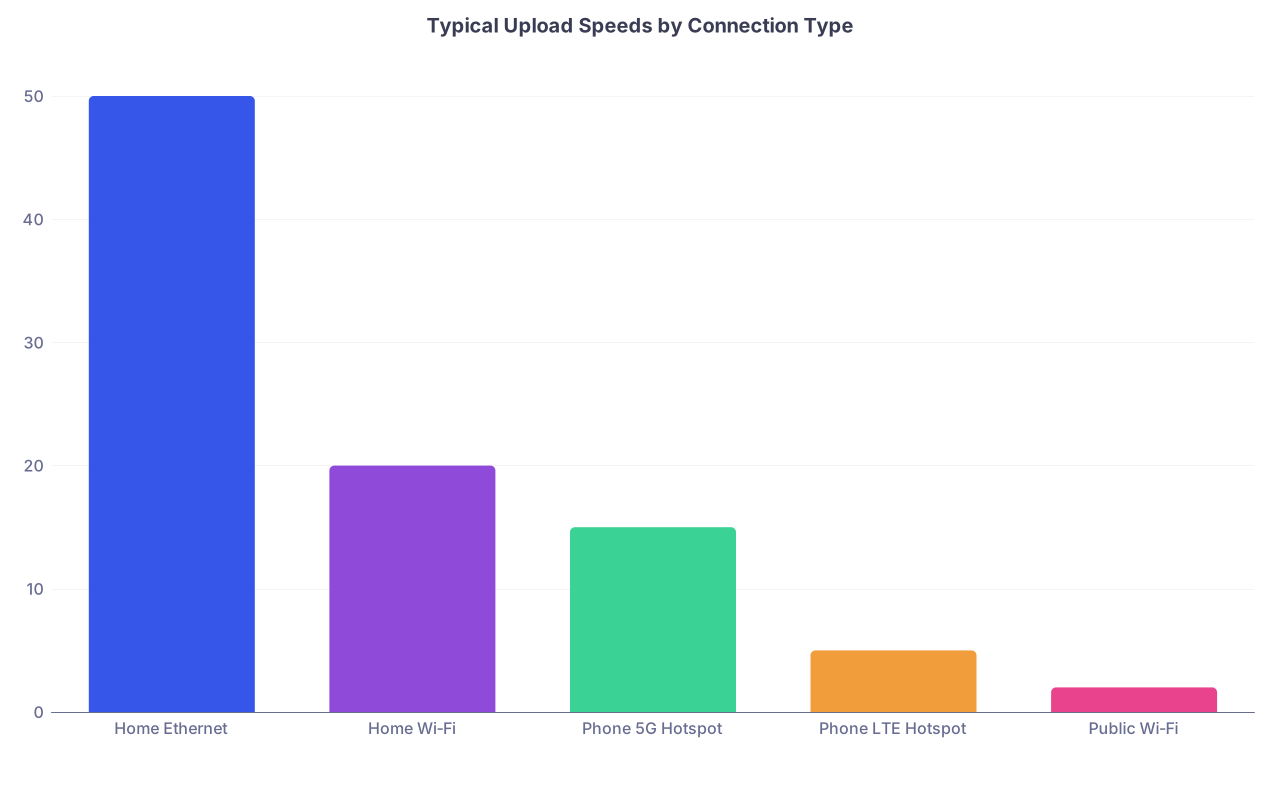
| Category | Value |
|---|---|
| Home Ethernet | 50 |
| Home Wi‑Fi | 20 |
| Phone 5G Hotspot | 15 |
| Phone LTE Hotspot | 5 |
| Public Wi‑Fi | 2 |
How to structure your failover plan
Literally write this out on paper:
- Primary: Home Ethernet, ISP X
- If primary fails:
- Step 1: Enable phone hotspot, connect laptop.
- Step 2: Move to lowest‑traffic location in apartment.
- Step 3: Turn off video temporarily if bandwidth is too low.
- If hotspot also fails or is unusably slow:
- Step 4: Pre‑agreed backup location (friend’s apartment, med school office).
- Step 5: Email program coordinator as soon as possible if you need to change location and will be slightly late.
This is not overkill. I have watched entire neighborhoods lose service because construction cut a fiber line. The people who had a backup just shrugged and moved. The rest panicked.
7. Platform‑Specific Tweaks: Zoom, Thalamus, Teams
Most residency interviews are running on:
- Zoom (common)
- Thalamus (for scheduling + embedded video)
- Microsoft Teams (some academic centers)
- Webex (less often, but still around)
Each of these has settings that can help or hurt you if your connection wobbles.
Universal principles
- Disable virtual backgrounds if your computer or connection is marginal. They increase CPU and bandwidth usage. A clean real background is safer.
- Use “HD Video” only if your connection is clearly strong (≥ 20 Mbps up). Otherwise, turn it off to reduce bandwidth.
- Always test on the exact account (institutional vs personal) the invite is tied to. Switching mid‑interview because of SSO issues is a nightmare.
Zoom
In Settings → Video:
- Uncheck “Enable HD” if your upload speed is borderline.
- Uncheck “Touch up my appearance” and heavy filters.
- Enable “Adjust for low light” only if you have poor lighting; it will cost some CPU.
In Settings → Audio:
- Use “Original sound” only if you are using an external mic and know what you are doing. For most, leave default processing on.
- Test background noise suppression. “Auto” is usually fine.
Thalamus
Thalamus often uses an embedded video solution in browser:
- Use Chrome or Edge; avoid Safari for Thalamus interviews unless they explicitly recommend it.
- Disable unnecessary browser extensions.
- Close other heavy tabs or web apps.
Run their test link at least once with the actual device / network you will use.
Teams / Webex
- Prefer the desktop app over browser.
- Log in 10–15 minutes early to allow updates. Teams loves surprise updates.
8. Environment: Physical Setup That Helps Tech, Not Just Aesthetics
Interview “environment” advice usually focuses on decor. That is fine. I care about physical factors that impact your tech reliability.
Room choice and layout
Optimal:
- Quiet, door that closes.
- Outlet nearby for laptop power.
- Router either in the same room or accessible by Ethernet.
Suboptimal but workable:
- Shared living space early in the morning when others are asleep.
- Bedroom with door closed but router in living room; run Ethernet cable under the door.
Disasters I have actually seen:
- Interviewing from a car in a parking lot on LTE. (One very understandable emergency exception; still not ideal.)
- Interviewing from a hospital call room on shared Wi‑Fi with 40 other devices on the same AP.
- Interviewing from a Starbucks. Constant noise, random background people, unstable Wi‑Fi.
Noise and interference
Electronic noise is rarely the problem; RF interference (Wi‑Fi) and human noise are.
To minimize issues:
- Keep your phone away from the laptop mic. Put it on silent, not vibrate.
- Turn off other nearby devices that might connect to the same Wi‑Fi (old tablets, smart TVs) during your interview block.
- If you have a Bluetooth headset and suspect interference or dropouts, switch to wired headphones with mic. Bluetooth is another wireless link that can fail.
9. Full Technical Rehearsal: Simulate the Real Thing
You would not walk into your first OSCE without ever doing a timed practice. Same principle here.
Do at least one full mock interview with all tech conditions replicated:
- Same room, same lighting, same laptop.
- Same internet path (Ethernet, same router).
- Same time of day as the real interview.
- Use Zoom/Teams with a friend or your school’s advisor pretending to be faculty.
During the rehearsal:
- Note any audio delays or dropouts.
- Ask the other person to screen‑record so you can see how you actually look/sound on their end.
- Try briefly turning your video off and on again to make sure it recovers smoothly.
If during rehearsal you notice:
- Audio cutting out when someone else in your home streams → you have a bandwidth/load issue.
- Video freezing sporadically with ping spikes → your Wi‑Fi or ISP is not super stable; push harder for Ethernet or a different plan/location.
10. Day‑Of Checklist: Step‑By‑Step
Here is a blunt, practical sequence for the morning of your interview:
1–2 hours before:
- Restart your router (power off 30 seconds, then back on).
- Restart your laptop.
- Plug in Ethernet and confirm laptop is using wired (Wi‑Fi off or verify network icon).
- Verify power cable is plugged in and battery is charging.
60 minutes before:
- Close all unnecessary apps.
- Log into email and calendar to confirm interview links.
- Run a quick speed test:
- If speeds have dropped massively from your usual: consider moving to backup location if there is still time.
30 minutes before:
- Open interview platform (Zoom/Thalamus/Teams) and sign in.
- Check camera framing, lighting, and audio levels.
- Have backup device (phone or tablet) charged and nearby, with same apps installed and logged in, in absolute worst case you must switch devices.
10–15 minutes before:
- Join the waiting room if allowed, or sit ready with link open.
- Silence phone, but keep it visible for any last‑minute email from the coordinator.
- Deep breath. At this point, if something breaks, you have a backup plan, not a disaster.
11. Handling Tech Failures Gracefully (They Will Happen to Someone)
Programs understand that tech fails. What they judge is how you manage it.
If your video freezes or audio drops temporarily:
- Do not panic in your face. Stay calm, pause speaking.
- Use chat:
- “I am experiencing a brief connection issue. One moment while I reconnect.”
- Leave the meeting and rejoin once.
- If the issue persists:
- Switch to your hotspot (already tested).
- Turn off your video to stabilize audio and say:
“To ensure our audio is clear, I am turning off my video temporarily. I hope that is acceptable.”
If your entire primary connection dies:
- Immediately enable your hotspot and join from the same device if possible.
- If you cannot reconnect within ~3–5 minutes, email the program coordinator:
Subject: Interview – Connection Interruption
Dear [Name],
I am currently experiencing an unexpected internet outage at my location. I am attempting to reconnect via an alternate connection. I apologize for the disruption.If we are unable to reestablish a stable connection shortly, I am happy to reschedule a brief follow‑up or complete the remaining interviews by phone if that is preferable.
Sincerely,
[Your Name, AAMC ID]
No drama. No excuses. Just solutions.
12. When Your Home Internet Is Fundamentally Bad
Some of you are stuck with unreliable ISPs, rural coverage, or overcrowded student housing. No amount of router tweaking will magically turn 3 Mbps DSL into a rock solid Zoom pipe.
In that scenario, the correct solution is relocation during interview days:
- Ask your med school about quiet rooms with wired connections specifically for interviews. Many have them, but students only find out by asking.
- Arrange to stay with a friend/relative who has strong internet, even if it is 30–40 minutes away, for a few key days.
- Rent a private office by the day at a co‑working space that advertises fast, wired internet, then test it yourself a few days before.
This may cost money and hassle. But you are spending thousands of dollars’ worth of time and opportunity on this match cycle. Sacrificing your top programs to shaky campus Wi‑Fi is not “saving money.” It is gambling.
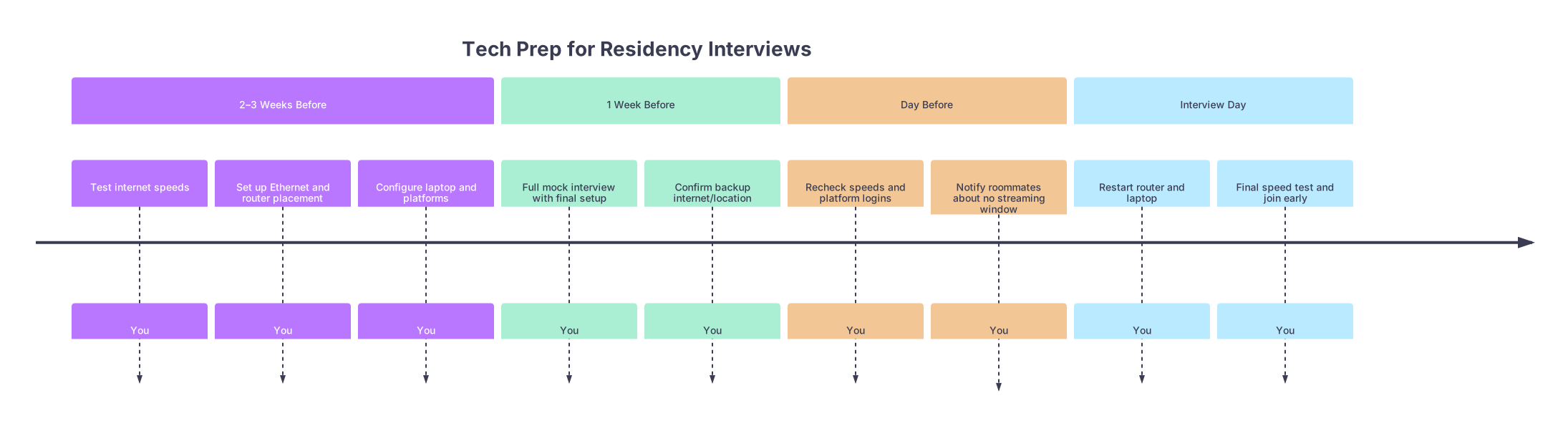
| Period | Event |
|---|---|
| 2–3 Weeks Before - Test internet speeds | You |
| 2–3 Weeks Before - Set up Ethernet and router placement | You |
| 2–3 Weeks Before - Configure laptop and platforms | You |
| 1 Week Before - Full mock interview with final setup | You |
| 1 Week Before - Confirm backup internet/location | You |
| Day Before - Recheck speeds and platform logins | You |
| Day Before - Notify roommates about no streaming window | You |
| Interview Day - Restart router and laptop | You |
| Interview Day - Final speed test and join early | You |
FAQ (5 Questions)
1. Is Wi‑Fi ever “good enough” for residency interviews, or do I absolutely need Ethernet?
If you are in the same room as a modern dual‑band router, with consistently strong speed tests (≥ 100 Mbps down, ≥ 20 Mbps up, low ping), Wi‑Fi is usually fine. But “fine” is not the same as “bulletproof.” I still recommend Ethernet if you can run a cable. If you absolutely cannot, maximize your odds: sit close to the router with clear line of sight, use the 5 GHz network, and reduce other devices using Wi‑Fi during your interviews.
2. How do I know if my laptop is the weak link rather than my internet?
Look at symptoms. If the entire call freezes for everyone, and your speed tests are erratic, that is likely network. If other people’s video looks smooth but your own video preview stutters, fans are blasting, and Task Manager shows CPU near 100%, your laptop is struggling. A quick test: run a Zoom test meeting while watching Task Manager or Activity Monitor. If CPU or memory max out when you turn video on, the device is at fault more than the connection.
3. Is using a phone hotspot as the primary connection a bad idea if my home internet is terrible?
As a primary, a hotspot is risky but not always wrong. It depends on your cellular coverage. If your Speedtest over hotspot at interview time consistently shows ≥ 15 Mbps down and ≥ 5 Mbps up with reasonable ping, it can work. The main issues are variability (tower congestion) and data caps. If you rely on hotspot as primary, keep a wired/office backup. Do not walk into six interviews hoping the cell network cooperates with zero Plan B.
4. Should I turn my video off if my connection starts breaking up during an interview?
Yes, if audio is suffering. Clear audio with no video is far better than choppy, unintelligible speech with a lagging face. Say something like, “To improve our audio quality, I am going to temporarily turn off my video while we talk, if that is alright.” Most faculty will accept this, especially if you have already appeared on screen earlier and they know you are engaged.
5. Can I use a VPN during my interview for privacy, or will that hurt my connection?
Avoid VPNs during interviews unless your institution absolutely requires one. VPNs add extra hops, increase latency, and sometimes throttle bandwidth. I have seen perfectly good connections degrade significantly once a VPN activates. If your hospital laptop forces VPN for any external traffic, consider using a personal laptop for interviews on a non‑VPN network, as long as that complies with your school’s policies.
Key points: First, wired Ethernet beats Wi‑Fi. If you can run a cable, do it. Second, test everything—connection, laptop, platforms—under real conditions at least a week before. Third, have a written backup plan (hotspot + alternate location) so an outage becomes a minor annoyance, not the story you tell about why your match list imploded.