
It is 7:42 a.m. on your first big interview day. Zoom is open. Jacket is on. Lighting looks… decent. You join the test meeting, say “Good morning,” and your voice sounds like you are inside a metal trash can at the bottom of a stairwell.
You have done everything for this cycle—research, away rotations, carefully curated ERAS. But if your audio is echoing, thin, or keeps cutting out, you will sound less confident and less prepared than you actually are. Interviewers will not consciously say, “Their mic is bad, we will rank them lower,” but they absolutely will feel that something is off, that the conversation is harder work, that you seem less polished than the next person with studio‑quality sound.
Let me break this down specifically: audio is the easiest, highest‑yield upgrade you can make to your virtual interview presence. And almost no one in your cohort is doing it correctly.
We are going to go from “built‑in laptop mic and pray” to “clean, warm, broadcast‑level voice” step by step.
1. What Matters Most For Interview Audio (And What Does Not)
Forget audiophile nonsense. You are not mixing a podcast; you are trying to sound clear, present, and non‑distracting on Zoom or Thalamus.
Here is what actually matters, in order of impact:
- Mic placement and distance
- Room acoustics (echo vs deadness)
- Mic type (USB vs headset vs built‑in)
- Software settings (Zoom, OS, filters)
- Extra hacks (compression, noise gates, etc.)
Notice where “expensive microphone” is in that list. Third. Not first.
The baseline you are competing against
Most applicants use:
- Laptop mic, 2–3 feet away, on a noisy fan
- Hard echoey room (bare walls, hardwood floors)
- Zoom on default settings, with aggressive “background noise suppression” wrecking their voice
You do not need a $500 setup to beat that. A $60–$150 properly used mic in a tamed room crushes 90% of the field.
2. Choosing the Right Mic: Concrete Recommendations
You want something:
- Simple to set up (USB, plug‑and‑play)
- Reliable on Windows or macOS
- Directional enough to reject room noise
- Physically manageable in a small space
If you start googling, you will drown in gamer YouTube reviews and audiophile forums. Ignore most of it. For residency interviews, I would narrow it to three serious categories.
| Mic Type | Typical Cost | Setup Complexity | Audio Quality | My Recommendation |
|---|---|---|---|---|
| Built-in laptop | $0 | Easiest | Poor | Avoid |
| USB condenser | $60–$150 | Easy | Very good | Best overall |
| USB dynamic | $100–$300 | Moderate | Excellent | Overkill but top |
2.1 Built‑in laptop mics: why they are fundamentally bad
Built‑in mics:
- Are omni or wide cardioid → pick up the entire room
- Sit too far from your mouth
- Live next to a fan and keyboard
- Have aggressive auto‑processing baked in
Could you make them “work”? Maybe. But the ceiling is low. If you care enough to read this, you care enough to spend $60–$100 on a real mic.
2.2 USB condenser mics: the sweet spot
This is what I recommend for 90% of applicants.
Look for:
- USB connection (no audio interface needed)
- Cardioid pattern (not omni)
- Physical gain knob
- Headphone jack for direct monitoring (optional but nice)
- Included desk stand or small boom arm
Good options that I have actually seen residents use on real interviews:
- Audio‑Technica ATR2100x‑USB (technically a dynamic, but USB + XLR, very friendly)
- Audio‑Technica AT2020USB+
- Samson Q2U (budget king, dual USB/XLR)
- Blue Yeti with caveats (powerful but overused incorrectly; more on that)
- Fifine K669B or similar budget USB mics: not perfect, but miles ahead of laptop mics
If you want a one‑line answer:
ATR2100x‑USB or Samson Q2U. Cardioid, forgiving, under $100, sound “radio‑ish” without effort.
2.3 Dynamic podcast‑style mics: tempting, but be honest
These are the Shure MV7, Shure SM7B, Rode PodMic, etc.
They:
- Reject room noise extremely well
- Need to be close to your mouth (2–3 fingers away)
- Often require an interface (Focusrite, etc.) and gain boosting
They sound phenomenal when set up right. But if you are not already comfortable with audio interfaces and gain staging, this is overkill for a residency interview cycle. I have watched people plug a Shure SM7B into a cheap interface, set levels wrong, and sound worse than a $70 USB mic.
If you must go this route, pick something like the Shure MV7 (USB + XLR) and use USB only. Treat it as a high‑end USB dynamic.
3. Positioning The Mic: This Is Where People Screw Up
Most of the “Blue Yeti sounds horrible” complaints are actually “Blue Yeti used 3 feet away in omni mode in a bare room.”
3.1 Distance and angle
Ideal:
10–15 cm (4–6 inches) between your mouth and the capsule.
- Too close (<2 inches): plosives (“p”, “b”) and breathing become intrusive
- Too far (>12 inches): thin, echo‑y, more room than voice
Angle:
- Do NOT talk straight into the end of the mic if it is a side‑address condenser (AT2020, Yeti, etc.). Talk across it at a 30–45° angle.
- Have the mic slightly off to the side of your mouth and below nose level. That cuts down on breath noise and pops.
Simple rule: put your fist between your mouth and the mic. That is your distance.
3.2 Stand, boom arm, or tabletop
Whatever you do, get the mic off the same surface as your keyboard if you are a fidgeter.
You have three basic setups:
- Small desktop tripod in front of you, mic slightly to the side of the keyboard
- Low‑profile desk boom arm that comes from below the monitor
- Standard boom arm from the side, mic just out of frame
For interviews, I like a small, stable tabletop stand with a basic shock mount. Less visual clutter.
If you use a boom arm:
- Tighten all joints the night before
- Cable‑tie the USB cable so it does not swing
- Position the mic just out of camera frame, but close to you
3.3 Pattern and gain
If your mic has multiple patterns (Blue Yeti, for example):
- Set it to cardioid (the icon that looks like a heart/bean).
- Do not use omni, stereo, or bidirectional.
Gain:
- Start with hardware gain knob at ~30–40%.
- In Zoom’s input meter, speak at your normal interview volume. You want peaks around 60–80% on the bar, not slamming to the end.
If your mic has no hardware gain knob, you will set gain in the OS. We will get there.
4. Taming Your Room: Cheap, High‑Yield Fixes
Your mic hears the room as much as it hears you. That is why some people sound like they are in a bathroom even with a “good” mic.
The goal for interviews is not studio perfection. It is “no obvious echo and no distracting background.”
4.1 Soft stuff is your friend
You do not need acoustic foam pyramids all over the wall. You need:
- Curtains instead of bare windows
- A rug if you have hardwood
- A couple of pillows and a blanket on the bed or couch
- A bookcase with irregular items behind or to the side of you
If you are in a small, bare space, do this the night before:
- Throw a thick comforter on the floor where your voice is bouncing (between you and the wall).
- Drape a blanket over any big hard surface behind your monitor.
- Close closet doors, but if you have a very full closet, leaving it slightly open effectively adds a big diffuser/absorber.
4.2 Kill noise sources, not with software, but physically
Turn off or move away from:
- Loud fans, A/C vents pointing at you
- Open windows (<— the repeating siren during your “Tell me about yourself” answer will haunt you)
- Phone notifications, watch taps, anything that clicks
If you share space:
- Tell roommates/family your interview blocks the day before.
- Put a note on the door (“Recording — quiet until 11:30”).
- Earplugs for them, closed door for you.
Noise suppression software can help, but it always degrades your voice a bit. Better to start with a quiet room.
5. System and App Settings: How To Stop Zoom From Ruining Your Sound
Let us walk through concrete configurations. This is where you separate “I bought a mic” from “I sound like an attending doing a CME webinar.”
5.1 Operating system input settings
On Windows
- Right‑click the speaker icon → “Sound settings.”
- Under “Input,” select your external mic (not “Default”).
- Click “Device properties” or “Additional device properties.”
- Levels tab: set mic to around 70–80 to start.
- Turn off any “AGC / Automatic Gain Control / Enhancements” if available.
On macOS
- System Settings → Sound → Input.
- Select your USB mic.
- Speak at interview volume; adjust input slider until the meter hits about 60–70% on loud syllables.
- Do not use “Use ambient noise reduction” for a good directional USB mic; it often makes you sound phasey.
5.2 Zoom settings (these matter more than you think)
Open Zoom → Settings → Audio.
- Microphone: select your USB mic explicitly. Never “Same as system.”
- Uncheck “Automatically adjust microphone volume” if your room is quiet and your mic gain is already set properly. If you are not confident, you can leave it on, but it will pump your volume up and down.
- Background noise suppression: set to Low if your environment is reasonably controlled. Medium/High is for laptop mics in noisy rooms and will chew up the detail in your voice.
Then, advanced:
- Check “Show in‑meeting option to enable ‘Original sound for musicians’.”
- In the meeting, turn “Original Sound” ON. This disables some of the aggressive echo cancellation and noise gating that can make your voice warble.
If you are on Thalamus or another platform using similar audio controls, the same principles apply: turn off aggressive noise suppression if your mic and room are decent.
5.3 Other apps to kill before interviews
Close anything that might hijack your audio device:
- DAWs, audio utilities (Voicemeeter, virtual cables)
- Gaming software with in‑app voice processing
- Any “audio enhancer” that came with your laptop
You want the chain to be:
Mic → OS → Zoom → Interviewer.
No weird detours.
6. Simple “Pro Studio” Processing Without Becoming An Engineer
You do not need post‑processing for interviews. But if you want that subtle “radio host” polish, there are a few low‑risk things you can add.
If this section feels overwhelming, skip it. Get the mic/room basics right first. That alone will put you in the top 10–15% of applicants acoustically.
6.1 Compression: making your quiet and loud parts closer
A compressor reduces dynamic range. Translation: your voice sounds more even. Less “too soft, now too loud.”
Light settings that usually work:
- Threshold: −18 to −12 dB
- Ratio: 2:1 or 3:1
- Attack: ~10–20 ms
- Release: ~100–200 ms
- Make‑up gain: +2 to +4 dB to bring level back up
Tools:
- Mac: Audio Hijack, Loopback, or OBS with filters passing to Zoom as a virtual mic
- Windows: Voicemeeter Banana, OBS with virtual audio cable
But here is the problem: adding routing layers adds failure points. If you test thoroughly and you are comfortable, go for it. If your heart rate is already 120 just opening ERAS, keep the chain simple.
6.2 Noise gate: killing keyboard taps and chair creaks
A gate mutes your mic below a certain level. It is useful if you breathe loudly or your environment has a soft hiss.
However, mis‑tuned gates chop off word endings. And there is nothing more distracting on an interview than someone whose last syllable keeps disappearing.
If you insist:
- Threshold: set so your quietest syllables still open the gate reliably. That might be −40 dB.
- Attack: very fast (1–5 ms)
- Release: 100–200 ms so words do not tail off abruptly
Again: if you are not already used to audio plugins, you are more likely to hurt than help yourself here.
6.3 The one “processing” hack I actually recommend
Position + gain + test recording.
- Solo meeting, camera on, same mic, same distance
- Hit record, answer “Tell me about yourself” for 60 seconds
- Play it back with decent headphones
Ask:
- Am I too quiet? Turn mic gain up a bit.
- Am I clipping/distorted on loud words? Turn gain down.
- Is there a constant hiss or rumble? Fix the room/noise source, not with plugins.
You do not need to be a sound engineer. You just need to be someone who bothered to listen to themselves before the real thing.
7. Latency, Headphones, and Echo: The Subtle Killers of Professionalism
Nothing screams “amateur” like echo or audio lag. You want clean, tight, immediate sound.
7.1 Use wired headphones. Period.
Do not rely on laptop speakers + mic. Two reasons:
- Echo: your mic picks up your speakers, Zoom’s echo cancellation kicks in, and your voice quality drops.
- Crosstalk: your interviewer hears themselves delayed, gets thrown off, starts talking over you.
Use:
- 3.5 mm wired in‑ear buds (the old iPhone ones are fine)
- Over‑ear wired headphones if you do not mind the look
- If you must use Bluetooth, use them consistently and pair them before, but I strongly prefer wired for stability and latency
You can wear a single earbud and keep the other ear free; just make sure Zoom is actually sending audio to that device.
7.2 Latency and talking over people
Even with great audio, video platforms add 100–300 ms of lag. If your internet is marginal, it can be worse.
Practical strategies:
- Slight pause after the interviewer starts speaking; let them fully finish before answering.
- If you interrupt accidentally, own it quickly: “Sorry, slight lag on my side—please go ahead.” Then shut up.
This has nothing to do with hardware, but it interacts with your audio presence. Clean sound plus good conversational timing reads as professional.
8. Redundancy and Backup Plans: When (Not If) Something Fails
I have watched someone’s USB mic spontaneously disconnect in the middle of a PD interview. Zoom switched to a distant laptop mic, and they did not notice for 10 minutes. Painful.
You need a fallback plan.
8.1 Always have a backup audio path
At minimum:
- Primary: USB mic + wired headphones
- Backup 1: Wired headset (3.5 mm or USB) ready to plug in
- Backup 2: Smartphone with Zoom/Thalamus logged in, with decent wired earbuds with built‑in mic
If your primary mic dies mid‑interview:
- Do not panic.
- Say: “I am sorry, my microphone seems to be having an issue. I am going to switch to my backup audio; this will take a few seconds.”
- Swap devices. Confirm in Zoom’s audio settings that the new mic is selected.
- Resume.
You will look more composed for having handled a tech failure calmly than never having a failure at all.
8.2 Internet issues and audio
If your video is freezing but audio is mostly okay, the interview can continue. Audio is the priority.
During technical issues:
- Turn off your own camera first to save bandwidth.
- If needed, ask: “Would it be alright if I stay audio‑only for a bit while my connection stabilizes?”
- Keep your voice steady, clear, and at the same volume; do not start shouting into the mic as if that improves Wi‑Fi.
9. Concrete Setup Examples: What “Good” Actually Looks Like
Let me give you a couple of realistic setups you could implement in a dorm, small apartment, or rented room.
9.1 Budget, high‑yield setup (~$80–$120)
- Mic: Samson Q2U or ATR2100x‑USB
- Stand: Included desktop stand
- Headphones: Any wired earbuds
- Room: Rug on floor, comforter on bed, curtains closed
Position:
- Mic on stand just below and to the right of your chin, 4–6 inches away
- Camera at eye level just behind the mic (mic barely out of frame)
- Zoom: USB mic selected, “Low” noise suppression, original sound on
Test:
- Record yourself in Zoom answering 2–3 common questions.
- Adjust gain until your loudest word does not distort but is strong.
9.2 Mid‑range “I want this for future telehealth/teaching too” (~$200–$300)
- Mic: Audio‑Technica AT2020USB+ or Shure MV7 (USB)
- Stand: Side boom arm clamped to desk with a simple shock mount
- Headphones: Closed‑back studio headphones (e.g., Audio‑Technica M30x)
- Room: Rug, thick curtains, bookshelf behind you, one or two throw blankets on reflective surfaces
Extras:
- You plug headphones into the mic for direct monitoring (low latency).
- You lower your own mic level until your monitored voice sounds full but not boomy.
This is way beyond what you “need” for interviews, but it will serve you for years for telemedicine, virtual grand rounds, even teaching.
10. The One‑Day‑Before Checklist
You are not going to rebuild your room or audio chain the morning of your first interview. You want everything boringly predictable by then.
Here is a realistic, focused run‑through for the day before your first big interview:
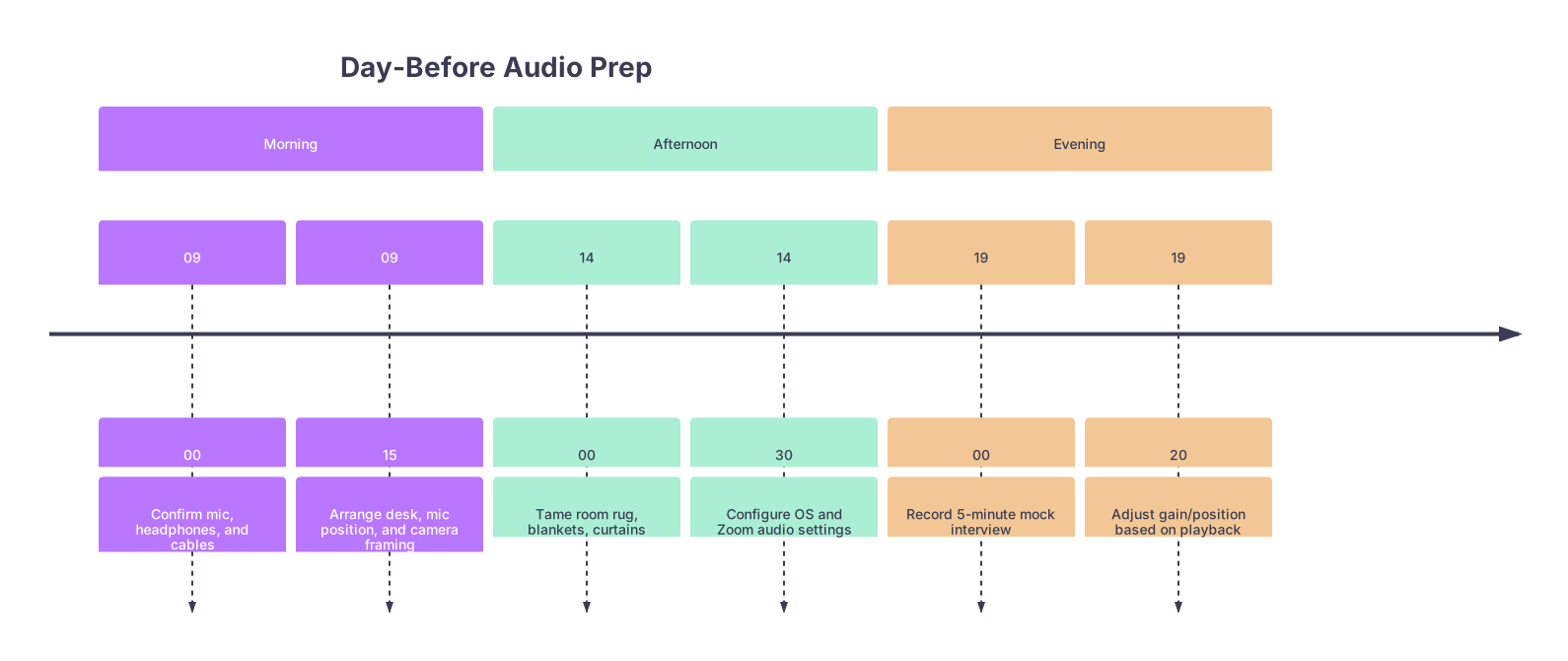
| Period | Event |
|---|---|
| Morning - 09 | 00 |
| Morning - 09 | 15 |
| Afternoon - 14 | 00 |
| Afternoon - 14 | 30 |
| Evening - 19 | 00 |
| Evening - 19 | 20 |
Walk through:
- Plug in your mic. Confirm OS is seeing it and set as default input.
- Open Zoom. Select the mic and headphones you will actually use.
- Tidy the visible area of your room; add soft surfaces where you can.
- Do a 5–10 minute mock interview with a friend, record it in Zoom.
- Listen back on headphones. Adjust mic distance/gain.
- Power‑cycle your router and computer before bed. You want a fresh start in the morning.
11. Subtle Performance Effects: Why Good Audio Makes You Better
Last piece that people underestimate: good audio does not just make you sound better. It changes how you perform.
When you hear your own voice clearly in your headphones, a few things happen:
- You instinctively slow down slightly and articulate more
- You modulate your volume better instead of shouting or mumbling
- You feel more “anchored” in the conversation, less like you are yelling into the void
Interviewers, consciously or not, read that as confidence and composure.
They are also less cognitively loaded. They are not working hard to decipher your words through echo and digital garbage. That frees up processing for what you are actually saying.
You spent years building that content. Why let a $0 laptop mic bottleneck it?
12. Quick Reference: What To Do, What To Ignore
You do not need studio‑grade nonsense. Keep your eye on what actually matters.
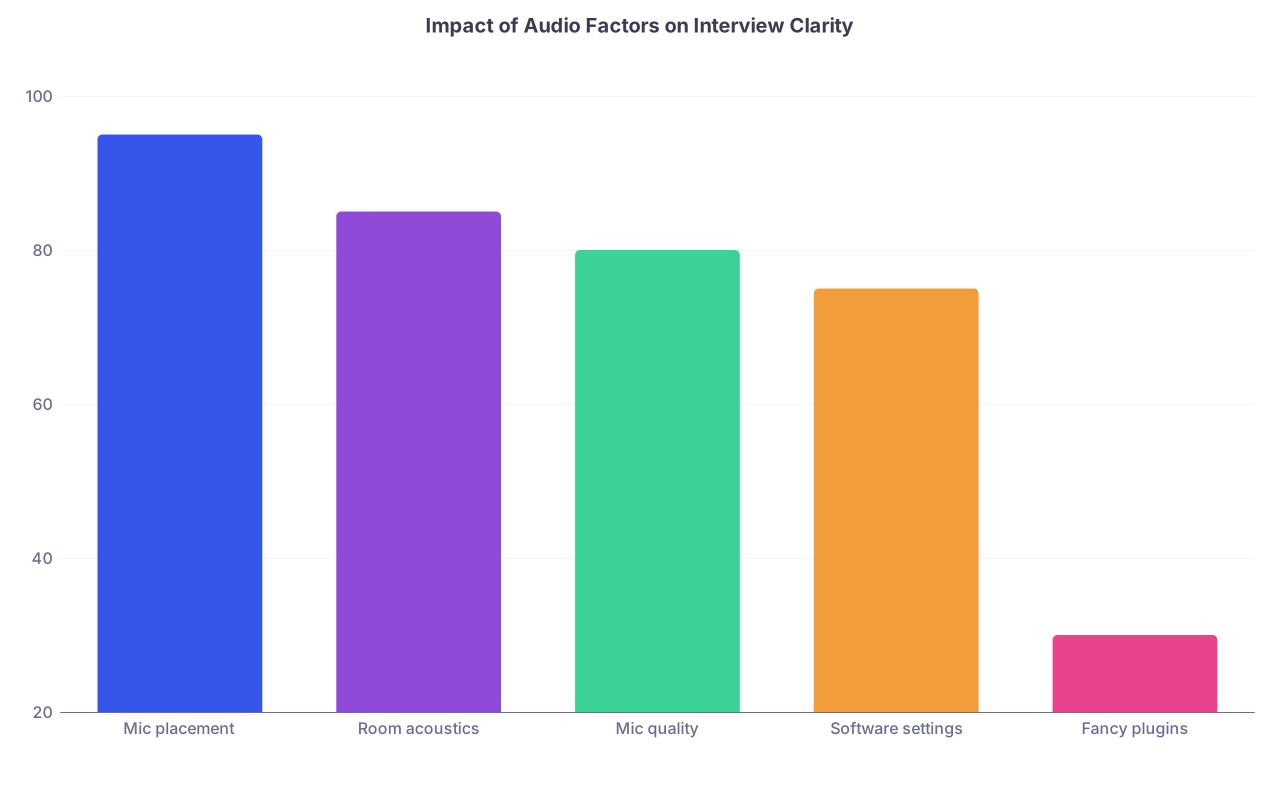
| Category | Value |
|---|---|
| Mic placement | 95 |
| Room acoustics | 85 |
| Mic quality | 80 |
| Software settings | 75 |
| Fancy plugins | 30 |
Interpretation:
- Mic placement: huge effect; costs nothing.
- Room acoustics: huge effect; solved with blankets and rugs.
- Mic quality: helpful, but wasted without the first two.
- Software settings: mostly about disabling “helpful” junk.
- Fancy plugins: marginal, and dangerous if misconfigured.
Focus on the left side of that chart. That is where your effort should go.
You are entering a phase where everything is being scrutinized: your words, your mannerisms, your background, your internet connection. The audio piece is one of the few variables you can completely control with a bit of thought and a modest investment.
You do not need to become “that person” with a full streaming studio in their apartment. You just need to sound like a clear, steady human being who took this seriously.
Get the mic. Place it correctly. Tame the room. Lock in your settings. Run the mock sessions.
With that foundation, when the actual interview questions hit—about difficult patients, burnout, research, or why you failed that exam once—you are not fighting your setup. You are just talking, cleanly, to another physician.
Once you have that level of technical reliability, you are ready to focus on the next layer: refining your answers, your stories, and your presence on camera. That is where the real ranking battles happen. But that is another conversation entirely.