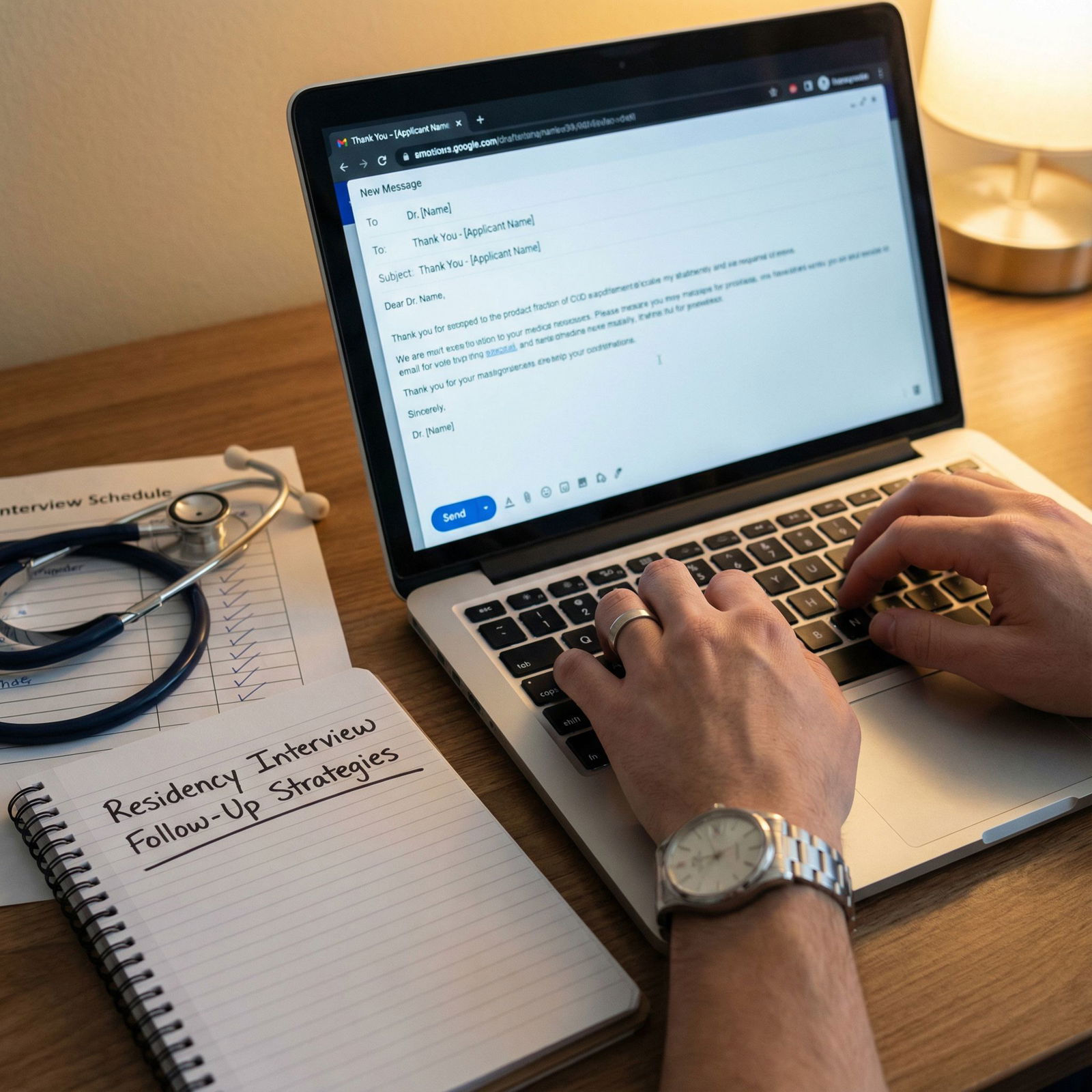
What do you do when you realize your $300 “interview upgrade” mic just made you sound like you’re calling from inside a tin can?
Let me be blunt. The tech is not what gets you ranked high. But the wrong tech choices absolutely can get you ranked lower. I have watched applicants sabotage otherwise solid interviews because they chased “pro” gadgets and hacks instead of stable, simple setups that just work.
This is not about being fancy. This is about not looking chaotic, unprepared, or hard to work with because your tech keeps failing on screen.
Below are the tech “fixes” that backfire most often in residency video interviews—and how to avoid becoming the cautionary story everyone remembers for the wrong reason.
Mistake #1: Overcomplicating Your Setup (Multiple Devices, Multiple Disasters)
The classic move: laptop + external monitor + iPad “for notes” + phone as backup hotspot + external webcam + USB mic + wireless earbuds.
Looks impressive. Fails spectacularly.
I have seen:
- Applicants staring at the wrong camera the entire interview.
- Audio coming from one device and mic from another, creating echo.
- Internet failing because the phone hotspot got a notification and dropped.
- Shared screens that show the wrong monitor with an open personal chat.
The more pieces you add, the more points of failure you create. Programs do not award style points for your dual-monitor command center. They care that you look at them, hear them, and answer without 10-second delays.
Better approach: one primary device, one audio path, one camera, one internet source.
If you are tempted to “optimize” with multiple screens, ask yourself: Does this help my answers, or just my ego?
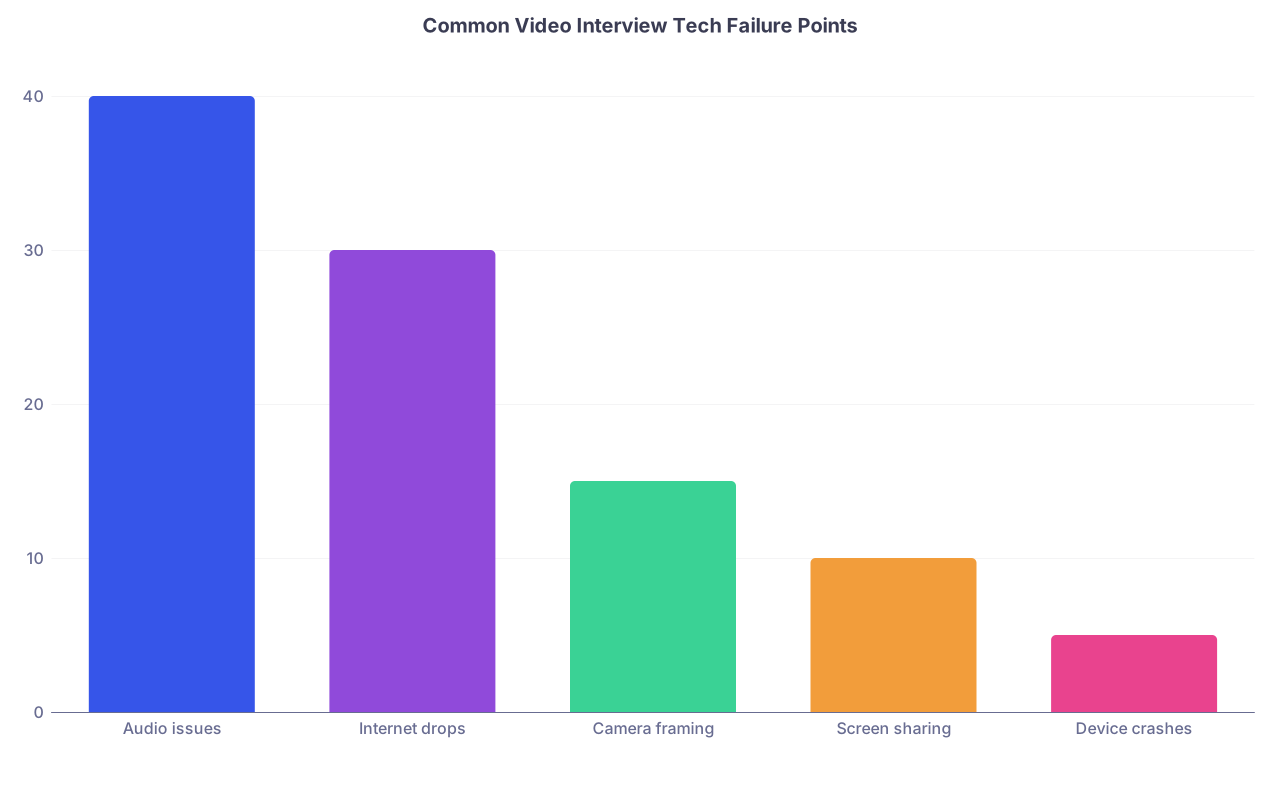
| Category | Value |
|---|---|
| Audio issues | 40 |
| Internet drops | 30 |
| Camera framing | 15 |
| Screen sharing | 10 |
| Device crashes | 5 |
Mistake #2: Chasing Studio Audio and Ending Up Unintelligible
The YouTube trap. You watch creators rave about dynamic mics, XLR interfaces, and “broadcast sound,” and decide your residency interview deserves the same.
Then you:
- Plug in a USB mic with the gain cranked too high → constant clipping.
- Position the mic off to the side → muffled, distant audio.
- Turn on built-in “noise suppression” and aggressive echo cancellation → your voice glitches and cuts out every few words.
- Use Bluetooth earbuds that intermittently disconnect → your answers vanish mid-sentence.
I have literally watched an otherwise strong candidate have to repeat half their answers because “your audio keeps cutting out on our end.” That is not neutral. That is distracting. Some interviewers will subtly mark you down as “difficult communication via video.”
Simple rule: if they cannot hear you clearly, it does not matter how brilliant your answer is.
How to avoid audio self-sabotage
Use this hierarchy:
| Priority | Option |
|---|---|
| Best | Wired USB headset (with mic) |
| Better | Wired 3.5mm earbuds with built-in mic |
| Acceptable | Laptop internal mic in a quiet room |
| Risky | Bluetooth earbuds / AirPods |
| Dangerous | Complex mic + interface you barely tested |
Avoid these traps:
- Turning on every audio “enhancement” in Zoom/Teams. Too much processing = distortion.
- Sitting 3–4 feet from your laptop mic. You will sound far away and hollow.
- Running fans, AC units, or noisy air filters within a meter of your mic. The software will fight the noise and kill your voice.
Fix it instead:
- Choose a wired option if you can.
- Sit 1–2 feet from the mic.
- Do a recorded test call and listen back. If you would not want to listen to that voice for 30 minutes, fix it now.
Mistake #3: Upgrading Your Camera and Downgrading Your Eye Contact
The external webcam “upgrade” is one of the top tech fixes that backfires.
What I see over and over:
- Webcam perched high on an external monitor, but you are staring at your laptop screen → looks like you are always looking down and away.
- Camera mounted way off-center → constant side profile.
- 4K webcam set to wide angle → you appear tiny in the frame with half your room on display (plus that pile of laundry you forgot).
Programs want to see your eyes. Not your crown. Not your jawline. Not you glancing down at a second monitor every 3 seconds.
If your external camera placement breaks natural eye contact, it is not an upgrade. It is a liability.
The safer camera strategy
Honestly? For most people: your laptop camera, properly framed, is enough.
Aim for:
- Camera at eye level → use a stack of books or a laptop stand if needed.
- You centered in frame with head and shoulders visible.
- A small space above your head (not inches of empty ceiling).
- You looking at the camera when you speak, not at yourself.
If you insist on an external webcam, tape a small arrow or sticker near the lens as a visual reminder. And disable “preview self-view” once you are sure framing is correct. Staring at your own face is one of the fastest ways to look distracted and insecure.
Mistake #4: Virtual Backgrounds That Scream “I Am Hiding Something”
The virtual background fix seems harmless: “My room is messy. I’ll just use a professional-looking office background.” Except the software is not magic.
Common failures I have seen during real interviews:
- Part of your hair or shoulders flickering in and out of existence.
- Your hand disappearing every time you gesture.
- Sharp halo around your head, especially with curly hair or headphones.
- Fake background that looks better than any real junior resident office, which subtly feels fake and performative.
This is not just cosmetic. Glitching edges are incredibly distracting. Interviewers will spend valuable brain bandwidth watching your ears disappear instead of listening to your clinical reasoning.
A safer alternative: controlled reality
You do not need a Pinterest-ready home office. You need:
- A neutral wall, door, or corner behind you.
- Minimal clutter. Move piles just out of frame.
- No bed if you can avoid it. If you cannot, position yourself so the bed is not center-stage.
- Consistent lighting so the camera does not struggle.
If you absolutely must use a virtual background, choose a subtle one and wear solid, non-reflective, non-green clothing. Then test your background while moving, gesturing, and turning your head. If you see any flicker, abandon it.
Mistake #5: “Fixing” Bad Lighting with Harsh, Cheap Gadgets
Lighting matters. But bad lighting “fixes” are just as damaging as bad lighting itself.
Red flags I see constantly:
- Blasting your face with a harsh ring light → you look washed out, shiny, or sick.
- Overhead single light creating deep eye shadows → “raccoon eyes” and a tired look.
- Colored LED lights in the background because someone said it looks “modern.” This is not a Twitch stream. It is a residency interview.
- Sitting with a bright window behind you → your face becomes a silhouette.
This all reads subconsciously as: “Does not quite get what’s appropriate here.”
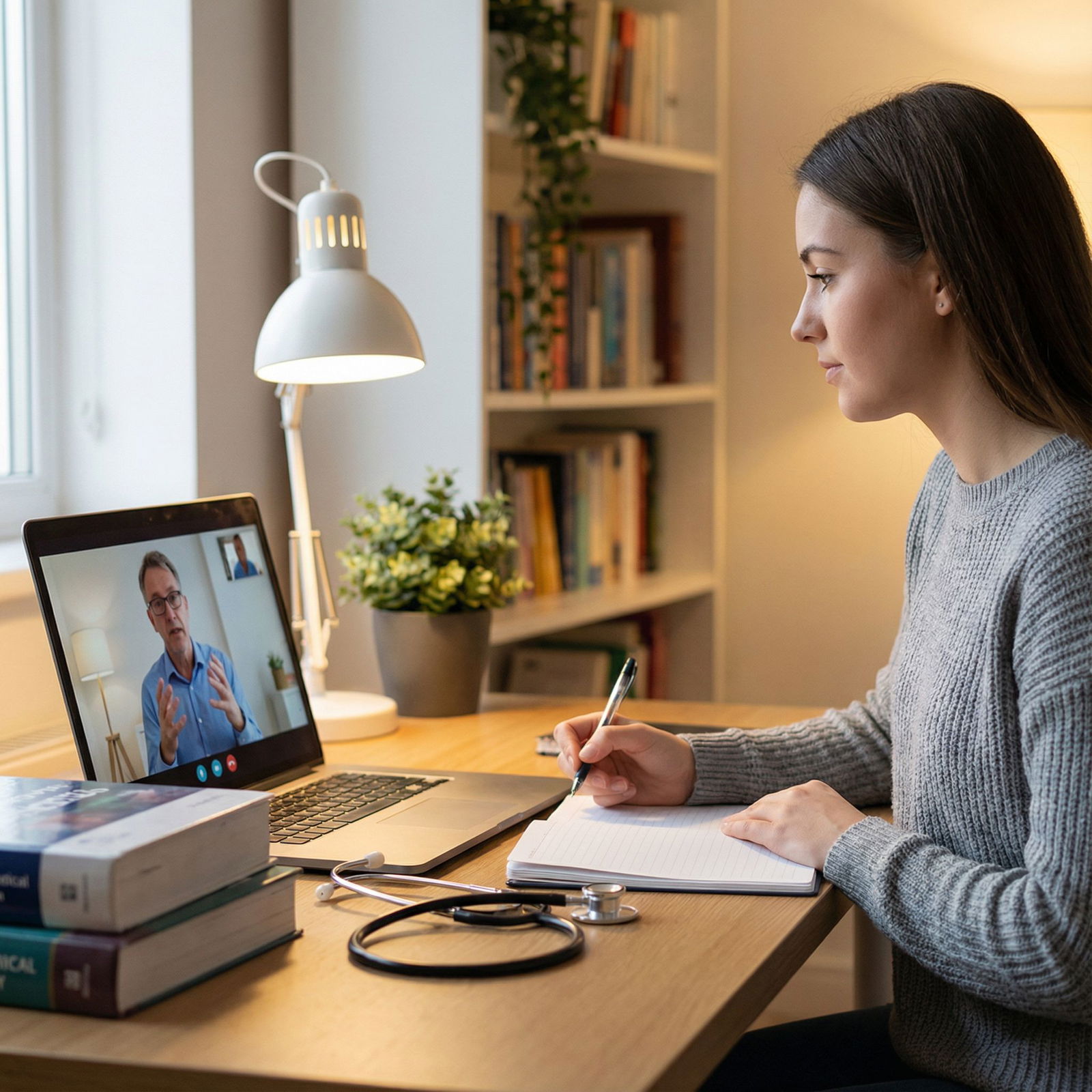
The simple lighting win
Do this before you buy anything:
- Sit facing a window during daylight, not with it behind you.
- Turn off harsh overhead lights if they cast strong shadows.
- Use a simple desk lamp slightly to the side, pointed at the wall in front of you (for bounce light), not straight into your face.
Only if that still looks dim on camera should you consider a small, adjustable light. And even then, set it:
- Slightly above eye level, angled down.
- At a low to moderate brightness.
- With neutral/“daylight” color temperature—not orange, not blue.
If you can see every pore and shine spot, it is too much.
Mistake #6: Relying on “Smart” Internet Fixes That Fail Under Pressure
Everyone worries about their internet. That is justified. But the fixes people grab in panic are often worse.
Patterns I see:
- Using a phone hotspot as your primary connection while also having notifications, calls, and background apps enabled. Incoming call → connection drops → entire interview freezes.
- Running interviews over public Wi-Fi in a coffee shop or shared lounge. Random background noise, unpredictable bandwidth, and absolutely zero privacy.
- Pairing a VPN with a marginal connection → latency skyrockets and your answers lag several seconds behind the conversation.
- Starting massive downloads or backups (OS update, cloud sync) right before or during the interview.
Interviewers will remember the painful lag and constant “Sorry, go ahead” more than your nuanced answer about QI projects.
What actually stabilizes your connection
The non-glamorous but reliable choices:
- Use wired ethernet if at all possible. One $15 cable beats every other “hack.”
- If you must use Wi-Fi, sit close to the router. One wall away if you can.
- Turn off Wi-Fi on other devices in your home for the interview block.
If you want a true backup, prepare it, do not improvise it:
- Have your phone hotspot ready, but turn off calls/notifications (e.g., airplane mode + Wi-Fi + hotspot where possible, or at least Do Not Disturb).
- Test a practice call on the backup connection on a separate day.
And warn programs in advance only if you already know your home internet is very unstable. Many will accommodate a different time slot or let you book a private space at your institution.
Mistake #7: Overusing Software “Enhancements” That Distort You
Video platforms are full of settings that sound helpful: “Touch up my appearance,” “auto-adjust,” “studio effects,” background blur, audio equalization.
Used lightly, some are fine. Overused, they make you look and sound unnatural.
I have seen:
- Skin-smoothing filters that make applicants look blurred, plastic, and frankly off-putting.
- Too-strong background blur that breaks around hair and shoulders every time you move.
- Auto-exposure that pulses brighter and darker mid-answer.
- Over-aggressive noise suppression that cuts out when you speak softly or emphasize certain consonants.
Think like an attending: anything that makes your signal less clear is a problem.
Use only what you have personally tested
Here is a reasonable baseline:
- Background blur: off, unless your real background is truly unfixable. If on, keep it subtle and test while moving.
- Appearance filter: off. This is a professional evaluation, not product marketing.
- Auto-exposure/white balance: usually fine, but test under your exact interview lighting and clothing.
- Noise suppression: set to standard, not “high,” unless you are fighting a constant loud source (and if so, you chose the wrong location).
Record yourself on the actual platform (Zoom, Thalamus, Teams, Webex—whatever they use) and watch the replay. Do not assume defaults are safe.
Mistake #8: “Productivity” Tools That Turn You Into a Robot
Some of you are considering on-screen timers, live transcript tools, toggleable answer outlines, or worse—AI “assistant” overlays to help you answer.
I have spot-checked interviews where:
- Applicants kept glancing sideways at an unseen screen, clearly reading.
- There was a visible lag before each answer while they looked at notes.
- Their answers sounded overly polished, generic, and suspiciously similar between questions.
Residency faculty are not naive. They can tell when you are reading verbatim. They can also tell when your attention is on something else.
The more tools you add to “optimize” your speaking, the more you risk turning a live interaction into a poorly acted script.
Reality check: programs are evaluating your ability to think and speak in real time, under pressure. Tech that hides that or replaces it is not a fix. It is evidence you may struggle in real-world, unscripted clinical environments.
Safer use of notes and tools
You can have:
- A few bullet points printed and placed just below the camera for rare reference.
- A copy of your ERAS application on a side monitor for factual details (dates, titles) if you must.
What you should not have:
- Full paragraphs written out.
- Scripts for “Tell me about yourself,” “Why this program,” or “Greatest weakness.”
- Any tool that displays dynamic text or suggestions while you speak.
If you feel “I cannot do this without heavy tech prompting,” your problem is not tech. It is preparation.
Mistake #9: Last-Minute “Upgrades” Before Interview Week
This one burns people every single year.
Two days before your big interview stretch, you:
- Update your operating system.
- Install a brand-new webcam driver.
- Switch from Zoom to a different platform and start tweaking settings.
- Rearrange your entire desk for a “better angle” and discover on the morning of that your new position wrecks your Wi-Fi.
I have seen applicants miss part or all of an interview because their laptop decided to finish a major OS update at exactly their call time. Or their new, untested webcam remained “in use by another app” and could not join the session.
Programs will sometimes reschedule. Sometimes. But needing a reschedule for preventable tech chaos is not the impression you want to give.
Treat your setup like a clinical protocol
Once you find a setup that:
- Produces clear audio
- Shows a stable, decently lit image
- Keeps a reliable connection
Lock it in.
During interview season:
- Disable automatic OS and driver updates. Run them on off-weeks only, then re-test.
- Do not change your primary device unless your current one actually dies.
- Do not buy and plug in 3 new accessories the night before.
Stability beats novelty.
Putting It All Together: A Tech Setup That Does Not Betray You
Here is what a non-self-sabotaging residency video interview setup looks like.

| Step | Description |
|---|---|
| Step 1 | Choose primary device |
| Step 2 | Check camera framing |
| Step 3 | Set simple lighting |
| Step 4 | Select wired audio option |
| Step 5 | Test internet connection |
| Step 6 | Disable unnecessary enhancements |
| Step 7 | Full mock interview recording |
| Step 8 | Lock setup - no changes before interview |
You will notice what it is not:
- It is not about the “best” camera.
- It is not about studio-grade audio.
- It is not about using every feature your platform offers.
It is about not making your tech the story.
If your interviewers remember your glitchy audio, frozen screen, or disappearing shoulders more than your cases, that is a problem.
FAQ (Exactly 4 Questions)
1. Do I need an external webcam for residency video interviews?
No. Most modern laptop cameras are perfectly adequate if you sit at a reasonable distance, raise the laptop to eye level, and ensure decent lighting. An external webcam only helps if you can mount it at proper eye level and have actually tested it thoroughly. For many applicants, an external webcam becomes a distraction and an extra failure point, not a meaningful upgrade.
2. Are AirPods or other Bluetooth earbuds acceptable for audio?
They are acceptable but risky. Bluetooth can drop, desync, or introduce lag unpredictably, especially in busy wireless environments (think apartment buildings). If you use them, fully charge them, pair them in advance, and have a wired backup ready on your desk. If you have any history of Bluetooth instability with your device, do not gamble on them for interview day.
3. Is it unprofessional to show a bedroom in the background?
Not automatically, especially for students and residents. What looks unprofessional is a messy, chaotic background or anything that suggests you did not take the time to create a clean, intentional space. A tidy bedroom corner, neutral wall, or desk area is fine. Remove laundry piles, food containers, and anything overly personal or distracting. Framing and cleanliness matter more than the room label.
4. Should I tell programs in advance if I have unreliable internet?
If your connection has a history of frequent drops or you live in housing with truly unstable service, yes—email coordinators early, not the night before. Ask if they can accommodate a test call or let you use a hospital or med school office. Programs will usually be more understanding of known, proactively managed limitations than preventable day-of chaos caused by untested “fixes.”
Open your calendar and pick one interview date. Then block 45 minutes this week to do a full mock call on the actual platform, with your exact device, audio, lighting, and background—and record it. Watch it back and write down every distraction you notice. Fix those. Not by buying more gadgets, but by simplifying until nothing gets between you and your answers.