
Using Screen Positioning and Window Layout to Improve Presence
You are six minutes into a residency video interview.
The PD just asked you a thoughtful question about how you handle diagnostic uncertainty. You start answering. You glance down at your notes on the other monitor. Your eyes shift. Your face angle changes. The PD suddenly looks a little less engaged.
You did not change your content.
Your presence changed because your screen, camera, and windows are working against you.
Let me walk through exactly how to fix that.
Step 1: Get the Physical Geometry Right
Before you obsess over what’s on your screen, you need to fix where that screen and camera are in space. Most applicants get this backwards and then wonder why they look disengaged or “off.”
Camera height and distance: the non‑negotiables
You want to approximate a natural, across-the-table conversation. That means:
- Camera at eye level or just slightly above
- Your eyes roughly in the top third of the video frame
- Arm’s length distance from the camera (roughly 50–70 cm / 20–28 inches)
Laptop on the desk? That creates the “up the nostrils, down at the screen” angle. Unflattering and subtly dominant. It makes you look like you are looming over or talking down to the interviewer.
Raise the laptop:
- Stack 2–3 textbooks, or
- Use a cheap laptop stand, or
- Use an external monitor as your main screen and put the laptop (camera) on a box behind it
Then, step back slightly so your head and upper torso are visible. Programs want to see your facial expressions and some body language, not just a floating head.
Screen vs camera alignment
Here is the core rule: the window with your interviewer’s face should be as close to the camera lens as physically possible.
Why?
Because presence on video is 80% about where your eyes are looking.
If your interviewer is on a big monitor far off to the side, you will spend most of the time “talking” to that monitor instead of the camera. To them, it feels like you are staring at something off-screen.
For a single-monitor setup:
- Put the video window at the top-center of your screen, directly under the camera lens.
- Shrink the window so that the interviewer’s face is close to the lens.
For dual monitors:
- Use the monitor with the camera on top as your interview monitor.
- The second monitor is for reference only, and you should train yourself to look at it as rarely and briefly as possible.
If you are using a USB webcam:
- Clip or mount it above the primary monitor you want to look at.
- If your laptop is off to the side but the webcam is on the main monitor, resist the urge to look at the laptop screen.
The goal is simple: your eyes and the virtual person you are speaking to should live in the same physical space.
Step 2: Build a Window Layout That Serves Eye Contact
Now that the physical setup is sane, you can engineer your windows to support presence rather than sabotage it.
Think of your screen like an OR table. There is a primary field, and everything else is an instrument you only grab when needed. You do not leave tools piled on top of the surgical site. Same idea.
The “presence first” layout (single monitor)
Single screen? Here is the priority order:
- Primary video window (Zoom/Teams/Webex/etc.)
- Self‑view (your own video)
- Reference materials (notes, CV, the program’s website)
You want a vertical stack that keeps your eyes near the camera:
- Top center: interviewer’s video window
- Just below that: your self‑view, small
- Bottom or side: reference window(s), mostly hidden or minimized
Do not use full-screen video if it pushes the interviewer’s face far from the camera lens (some platforms center video weirdly). It is often better to have a not-quite-full-screen window manually positioned at the top.
The “control and reference” layout (dual monitors)
If you have two monitors, you have more flexibility. That can help or hurt.
Here is the layout I recommend and have seen work best on real interviews:
Monitor 1 (with camera): “Presence screen”
- Interviewer’s face: top center, medium-sized window
- Self‑view: directly below or in one corner, small
- Chat box (if used): narrow, docked to one side
- Nothing else
This is the monitor you stare at 95% of the time.
Monitor 2: “Control/reference screen”
- One small notes window
- One window with your CV / ERAS PDF
- Browser window with program notes (if you must)
- Timekeeping tool (small digital clock, timer)
You are not supposed to be reading off screen like a teleprompter. This second monitor is for quick glances, not scripts.
If you catch yourself reading sentences out loud from that monitor, your layout is wrong, or your notes are wrong (I will talk about how to design notes that do not kill your presence later).
Step 3: Treat Your Self‑View as a Tool, Not a Distraction
Most people either obsess over their own image or turn it off completely. Both extremes hurt your presence.
Self‑view is like a mirror in clinic. Useful to quickly check your white coat and expression, but you do not stand there staring at yourself mid-patient encounter.
You should:
- Keep self‑view on but small
- Place it close to the interviewer’s face, not in a far corner
- Use it consciously between questions to check posture, lighting, and eye line
Turn self‑view off only after you have done several practice sessions and have strong control over your nonverbal habits. For most applicants, the awareness is helpful, as long as the window is tiny and near the camera.
Step 4: Notes, Prompts, and the “Eye Drop” Problem
Let me be blunt: heavy note use on-screen kills presence faster than almost anything, because your pupils keep darting like you are checking the scoreboard.
Applicants think the problem is “having notes.” It is not. The problem is how those notes are structured and where they live on your screen.
What notes do to your eye line
Here is what happens in reality:
- Bullet list at the bottom of the screen → your eyes drop down sharply each time you check them
- Notes off to the left/right monitor → your whole head turns, and the interviewer feels sidelined
- Huge, dense paragraphs → long reading intervals, totally broken connection
You need a setup and style that allows 1-second glances that barely move your pupils away from the camera, then back.
Smart note design
Use minimal, visual triggers rather than sentences. For example, instead of:
“When asked about my weakness, I should talk about my struggle with time management in M2 year and how I improved it by using a calendar, blocking time, and seeking help…”
Use:
Weakness → time mgmt (M2) → calendar + blocks + feedback
Or even more compact:
Weakness: time mgmt → calendar / blocks / feedback
Your brain knows the story. You only need the trigger, not the whole paragraph.
Keep note windows:
- Narrow, tall, and near the top center of your monitor, just under or beside the video window
- In large font (16–20 pt) so you do not lean in or squint
Think of your notes as mini road signs, not cue cards.
Step 5: Specific Layouts for Common Interview Scenarios
Let’s get concrete. Different parts of the day require slightly different layouts.
One-on-one faculty interview
Goal: maximal connection and natural conversation.
Use the presence-first layout:
- Main video window top-center
- Self‑view small, adjacent
- Notes narrow, on same screen, just under the video, in large font
If you find yourself glancing at notes too much, close them for 10–15 minutes. You will quickly learn that you know far more than you think.
Panel interview (multiple faces on screen)
Panel interviews make eye contact harder because your eyes naturally bounce around.
Structure it:
- Use “Speaker view” (Zoom) or equivalent, if allowed, so the current speaker is larger and centrally located.
- Place that window directly under the camera.
- If you want to see everyone, reduce the gallery but keep it at the top of the screen. Do not let the active speaker move to the bottom.
Check the platform settings before interview day using a friend, so you know where faces will appear.
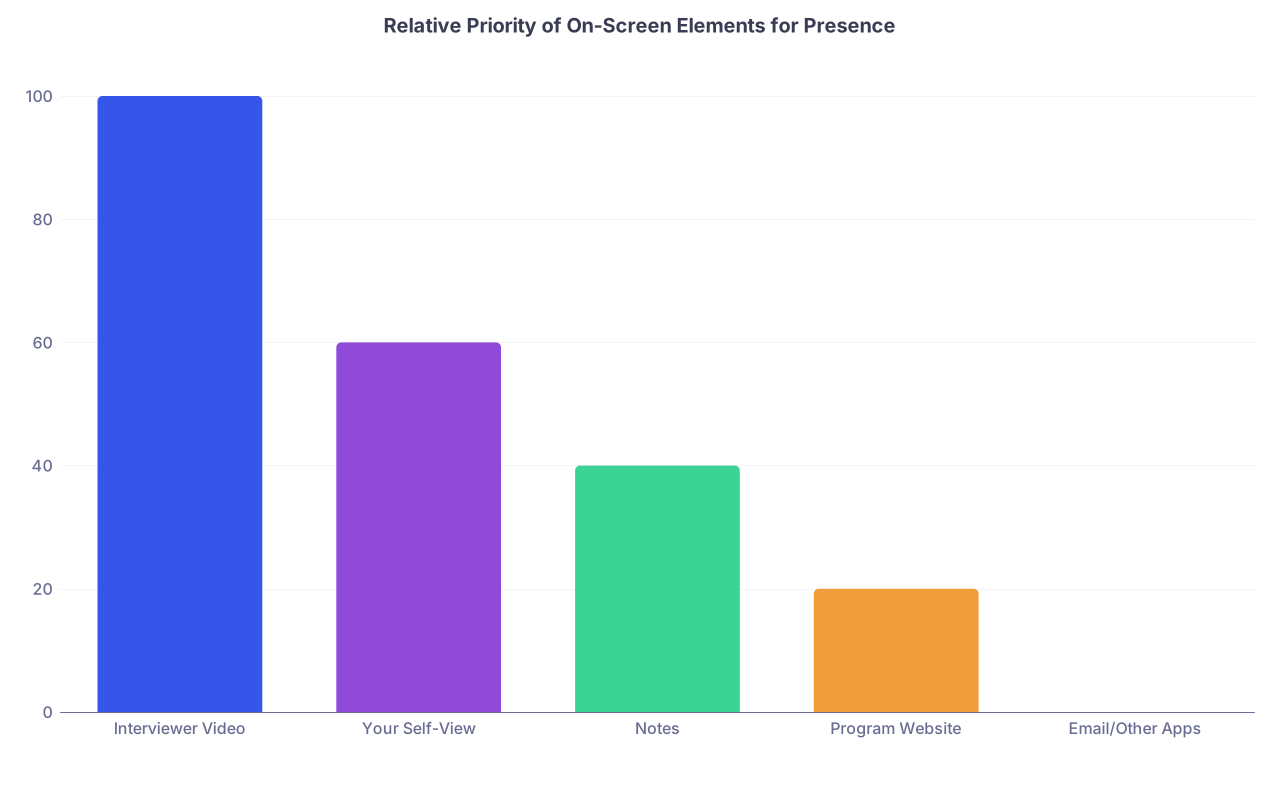
| Category | Value |
|---|---|
| Interviewer Video | 100 |
| Your Self-View | 60 |
| Notes | 40 |
| Program Website | 20 |
| Email/Other Apps | 0 |
Breakout rooms and resident socials
This is where many applicants let their layout collapse and suddenly look distracted.
You need a “social mode”:
- Keep the video window relatively large, still near the camera.
- Close all detailed notes. For a social, you do not need structured answers.
- Maybe keep a very small sticky note with 3–4 resident questions on the edge of your screen, but that is it.
If you keep flipping to a second monitor during socials, residents notice. It looks like you are checking email.
Step 6: Lighting and Background as Part of Screen Positioning
Presence is not just eye contact. It is how clearly your face is seen and how non-distracting your environment is. This ties directly into where the screen and camera sit in your physical space.
Light direction relative to screen
The worst layout: bright window behind you, with your screen as the only front light. You become a silhouette, and your monitor glow makes you look ghostly.
You want:
- Primary light in front of you, slightly above eye level, behind or just above the camera
- Very little direct light behind you
Practical setups I’ve seen work:
- Desk facing a window (natural light) + sheer curtain to soften
- Cheap ring light directly behind the laptop, brightness adjusted down
- Desk lamp with a white shade off to one side in front of you
Do a test: open your video platform and look only at your eyes. They should be clearly visible with no harsh shadow from your brow.
Background and your framing
Your background should support your presence by being unremarkable. Not dead, not chaotic.
Basics:
- Neutral wall, bookcase, or simple art is fine.
- Avoid busy kitchens, beds, or visible clutter.
- If you use a virtual background, pick a simple, professional one and ensure your lighting is good enough that your outline does not flicker.
Tie this back to positioning:
- Once you raise your laptop/monitor, re-check what’s behind your head in the frame.
- Move the camera or chair so you are centered with some space above your head (but not too much “headroom”).
Presence comes from being visually stable and easy to look at.
Step 7: Audio Ties Into Layout More Than You Think
You care about screens and windows, but audio either backs that up or ruins it.
Microphone placement and echo
If your laptop is up on a stack of books, the built-in mic is now farther from you and maybe slightly above your mouth. That could be fine, or it might increase room echo.
Options:
- Use a wired headset (less polished visually but usually excellent clarity).
- Use a simple USB mic on your desk, 6–12 inches away, just out of frame.
- If you must use the laptop mic, test it in the raised position with a friend. Not five minutes before the interview.
Avoid:
- Typing loudly on the same desk as your mic.
- Constantly clicking between windows. Some mics pick up every little sound.
Your layout should minimize your need to fiddle with the keyboard during the conversation.
Step 8: Practice With the Actual Layout, Not in “Study Mode”
Most applicants only test their video with random settings while they are also writing notes or studying. Then they switch everything five minutes before the real interview and wonder why it feels awkward.
You need at least 2–3 full mock sessions in your final layout. Non-negotiable.
How to run a proper layout rehearsal
- Set up your camera, screen positioning, light, and background as if it is interview day.
- Use the same platform (Zoom/Teams/etc.) with a friend acting as the interviewer.
- Keep your windows arranged exactly as you plan: notes, video, etc.
- Record the session.
- Watch the recording with sound off and focus on:
- How often your eyes move away from the camera
- Whether your facial expressions are visible and natural
- Any telltale signs of screen-reading (eye tracking left to right across the screen, slow downward glances)
You will spot specific triggers:
- A particular notes window that is placed too low.
- A second monitor that keeps stealing your eyes.
- A self-view that is too big, pulling your gaze away.
Then you adjust the layout, not your personality.

| Step | Description |
|---|---|
| Step 1 | Plan Interview Space |
| Step 2 | Position Camera at Eye Level |
| Step 3 | Place Interviewer Window Near Camera |
| Step 4 | Arrange Notes as Small Triggers |
| Step 5 | Optimize Lighting and Background |
| Step 6 | Audio Check with Final Layout |
| Step 7 | Full Mock Interview Recording |
| Step 8 | Adjust Layout Based on Eye Contact |
Step 9: Platform-Specific Tweaks That Affect Layout
Different video platforms behave differently with windows and views. You cannot assume they all act like Zoom.
Zoom
- “Speaker View” + move the Zoom window to top center.
- You can drag the small self‑view around. Put it just under or beside the camera, not far down.
- Use “Hide Self View” only if you have practiced enough to not need the reference.
Microsoft Teams
- By default, puts content and people side by side. If there is shared content, your interviewer may be in a smaller section.
- Turn off unnecessary side panels (chat, participants) to keep the main face nearer the camera.
- Pin the interviewer’s video so it does not jump around.
Webex / Others
The principle is the same: pin the main speaker and drag the window so that their face lives just under the camera. If the software allows floating windows, use that.
Do not discover these layout quirks five minutes into your first interview. Run a test.
Step 10: Handling Screen Sharing Without Losing Presence
Some programs will ask you to share a presentation or view a shared document. That changes your layout constraints.
When you are sharing:
- Your own content often dominates the screen; the interviewer’s face gets small or moves to a corner.
- You still need to occasionally look at the camera, not just at your slides.
Layout strategy:
- Arrange your slides so the most important content is in the upper half of the slide. This keeps your eyes nearer the camera as you reference it.
- If your platform shows small videos along the top, keep the window maximized so those faces are near the camera.
- When you make a key point, intentionally look at the camera for 1–2 sentences.
Presence during screen share is about rhythm: glance at slides, speak to camera, repeat.
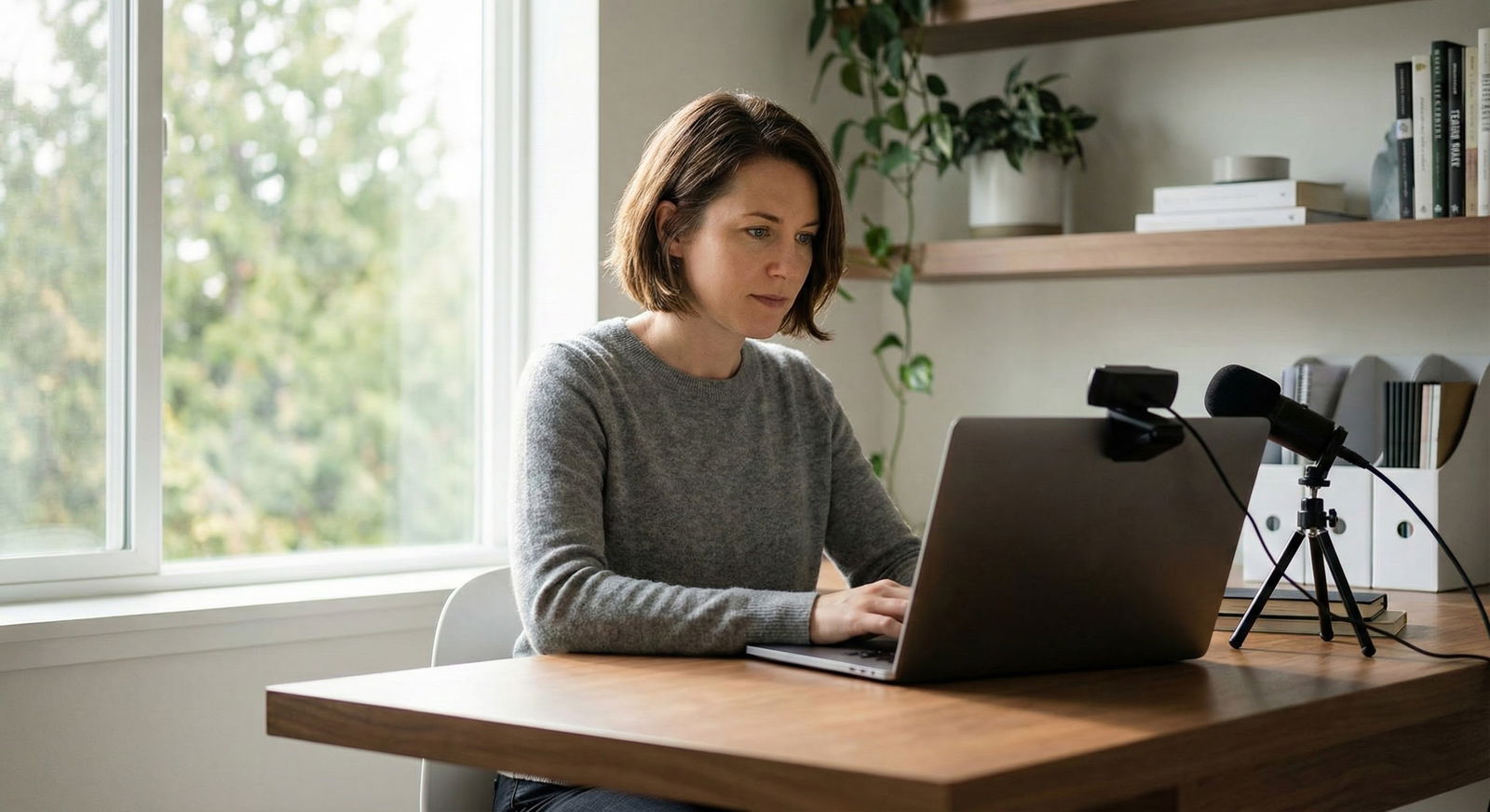
Step 11: Interpreting and Using the Interviewer’s Body Language
Window layout also determines how well you see them.
If your interviewer’s video is too small or off to the side, you lose micro-cues:
- Slight leaning in → they are interested
- Looking away repeatedly → maybe you are rambling
- Smiling or nodding → you can tighten your answer and stop
You need their face:
- Large enough to read expressions
- Close enough to the camera that your own gaze does not shift way off-center when you look at them
Do not cover or shrink their window to make room for more notes. That tradeoff is rarely worth it.
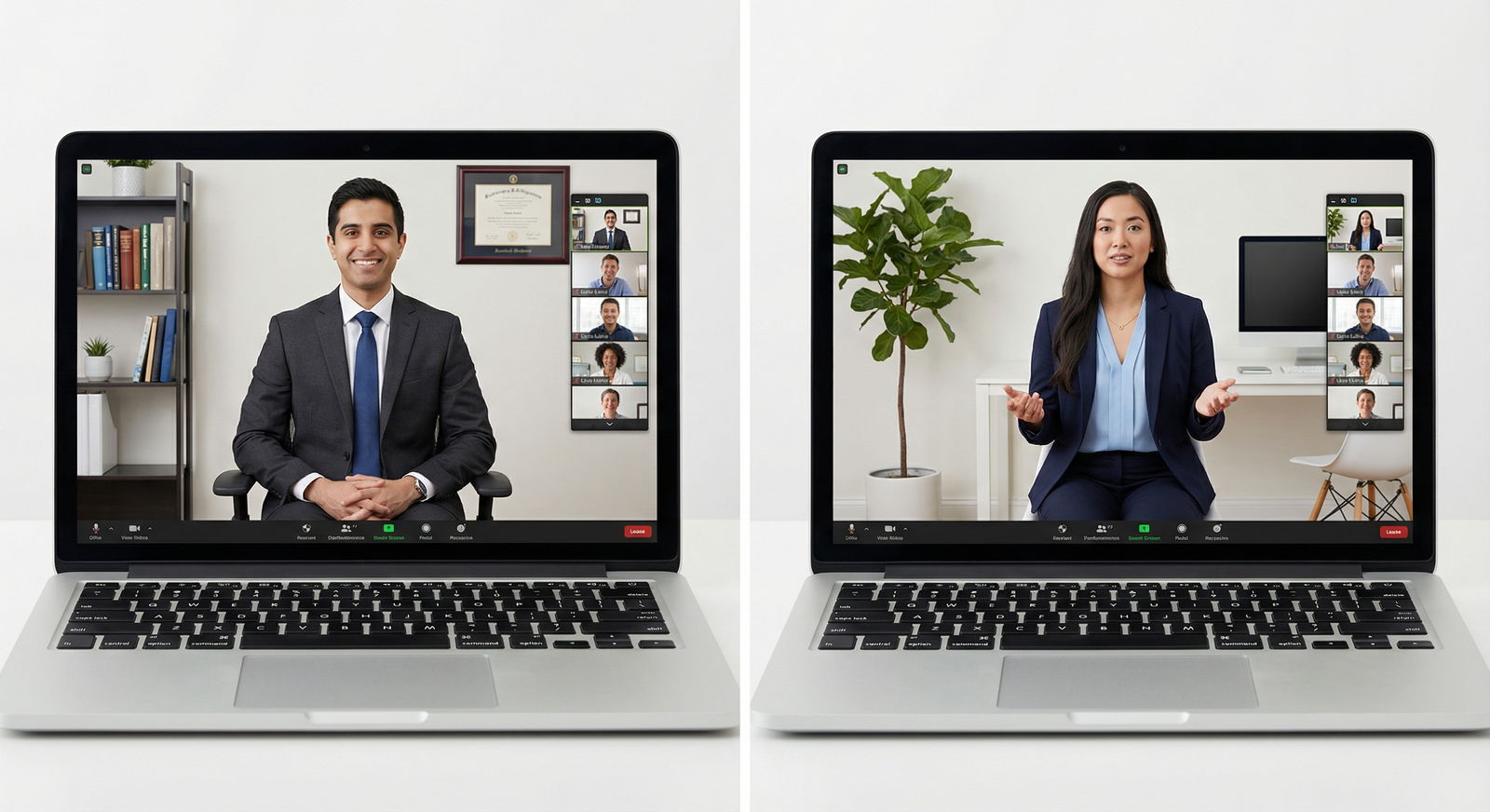
Step 12: Common Mistakes I See Over and Over
Let me be explicit about the layout and positioning mistakes that consistently make strong applicants look less compelling on video.
- Laptop flat on a desk. Up-the-nose camera angle, looking down, hunched posture.
- Interviewer on second monitor to the side. Applicant appears to talk to a phantom off-screen.
- Notes in dense paragraphs at the bottom of the screen. Constant, obvious downward eye movements.
- Self‑view huge and off to one corner. Applicant keeps glancing at themselves; comes off as distracted or self-conscious.
- Multiple unnecessary windows open. Email, messaging apps, browsers; micro distractions that show up as delayed or unfocused responses.
- Backlit by a window. Face in shadow, eyes unclear, micro-expressions lost.
- No practice in final setup. Applicant discovers layout issues during the actual interview, fumbles windows, apologizes, loses momentum.
All of these are solvable 24–48 hours before interview day. If you ignore them, you are just choosing to play on hard mode.
| Aspect | Optimal Practice | Poor Practice |
|---|---|---|
| Camera Position | Eye level, centered, arm’s length | Below face on desk, angled up |
| Interviewer Window | Top-center, close to camera | On side monitor or bottom of screen |
| Notes Layout | Short triggers, near top, large font | Long paragraphs, bottom of screen |
| Self-View | Small, near interviewer window | Large, far corner or turned off without prep |
| Lighting Direction | Front/side front, soft, above eye level | Strong backlight or only monitor glow |
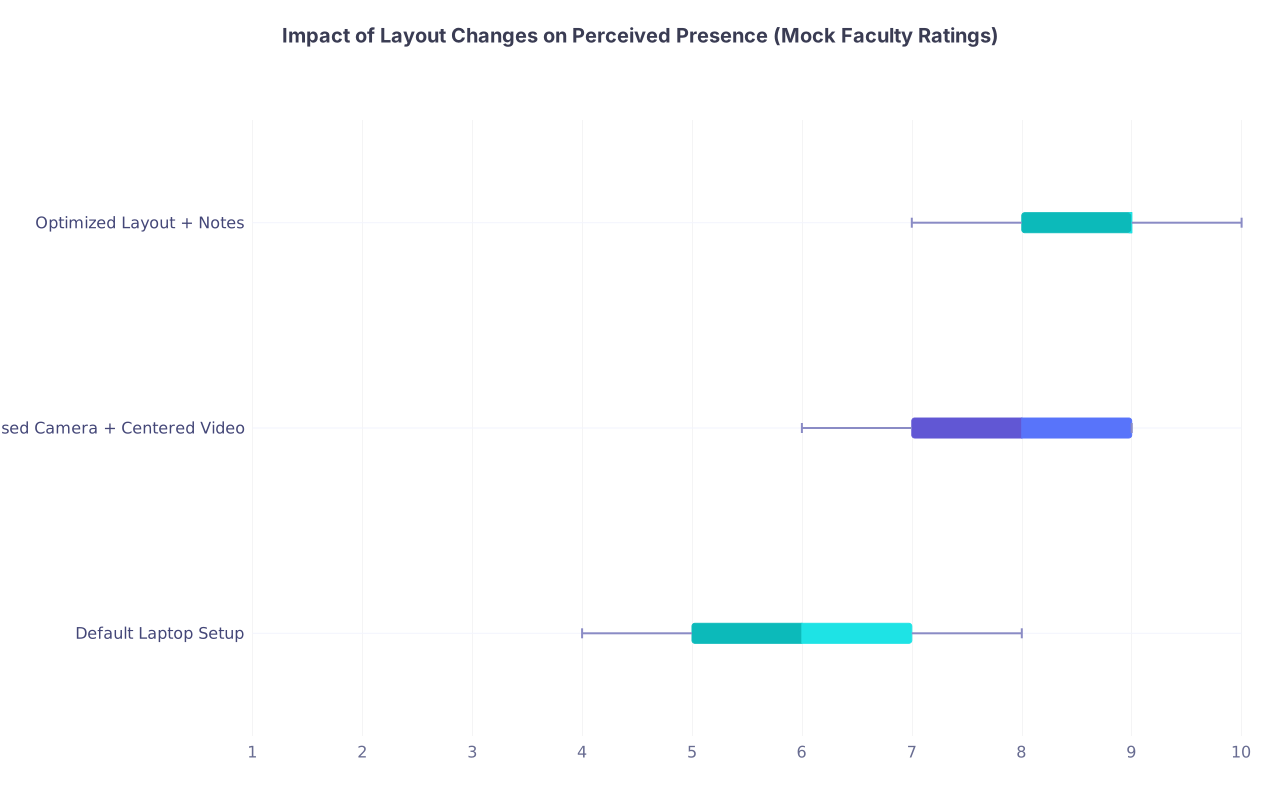
| Category | Min | Q1 | Median | Q3 | Max |
|---|---|---|---|---|---|
| Default Laptop Setup | 4 | 5 | 6 | 7 | 8 |
| Raised Camera + Centered Video | 6 | 7 | 8 | 9 | 9 |
| Optimized Layout + Notes | 7 | 8 | 9 | 9 | 10 |
(Illustrative concept: as layout improves, faculty tend to rate presence higher.)
Quick Recap: What Actually Matters
You do not need a studio. You need a layout that lets the faculty feel like you are sitting across the table, fully there. That comes from a few specific choices:
Align your eyes, camera, and interviewer window. Raise the camera to eye level and keep their face as close to the lens as possible. That single change improves presence more than any fancy microphone.
Design your windows around presence, not convenience. Main video on the “presence screen,” small self‑view near it, minimal, trigger-based notes positioned high on the screen. Second monitor only for brief reference.
Test the exact setup with full mock interviews. Record, watch your own eye movements and posture, and adjust. Do this before interview week, not the night before your biggest program.
Get those three right, and your screen and window layout will stop working against you. They will quietly support what actually matters: how you think, how you communicate, and how much faculty want you on their team.